1. Introduction
This document provides comprehensive instructions for the installation, operation, and maintenance of your Crucial 96GB DDR5 RAM Laptop Memory Kit (CT2K48G56C46S5). This memory kit is designed to enhance the performance of compatible laptops by providing increased speed and capacity for demanding applications.
2. Product Overview
The Crucial 96GB DDR5 RAM Laptop Memory Kit consists of two 48GB DDR5 SODIMM modules, offering a total of 96GB capacity. These modules operate at speeds up to 5600MHz, with backward compatibility for 5200MHz and 4800MHz, ensuring improved multitasking and system responsiveness. Designed for compatibility with 12th and 13th Gen Intel Core processors and AMD Ryzen 7000 Series CPUs, this memory supports Intel XMP 3.0 and AMD EXPO for optimized performance. Each module features on-die ECC for enhanced stability and a Power Management Integrated Circuit (PMIC) for efficient power delivery.
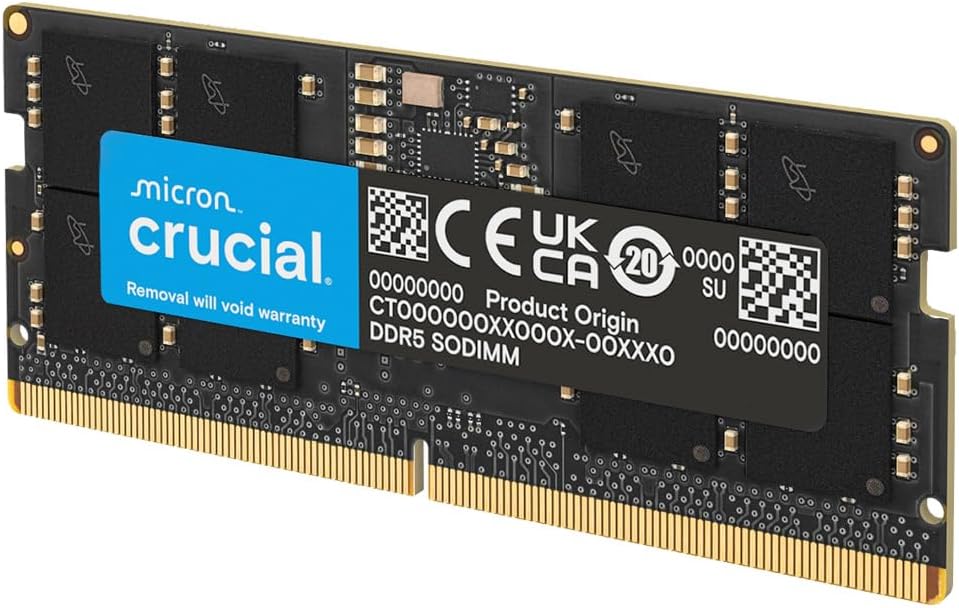
Image: A single Crucial DDR5 SODIMM module, highlighting its compact form factor.

Image: Two Crucial DDR5 SODIMM modules, emphasizing reliable performance for DDR5 systems.

Image: A person using a laptop, illustrating the powerful upgrades for laptops provided by Crucial RAM.
3. Safety Information
Always observe the following safety precautions when handling computer components:
- Disconnect the laptop from all power sources and remove the battery before installation.
- Discharge static electricity by touching a grounded metal object (e.g., an unpainted metal surface on the laptop chassis) before handling memory modules.
- Handle memory modules by their edges to avoid touching the gold contacts or integrated circuits.
- Refer to your laptop's manufacturer manual for specific safety guidelines and disassembly instructions.
4. Compatibility
This Crucial DDR5 SODIMM kit is compatible with laptops featuring 12th and 13th Gen Intel Core processors and AMD Ryzen 7000 Series CPUs that support DDR5 memory. Always verify your laptop's memory specifications and maximum supported capacity before installation.
5. Installation Guide
Follow these steps to install your new Crucial DDR5 RAM modules:
- Preparation: Gather necessary tools (e.g., small Phillips head screwdriver, plastic pry tool). Ensure your workspace is clean and well-lit.
- Power Down: Shut down your laptop completely, disconnect the power adapter, and remove the battery (if removable).
- Access Memory Slots: Carefully open the laptop's bottom panel. Refer to your laptop's service manual for exact instructions on how to access the memory slots.
- Remove Existing Modules (if applicable): If replacing existing RAM, gently push apart the small metal clips on either side of the SODIMM module. The module will pop up at an angle. Carefully slide it out of the slot.
- Install New Modules: Align the notch on the new Crucial DDR5 SODIMM module with the key in the memory slot. Slide the module into the slot at a 45-degree angle. Once fully seated, push down firmly on the module until the metal clips snap into place, securing it horizontally.
- Reassemble: Replace the bottom panel and secure it with screws. Reinstall the battery and reconnect the power adapter.
Video: A demonstration of installing RAM into a laptop, including removing existing modules and inserting new ones. This video also shows how to check the RAM in Task Manager after installation.

Image: A hand carefully installing a Crucial DDR5 SODIMM module into a laptop's memory slot.
6. Operation and Verification
After installation, power on your laptop. The system may take a moment longer than usual for the first boot as it recognizes the new memory. Once the operating system loads, you can verify the installation:
- Windows: Right-click on the Taskbar, select 'Task Manager', then go to the 'Performance' tab and click on 'Memory'. You should see the total installed RAM (96.0 GB) and its speed (e.g., 5600 MHz).
- macOS: Click the Apple menu, select 'About This Mac', then 'More Info...' or 'System Report'. Under 'Memory', you will find details about the installed RAM.

Image: A Crucial DDR5 SODIMM module resting on a laptop keyboard, symbolizing future-ready performance.
7. Maintenance
Crucial DDR5 RAM modules are designed for long-term reliability. Minimal maintenance is required:
- Keep the memory slots and surrounding areas free of dust using compressed air.
- Avoid touching the gold contacts on the modules.
- Store unused modules in anti-static packaging.
8. Troubleshooting
If you encounter issues after installing your RAM, consider the following:
- System Not Booting/No Display: Ensure modules are fully seated in their slots. Re-seat them firmly. Verify compatibility with your laptop model.
- Incorrect RAM Capacity/Speed: Check your system's BIOS/UEFI settings to confirm the RAM is recognized correctly. Ensure XMP/EXPO profiles are enabled if your system and CPU support them for optimal speeds.
- System Instability/Crashes: Run a memory diagnostic tool (e.g., Windows Memory Diagnostic) to check for errors. Ensure your laptop's BIOS/UEFI is updated to the latest version.
9. Specifications
| Feature | Detail |
|---|---|
| Total Capacity | 96GB (2x48GB) |
| Memory Type | DDR5 SDRAM |
| Form Factor | SODIMM (262-Pin) |
| Memory Speed | 5600 MHz (PC5-44800) |
| Voltage | 1.1V |
| ECC Type | Non-ECC (On-Die ECC for stability) |
| Compatibility | 12th/13th Gen Intel Core, AMD Ryzen 7000 Series |
| Features | Intel XMP 3.0 & AMD EXPO Support, PMIC |
| Manufacturer | Micron |
10. Warranty and Support
This Crucial memory kit is backed by Micron's extensive memory expertise and rigorous testing, ensuring top performance and reliability. For specific warranty details and technical support, please visit the official Crucial website or contact their customer service. Keep your proof of purchase for warranty claims.


