
1. Product Overview
The Estink M2 Plus Wireless HDMI Display Dongle is designed to wirelessly mirror content from your smartphone or tablet to a larger display, such as an HDTV, monitor, or projector. It supports 1080P resolution and operates on 2.4 GHz WiFi, offering compatibility with Miracast, DLNA, and Airplay protocols for versatile screen sharing.

Figure 1: Estink M2 Plus Wireless HDMI Display Dongle.
Key Features:
- Convenient Wireless Projection: Easily project your smartphone or tablet screen to a larger HDMI-compatible device.
- Versatile Screen Sharing: Supports Miracast, DLNA, and Airplay for compatibility across Android, iOS, and Windows devices.
- Enhanced Multi-Display Experience: Stream videos, browse the web, and view photos on a larger screen for immersive viewing.
- Stable Wireless Connectivity: Integrated WiFi module and internal antenna ensure a strong, reliable connection.
- Suitable for Various Scenarios: Ideal for e-learning, business presentations, or home entertainment.
2. Setup Instructions
Follow these steps to set up your Estink M2 Plus Wireless HDMI Display Dongle:
- Connect to Display: Insert the HDMI connector of the dongle into an available HDMI port on your TV, monitor, or projector.
- Power the Dongle: Connect the Micro USB end of the included USB cable to the dongle's Micro USB port. Connect the standard USB-A end to a 5V/1A USB power adapter (not included) or a USB port on your display device that provides sufficient power. Ensure the dongle receives stable power.
- Select HDMI Input: Turn on your display device and use its remote control to select the corresponding HDMI input source to which the dongle is connected. You should see the dongle's startup screen.
- Connect Your Device: On the dongle's startup screen, you will find the WiFi network name (SSID) and password. Connect your smartphone or tablet to this WiFi network.
- Initiate Screen Mirroring:
- For Android (Miracast/Smart View/Screen Cast): Go to your device's settings, find the screen mirroring or cast option, and select the dongle's SSID.
- For iOS (Airplay): Open Control Center, tap Screen Mirroring, and select the dongle's SSID.
- For Windows (DLNA/Miracast): Use the 'Project' feature (Windows Key + P) and select 'Connect to a wireless display'.

Figure 2: The dongle and its USB power cable.

Figure 3: Dongle connected to a TV, showing wireless signal.
3. Operating Instructions
Once connected, your device's screen will be mirrored to the larger display. You can now use your smartphone or tablet as usual, and its content will appear on the connected screen.

Figure 4: Enjoying content on a large screen with the dongle.
Important Considerations:
- No App or Driver Required: The dongle operates without the need for additional applications or drivers on your source device.
- Content Streaming Limitations: Due to content encryption, the dongle does not support direct streaming from client applications like YouTube, Netflix, or Prime Video. However, you can still access and stream content from these platforms via their web versions using your device's browser.
- Supported Protocols: The device supports Miracast, DLNA, and Airplay, ensuring broad compatibility with various operating systems.
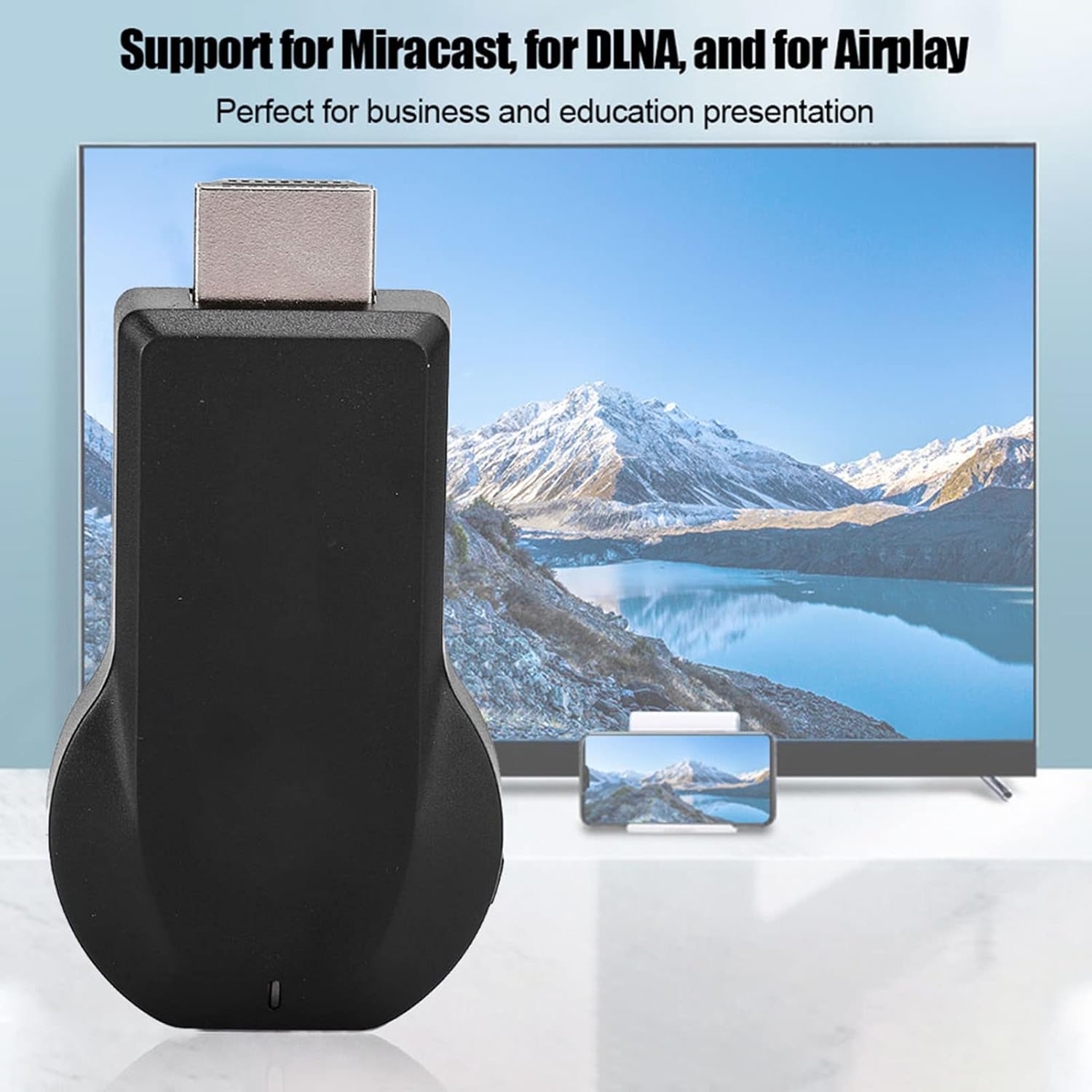
Figure 5: The dongle supports Miracast, DLNA, and Airplay protocols.
4. Maintenance
To ensure the longevity and optimal performance of your Estink M2 Plus Display Dongle, follow these simple maintenance guidelines:
- Keep Clean: Gently wipe the device with a soft, dry cloth. Avoid using liquid cleaners or abrasive materials.
- Proper Storage: Store the dongle in a cool, dry place away from direct sunlight, extreme temperatures, and humidity when not in use.
- Handle with Care: Avoid dropping the device or subjecting it to strong impacts. Do not bend or twist the HDMI connector.
- Power Supply: Always use a stable 5V/1A power source to prevent damage to the device.
5. Troubleshooting
If you encounter issues with your Estink M2 Plus Display Dongle, refer to the following troubleshooting tips:
- No Display/Signal on TV:
- Ensure the dongle is securely plugged into the HDMI port.
- Verify that the dongle is receiving adequate power from a 5V/1A source. Check the USB cable connection.
- Confirm that your TV/monitor is set to the correct HDMI input source.
- Try connecting the dongle to a different HDMI port or display device.
- Unstable Connection or Lagging Video:
- Ensure your source device (smartphone/tablet) is close to the dongle to maintain a strong WiFi signal.
- Reduce interference from other 2.4 GHz wireless devices.
- Restart both your source device and the dongle. Disconnect and reconnect the dongle's power.
- Cannot Stream from Specific Apps (e.g., Netflix, YouTube, Prime Video):
- As noted in the operating instructions, direct streaming from these apps is often blocked due to content encryption.
- Try accessing the content through the web browser on your smartphone or tablet, then mirror the browser screen.
- Poor Video Quality:
- Ensure your source device is outputting content at 1080P resolution or lower, as the dongle supports a maximum of 1080P at 30P.
- Check for strong WiFi signal between your device and the dongle.
6. Specifications
| Feature | Specification |
|---|---|
| Model | M2 Plus (Estinktuv43s5ecn) |
| Power Supply | 5V/1A |
| Interface | 1 x HDMI 1.2, 1 x Micro USB 2.0 |
| WiFi | 2.4 GHz Wireless WiFi (Module: 8188ETV) |
| HDMI Output | 1080P (Max Resolution: 1920 x 1080 @ 30P) |
| Supported Video Formats | AVI/DIVX/MKV/TS/DAT/MPG/MPRG/MOV/MP4/RM/RMVB/WMV |
| Supported Audio Formats | MP1/MP2/MP3/WMA/OGG/ADPCM-WAV/PCM-WAV/AAC |
| Supported Photo Formats | JPEG/BMP |
| Supported Protocols | Airplay, Miracast, DLNA |
| Compatible Devices | Smartphones, Tablet PCs, Laptops, Personal Computers |
| Color | Black |
| Weight | 64 grams |
7. Warranty and Support
Estink products are designed for reliability and performance. For specific warranty details, please refer to the documentation provided with your purchase or contact your retailer.
For technical support or further assistance, please contact Estink customer service through the retailer's platform or the official Estink website.