
1. Introduction
Thank you for choosing the EKSA Wireless Headset H5. This headset is designed to provide clear communication and comfortable wear for various professional environments, including office work, call centers, and trucking. It features AI noise-cancelling technology, dual connectivity options (Bluetooth and USB dongle), and extended battery life. This manual provides detailed instructions for setup, operation, maintenance, and troubleshooting to ensure optimal performance.
2. Package Contents
Please verify that all items are present in your package:
- EKSA Wireless Headset H5
- USB Dongle
- Charging Base
- USB-C Charging Cable
- User Manual
3. Product Overview
Familiarize yourself with the components of your EKSA Wireless Headset H5.
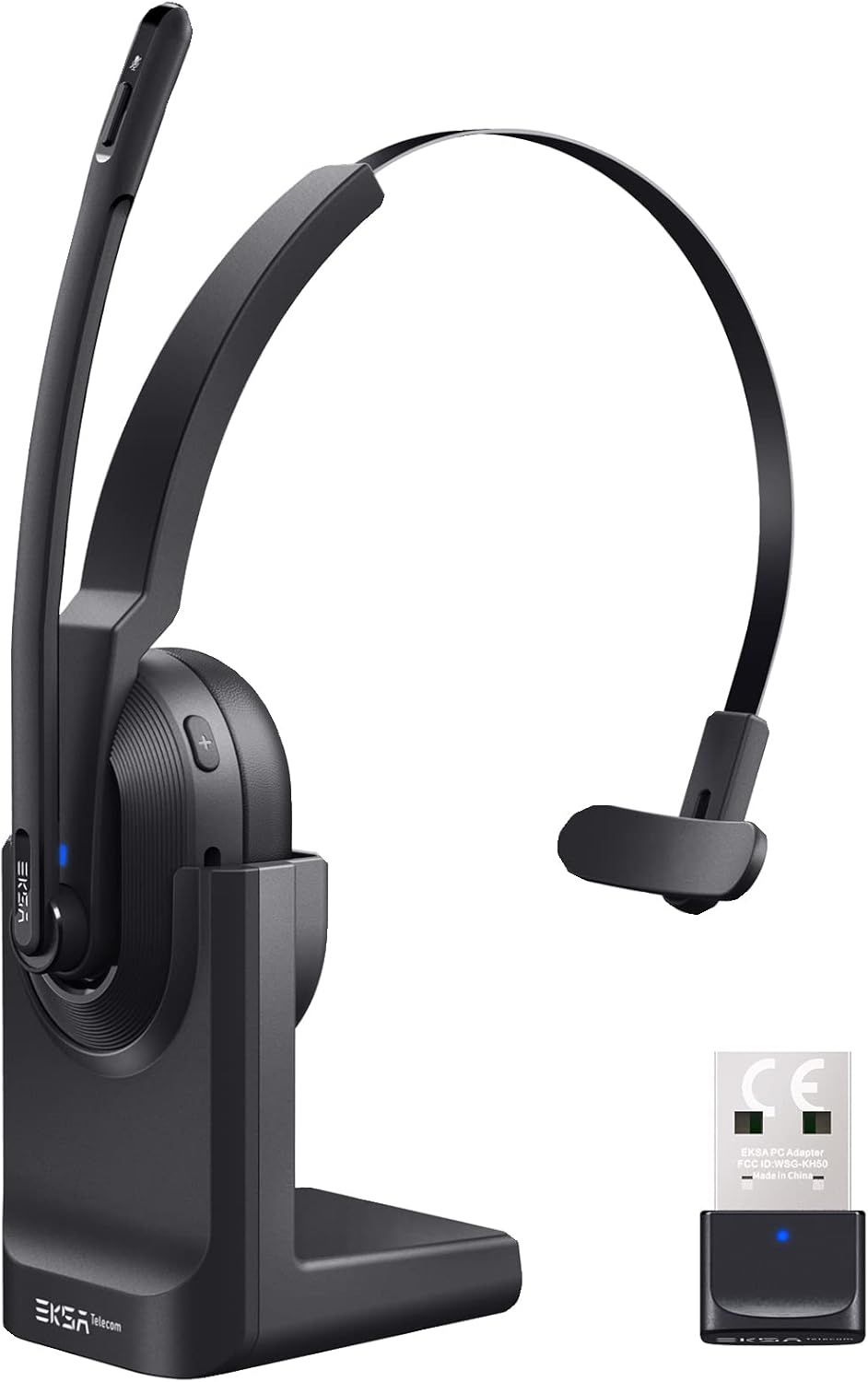

4. Setup
4.1 Charging the Headset
The headset supports two charging methods:
- Direct Charging: Connect the USB-C charging cable directly to the headset's Type-C port and a power source.
- Charging Base: Place the headset onto the included charging base. Ensure the charging contacts align. Connect the charging base to a power source using the USB-C cable.

A full charge takes approximately 1.5 hours. The headset provides up to 25 hours of talk time and 45 hours of music playback at 70% volume.

4.2 Connecting via USB Dongle
For PC and laptop connections, the USB dongle provides a stable wireless link.
- Insert the USB dongle into an available USB port on your PC or laptop.
- The LED indicator on the dongle will turn solid blue when successfully paired with the headset.
- On your PC/laptop, navigate to Settings > Sound.
- Set EKSA Telecom H5 as both the input and output device.

4.3 Connecting via Bluetooth 5.0
The headset can connect to mobile phones, tablets, and other Bluetooth-enabled devices.
- Ensure the headset is powered on and in pairing mode (the Bluetooth indicator will flash).
- On your mobile device, go to Settings > Bluetooth & other devices.
- Select "Add Bluetooth or other device" and search for "EKSA Telecom H5".
- Select EKSA Telecom H5 to pair.
- Once connected, set EKSA Telecom H5 as the input and output device in your device's sound settings.


4.4 Meeting Application Settings
For applications like Zoom or Skype:
- In the application's audio/video settings, select EKSA Telecom H5 as both the microphone and speaker.

5. Operating Instructions
5.1 Basic Controls
- Power On/Off: Press and hold the Multi-Function Button.
- Volume Up/Next Track: Press the '+' button. Hold for next track.
- Volume Down/Previous Track: Press the '-' button. Hold for previous track.
- Answer/End Call: Press the Multi-Function Button during an incoming call or active call.
- Reject Call: Press and hold the Multi-Function Button during an incoming call.
- Mute/Unmute Microphone: Press the Mute Button located on the microphone arm.
5.2 Wearing the Headset
The headset is designed for comfort and flexibility:
- The microphone arm can be rotated up to 270 degrees, allowing you to wear the headset on either your left or right ear.
- Adjust the headband for a secure and comfortable fit.

5.3 AI Noise Cancelling Microphone
The headset features an AI-powered Environmental Noise Cancelling (ENC) microphone with a Qualcomm chip. This technology intelligently suppresses up to 99.6% of environmental noise, ensuring your voice is clear during calls, even in noisy environments.


6. Maintenance
To ensure the longevity and optimal performance of your headset:
- Clean the headset regularly with a soft, dry cloth.
- Avoid exposing the headset to extreme temperatures, humidity, or direct sunlight.
- Do not use abrasive cleaners or solvents.
- Store the headset in a cool, dry place when not in use, preferably on its charging base or in a protective case.
7. Troubleshooting
| Problem | Possible Cause | Solution |
|---|---|---|
| Headset does not power on | Low battery | Charge the headset using the USB-C cable or charging base. |
| No sound/microphone not working | Not connected or incorrect audio settings | Ensure the headset is paired via Bluetooth or dongle. Check your device's sound settings to confirm "EKSA Telecom H5" is selected as input/output. |
| Poor sound quality/intermittent connection | Out of range, interference, or low battery | Move closer to the connected device (within 10 meters). Avoid strong electromagnetic interference. Charge the headset. |
| Cannot pair via Bluetooth | Headset not in pairing mode or device already connected | Ensure the headset is in pairing mode (flashing indicator). Disconnect from any other devices. Restart Bluetooth on your device. |
| AI Noise Cancelling not effective | Microphone position | Ensure the microphone is positioned correctly near your mouth for optimal voice pickup and noise suppression. |
8. Specifications
| Feature | Detail |
|---|---|
| Model Name | H5 |
| Connectivity Technology | Wireless (Bluetooth 5.0, USB Dongle) |
| Wireless Range | Up to 10 meters |
| Battery Life (Music) | Up to 45 hours (at 70% volume) |
| Battery Life (Talk) | Up to 25 hours (at 70% volume) |
| Charging Time | Approx. 1.5 hours |
| Noise Control | Active Noise Cancellation (AI Environmental Noise Cancelling) |
| Microphone | 270° Rotatable, AI ENC |
| Weight | Approx. 75g (headset only) / 0.54 kg (packaged) |
| Material | Metal, Plastic |
| Included Components | Charging Base, USB Dongle |
| Frequency Range | 20 Hz - 20,000 Hz |
9. Warranty and Support
EKSA products come with a standard manufacturer's warranty. For specific warranty details, please refer to the warranty card included in your package or visit the official EKSA website. For technical support, troubleshooting assistance, or any inquiries, please contact EKSA customer service through their official channels. You can find contact information on the EKSA website or through your purchase platform.


