
Xvive U3, P3
Xvive U3 Wireless Microphone System & P3 Bluetooth Receiver User Manual
Models: U3, P3
1. Introduction and Overview
The Xvive U3 Wireless Microphone System and Xvive P3 Wireless XLR Bluetooth Receiver bundle provides a comprehensive solution for professional audio applications, offering wireless freedom and high-fidelity sound. The U3 system is designed for dynamic microphones, converting them into wireless units, while the P3 receiver enables Bluetooth audio streaming to XLR-equipped mixers and PA systems.
The U3 operates on the 2.4GHz band, ensuring a solid RF connection with uncompressed signal transmission, low noise, and minimal latency. The P3 offers easy Bluetooth connectivity for seamless integration with mobile devices, supporting both mono and stereo playback when two units are linked.

Image: The Xvive U3 Wireless Microphone System (transmitter and receiver) and the Xvive P3 Wireless XLR Bluetooth Receiver.
2. What's in the Box
- 1 x Xvive U3 Wireless Microphone Transmitter
- 1 x Xvive U3 Wireless Microphone Receiver
- 1 x Xvive P3 Wireless XLR Bluetooth Receiver
- USB Charging Cables (for U3 and P3 units)
- User Manual
3. Product Features
Xvive U3 Wireless Microphone System
- Wireless Type: 2.4GHz digital wireless system
- Range: Up to 90 feet (normal conditions)
- Audio Quality: 24-bit/48kbps high-resolution audio, uncompressed signal
- Frequency Response: 20Hz-20KHz
- Dynamic Range: 107 dB
- Signal-to-Noise Ratio (SNR): Up to 107 dB
- Latency: Less than 4.5ms
- Channels: 6 selectable channels
- Battery Life: Approximately 5 hours (rechargeable via USB)
- Compatibility: Designed for dynamic microphones, compatible with mixers, PA systems, recorders, and loudspeakers.
Xvive P3 Wireless XLR Bluetooth Receiver
- Bluetooth Version: Bluetooth 5.3
- Bluetooth Profiles: A2DP, AVRCP
- Range: Up to 100 feet
- Compatibility: Connects to XLR mixer inputs, active PA systems, DJ controllers
- Audio Output: Stereo/Mono compatibility
- Battery Life: Up to 8 hours (rechargeable via USB Type-C)
- Functionality: Enables wireless Bluetooth audio reception from smartphones, tablets, and other Bluetooth devices.

Image: Visual representation of the Xvive U3 system showing dimensions and key features like 2.4GHz, 5 hours battery life, 6 channels, 90 feet range, and 4.5ms latency.
4. Setup Guide
4.1. Xvive U3 Wireless Microphone System Setup
- Charge Units: Ensure both the U3 Transmitter and Receiver are fully charged using the provided USB cable.
- Connect Transmitter: Plug the U3 Transmitter directly into the XLR output of your dynamic microphone.
- Connect Receiver: Plug the U3 Receiver into an XLR input on your mixer, PA system, audio interface, or powered loudspeaker.
- Power On: Press and hold the Power button on both the Transmitter and Receiver until the indicator lights illuminate.
- Pairing: The units should automatically pair. If not, press the 'Pair' button on both units simultaneously. The indicator lights will turn solid when paired.
- Select Channel: Use the channel selector on both units to choose one of the 6 available channels. Ensure both units are on the same channel to avoid interference.

Image: Diagram illustrating the one-key pairing process for the Xvive U3 system, connecting a dynamic microphone to the transmitter and the receiver to a mixer or PA system.
4.2. Xvive P3 Bluetooth Receiver Setup
- Charge Unit: Ensure the P3 Receiver is fully charged via its USB Type-C port.
- Connect P3: Plug the P3 Receiver into an available XLR input on your mixer, active PA speaker, or DJ controller.
- Power On: Press and hold the Power button on the P3 until the indicator light illuminates. The P3 will enter pairing mode, indicated by a blinking light.
- Pair with Device: On your smartphone, tablet, or other Bluetooth-enabled device, go to Bluetooth settings and select 'Xvive P3' from the list of available devices.
- Confirm Connection: Once paired, the P3 indicator light will turn solid. You can now stream audio from your device to the connected audio system.
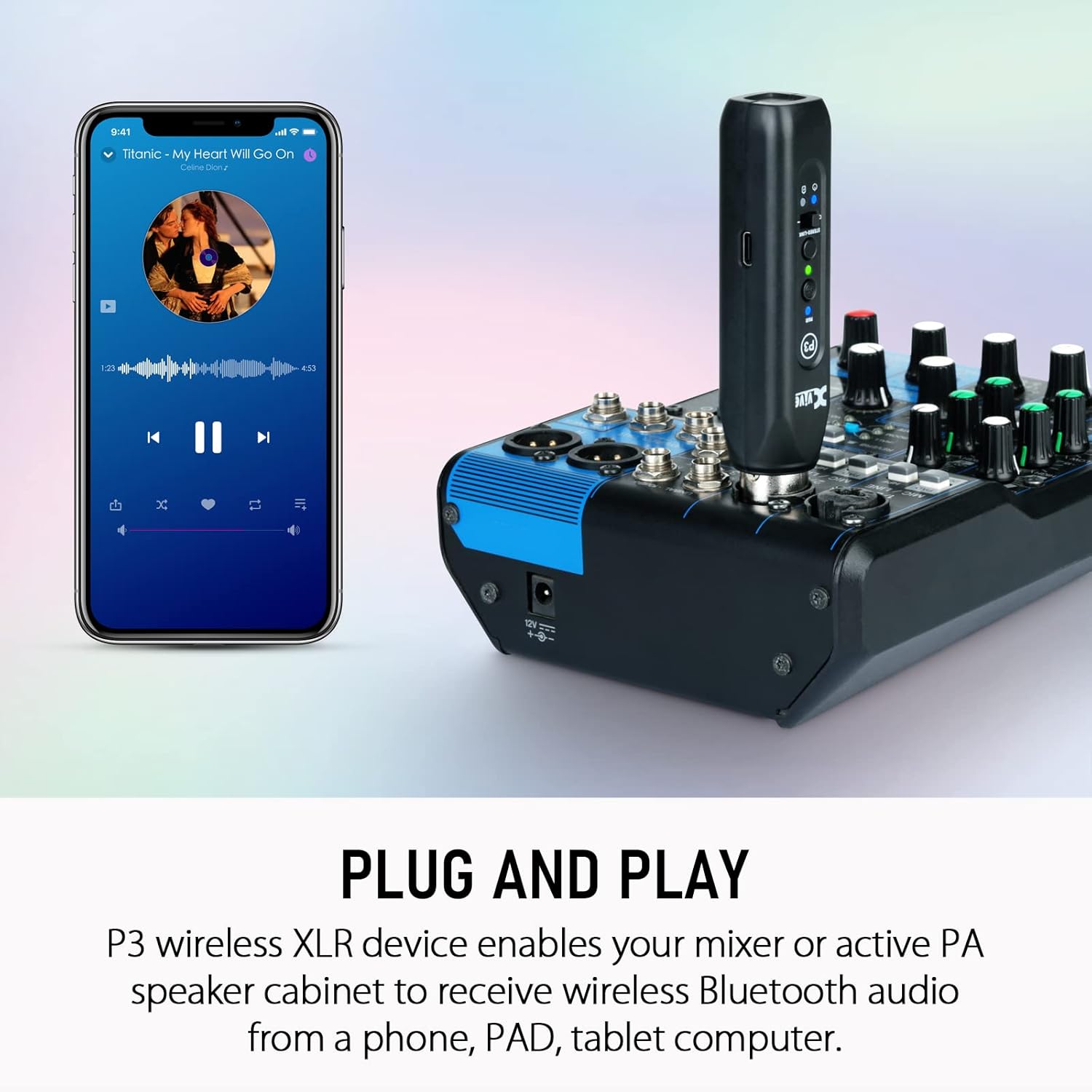
Image: The Xvive P3 Bluetooth Receiver plugged into a mixer, demonstrating its plug-and-play capability for receiving wireless Bluetooth audio from a smartphone.
4.3. Stereo Playback with Two P3 Units
To achieve stereo audio playback, you can link two P3 units together:
- Connect each P3 unit to a separate XLR input on your mixer or to the left and right inputs of your stereo PA system.
- Power on both P3 units.
- On one P3 unit, press and hold the 'Stereo-Link' button until its indicator light blinks rapidly.
- On the second P3 unit, press and hold the 'Stereo-Link' button until its indicator light also blinks rapidly.
- The units will automatically link for stereo playback. One unit will act as the master (left channel) and the other as the slave (right channel).
- Pair your Bluetooth device to the master P3 unit. Audio will now play in stereo across both linked P3s.

Image: Two Xvive P3 units connected to a mixer, demonstrating their ability to be linked wirelessly for cable-free stereo playback.

Image: A setup diagram illustrating how to create stereo or mono wireless audio for a mixer or DJ controller using the Xvive U3 and P3 systems with powered loudspeakers.
5. Operating Instructions
5.1. Xvive U3 Operation
- Channel Selection: Use the channel selector dial on both the transmitter and receiver to choose a clear channel (1-6). Ensure both units are set to the same channel.
- Input Level (Transmitter): The U3 Transmitter has a switch for 'MIC' and 'LINE' input levels. Select 'MIC' for standard dynamic microphones and 'LINE' for line-level audio sources.
- Mute Function (Transmitter): Press the 'MUTE' button on the transmitter to temporarily silence the microphone output. Press again to unmute.
- Power Indicator: The power indicator light shows battery status. A solid light indicates sufficient charge, while a blinking light indicates low battery.
5.2. Xvive P3 Operation
- Bluetooth Connection: Once paired with your device, simply play audio from your device. The P3 will receive and output the audio through its XLR connection.
- Stereo/Mono Switch: The P3 has a switch to select between stereo and mono output modes. Use 'Stereo' when linking two P3 units for stereo playback, or 'Mono' for single-unit applications.
- Power Indicator: The power indicator light shows battery status and Bluetooth pairing status.

Image: A DJ performing on stage, illustrating the practical application of the Xvive wireless system for mobile audio setups.

Image: The Xvive P3 connected to a PA loudspeaker, with a smartphone displaying a Bluetooth connection, highlighting its extended range and fast connectivity.
6. Maintenance
- Charging: Recharge the U3 and P3 units using the provided USB cables. Connect them to a standard USB power adapter (not included) or a computer USB port. A full charge typically takes a few hours.
- Cleaning: Use a soft, dry cloth to clean the exterior of the units. Do not use liquid cleaners or solvents.
- Storage: Store the units in a cool, dry place away from direct sunlight and extreme temperatures when not in use.
- Battery Care: For optimal battery life, avoid fully discharging the units frequently. If storing for extended periods, charge them to about 50% every few months.

Image: A hand holding the Xvive P3, highlighting its USB Type-C charging port and indicating its 8-hour battery life.
7. Troubleshooting
- No Sound Output (U3):
- Ensure both transmitter and receiver are powered on and fully charged.
- Verify that both units are paired and on the same channel.
- Check the 'MIC/LINE' switch on the transmitter is set correctly for your microphone.
- Ensure the microphone is not muted.
- Check connections to the microphone and mixer/PA system.
- Interference/Dropouts (U3):
- Change to a different channel (1-6) on both units.
- Move away from other 2.4GHz devices (Wi-Fi routers, cordless phones, microwaves).
- Reduce the distance between the transmitter and receiver.
- No Bluetooth Connection (P3):
- Ensure the P3 is powered on and in pairing mode (blinking light).
- Make sure Bluetooth is enabled on your source device (smartphone, tablet).
- Forget the device from your Bluetooth settings and try pairing again.
- Ensure the P3 is within range of your Bluetooth device.
- No Stereo Playback (P3):
- Verify both P3 units are powered on and successfully linked for stereo.
- Ensure the 'Stereo/Mono' switch on both P3 units is set to 'Stereo'.
- Check that your mixer/PA system is configured for stereo input.
8. Specifications
| Feature | Specification |
|---|---|
| Brand | Xvive |
| Model Numbers | U3, P3 |
| Wireless Communication Standard | 2.4GHz (U3), Bluetooth 5.3 (P3) |
| Connectivity Technology | XLR, Bluetooth |
| U3 Wireless Range | Up to 90 feet |
| P3 Bluetooth Range | Up to 100 feet |
| U3 Latency | Less than 4.5ms |
| U3 Frequency Response | 20Hz-20KHz |
| U3 Dynamic Range | 107 dB |
| U3 Signal-to-Noise Ratio | 107 dB |
| U3 Channels | 6 |
| U3 Battery Life | Approx. 5 hours |
| P3 Battery Life | Up to 8 hours |
| Power Source | Battery Powered (Rechargeable via USB Type-C) |
| Compatible Devices | Microphones (U3), Smartphones, Tablets, Mixers, PA Systems, DJ Controllers |
9. Safety Information
- Avoid using the devices near other 2.4GHz wireless equipment (e.g., Wi-Fi routers, cordless phones) to prevent potential signal interference.
- Keep the built-in batteries away from extreme temperatures, direct sunlight, and open flames.
- Do not attempt to disassemble, modify, or repair the units yourself. Refer all servicing to qualified personnel.
- Dispose of batteries and electronic components according to local regulations. Do not dispose of them with household waste.
- Ensure proper ventilation when charging and operating the devices.
10. Warranty and Support
Xvive products are designed for reliability and performance. For warranty information, technical support, or service inquiries, please refer to the official Xvive website or contact your local distributor. Keep your purchase receipt as proof of purchase for warranty claims.
Related documentsU3, P3

Ask a question about this manual
Ask about setup, troubleshooting, compatibility, parts, safety, or missing instructions. Manuals+ will review the question and use this page’s manual context to help answer it.