
Deiss DT-116A
Deiss PRO Bluetooth Meat Thermometer Wireless - Instruction Manual
Brand: Deiss | Model: DT-116A
1. Product Overview
The Deiss PRO Bluetooth Meat Thermometer is designed to provide precise, instant-read temperatures for various meats, ensuring perfect cooking results. It features dual probes for multi-zone cooking and connects wirelessly to your smartphone via a dedicated app, allowing remote monitoring and alerts.

Figure 1: Deiss PRO Bluetooth Meat Thermometer and App Interface.
Key Features:
- Accurate Temperature Readings: Provides precise, instant-read temperatures for various food types.
- Dual Probe Design: Allows simultaneous monitoring of two different temperatures, such as two cuts of meat or meat and ambient oven/smoker temperature.
- Bluetooth Connectivity: Connects to iOS/Android devices for remote monitoring and alerts.
- USDA-Recommended Presets: Includes pre-programmed temperature settings for common meats, with options to create custom settings.
- Wide Temperature Range: Operates from 32°F to 572°F (0°C to 300°C) with probes built to withstand up to 716°F (380°C).
- Multiple Mounting Options: Features anti-slip pads, a hanging hole, and an internal magnet for versatile placement.
2. What's in the Box
Upon opening the package, ensure all components are present:
- Deiss PRO Bluetooth Meat Thermometer Unit
- 2 x Stainless Steel Probes with Waterproof Probe Cables
- 2 x AAA Batteries (pre-installed or included separately)
- Instruction Manual (this document)

Figure 2: Package Contents.
3. Setup Guide
3.1. Initial Setup
- Insert Batteries: If not already installed, open the battery compartment on the back of the thermometer unit and insert 2 AAA batteries, observing polarity.
- Power On: Press the power button on the thermometer unit to turn it on.
- Download the App: Scan the QR code provided in the product packaging or search for "Deiss Thermo" in your device's app store (iOS or Android). Download and install the application.

Download the Deiss Thermo App.
- Connect Probes: Insert the probe cables into the corresponding ports (Probe 1 and Probe 2) on the side of the thermometer unit. Ensure they are securely connected.

Connect the probes.
3.2. Bluetooth Pairing
- Enable Bluetooth: Ensure Bluetooth is enabled on your smartphone.
- Open App: Launch the "Deiss Thermo" app. The app will automatically scan for and connect to your thermometer unit.
- Confirm Connection: Once connected, the app will display the current temperatures from the probes.

Figure 3: Connecting the thermometer to the app.
3.3. Product Demonstration Video
Video 1: An overview and demonstration of the Deiss PRO Bluetooth Meat Thermometer, showing unboxing, setup, and usage.
4. Operating Instructions
4.1. Using the Probes
- Insert Probe: Carefully insert the stainless steel probe into the thickest part of the meat, avoiding bones. For dual probe use, insert the second probe into another piece of meat or position it to measure ambient oven/smoker temperature.

Insert the probe into your food.
- Monitor Temperatures: The thermometer unit and the app will display real-time temperatures from both probes.

Figure 4: Proper probe insertion for accurate readings.
4.2. Using the Deiss Thermo App
- Select Food Type: In the app, tap on the probe you wish to configure (P1 or P2). Select a food type from the USDA-recommended presets (e.g., Beef, Chicken, Pork, Fish, Turkey, Lamb, Hamburger, BBQ Smoke, Hot Smoke, Cold Smoke, Bread).

Select food type in the app.
- Customize Temperature (Optional): For certain food types like beef, you can select desired doneness (Rare, Medium Rare, Medium, Medium Well, Well Done). You can also create custom temperature alerts by setting a specific target temperature.
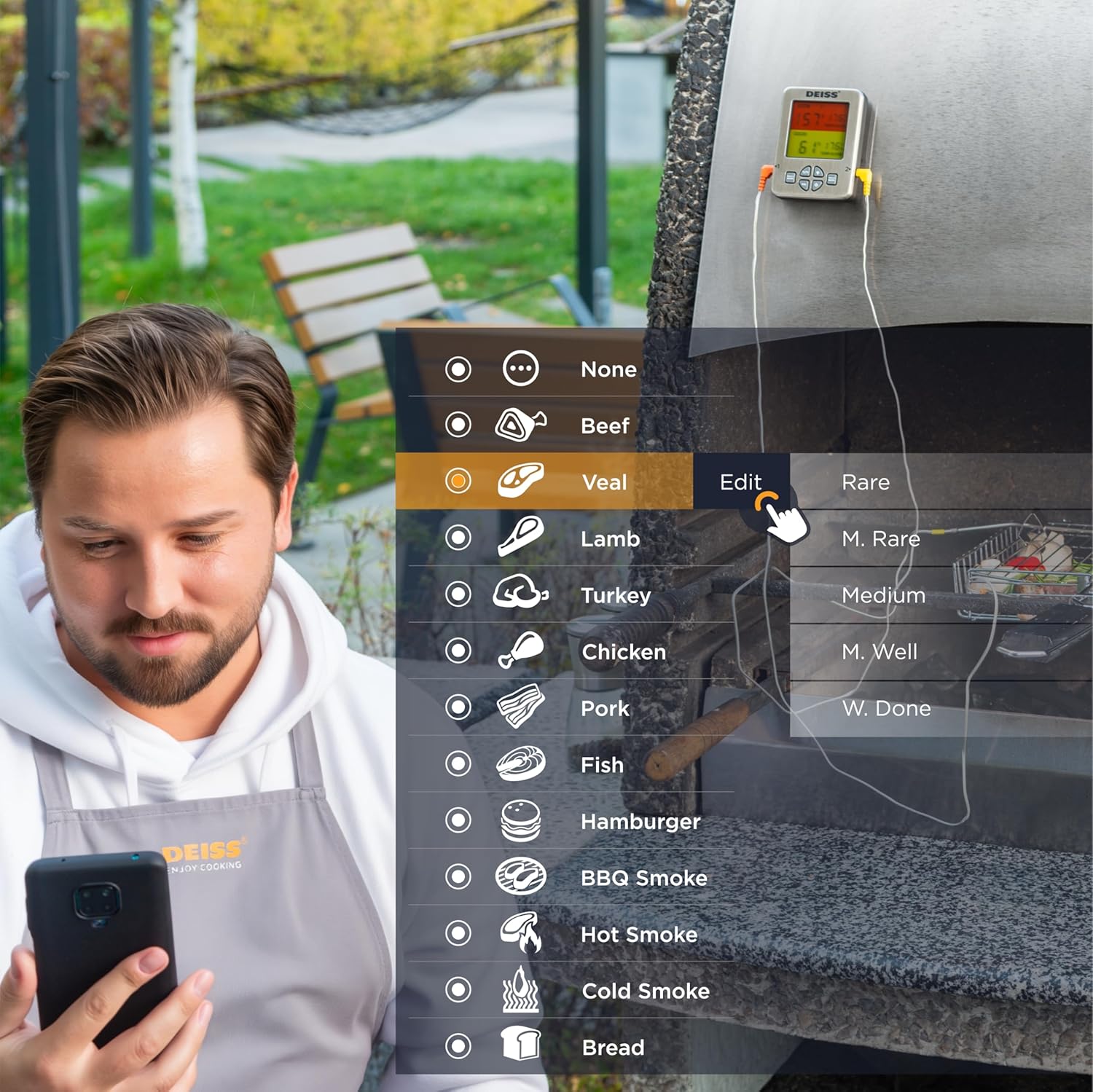
Figure 5: Customizing temperature settings in the app.
- Set Timer: The app allows you to set a countdown timer for your cooking.

Utilize the timer function.
- Temperature Graph: View a historical graph of the temperature readings for better cooking insights.

View temperature trends.
- Receive Alerts: The app will send real-time alerts to your phone when the target temperature is reached, or if the temperature deviates significantly. The thermometer unit also has an audible alarm.

Receive alerts for perfect doneness.
4.3. Unit Controls
- °C/°F Switch: Press the "C/F" button on the unit to toggle between Celsius and Fahrenheit temperature display.

Switch between Celsius and Fahrenheit.
- Volume Control: Use the "VOL" button to adjust the alarm volume.
- Backlight: The unit features a backlight for easy reading in low light conditions.

Figure 6: Thermometer unit controls and features.
5. Care and Maintenance
- Cleaning Probes: The stainless steel probes are food-safe and designed to withstand high temperatures. After each use, wipe the probes clean with a damp cloth and mild detergent. Rinse thoroughly and dry completely before storage. Do not immerse the entire probe cable or the main unit in water.
- Cleaning Unit: Wipe the thermometer unit with a soft, damp cloth. Do not use abrasive cleaners or immerse the unit in water.
- Storage: Store the thermometer and probes in a clean, dry place when not in use. The unit has a hanging hole and internal magnets for convenient storage.

Figure 7: Multiple mounting and storage options.
- Battery Replacement: Replace AAA batteries when the display indicates low power or the unit does not turn on.
6. Troubleshooting
| Problem | Possible Cause | Solution |
|---|---|---|
| Thermometer not turning on. | Dead or incorrectly inserted batteries. | Replace batteries with new AAA batteries, ensuring correct polarity. |
| No Bluetooth connection. | Bluetooth is off on phone; app not open; device out of range; interference. | Ensure Bluetooth is enabled on your phone. Open the "Deiss Thermo" app. Move closer to the thermometer unit. Avoid strong electromagnetic interference. Restart both the thermometer and the app. |
| Inaccurate temperature readings. | Probe not inserted correctly; probe damaged; temperature range exceeded. | Ensure the probe is inserted into the thickest part of the meat, away from bones. Check probes for visible damage. Ensure temperatures are within the specified range (32-572°F / 0-300°C). |
| App alarms are not working or are too frequent. | App notification settings; incorrect temperature set points. | Check your phone's notification settings for the "Deiss Thermo" app. Verify the target temperature settings in the app are correct for your desired doneness. Adjust alarm interval settings in the app if available. |
| Display is dim or flickering. | Low battery. | Replace batteries. |
7. Product Specifications
| Feature | Detail |
|---|---|
| Model Number | DT-116A |
| Product Dimensions | 3.86 x 2.93 x 1 inches; 8.15 ounces |
| Temperature Range | 32°F to 572°F (0°C to 300°C) |
| Probe Withstand Temperature | Up to 716°F (380°C) |
| Accuracy | ±1.8°F (±1°C) resolution |
| Connectivity | Bluetooth |
| Power Source | 2 AAA batteries (included) |
| Display Type | Digital LCD with Backlight |
| Probe Material | Stainless Steel |
| Outer Material | Plastic |
| Care Instructions | Oven Safe (probes), Wipe Clean (unit) |
| Manufacturer | Deiss Kitchenware |
| Country of Origin | China |

Figure 8: Product Dimensions.
8. Warranty and Support
For warranty information, technical support, or any inquiries regarding your Deiss PRO Bluetooth Meat Thermometer, please contact Deiss Kitchenware customer service or visit their official website. Refer to the product packaging or the Deiss Thermo app for specific contact details.
You can also visit the Deiss Store on Amazon for more information: Deiss Kitchenware Store.
Related documentsDT-116A


Ask a question about this manual
Ask about setup, troubleshooting, compatibility, parts, safety, or missing instructions. Manuals+ will review the question and use this page’s manual context to help answer it.