Introduction
This manual provides comprehensive instructions for the setup, operation, and maintenance of your AIRHUG 3-in-1 1080P USB Webcam. Designed for video conferencing, online classes, and live streaming, this device integrates a high-definition camera, a sensitive microphone, and a powerful speaker into a single, compact unit. Please read this manual thoroughly to ensure optimal performance and longevity of your webcam.
What's in the Box
- Camera Body
- Privacy Cover
- USB Cable
- User Manual
Features
Integrated Design
The AIRHUG 16 combines a 1080P webcam, a microphone, and a speaker into one device, simplifying your setup for various communication needs.

Image: The AIRHUG 16 Webcam, showcasing its compact and integrated design.
High-Definition Camera
Equipped with a 1080P camera, the device delivers clear and sharp video at 30 frames per second, ensuring high-quality visuals for your calls and streams. It features fixed focus for consistent clarity.

Image: A user engaged in a video call, demonstrating the clear video quality of the AIRHUG 16 Webcam.
Built-in Microphone and Speaker
The integrated 5W speaker and microphone provide clear audio for both listening and speaking. The microphone features circular voice pickup, ideal for conference settings.

Image: Internal view highlighting the 5W speaker and microphone components of the webcam.

Image: Visual representation of the webcam's 6ft/1.8m circular voice pickup capability for conference calls.
Privacy Cover
A built-in privacy cover allows you to physically block the camera lens when not in use, ensuring your privacy and security.
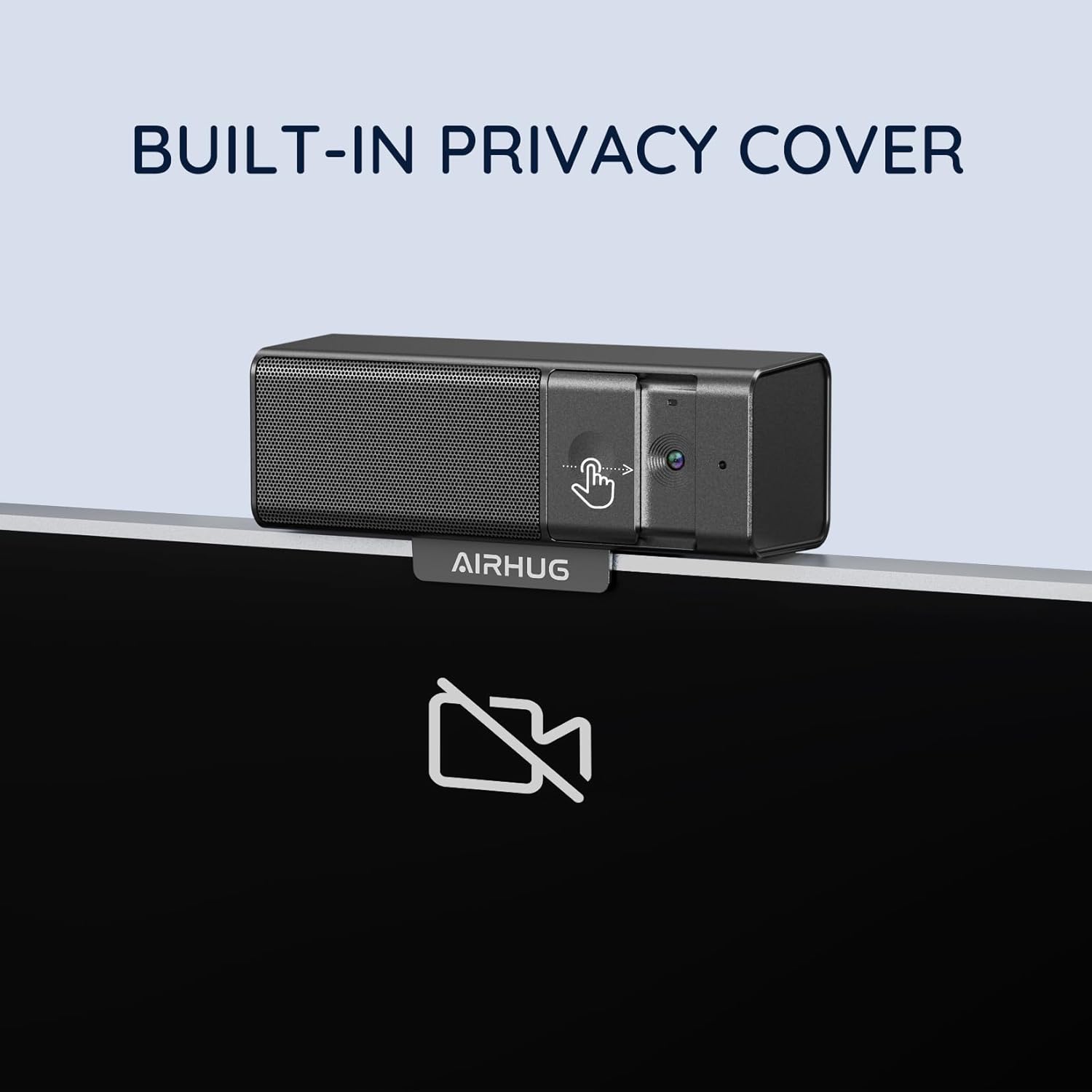
Image: The webcam demonstrating its integrated privacy cover in action.
Connectivity and Portability
The webcam supports both USB-C and USB-A connections for broad compatibility. Its mini and portable design makes it easy to carry and set up anywhere.

Image: Detail of the webcam's versatile USB-C and USB-A connection options.

Image: The webcam's compact size, emphasizing its portability for on-the-go use.
Universal Compatibility
The AIRHUG 16 is widely compatible with major operating systems (Chromebook, Windows, Mac, Linux) and video conferencing platforms (Skype, Zoom, GoToMeeting, Twitch, YouTube, Webex, TikTok, Slack).

Image: Compatibility chart for the webcam across different platforms and operating systems.
Setup
Connecting the Webcam
The AIRHUG 16 is a plug-and-play device, requiring no additional drivers for most operating systems. Simply connect the provided USB cable from the webcam's USB-C port to an available USB-A or USB-C port on your computer.
Video: This video demonstrates the simple plug-and-play setup of the AIRHUG 16 Webcam, showing how to connect it to a computer and its immediate recognition by the system.
Mounting Options
The webcam features an adjustable clip that allows for secure mounting on top of most monitors or laptop screens. It also includes a standard tripod thread for alternative mounting options, providing flexibility for various setups.
Video: This video showcases the unboxing experience and demonstrates various setup options for the AIRHUG 16 Webcam, including mounting on a monitor and using a tripod.
Operating Instructions
Using the Privacy Cover
To activate the privacy cover, simply slide the physical cover over the camera lens. A red indicator will appear, signifying that the camera is blocked and not transmitting video. Slide it back to open the lens and resume video transmission.
Audio Settings
Once connected, your operating system should automatically recognize the AIRHUG 16 as an audio input (microphone) and output (speaker) device. You can select "AIRHUG 16" from your system's sound settings for both input and output to utilize the integrated audio features. Adjust volume levels directly from your computer's sound controls.
Maintenance
- Cleaning: Use a soft, dry cloth to clean the webcam lens and body. Avoid abrasive cleaners or solvents.
- Storage: When not in use, store the webcam in a cool, dry place. Utilize the privacy cover to protect the lens from dust and scratches.
- Cable Care: Avoid bending or crimping the USB cable excessively to prevent damage.
Troubleshooting
- No Image/Video:
- Ensure the USB cable is securely connected to both the webcam and your computer.
- Check if the privacy cover is open.
- Verify that the correct webcam (AIRHUG 16) is selected in your video conferencing software settings.
- If experiencing "horizontal moving lines," try a different USB port or cable.
- No Audio Input/Output:
- Confirm that "AIRHUG 16" is selected as both the input (microphone) and output (speaker) device in your computer's sound settings and your conferencing software.
- Check volume levels on your computer and within the application.
- If the microphone is unreliable, ensure no other audio devices are conflicting.
- Image Quality Issues (e.g., "Washes me out"):
- Adjust your room lighting. Ensure adequate, even lighting on your face and avoid strong backlighting.
- Check for software updates for your operating system or video conferencing application.
- USB Cable Length:
- If the provided USB cable is too short for your setup, a longer, high-quality USB-C to USB-A or USB-C to USB-C cable can be purchased separately.
Specifications
| Feature | Detail |
|---|---|
| Brand | AIRHUG |
| Model Number | AIRHUG 16 |
| Video Capture Resolution | 1080p |
| Photo Sensor Technology | CMOS |
| Connectivity Technology | USB |
| Supported Audio Format | AAC, MP3, PCM |
| Special Features | Low Light |
| Item Weight | 10.2 ounces |
| Package Dimensions | 6.5 x 4.33 x 2.72 inches |
Warranty and Support
AIRHUG products come with a 2-year exclusive guarantee. For any technical assistance or inquiries, our lifelong professional technical team support is available. We aim to quickly reply within 24 hours to all customer service requests.
For further support, please refer to the contact information provided in the product packaging or visit the official AIRHUG website.


