
RUILON PCB01
RUILON Welock PCB01 Electronic Door Lock User Manual
Model: PCB01 | Brand: RUILON
1. Introduction
This manual provides detailed instructions for the installation, setup, operation, and maintenance of your RUILON Welock PCB01 Electronic Door Lock. Please read this manual thoroughly before installation and use to ensure proper function and safety.
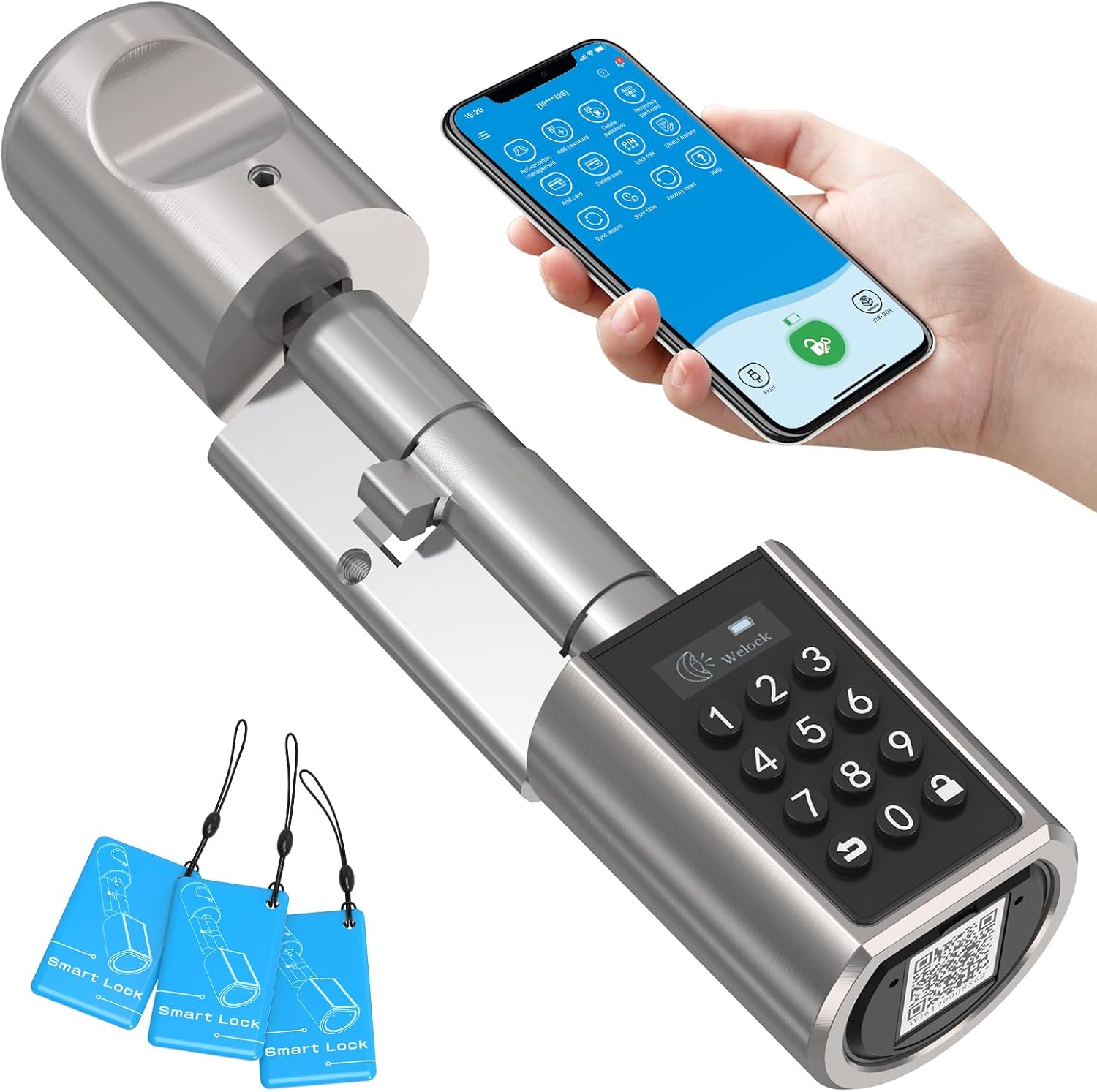
Image 1.1: The Welock PCB01 Electronic Door Lock, showing the cylinder, keypad, and RFID cards, alongside a smartphone displaying the control app.
2. Safety Information
- Do not expose the lock to extreme temperatures or direct water spray.
- Use only specified AAA batteries. Do not mix old and new batteries.
- Keep RFID cards and access codes secure.
- Ensure proper installation to prevent damage or malfunction.
- Do not attempt to disassemble or repair the lock yourself. Contact support if issues arise.
3. Package Contents
Verify that all items are present in the package:
- 1 x Welock Electronic Door Lock Cylinder
- 1 x Accessory Box
- 3 x RFID Cards
- 1 x Waterproof Silicone Case
- 2 x Hexagonal Screwdrivers
- 1 x Instruction Manual (this document)
- 1 x Replacement Screw Pack
4. Specifications
| Feature | Detail |
|---|---|
| Model Number | PCB10EBL01 |
| Material | Stainless Steel and Zinc Alloy |
| Operating Temperature | -30°C to 60°C (-40°F to 140°F) |
| Power Supply | 3 x AAA Batteries (not included) |
| Cylinder Net Weight | 480g (16.9oz) |
| Door Thickness Compatibility | 50 mm to 100 mm (adjustable cylinder length) |
| Outer Knob Diameter | 46 mm |
| Inner Knob Diameter | 38 mm |
| Outer Knob Length | 56 mm |
| Inner Knob Length | 57 mm |
| Electronic Lock Length (Adjustable) | Outer 40-55 mm / Inner 30-60 mm |
| Unlock Methods | Keypad, RFID Card, Smartphone App (Bluetooth/Wi-Fi with gateway) |
| Emergency Unlock | USB Power Input |
5. Installation
The Welock PCB01 is designed for easy installation, replacing your existing mechanical cylinder without drilling or complex wiring. Ensure your door meets the compatibility requirements before proceeding.
5.1 Compatibility Check
Before installation, confirm your door's specifications:
- Door Thickness: Compatible with doors from 50 mm to 100 mm.
- Cylinder Type: Must be a European standard cylinder. Not compatible with Swiss round cylinders or vintage door locks.
- Keyhole Position: The center of the keyhole must be at least 40 mm from the door frame.
- The keyhole of the outdoor side should only be installed from the outside.

Image 5.1: Visual guide for door compatibility, illustrating required door thickness and cylinder type.
5.2 Installation Steps
- Remove Existing Cylinder: Unscrew the retaining screw on the side of your door that holds the current cylinder in place. Insert your key and turn it slightly (about 15-20 degrees) while pulling the cylinder out.
- Adjust Welock Cylinder Length: The Welock cylinder is adjustable. Refer to the included accessory box for instructions on how to adjust the inner and outer lengths to match your door's thickness.
- Insert Welock Cylinder: Insert the Welock electronic door lock into the cylinder hole. Ensure the outdoor keypad side is facing outwards.
- Secure the Cylinder: Re-insert and tighten the retaining screw on the side of the door to secure the Welock cylinder.
- Install Batteries: Open the battery compartment on the inner knob and insert 3 AAA batteries (not included), ensuring correct polarity. Close the compartment.
- Test Functionality: After installation, manually test the lock by turning the inner knob. Then, proceed to initial setup.
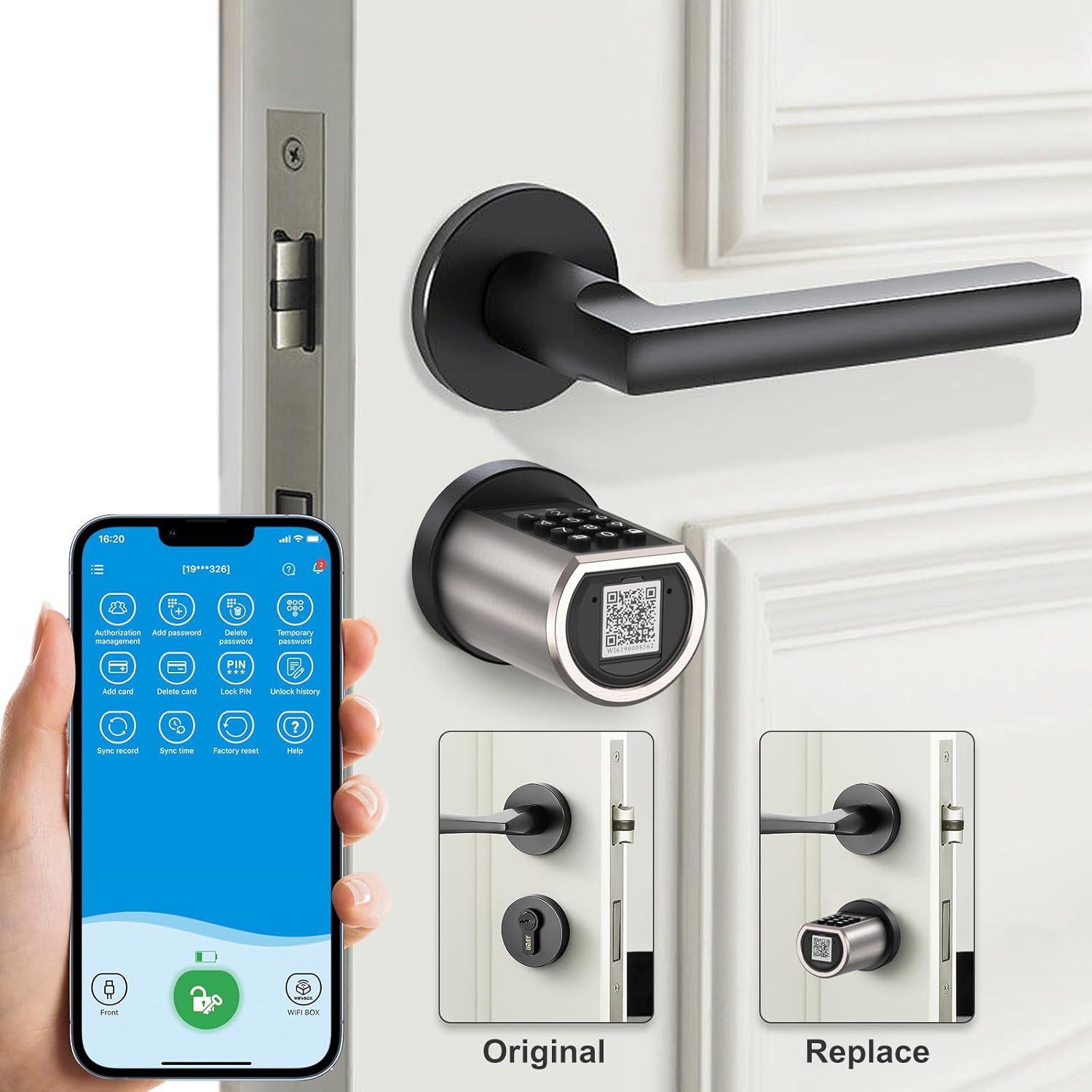
Image 5.2: Illustration of replacing a standard door cylinder with the Welock PCB01 smart lock.
6. Initial Setup and App Configuration
6.1 Download the WeLock App
The WeLock app is essential for managing your smart lock. Download it from your smartphone's app store (iOS and Android compatible) or scan the QR code below:
Download WeLock App (iOS/Android)
Image 6.1: QR code for direct download of the WeLock mobile application.
6.2 Pairing the Lock with the App
- Enable Bluetooth on your smartphone.
- Open the WeLock app and create an account or log in.
- Follow the in-app instructions to add a new device. The app will search for nearby Welock devices.
- Select your lock from the list and complete the pairing process.
- You will be prompted to set an administrator password for the lock.

Image 6.2: The WeLock application interface, demonstrating features such as keyless entry, code creation, and unlock history.
6.3 Wi-Fi Connectivity (Gateway Required)
For remote control and Wi-Fi features, a separate Wi-Fi gateway is required (sold separately). Follow the gateway's instructions to connect it to your home network and link it with your Welock PCB01 via the WeLock app.
7. Operating the Lock
The Welock PCB01 offers multiple ways to unlock your door:

Image 7.1: Overview of the multiple keyless unlocking methods available for the Welock PCB01.
7.1 Unlocking with Keypad (Code)
- Wake up the keypad by touching it.
- Enter your 6-8 digit access code.
- Press the '#' key to confirm.
- The lock will unlock, allowing you to turn the outer knob to open the door.
Anti-Peep Function: You can enter random digits before or after your actual code (up to 30 digits total) to prevent others from guessing your code. As long as the correct code sequence is embedded within the longer string, the lock will open.
7.2 Unlocking with RFID Card
- Hold a registered RFID card near the RFID reader area on the outer knob.
- The lock will beep and unlock.
- Turn the outer knob to open the door.
Adding RFID Cards: Up to 20 RFID cards can be paired via the WeLock app.
7.3 Unlocking with Smartphone App (Bluetooth/Wi-Fi)
- Open the WeLock app on your smartphone.
- Ensure Bluetooth is enabled (for close-range unlock) or Wi-Fi gateway is connected (for remote unlock).
- Tap the unlock icon within the app.
- The lock will unlock, allowing you to turn the outer knob to open the door.
Temporary Passwords: The app allows you to generate temporary passwords for visitors, which can be time-limited or single-use. These can be shared remotely if a Wi-Fi gateway is connected.

Image 7.2: Example of sharing temporary access passwords with visitors via smartphone.
7.4 Emergency USB Power
If the batteries are completely depleted, you can temporarily power the lock using a standard USB power bank connected to the micro-USB port on the outer knob. This will allow you to unlock the door using a registered code or RFID card.
8. Maintenance
8.1 Battery Replacement
The lock will issue an alarm when the battery level drops below 20%. You can also check the battery status in the WeLock app.
- Open the battery compartment on the inner knob.
- Remove the old AAA batteries.
- Insert 3 new AAA 1.5V batteries, ensuring correct polarity.
- Close the battery compartment securely.
8.2 Cleaning
Wipe the lock's surface with a soft, dry cloth. Do not use abrasive cleaners or solvents, as these can damage the finish or electronic components.
9. Troubleshooting
| Problem | Possible Cause | Solution |
|---|---|---|
| Lock does not respond to keypad/RFID. | Low batteries, incorrect code/card, lock malfunction. | Replace batteries. Re-enter code carefully. Ensure RFID card is registered. Use USB emergency power. |
| Cannot pair with WeLock app. | Bluetooth off, lock not in pairing mode, app issue. | Ensure Bluetooth is on. Restart lock (remove/reinsert batteries). Restart app. Try pairing closer to the lock. |
| Remote unlock not working. | No Wi-Fi gateway, gateway offline, poor Wi-Fi signal. | Ensure Wi-Fi gateway is installed and connected. Check gateway's internet connection. Move gateway closer to the lock. |
| Lock is stiff or difficult to turn. | Improper installation, door misalignment, debris in lock mechanism. | Recheck installation steps, especially cylinder length. Ensure door frame is aligned. Clean around the lock. |
10. Warranty and Support
For warranty information, technical support, or service inquiries, please contact RUILON customer support through your purchase platform or refer to the contact details provided with your product packaging.
Manufacturer: WELOCK
Brand: RUILON
Related documentsPCB01

Ask a question about this manual
Ask about setup, troubleshooting, compatibility, parts, safety, or missing instructions. Manuals+ will review the question and use this page’s manual context to help answer it.