
LIONWEI LIUC5602
LIONWEI USB C Dual Monitor HDMI Hub Adapter Instruction Manual
Model: LIUC5602
1. Introduction
The LIONWEI USB C Dual Monitor HDMI Hub Adapter is a versatile 6-in-1 docking station designed to expand the connectivity of your USB-C or Thunderbolt 3/4 enabled laptop. It features dual 4K@60Hz HDMI ports for external monitors, a powerful 100W Power Delivery (PD) USB-C charging port, and three USB-A 3.1 ports for high-speed data transfer up to 10Gbps. This adapter supports various display modes allowing for flexible multi-monitor setups.

Figure 1: LIONWEI USB C Dual Monitor HDMI Hub Adapter
Key Features
- 6-IN-1 Connectivity: Includes 2x 4K@60Hz HDMI ports, 1x 100W PD USB-C charging port, and 3x USB-A 3.1 ports.
- Dual 4K HDMI Output: Supports up to 4K@60Hz video output for dual external monitors (ensure laptop supports DP1.4 for 4K@60Hz; DP1.2 supports 4K@30Hz).
- 100W Power Delivery: Fast charges your device with a powerful 100W PD USB-C port (Max input 100W). Use original or equivalent power adapter.
- 10Gbps Data Transfer: Three USB-A 3.1 ports allow for rapid transfer of music, movies, and large files.
- Wide Compatibility: Compatible with laptops featuring a full-function USB-C or Thunderbolt 3/4 port, supporting Windows, macOS, Linux, iPad OS, and Android.
- Certified Safe: FCC, CE, and RoHS certified for quality and safety.
2. Setup Guide
Verifying Your Laptop's USB-C Port Type
Before connecting the docking station, it is crucial to confirm that your laptop's USB-C port supports the necessary functions for display output and power delivery. Not all USB-C ports are created equal.

Figure 2: USB-C Port Type Verification
Ensure your laptop's USB-C port is a Full Function port, supports Data Video Output, or Data+DisplayPort Alt. Ports that are 'Only Charging' or 'Only Data Transfer' will not support external display functionality.
Connecting the Docking Station
- Connect the integrated USB-C cable from the LIONWEI docking station to a compatible USB-C or Thunderbolt 3/4 port on your laptop.
- Connect your external HDMI monitors to the HDMI ports on the docking station.
- For power delivery, connect your laptop's original power adapter or a compatible 100W PD charger to the PD USB-C port on the docking station.
- Connect any USB peripherals (keyboard, mouse, USB flash drives, etc.) to the USB-A 3.1 ports.

Figure 3: Typical Setup with LIONWEI 6-in-1 USB-C Hub
3. Operating Instructions
Display Configuration
The LIONWEI docking station supports various display modes depending on your operating system.

Figure 4: Display Modes for Windows and macOS
For Windows Systems:
- Mirror Mode (A-AA): All displays (laptop and external monitors) show the same content.
- Extend Mode (A-BB): External monitors extend the desktop, showing different content from the laptop display.
- MST Display (A-BC): Each external monitor can display different content, extending the desktop across all connected screens.
For macOS Systems:
- Mirror Mode (A-AA): All displays (laptop and external monitors) show the same content.
- Non-mirror Mode (A-BB): External monitors show the same content, which is different from the laptop display.
- Note: Due to macOS system limitations, the screens of external monitors will be the same, whether in mirror mode or extended mode. macOS does not support MST (Multi-Stream Transport).
Power Delivery (PD) Charging
The docking station features a 100W PD USB-C Power Charging Port, allowing you to charge your compatible device quickly while using the hub's other functions.
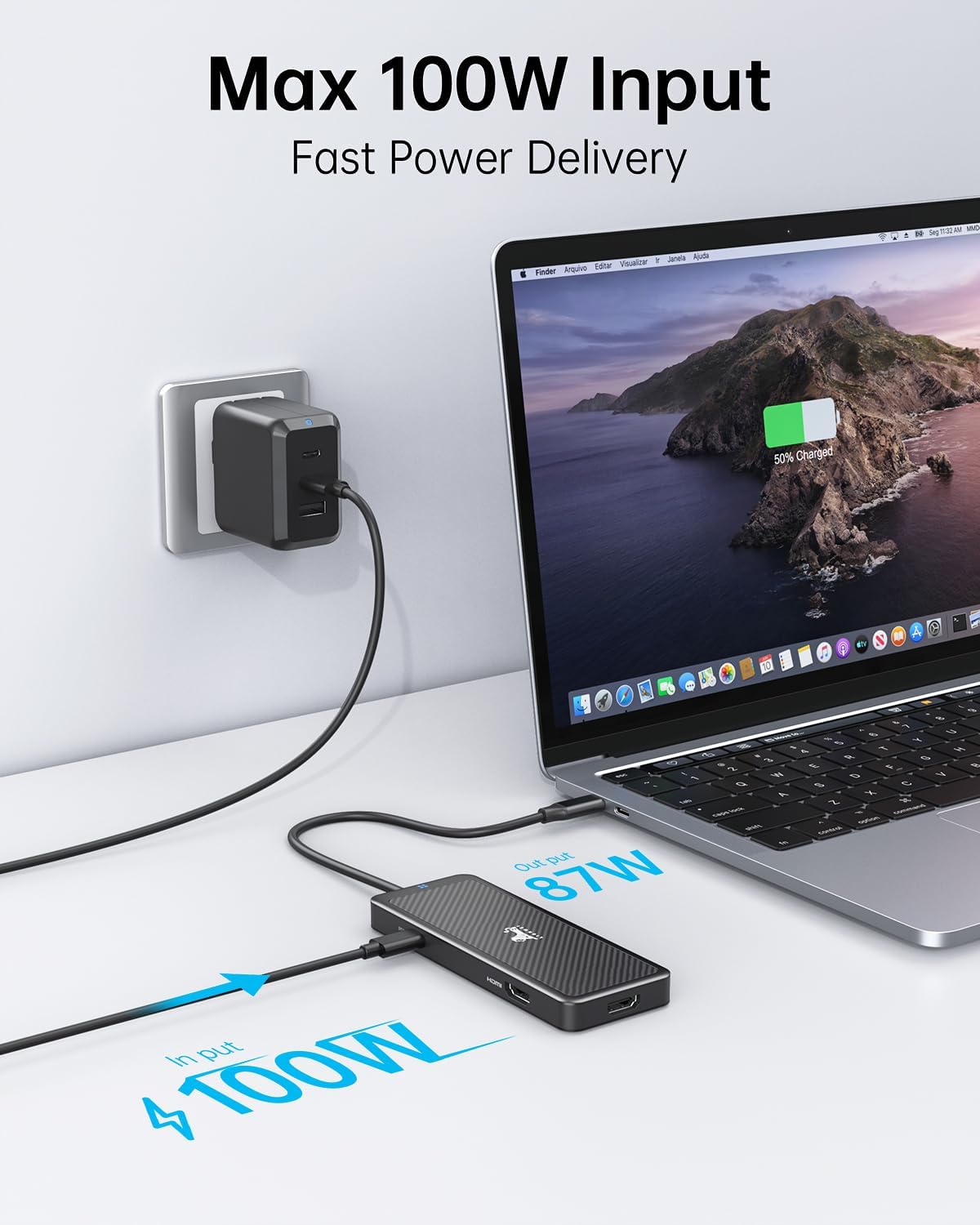
Figure 5: Max 100W Input Fast Power Delivery
Important: Please ensure that your laptop's USB-C port supports the Power Delivery protocol. For optimal charging, use the same power adapter as your original charger. Using a lower wattage charger may result in a system warning or slower charging.
High-Speed Data Transfer
The three USB-A 3.1 ports provide high-speed data transfer capabilities, allowing you to move large files, photos, and videos quickly.

Figure 6: Faster Data Transfer via USB 3.1 Ports
Connect your USB flash drives, external hard drives, or other USB devices to these ports for efficient data management.
4. Maintenance
To ensure the longevity and optimal performance of your LIONWEI USB C Dual Monitor HDMI Hub Adapter, follow these simple maintenance guidelines:
- Keep the device clean by wiping it with a soft, dry cloth. Avoid using liquid cleaners or aerosols.
- Store the docking station in a cool, dry place away from direct sunlight and extreme temperatures.
- Avoid dropping or subjecting the device to strong impacts.
- Do not attempt to disassemble or repair the device yourself. Refer to qualified service personnel if issues arise.
- Ensure proper ventilation around the device during operation to prevent overheating.
5. Troubleshooting
If you encounter any issues while using your LIONWEI docking station, please refer to the table below for common problems and their solutions.

Figure 7: Important Tips for Usage
| Problem | Possible Cause / Solution |
|---|---|
| No display on external monitor(s) |
|
| Slow charging or system warning about low power |
|
| USB devices (e.g., mouse) are unstable or disconnect |
|
| Cannot achieve 4 displays (including laptop screen) |
|
| General compatibility issues with other converters |
|
6. Specifications
| Feature | Detail |
|---|---|
| Model Number | LIUC5602 |
| Package Dimensions | 6.5 x 2.95 x 0.67 inches |
| Item Weight | 3.2 ounces |
| Color | Black |
| Hardware Interface | HDMI, USB 3.1 Type A |
| Special Feature | Fast Charging |
| Compatible Devices | Laptop with Thunderbolt or full function USB C Port |
7. Warranty and Support
Warranty Information
The LIONWEI USB C Dual Monitor HDMI Hub Adapter comes with an 18-Month Product Warranty. This warranty covers manufacturing defects and ensures product reliability.
Customer Support
For any questions, operational problems, or technical support, please contact LIONWEI customer service. We are here to assist you at any time.
You can also refer to the LIONWEI brand store for more information and resources.
Related Documents - LIUC5602
 |
USB-C Multi-function Hub Adapter Instructions Instructions for the USB-C Multi-function Hub Adapter, detailing its ports, connectivity, and setup for various operating systems. |
 |
LIONWEI Dual DisplayPort USB-C Docking Station: Product Manual & Specifications Comprehensive product manual for the LIONWEI Dual DisplayPort USB-C Laptop Docking Station. Features, specifications, performance, setup guides, and troubleshooting. |
 |
LIONWEI 13-in-1 USB-C Docking Station: Resolution Display Guide for macOS and Windows A comprehensive guide detailing the resolution capabilities of the LIONWEI 13-in-1 USB-C Docking Station for both macOS and Windows operating systems, covering single, dual, and triple monitor setups. |
 |
USB-C Multi-functional HUB Instruction Manual - LIONWEI 9-in-1 Adapter Instruction manual for the LIONWEI 9-in-1 USB-C Multi-functional HUB, detailing its features, structure, connection options, and graphics settings for Windows. Supports 4K video output, 87W PD charging, and multiple USB ports. |
 |
All-in-One USB-C Hub with Triple Display Product Manual This product manual details the features, structure, and usage of the All-in-One USB-C Hub with Triple Display. It covers connectivity options including HDMI, DisplayPort, Ethernet, USB 3.0, USB 2.0, SD/TF card readers, and audio ports, along with graphics settings for Windows and Mac, and troubleshooting tips. |
 |
LIONWEI USB-C Docking Station: 10-in-1 Hub with Dual HDMI, Ethernet, USB 3.1 - Specifications Detailed specifications and display resolution capabilities for the LIONWEI 10-in-1 USB-C docking station. Features include dual HDMI, Gigabit Ethernet, USB 3.1 10Gbps, USB 3.0, and USB-C PD charging. |
Ask a question about this manual
Ask about setup, troubleshooting, compatibility, parts, safety, or missing instructions. Manuals+ will review the question and use this page’s manual context to help answer it.