1. Introduction
Thank you for choosing the Nillkin Backlit Keyboard Case. This product is designed to enhance your iPad experience by providing a protective case, a backlit keyboard, and a multi-touch trackpad, effectively transforming your iPad into a versatile laptop. This manual provides detailed instructions for setup, operation, and maintenance.
2. Compatibility
This keyboard case is compatible with the following iPad models:
- iPad Air 13 inch (M3 2025/M2 2024)
- iPad Pro 12.9 inch (2022/2021/2020/2018)
- Specific models: A2898, A2899, A2900, A3268, A3269, A3271, A2436, A2437, A2764, A2766, A2378, A2461, A2379, A2462, A2229, A2069, A2232, A2233, A1876, A2014, A1895, A1983

Image: Visual guide to compatible iPad models.
3. Package Contents
Ensure all items are present in the package:
- 1 x Nillkin Keyboard Case
- 1 x Multi-language Manual
- 1 x Charging Cable
- Exquisite Packaging Box
4. Setup
4.1 Charging the Keyboard
Before first use, fully charge the keyboard. Connect the provided Type-C charging cable to the keyboard's charging port and a power source. The power indicator light will turn red during charging and green when fully charged. A full charge typically takes 2-3 hours.
Video: Demonstrates how to charge the keyboard and connect it to the tablet.
4.2 Installing the iPad into the Case
Carefully align your iPad with the case, ensuring the camera and ports match the cutouts. Gently press the iPad into the protective frame until it is securely seated. The case features reinforced shockproof design on all four corners for enhanced protection.
Video: Shows the correct method for installing the tablet into the Nillkin case for optimal protection.
4.3 Connecting the Keyboard (Bluetooth Pairing)
To connect the keyboard to your iPad via Bluetooth:
- Ensure the keyboard is charged.
- Turn on the power switch located on the right side of the keyboard.
- On your iPad, go to Settings > Bluetooth and turn Bluetooth ON.
- Press the Fn key and the C key on the keyboard simultaneously. The indicator light on the keyboard will start to flash, indicating it's in pairing mode.
- On your iPad, select "Bluetooth Keyboard" from the list of available devices.
- Once connected, the indicator light on the keyboard will stop flashing.
Video: Detailed steps on how to connect the Nillkin keyboard case to your tablet via Bluetooth.
5. Operating Instructions
5.1 Keyboard Backlighting
The keyboard features 7 backlit colors with 3 adjustable brightness levels. This is useful for typing in low-light conditions.
- To change backlight color: Press Fn + Backlight Key (usually a lightbulb icon).
- To adjust brightness: Press the Backlight Key repeatedly to cycle through brightness levels.

Image: The keyboard displaying its various backlit colors and brightness settings.
5.2 Function Keys and Shortcuts
A full row of function keys is customized for your tablet, supporting iPadOS shortcuts for quick editing of documents and presentations, maximizing productivity.
Video: Demonstrates the combined use of the FN key on the keyboard for various functions.
5.3 Multi-Touch Trackpad
The built-in precision trackpad allows for quick and easy navigation of your iPad. It supports full multi-touch gestures such as tap, swipe, scroll, and switching apps. Anti-misoperation technology automatically disables the touchpad when typing.
- Tap to Click: To enable this feature, go to Settings > General > Trackpad > Turn on "Tap to Click". Once enabled, you can tap an app icon on the trackpad to open it without pressing.
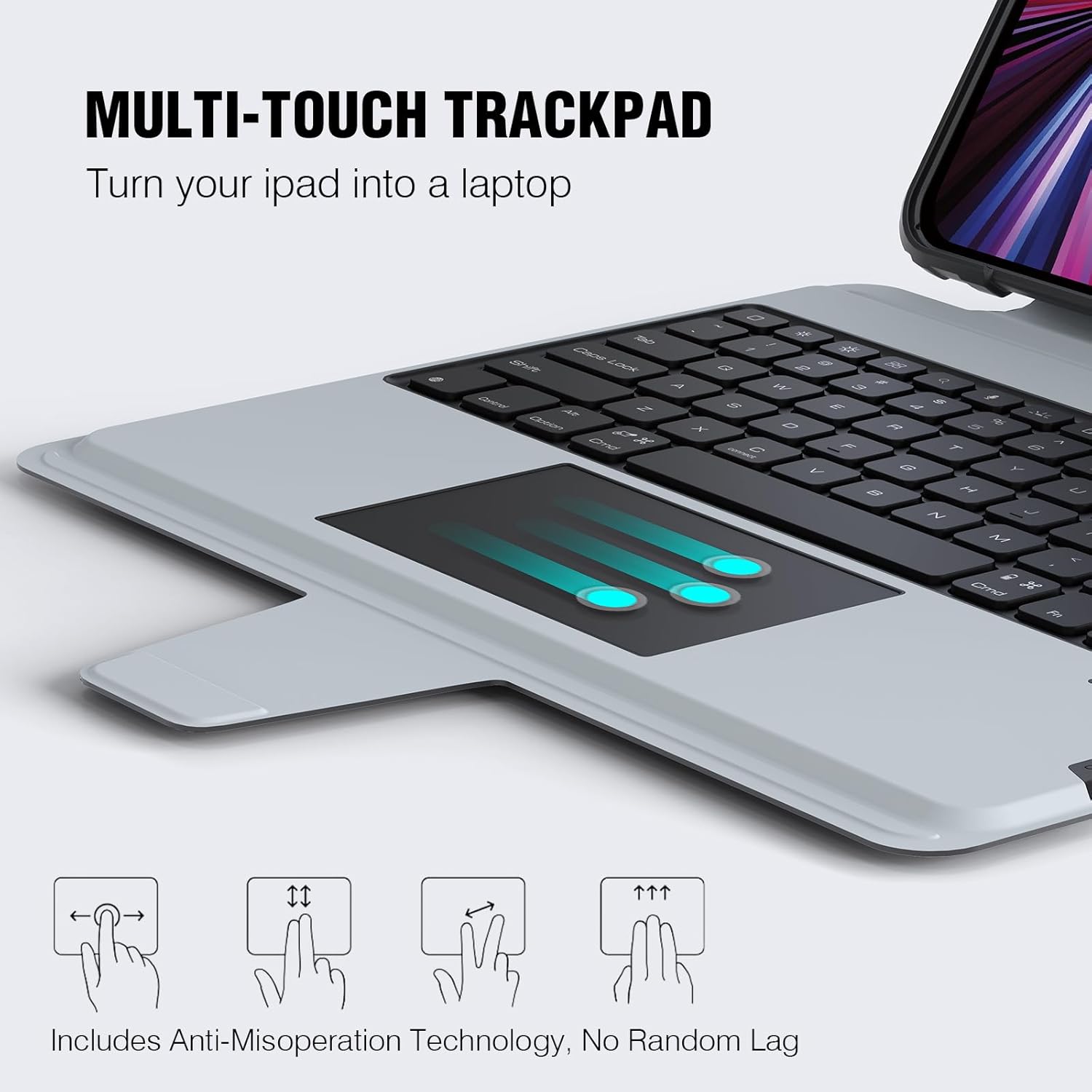
Image: The multi-touch trackpad with visual cues for various gestures.
Video: Instructions on how to enable and use the "Tap to Click" feature for a better touch experience.
5.4 Flexible and Detachable Two-piece Design
The keyboard case features a two-piece design, allowing you to detach the keyboard from the tablet case. This provides flexibility for different usage scenarios, such as using the iPad as a standalone tablet with its protective case and stand, or attaching the keyboard for a laptop-like experience.

Image: The keyboard and tablet case shown separately, demonstrating the detachable design.
5.5 Multiple Viewing Angles
The easy-set stand is adjustable from 0-180°, allowing you to find the optimal screen angle for various activities like drawing, writing, or viewing content. This makes it suitable for home, office, or school use.
Image: The iPad case demonstrating its adjustable stand for various viewing angles.
5.6 Sliding Camera Cover
The unique patented sliding camera cover design provides privacy and protects your iPad's camera lens from scratches and damage.
Image: A detailed view of the sliding camera cover feature on the case.
6. Maintenance
6.1 Cleaning
To clean the keyboard case, use a soft, damp cloth. Avoid using harsh chemicals or abrasive materials that could damage the surface. For the keyboard keys, a soft brush or compressed air can remove dust and debris. Do not immerse the keyboard in water.
6.2 Battery Care
The keyboard is equipped with a 500mAh battery, providing up to 100 hours of continuous use without backlighting and 14 hours with backlighting. To prolong battery life, avoid extreme temperatures and store the keyboard in a cool, dry place when not in use for extended periods. The auto sleep/wake functionality helps conserve battery.

Image: Details on the keyboard's battery capacity and usage duration.
7. Troubleshooting
7.1 Keyboard Not Connecting
- Ensure the keyboard is fully charged.
- Verify Bluetooth is enabled on your iPad.
- Repeat the pairing process (Fn + C) to re-enter pairing mode.
- Forget the device on your iPad's Bluetooth settings and try pairing again.
7.2 Trackpad Issues
- Ensure "Tap to Click" is enabled in iPad Settings (Settings > General > Trackpad).
- Check for any obstructions on the trackpad surface.
- Restart your iPad and the keyboard.
8. Specifications
| Feature | Detail |
|---|---|
| Package Dimensions | 13.31 x 10.79 x 1.42 inches |
| Item Weight | 2.51 pounds |
| Manufacturer | Nillkin |
| Item Model Number | For iPad Pro 12.9 & iPad Air 13 M3/M2 |
| Batteries | 1 Lithium Ion batteries required (included) |
| Connectivity Technology | Bluetooth |
| Keyboard Description | Wireless |
| Special Features | Backlit, Hotkeys and Media Keys, Portable, Sliding Camera Cover, Trackpad |
| Keyboard Backlighting Color Support | RGB (7 colors) |
| Material | Polycarbonate, TPU silica gel |
9. Warranty and Support
Nillkin products are designed for durability and performance. For warranty information and customer support, please refer to the documentation included with your purchase or visit the official Nillkin website. If you encounter any issues not covered in this manual, please contact Nillkin customer service for assistance.


