
1. Introduction
This manual provides essential information for the setup, operation, and maintenance of your LG C3 Series 65-Inch Class OLED evo 4K Smart TV, model OLED65C3PUA. This unit is a manufacturer-refurbished product, fully tested to deliver reliable performance. It features an α9 AI Processor Gen6, OLED evo technology for enhanced picture quality, a Magic Remote, and built-in Alexa for convenient control.
2. Setup
2.1 Unboxing and Component Check
Carefully remove the TV and all accessories from the packaging. Verify that all components are present:
- LG C3 Series 65-Inch OLED evo 4K Smart TV
- Magic Remote
- Remote Control Batteries (2 AAA batteries required)
- TV Stand (if applicable)
- Power Cable
- User Manual (this document)
2.2 Physical Setup
Before proceeding, ensure you have adequate space and assistance for safe handling. The TV weighs approximately 40.8 pounds.

Front view of the LG C3 Series 65-inch OLED evo 4K Smart TV, showcasing its slim design and vibrant display.

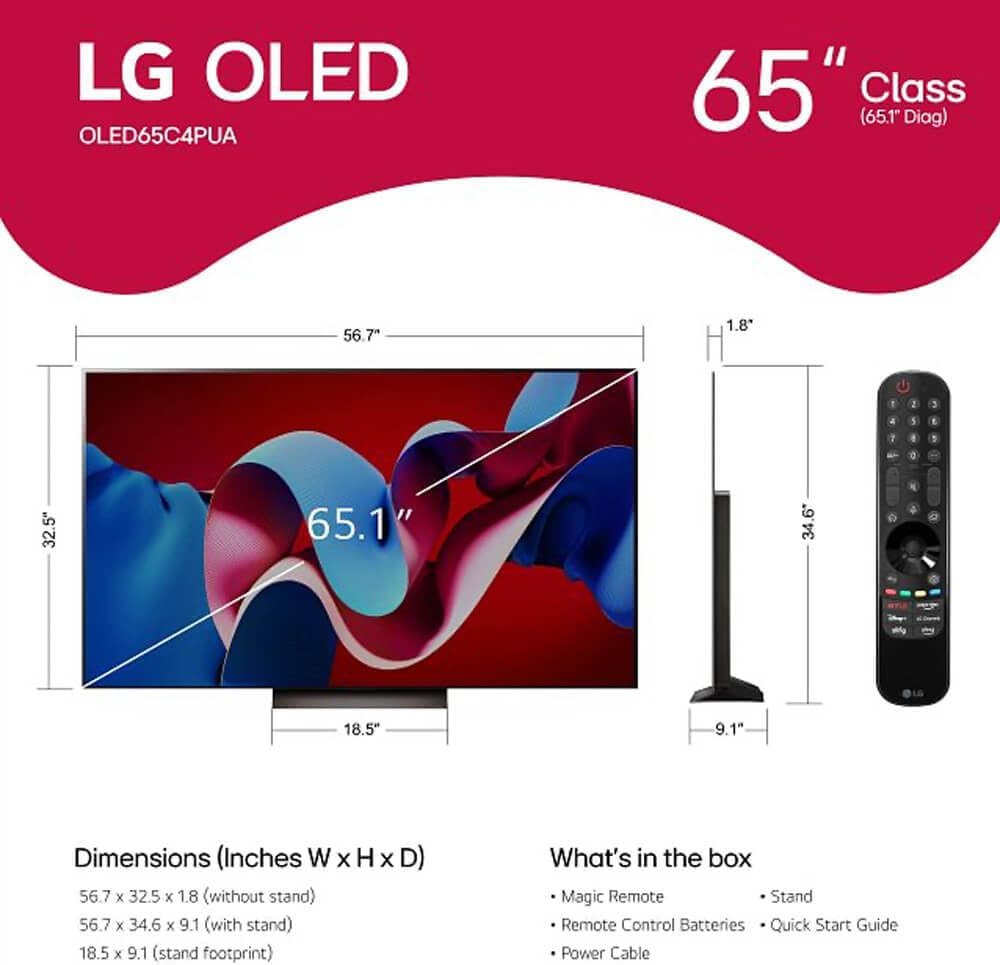
Diagram showing the dimensions of the LG OLED 65-inch TV with and without its stand, along with a list of included accessories like the Magic Remote, stand, and power cable.
Stand Installation (if applicable)
Follow the instructions provided in the quick start guide for attaching the TV stand. Ensure all screws are securely fastened. For wall mounting, use a VESA-compatible mount (sold separately) and consult a professional installer.
Connecting Peripherals
Connect your external devices (e.g., cable box, gaming console, Blu-ray player) to the HDMI ports on the rear of the TV. The TV supports various connectivity options including RCA.
2.3 Initial Power On
Plug the power cable into the TV and then into a wall outlet. Press the power button on the TV or the Magic Remote to turn on the TV. Follow the on-screen prompts to complete the initial setup, including network connection and channel scanning.
3. Operating the TV
3.1 Smart TV Features (webOS)
Your LG Smart TV runs on the intuitive webOS platform, providing easy access to streaming services, apps, and live TV channels.

The LG WebOS smart TV interface, displaying a selection of popular streaming applications and live TV options for easy access to entertainment.
3.2 Magic Remote Control
The Magic Remote allows for point-and-click navigation, voice commands, and quick access to your favorite content. Insert the 2 AAA batteries as indicated.

The LG Magic Remote, featuring a scroll wheel, voice control button, and dedicated streaming service buttons for easy navigation.
3.3 Picture and Sound Settings
The TV is equipped with an α9 AI Processor Gen6 that optimizes picture and sound quality. You can customize settings via the TV menu.
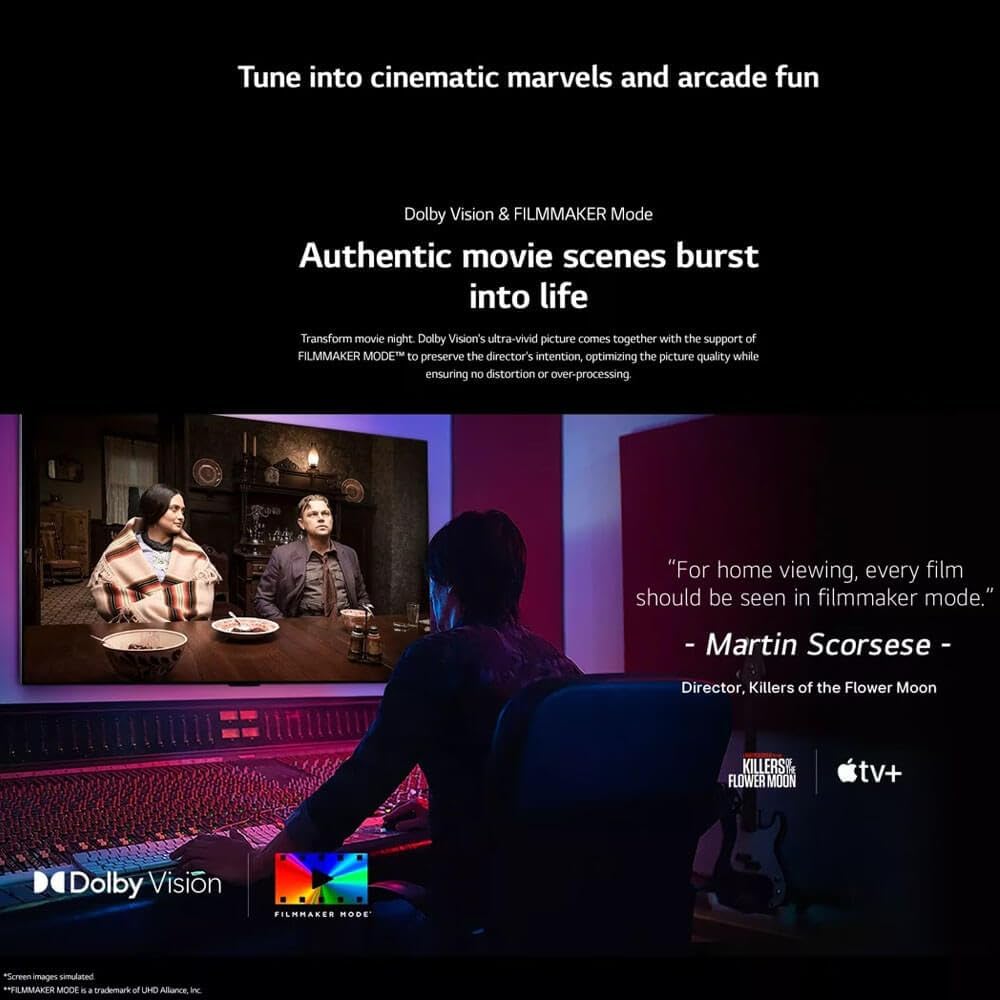
- Picture Modes: Select from various modes like Standard, Vivid, Cinema, Filmmaker Mode, and Game Optimizer to suit your content.
- Dolby Vision & HDR10: Experience enhanced contrast and color with supported HDR content.
- AI Sound Pro: The TV's 2.2 Channel speakers utilize AI to optimize audio based on content and room acoustics.

A visual representation of the LG α9 AI Processor Gen6, highlighting its advanced capabilities for picture and sound optimization.

The LG OLED TV displaying a high-action racing game, demonstrating its smooth motion and vibrant colors ideal for gaming.
3.4 Voice Control (Alexa Built-in)
Utilize the built-in Alexa functionality for hands-free control of your TV and compatible smart home devices. Simply press the microphone button on your Magic Remote or use the wake word (if enabled) to issue commands.
4. Media Integration
4.1 Product Images

The LG OLED TV showcasing a detailed nature scene with rich, accurate colors and deep blacks, illustrating its superior picture quality.
A slim side profile of the LG C3 Series OLED TV, highlighting its thin panel design.
The LG OLED TV integrated with an external soundbar, illustrating an enhanced audio setup for an immersive viewing experience.
4.2 Official Product Videos
An official seller video highlighting the key advantages and features of LG OLED televisions, including picture quality and smart functionalities.
5. Specifications
| Feature | Detail |
|---|---|
| Brand | LG |
| Model Number | OLED65C3PUA |
| Screen Size | 65 Inches |
| Display Technology | OLED |
| Resolution | 4K |
| Refresh Rate | 120 Hz |
| Processor | α9 AI Processor Gen6 |
| Special Features | Hands-free Voice Control, AI Sound Pro, Game Optimizer, Dolby Vision, HDR10 |
| Speaker Type | 2.2 Channel |
| Connectivity Technology | RCA |
| Product Dimensions | 9.1"D x 56.7"W x 34.6"H |
| Item Weight | 40.8 Pounds |
| Color | Black |
| Batteries Required | 2 AAA batteries (for remote) |
6. Maintenance
6.1 Cleaning the Screen
Gently wipe the screen with a soft, dry microfiber cloth. For stubborn smudges, lightly dampen the cloth with water or a screen-safe cleaning solution. Avoid harsh chemicals or abrasive materials.
6.2 General Care
Keep the TV in a well-ventilated area. Avoid exposing it to direct sunlight or extreme temperatures. Ensure cables are neatly organized to prevent damage or tripping hazards.
7. Troubleshooting
7.1 No Power
- Check if the power cable is securely connected to both the TV and the wall outlet.
- Ensure the wall outlet is functioning by plugging in another device.
- Try pressing the power button on the TV itself, not just the remote.
7.2 No Picture/Sound
- Verify that the correct input source is selected on the TV.
- Check all HDMI or other connection cables for secure connections.
- Ensure external devices are powered on and functioning correctly.
7.3 Remote Control Not Responding
- Replace the batteries in the Magic Remote.
- Point the remote directly at the TV's remote sensor.
- If the issue persists, try re-pairing the Magic Remote according to the on-screen instructions or the quick start guide.
8. Warranty and Support
This manufacturer-refurbished unit is backed by a 90-day warranty for your peace of mind. For further assistance, please refer to the included User Manual or contact the seller, Electronic Express, for support.
For additional product information and support resources, you may visit the official LG website or the Amazon Renewed Store.