
Introduction
This manual provides essential information for the safe and efficient operation of your Sharp 40FH6EA 40-inch Full HD Android TV. Please read these instructions thoroughly before using your television and retain them for future reference.
Safety Information
Always follow basic safety precautions when using this television to reduce the risk of fire, electric shock, and injury.
- Do not expose the TV to rain or moisture.
- Do not block ventilation openings.
- Ensure the power cord is not walked on or pinched.
- Unplug the TV during lightning storms or when unused for long periods.
- Refer all servicing to qualified service personnel.
Package Contents
Verify that all items listed below are included in your TV package:
- Sharp 40FH6EA 40-inch Full HD Android TV
- Remote Control
- 2 x AAA Batteries (for remote control)
- Quick Start Guide
- TV Stands (if not pre-attached)
Setup
1. Unpacking and Placement
Carefully remove the TV from its packaging. Place the TV on a stable, flat surface or mount it on a wall using a compatible VESA mount (200 x 200 mm). Ensure adequate ventilation around the TV.
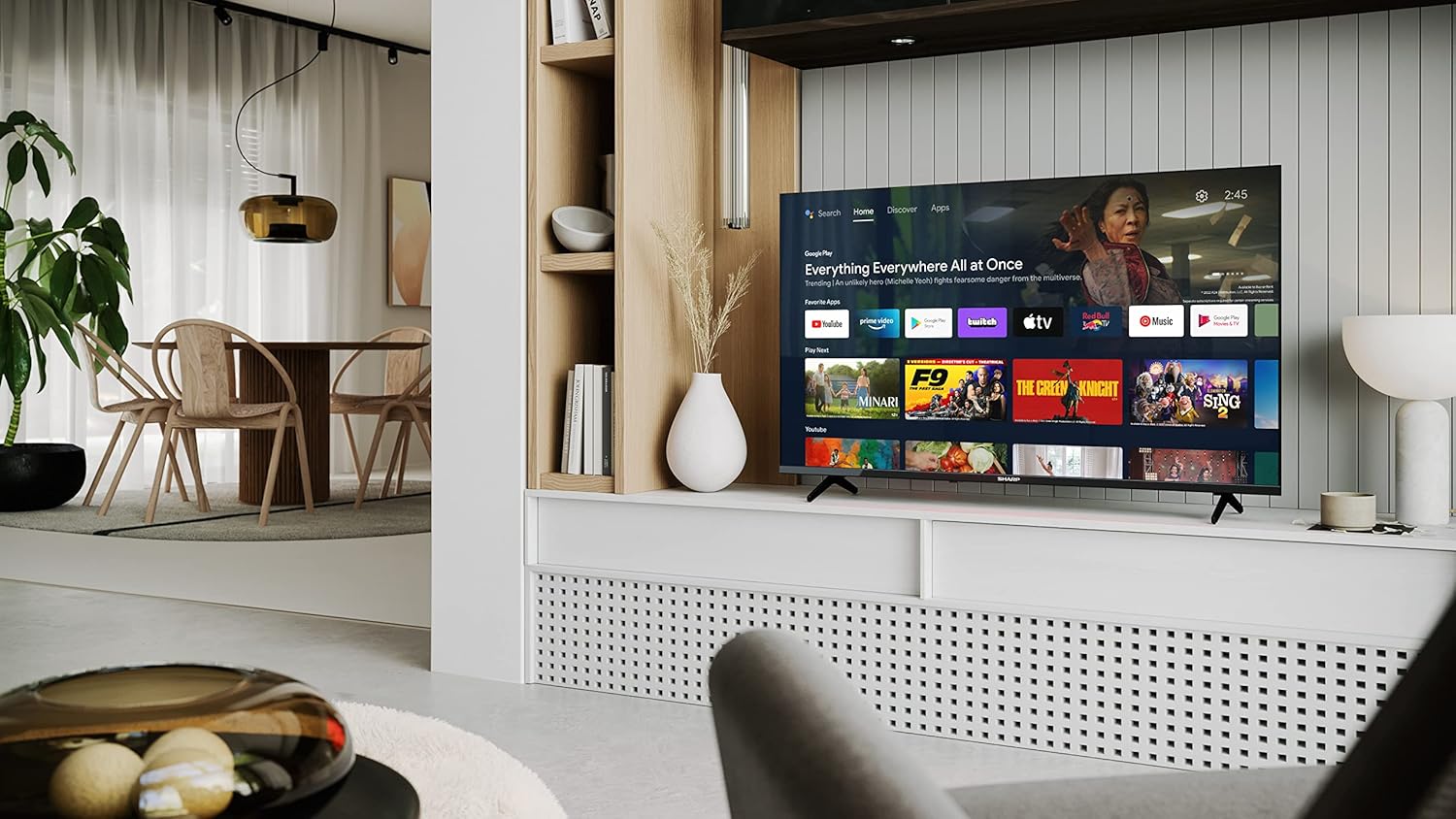
Image: Sharp 40FH6EA TV integrated into a living room environment, showcasing its frameless design.
2. Attaching the Stand
If you are not wall-mounting, attach the included stands to the bottom of the TV. Follow the instructions in the Quick Start Guide for proper assembly.

Image: Close-up view of the TV stand attached to the bottom of the Sharp 40FH6EA television.
3. Connecting External Devices
Connect your devices such as Blu-ray players, game consoles, or sound systems to the TV's input ports.
- HDMI: Use HDMI cables for high-definition video and audio. This TV has 3 HDMI ports.
- USB: Connect USB devices for media playback. This TV has 2 USB ports.
- Antenna/Cable: Connect your antenna or cable TV feed for broadcast channels.
- Ethernet: For a wired internet connection.
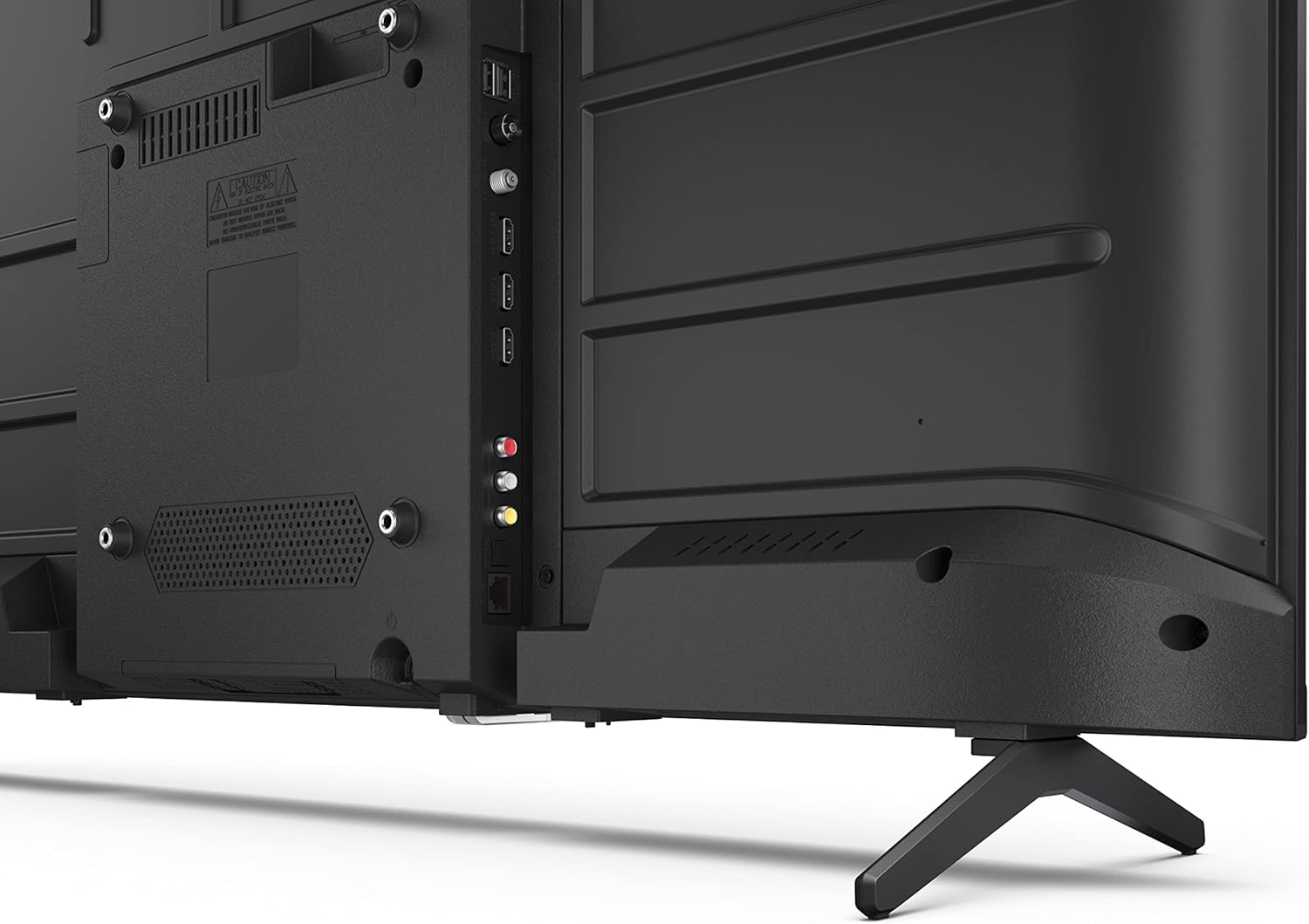
Image: Rear view of the Sharp 40FH6EA TV, highlighting the various input ports including HDMI, USB, and antenna connections.

Image: Side view of the Sharp 40FH6EA TV, showing additional connectivity ports for easy access.
4. Power Connection
Plug the power cord into the TV's power input, then into a wall outlet.
5. Initial Setup
Upon first power-on, the TV will guide you through the initial setup process. This includes selecting your language, connecting to a Wi-Fi network, and signing in with your Google account to access Android TV features.
Operating Instructions
1. Remote Control Overview
The included remote control allows you to navigate the TV's interface and control various functions. Insert the 2 AAA batteries as indicated.
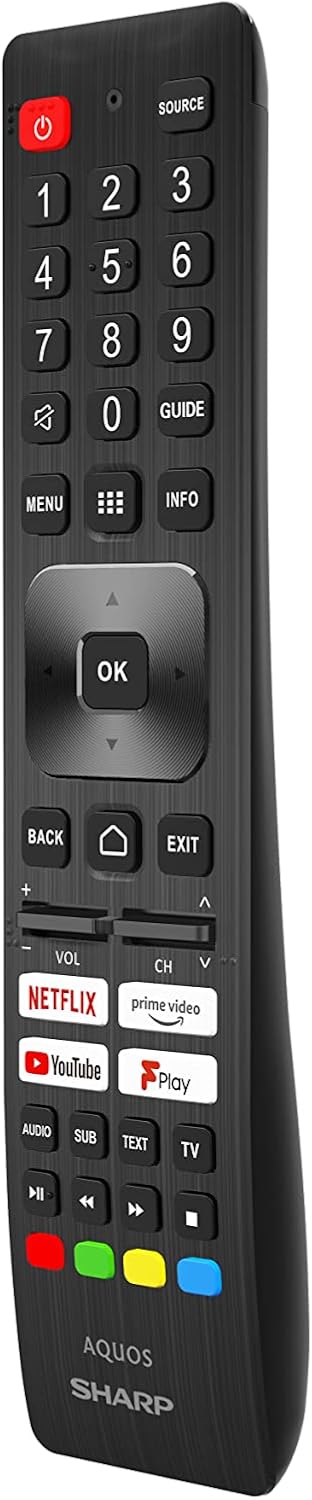
Image: The Sharp 40FH6EA TV remote control, featuring dedicated buttons for popular streaming services and Google Assistant.
- Power Button: Turns the TV on or off.
- Navigation Pad (OK button): For menu navigation and selection.
- Volume +/-: Adjusts the volume level.
- Channel +/-: Changes TV channels.
- Home Button: Returns to the Android TV home screen.
- Google Assistant Button: Activates voice control.
- App Shortcut Buttons: Direct access to Netflix, Prime Video, YouTube, etc.
2. Android TV Interface
Your Sharp 40FH6EA runs on Android TV 11, providing access to a wide range of apps, streaming services, and smart features.

Image: The Sharp 40FH6EA Android TV displaying its home screen with various streaming applications and content recommendations.
- Home Screen: Provides quick access to installed apps, recommended content, and settings.
- Google Assistant: Use voice commands via the remote to search for content, control smart home devices, and get information.
- Chromecast Built-in: Cast content from your smartphone, tablet, or computer directly to the TV.
- Google Play Store: Download additional apps and games.
3. Input Selection
Press the "Source" button on your remote control to switch between different input sources (HDMI 1, HDMI 2, HDMI 3, TV, USB, etc.).
Maintenance
1. Cleaning the TV
- Always unplug the TV before cleaning.
- Use a soft, dry cloth to wipe the screen and cabinet.
- For stubborn marks, lightly dampen the cloth with water or a mild, non-abrasive screen cleaner. Do not spray cleaner directly onto the screen.
2. Software Updates
Your Android TV may receive automatic software updates. Ensure your TV is connected to the internet to receive these updates, which can improve performance and add new features. You can also manually check for updates in the TV's settings menu.
Troubleshooting
If you encounter issues with your TV, refer to the following common problems and solutions:
| Problem | Possible Solution |
|---|---|
| No power | Check if the power cord is securely plugged into the TV and the wall outlet. Ensure the outlet has power. |
| No picture, but sound is present | Verify the correct input source is selected. Check cable connections to external devices. |
| No sound, but picture is present | Check the volume level and mute settings. Ensure external audio devices are properly connected and configured. |
| Remote control not working | Replace the batteries. Ensure there are no obstructions between the remote and the TV. |
| Cannot connect to Wi-Fi | Check your router and modem. Restart the TV and your network equipment. Re-enter the Wi-Fi password. |
| Apps are slow or crashing | Close unused apps. Clear app cache or data in settings. Restart the TV. |
Specifications
Detailed technical specifications for the Sharp 40FH6EA Android TV:
| Feature | Detail |
|---|---|
| Model Number | 40FH6EA |
| Screen Size | 40 inches (101 cm diagonal) |
| Display Technology | LED |
| Resolution | Full HD (1920 x 1080p) |
| Refresh Rate | 50 Hz (Native), 60 Hz (Display) |
| Aspect Ratio | 16:9 |
| Contrast Ratio | 1000:1 |
| Viewing Angle | 178 Degrees |
| HDR Support | HDR10 |
| Image Enhancement | Active Motion 400 |
| Operating System | Android TV (Version 11) |
| Special Features | Google Assistant, Chromecast built-in |
| Audio Output | 2 x 8W RMS Stereo Speakers |
| Audio Technologies | Dolby Audio, Dolby Digital, Dolby Digital Plus, Dolby AC-4 |
| Connectivity | Wi-Fi, Bluetooth, Ethernet |
| HDMI Ports | 3 (HDMI 2.1 compatible) |
| USB Ports | 2 |
| Tuner Type | DVB-T/T2/C/S/S2 |
| VESA Mounting Standard | 200 x 200 mm |
| Power Consumption | 36 Watts (Operational) |
| Dimensions (W x H x D) | 89.2 x 55.5 x 21.3 cm (with stand) |
| Color | Black |

Image: Diagram illustrating the physical dimensions of the Sharp 40FH6EA TV, including width, height, and depth.

Image: The energy efficiency label for the Sharp 40FH6EA TV, showing its energy class and consumption.
View EPREL Product Information
Warranty and Support
Your Sharp 40FH6EA television comes with a standard manufacturer's warranty. Please refer to the warranty card included in your package for specific terms and conditions.
For technical support, service inquiries, or to obtain replacement parts, please contact Sharp customer service. Contact information can typically be found on the Sharp official website or in the documentation provided with your TV.
- Manufacturer: Sharp
- Model Year: 2023
- Software Updates Guaranteed Until: Information not available (as per product data)
- Spare Parts Availability: Information not available (as per product data)


