1. Introduction
This manual provides essential information for setting up, operating, and maintaining your HOTWAV Pad 8 Android 13 Tablet. Please read this guide thoroughly to ensure proper use and to maximize the performance and longevity of your device.
The HOTWAV Pad 8 is a 10.4-inch tablet featuring Android 13, an Octa-Core processor, 16GB (8+8 Virtual) RAM, 256GB internal storage expandable up to 1TB via TF card, a 7500mAh battery, 2000x1200 FHD+ display, 13MP rear camera, 5MP front camera, 4G LTE, 5G WiFi, Dual SIM support, OTG, and GPS capabilities.
2. What's in the Box
Upon unboxing your HOTWAV Pad 8 tablet, verify that all the following items are included:
- HOTWAV Pad 8 Tablet
- Charging Adapter
- USB Type-C Charging and Data Cable
- SIM Ejector Tool
- Screen Protector (one pre-applied, one spare)
- Soft Silicone Case
- User Manual (this document)
3. Product Overview
The HOTWAV Pad 8 features a sleek design with a 10.4-inch display and a durable build. Familiarize yourself with the physical components of your tablet.

Image: HOTWAV Pad 8 dimensions (24 x 15 x 0.7 cm) and weight (460g).
Physical Components:
- Display: 10.4-inch 2K FHD+ (2000x1200) screen.
- Front Camera: 5MP for video calls and selfies.
- Rear Camera: 13MP primary camera.
- Power Button: Located on the side, used to power on/off or wake/sleep the device.
- Volume Buttons: Located on the side, used to adjust audio volume.
- USB Type-C Port: For charging and data transfer.
- SIM/SD Card Slot: Supports Dual Nano SIM cards or 1 Nano SIM + 1 TF card (up to 1TB).
- Dual Stereo Speakers: For enhanced audio output.

Image: Close-up of the 13MP main rear camera and 5MP front camera on the HOTWAV Pad 8.
4. Setup
4.1 Initial Charging
Before first use, fully charge your tablet. Connect the USB Type-C cable to the tablet's charging port and the other end to the charging adapter. Plug the adapter into a power outlet. The battery indicator on the screen will show charging progress.
4.2 Powering On/Off
- To Power On: Press and hold the Power button until the HOTWAV logo appears.
- To Power Off: Press and hold the Power button until the power options appear on the screen, then select "Power off".
- To Restart: Press and hold the Power button until the power options appear, then select "Restart".
4.3 SIM and TF Card Installation
The HOTWAV Pad 8 supports either two Nano SIM cards or one Nano SIM card and one TF (MicroSD) card for expanded storage.
- Locate the SIM/SD card tray on the side of the tablet.
- Insert the SIM ejector tool into the small hole next to the tray and press gently until the tray pops out.
- Place your Nano SIM card(s) and/or TF card into the designated slots on the tray, ensuring correct orientation.
- Carefully push the tray back into the tablet until it clicks into place.
4.4 Initial Setup Wizard
After powering on for the first time, follow the on-screen instructions to complete the initial setup, including:
- Language selection
- Wi-Fi network connection
- Google account sign-in
- Date and time settings
- Screen lock setup (PIN, pattern, or password)
5. Operating Instructions
5.1 Android 13 Operating System
The HOTWAV Pad 8 runs on Android 13, offering enhanced privacy controls, improved performance, and a user-friendly interface. Navigate through the system using gestures or the traditional navigation bar.
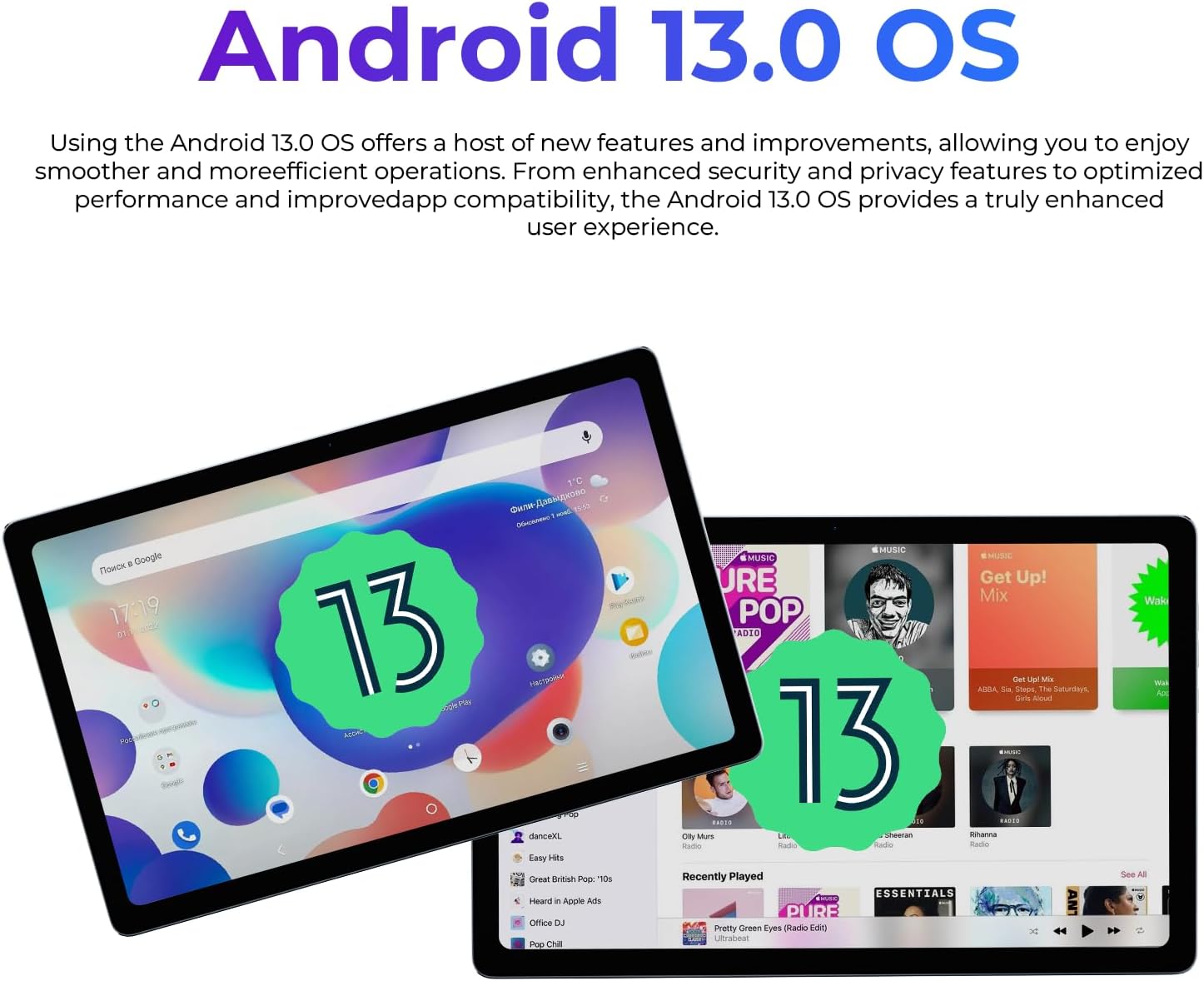
Image: The HOTWAV Pad 8 displaying the Android 13 operating system interface.
5.2 Connectivity
- Wi-Fi: Connect to available Wi-Fi networks via Settings > Network & internet > Wi-Fi.
- 4G LTE: Insert a Nano SIM card to access mobile data. Configure APN settings if necessary via Settings > Network & internet > Mobile network.
- Bluetooth: Pair with Bluetooth devices (headphones, keyboards) via Settings > Connected devices > Bluetooth.
- GPS: Utilize the built-in GPS, GLONASS, Beidou, and Galileo for navigation and location services.
- OTG (On-The-Go): Connect USB peripherals like flash drives or external keyboards using an OTG adapter (sold separately).

Image: The HOTWAV Pad 8 displaying navigation with GPS, GLONASS, Beidou, and Galileo support.
5.3 Camera Usage
Open the Camera app to capture photos and videos. The tablet features a 13MP rear camera and a 5MP front camera.
- Tap the shutter button to take a photo.
- Switch between photo and video modes.
- Use the front camera for selfies and video calls.
5.4 Split Screen Mode
Multitask efficiently using the split-screen feature. This allows you to run two applications side-by-side.
- Open the first app you wish to use.
- Swipe up from the bottom of the screen and hold to access recent apps.
- Tap the app icon at the top of the first app's card, then select "Split top".
- Choose a second app from your recent apps or app drawer to fill the other half of the screen.

Image: The HOTWAV Pad 8 demonstrating split-screen functionality, running two apps simultaneously.
5.5 Child Mode
For family use, the Child Mode feature allows you to set parental controls for network access and usage duration, ensuring a safe environment for children.
6. Specifications
Detailed technical specifications for the HOTWAV Pad 8 tablet:
| Feature | Specification |
|---|---|
| Brand | HOTWAV |
| Model Name | Pad 8 |
| Operating System | Android 13 |
| Processor | 1.6 GHz Octa-Core UNISOC T606 |
| RAM | 16 GB (8GB physical + 8GB virtual) |
| Internal Storage | 256 GB |
| Expandable Storage | Up to 1 TB via TF card |
| Screen Size | 10.4 Inches |
| Display Resolution | 2000x1200 FHD+ |
| Rear Camera | 13 MP |
| Front Camera | 5 MP |
| Battery Capacity | 7500 mAh Lithium Polymer |
| Connectivity | 4G LTE, 5G Wi-Fi (802.11g), Bluetooth |
| Navigation | GPS, GLONASS, Beidou, Galileo |
| SIM Support | Dual Nano SIM |
| Dimensions (L x W x H) | 24 x 15 x 0.7 cm |
| Weight | 460 g |

Image: An overview of the HOTWAV Pad 8's key features including display, RAM, battery, processor, and cameras.
7. Maintenance
To ensure the longevity and optimal performance of your HOTWAV Pad 8 tablet, follow these maintenance guidelines:
- Cleaning: Use a soft, lint-free cloth to clean the screen and body. Avoid abrasive materials or harsh chemicals.
- Battery Care: Avoid extreme temperatures. Do not let the battery fully drain frequently. For long-term storage, charge the battery to about 50-60%.
- Software Updates: Regularly check for and install system updates to benefit from performance improvements and security patches. Go to Settings > System > System update.
- Storage Management: Periodically clear unnecessary files and apps to free up storage space and maintain performance.
- Protection: Use the provided silicone case and screen protector to guard against scratches and minor impacts.
8. Troubleshooting
If you encounter issues with your HOTWAV Pad 8, refer to the following common troubleshooting steps:
- Tablet Not Turning On: Ensure the battery is charged. Connect the charger and wait a few minutes before attempting to power on again.
- Screen Unresponsive: Try restarting the tablet by holding the Power button for about 10-15 seconds until it reboots.
- Apps Crashing/Freezing: Close the problematic app and reopen it. If the issue persists, clear the app's cache (Settings > Apps > [App Name] > Storage & cache > Clear cache).
- Wi-Fi/Cellular Connectivity Issues: Toggle Wi-Fi or mobile data off and on. Restart your router or contact your service provider if the issue persists across multiple devices.
- Slow Performance: Close unused apps, clear cache, and ensure sufficient storage space. A factory reset (Settings > System > Reset options > Erase all data) can resolve persistent performance issues, but will delete all data. Back up important files before proceeding.
9. Warranty and Support
For warranty information, please refer to the warranty card included with your product or visit the official HOTWAV website. If you require further assistance or technical support, please contact HOTWAV customer service through their official channels.


