
GL.iNet GL-XE3000
Contents
GL.iNet GL-XE3000 (Puli AX) User Manual
5G NR AX3000 Cellular Gateway Router with Battery, Wi-Fi 6, Detachable Antennas, Dual-SIM
Model: GL-XE3000 | Brand: GL.iNet
1. Product Overview
The GL.iNet GL-XE3000, also known as Puli AX, is a high-performance Wi-Fi 6 5G Cellular Router designed for robust and reliable internet connectivity. It features a powerful built-in 6400mAh/7.4V/47.4Wh battery, ensuring extended periods of uninterrupted operation. This router delivers fast Wi-Fi speeds, combining up to 574Mbps on 2.4GHz and 2402Mbps on 5GHz, for a total combined maximum Wi-Fi speed of 3000Mbps. Its integrated 5G NR cellular connection provides a dependable internet source, serving as a primary connection or a failover option in case of Ethernet failure.
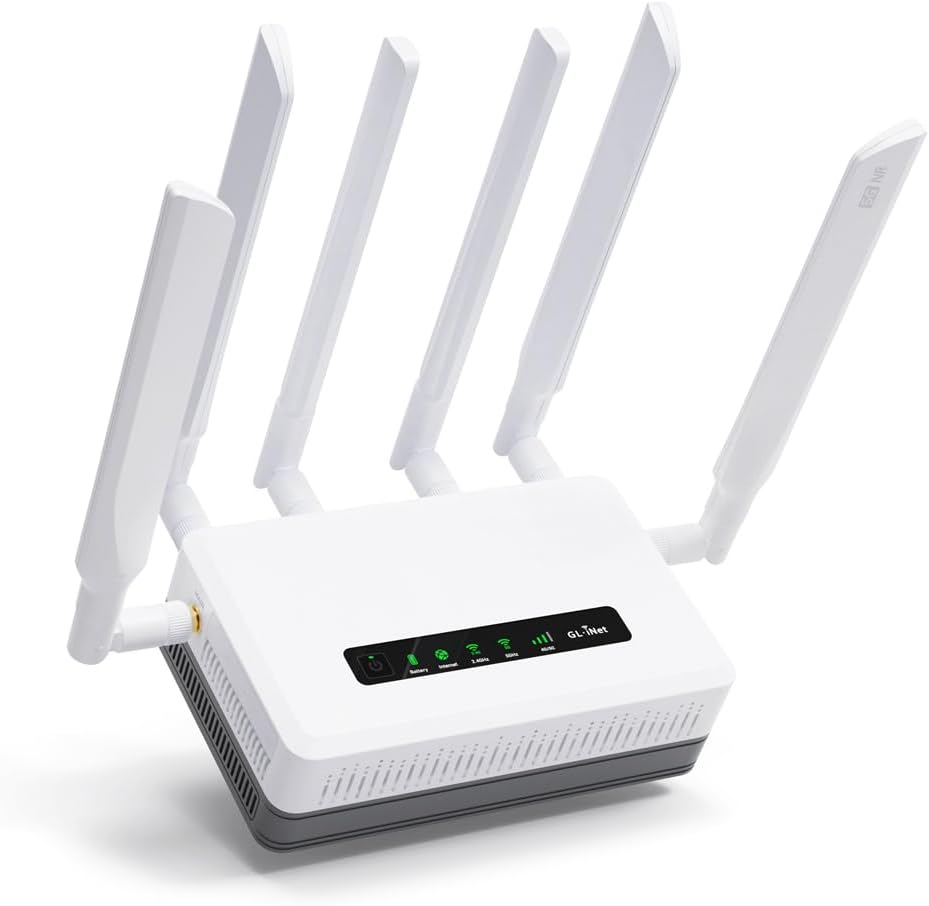
Image: The GL.iNet GL-XE3000 Puli AX router, a white rectangular device with four detachable antennas, viewed from an angle showing its front panel with indicator lights.
2. What's in the Box
The GL-XE3000 package includes the following components:
- User Manual
- GL-XE3000 router with 2-year warranty
- XE3000's Wall Mount Kit
- Ethernet Cable
- Power Adapter (US, EU, UK, AU plugs included)

Image: A flat lay display of all items included in the GL-XE3000 package, including the router, user manual, thank you card, Ethernet cable, power adapter, wall mount kit, adhesive mount, and various power converters.
3. Key Features
- Dual-SIM Standby: The Puli AX features a dual-SIM slot design, enabling connection to the ISP with the strongest signal.

Image: A hand inserting a SIM card into one of the two SIM card slots on the side of the GL-XE3000 router, illustrating its dual-SIM capability.
- Multi-WAN Support: This router supports multiple connection methods simultaneously, including Ethernet, Repeater, Cellular, and Tethering, to increase bandwidth and maintain network stability.
- Load-balancing: Distribute bandwidth by custom proportion among multiple connection methods, prioritizing data consumption and minimizing network congestion.
- Failover: Supports Network Failover with configurable priorities. If the primary connection fails, the router automatically switches to the next available connection method without interruption.
- Smart Charging & Battery Protection: The built-in battery stops charging automatically at extreme temperatures (≤0°C or ≥50°C) and resumes when safe. It also stops charging after 12 hours of full charge to protect the battery.

Image: A close-up of the GL-XE3000's front panel showing illuminated indicator lights for power, battery status, internet connection, 2.4GHz Wi-Fi, and 5GHz Wi-Fi, highlighting its backup power source.
- OpenWrt 21.02 (Kernel version 5.4): Runs on GL.iNet's latest SDK4.0+ firmware, offering support for over 5,000 ready-made plug-ins for customization. The Admin Panel provides a user-friendly interface for package management.
- Detachable Antennas: The router features interchangeable SMB antennas, allowing for customization and optimization of your network setup.

Image: A close-up view of the back of the GL-XE3000 router, showing the ports for detachable SMB antennas and other connectivity options, emphasizing network customization.
- Enhanced Security: Preinstalled with VPN capabilities, supporting over 30 VPN service providers, including WireGuard (Max. 300Mbps) and OpenVPN (Max. 150Mbps).

Image: The GL-XE3000 router with an overlay highlighting its VPN security features, including support for OpenVPN, WireGuard, Cloudflare, and IPv6, with speed indications for WireGuard and OpenVPN.
4. Setup Guide
4.1 Initial Setup
- Connect Antennas: Screw the four detachable antennas onto their respective ports on the router. Ensure they are securely fastened.
- Power On: Connect the power adapter to the router's DC 12V port and plug it into a power outlet. The power indicator light on the front panel should illuminate.
- Insert SIM Card (Optional): If using cellular connectivity, insert your 5G NR compatible SIM card(s) into the designated SIM slots (SIM1 or SIM2) until it clicks into place. Ensure the router is powered off before inserting or removing SIM cards.
- Connect to Network:
- Via Wi-Fi: On your device (computer, smartphone), search for Wi-Fi networks. Connect to the GL.iNet network (SSID usually starts with "GL-XE3000-xxxx"). The default Wi-Fi password can be found on the router's label.
- Via Ethernet: Connect an Ethernet cable from your computer to one of the LAN ports on the router.
- Access Admin Panel: Open a web browser and navigate to http://192.168.8.1. Follow the on-screen instructions to set up your new administrator password and configure basic network settings.
4.2 Internet Connection Setup
The GL-XE3000 supports multiple WAN connection types:
- Ethernet WAN: Connect an Ethernet cable from your modem or existing router's LAN port to the WAN port on the GL-XE3000. Configure the connection type (DHCP, Static IP, PPPoE) in the Admin Panel.
- Cellular (5G/4G LTE): Once a SIM card is inserted, the router should automatically detect the cellular network. You may need to configure APN settings in the Admin Panel if the connection is not established automatically.
- Wi-Fi Repeater (Extender): In the Admin Panel, navigate to the Repeater section to scan for and connect to an existing Wi-Fi network. This allows the GL-XE3000 to extend the range of another Wi-Fi network.
- USB Tethering: Connect a compatible smartphone via USB to the router's USB port to use the phone's cellular data connection.
5. Operating Instructions
5.1 Indicator Lights
| Indicator | Status | Description |
|---|---|---|
| Power | Solid Green | Device is powered on. |
| Battery | Solid Green | Battery is charged or charging. |
| Internet | Solid Green | Connected to the internet. |
| 2.4GHz Wi-Fi | Solid Green | 2.4GHz Wi-Fi is active. |
| 5GHz Wi-Fi | Solid Green | 5GHz Wi-Fi is active. |
5.2 Advanced Features Configuration
Access the Admin Panel (http://192.168.8.1) to configure advanced settings:
- VPN Client/Server: Set up VPN connections for secure browsing or to create a private network.
- Firewall: Configure firewall rules for network security.
- Port Forwarding: Set up port forwarding for specific applications or devices.
- DNS Settings: Customize DNS servers.
- Firmware Upgrade: Update the router's firmware for improved performance and security.
- Load Balancing/Failover: Manage how the router utilizes multiple internet connections.
6. Maintenance
- Firmware Updates: Regularly check for and install firmware updates from the GL.iNet website or through the router's Admin Panel. Updates often include security patches and performance improvements.
- Cleaning: Keep the router clean and free from dust. Use a soft, dry cloth to wipe the exterior. Do not use liquid cleaners or aerosols.
- Ventilation: Ensure the router is placed in a well-ventilated area to prevent overheating. Do not cover ventilation openings.
- Battery Care: Avoid exposing the router to extreme temperatures (below 0°C or above 50°C) for prolonged periods, especially during charging, to prolong battery life.
- Resetting: If the router experiences issues, a soft reboot (power cycle) or a factory reset may resolve them. Refer to the troubleshooting section for factory reset instructions.
7. Troubleshooting
7.1 Common Issues and Solutions
- No Internet Connection:
- Check all cable connections (Ethernet, power).
- Verify that the Internet indicator light is solid green.
- If using cellular, ensure the SIM card is properly inserted and has an active data plan. Check APN settings in the Admin Panel.
- Reboot the router and your modem (if applicable).
- Cannot Access Admin Panel:
- Ensure your device is connected to the router's Wi-Fi or via Ethernet.
- Verify you are typing the correct address: http://192.168.8.1.
- Try clearing your browser's cache or using a different browser.
- Slow Wi-Fi Speed:
- Ensure antennas are properly attached and oriented.
- Check for Wi-Fi interference from other devices.
- Try changing Wi-Fi channels in the Admin Panel.
- Ensure your device supports Wi-Fi 6 (802.11ax) for optimal speeds.
7.2 Factory Reset
A factory reset will revert all settings to their default values, including Wi-Fi name and password, and administrator password. Only perform this if other troubleshooting steps fail.
- Ensure the router is powered on.
- Locate the Reset button (usually a small pinhole) on the router.
- Use a paperclip or a similar pointed object to press and hold the Reset button for approximately 10 seconds until the indicator lights flash.
- Release the button. The router will reboot with factory default settings.
8. Specifications
| Attribute | Detail |
|---|---|
| Model Name | Puli AX (GL-XE3000) |
| Brand | GL.iNet |
| Wireless Standard | 802.11ax (Wi-Fi 6) |
| Frequency Band Class | Dual-Band (2.4GHz & 5GHz) |
| Max Wi-Fi Speed | AX3000 (574Mbps on 2.4GHz, 2402Mbps on 5GHz) |
| Cellular Connectivity | 5G NR, LTE-FDD, LTE-TDD, UMTS WCDMA |
| Battery | 6400mAh/7.4V/47.4Wh Lithium Ion (included) |
| Operating System | OpenWrt 21.02 (Kernel version 5.4) |
| Dimensions | 5.1 x 3.5 x 1.3 inches |
| Item Weight | 1.68 pounds |
| Special Features | Access Point Mode, Guest Mode, Dual-SIM, Multi-WAN, Load-balancing, Failover, Smart Charging, VPN |
| Compatible Devices | Personal Computer, Smartphone |
| Recommended Uses | Business, Gaming, Home, RV |

Image: An exploded diagram showing the internal components of the GL-XE3000 router, including the 5G NR module and the built-in 6400mAh battery, along with a table of supported 5G NR and LTE bands.
9. Warranty and Support
The GL.iNet GL-XE3000 router comes with a 2-year warranty. For technical support, warranty claims, or further assistance, please visit the official GL.iNet website or contact their customer service.
Official GL.iNet Store on Amazon: GL.iNet Store
Important Note: The cellular feature in this product is restricted in Russia, Belarus, Cuba, Iran, North Korea, Syria, and the Crimean Peninsula due to modem limitations.
Ask a question about this manual
Ask about setup, troubleshooting, compatibility, parts, safety, or missing instructions. Manuals+ will review the question and use this page’s manual context to help answer it.