
NEOHIPO H1
NEOHIPO H1 DAC Headphone Amplifier Instruction Manual
1. Introduction
The NEOHIPO H1 is a versatile USB Hi-Fi Digital-to-Analog Converter (DAC) and Headphone Amplifier designed to elevate your audio experience across various devices. It offers powerful headphone output, versatile connectivity options, and supports advanced audio formats like Dolby and DTS. This manual provides detailed instructions for setting up and operating your H1 DAC Amp.
2. Package Contents
Please check that your package contains the following items:
- Hi-Fi USB Audio DAC (NEOHIPO H1) x1
- User's Manual x1
- Mini USB cable x1

Figure 2.1: NEOHIPO H1 Package Contents
3. Product Overview
Familiarize yourself with the various components and connections of your NEOHIPO H1 DAC Amp.
3.1. Front Panel
Figure 3.1: Front Panel Overview
- Volume Knob: Large rotary knob for adjusting output volume.
- EQ Switch (T/D/B): Toggle switch for selecting Treble Boost (T), Direct/Neutral (D), or Bass Boost (B) equalization.
- Line-In Input: 3.5mm input for external audio sources.
- Microphone Input: 3.5mm input for connecting a microphone.
- 3.5mm Headphone Output: Standard headphone jack.
- 6.35mm Headphone Output: Larger headphone jack for professional headphones.
3.2. Rear Panel
Figure 3.2: Rear Panel Overview
- USB Input: Mini USB port for connecting to a computer (PC/Mac/PS5) for power and audio input.
- Coaxial Digital Out: Digital audio output.
- Optical Digital Out: Digital audio output.
- RCA Line Out (Right/Left): Analog stereo output for connecting to external speakers or amplifiers.

Figure 3.3: Detailed Product Diagram
4. Setup
4.1. Connecting to a Computer (PC/Mac)
- Connect the provided Mini USB cable to the USB input on the rear of the H1 DAC Amp.
- Connect the other end of the USB cable to an available USB port on your computer. The H1 will be powered via this connection.
- Connect your headphones to either the 3.5mm or 6.35mm headphone output on the front panel.
- On your computer, navigate to your audio settings (e.g., Windows Sound Settings or macOS Sound Preferences).
- Select the NEOHIPO H1 as your primary audio output device.
- For optimal sound quality, adjust the sampling rate in your computer's audio settings to 24-bit, 96000 Hz (Studio Quality) or higher, if available and desired.

Figure 4.1: H1 Connected to a Laptop
4.2. Connecting to a Gaming Console (PS5)
The NEOHIPO H1 is compatible with PS5. Connect the USB cable from the H1 to an available USB port on your PS5. Ensure the H1 is selected as the audio output device in your PS5's sound settings.
4.3. Connecting External Speakers/Amplifiers
To connect external speakers or an amplifier, use RCA cables from the 'LINE OUT' ports on the rear of the H1 to your audio system's input. Alternatively, use the Coaxial or Optical Digital Out ports for digital connections.

Figure 4.2: Connectivity Diagram
Video 4.1: This video provides a visual overview of the NEOHIPO H1 DAC & Headphone Amplifier, demonstrating its features and connectivity options.
5. Operating Instructions
5.1. Volume Control
The large rotary knob on the top panel controls the output volume for connected headphones and RCA line out. Rotate clockwise to increase volume and counter-clockwise to decrease it.

Figure 5.1: Volume Knob
Note: The volume knob adjustment is not effective when using optical or coaxial output mode.
5.2. EQ Switch
Use the small toggle switch on the front panel to select your desired equalization mode:
- T (Treble Boost): Enhances high frequencies.
- D (Direct/Neutral): Provides a flat, uncolored sound profile.
- B (Bass Boost): Enhances low frequencies.
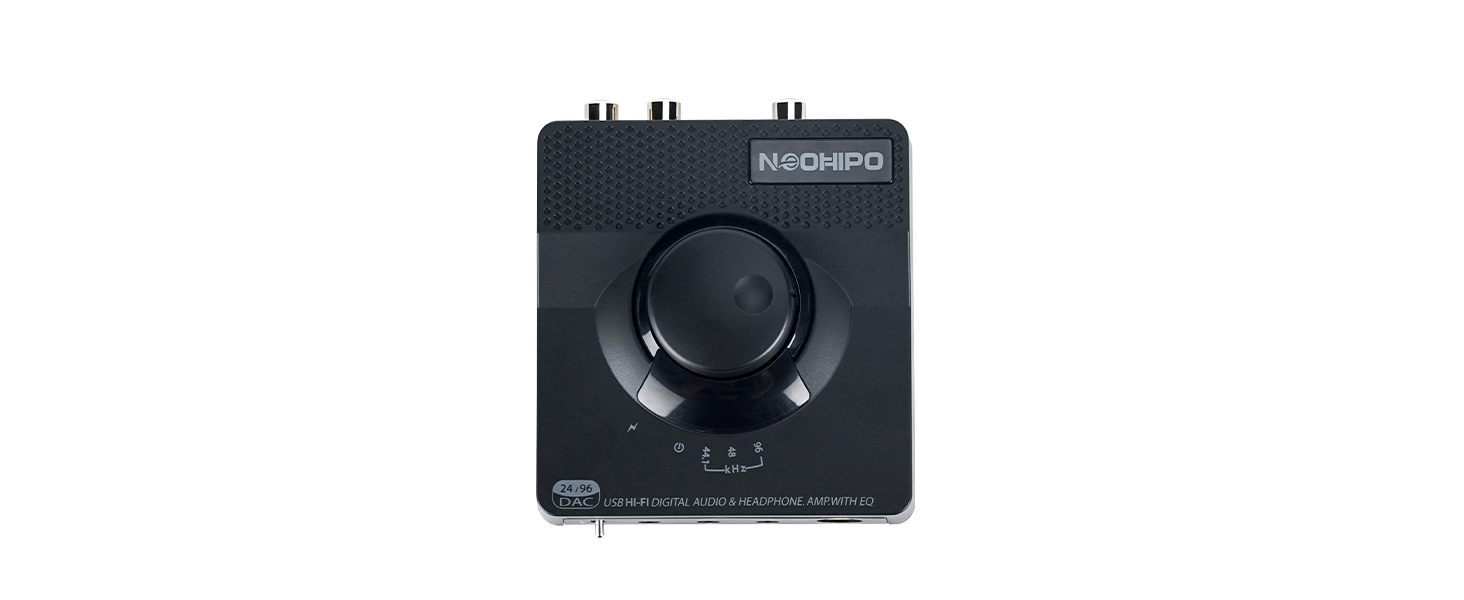
Figure 5.2: EQ Switch
5.3. Indicator Lights

Figure 5.3: Indicator Lights
- Power and USB Link Indicator: A red LED indicates power is on. A green LED indicates USB is connected.
- Volume Indicator Light: Flashes more clearly as the volume increases.
- Sampling Rate Indication: Lights indicate the current playback or recording sampling rate (44.1/48/96 KHz).
6. Connectivity
The NEOHIPO H1 offers a wide range of input and output options:
6.1. Inputs
- USB Input: For digital audio from PC, Mac, or PS5.
- Line-In Input: For analog audio sources.
- Microphone Input: For connecting a microphone.
6.2. Outputs
- 3.5mm Headphone Output
- 6.35mm Headphone Output
- Stereo RCA Line Out: For analog connection to speakers or amplifiers.
- Coaxial Digital Out: For digital connection to compatible audio systems.
- Optical Digital Out: For digital connection to compatible audio systems.
All outputs can be used simultaneously, allowing for flexible audio routing (e.g., headphones and speakers at the same time).
7. Specifications
- Product Dimensions: 3.9 x 3.54 x 1.57 inches
- Item Weight: 6.7 ounces
- Digital-to-Analog Conversion: 24-bit USB audio DAC
- Headphone Output Power: Approximately 140mW /16 ohms and 100mW /32 ohms at 1 KHz
- Headphone Impedance Range: 16-150 ohm
- Signal-to-Noise Ratio (SNR): Approximately 95dB
- Audio Formats Supported: Dolby and DTS pass-through
- USB Interface: Mini USB, compatible with USB 1.1/2.0
- Operating System Compatibility: Windows 11/10/8/7, Vista, XP (32/64-bit), macOS, Linux kernel 3.10.x and above
- Features: Integrated de-pop function to suppress pop noise during PC power-up and shutdown.
8. Maintenance
To ensure the longevity and optimal performance of your NEOHIPO H1 DAC Amp, follow these maintenance guidelines:
- Keep the device clean by wiping it with a soft, dry cloth. Avoid using liquid cleaners or solvents.
- Store the device in a cool, dry place away from direct sunlight, extreme temperatures, and humidity.
- Handle the device with care to prevent physical damage. Avoid dropping or subjecting it to strong impacts.
- Ensure proper ventilation around the device to prevent overheating.
9. Troubleshooting
9.1. No Sound Output
- Check Connections: Ensure all cables (USB, headphones, RCA/digital outputs) are securely connected.
- Verify Device Selection: Confirm that the NEOHIPO H1 is selected as the default audio output device in your computer's or console's sound settings.
- Adjust Volume: Turn the volume knob on the H1 clockwise to increase the volume. Also, check your computer's/console's master volume.
- EQ Mode: Ensure the EQ switch is not set to a mode that might mute or severely attenuate sound (though this is unlikely to cause complete silence).
9.2. Poor Sound Quality / Distortion
- Check Sampling Rate: In your computer's audio settings, ensure the sampling rate is set appropriately (e.g., 24-bit, 96000 Hz). Incorrect settings can lead to quality issues.
- Try Different EQ Modes: Experiment with the T, D, and B settings on the EQ switch to find the best sound profile for your headphones and audio content.
- Source Quality: Ensure the audio source itself is of high quality. Low-quality source audio will not be improved by the DAC.
- Headphone Impedance: While the H1 supports 16-150 ohm headphones, very high impedance headphones might require more power than the H1 can provide for optimal performance.
9.3. Microphone Not Working
- Check Connection: Ensure your microphone is securely plugged into the 3.5mm microphone input on the front panel.
- Verify Device Selection: In your computer's or console's sound settings, select the NEOHIPO H1 as your primary audio input (microphone) device.
10. Warranty and Support
The NEOHIPO H1 DAC Headphone Amplifier comes with a 24-month warranty. If you have any questions, encounter issues with the product, or require technical assistance, please contact NEOHIPO customer support. Refer to the contact information provided in your product packaging or on the official NEOHIPO website.
Ask a question about this manual
Ask about setup, troubleshooting, compatibility, parts, safety, or missing instructions. Manuals+ will review the question and use this page’s manual context to help answer it.