
1. Introduction
This manual provides detailed instructions for the installation, operation, and maintenance of your MENGQI-CONTROL 4 Door Access Control System. This advanced security system allows you to control access for up to four doors using RFID cards, key fobs, or a smartphone application, and includes features for tracking entry records and managing user privileges.
2. Package Contents
Please verify that all components listed below are included in your package:
- 1x Power Supply Box (110-240V input, 5A output)
- 1x 4-Door Network Access Control Panel Controller
- 4x Electric Magnetic Locks (280kg/600lbs holding force)
- 4x RFID Readers (Waterproof)
- 4x No Touch Exit Buttons
- 1x USB Enroll Reader
- 50x RFID Cards
- 50x RFID Key Fobs
- 1x English User Manual
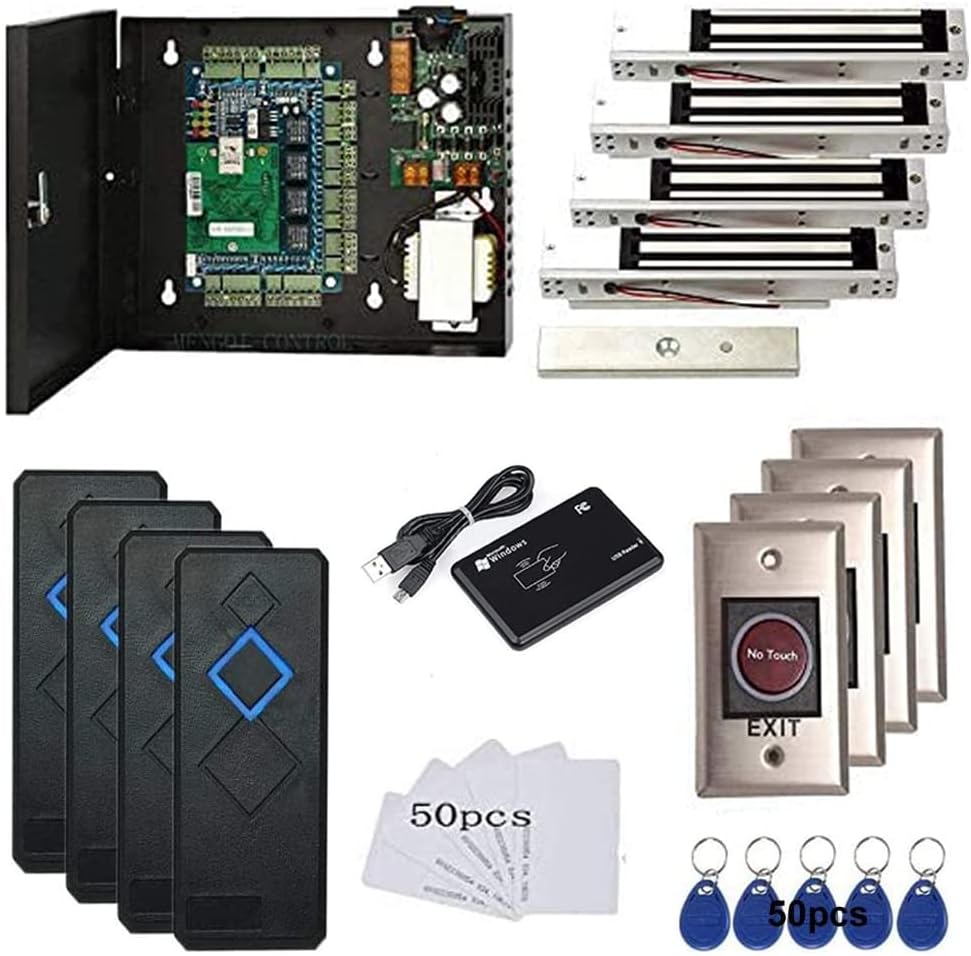
Figure 2.1: Overview of all included components in the access control system kit.
3. Setup
Careful installation is crucial for optimal performance and security. Please follow these steps precisely.
3.1. Wiring Diagram and Connections
Refer to the following diagrams and video for detailed wiring instructions. Ensure all power is disconnected before making any connections.
Video 3.1: Official setup and wiring guide for the RFID Reader Magnetic Lock 4 Doors Access Control System Kit.
3.1.1. Magnetic Lock Wiring (Per Door)
Each magnetic lock requires two connections:
- Connect the 12V output from the power supply to the COM terminal on the control board.
- Connect the NC (Normally Closed) terminal on the control board to the red wire of the magnetic lock.
- Connect the black wire of the magnetic lock to the GND (Ground) terminal on the power supply.
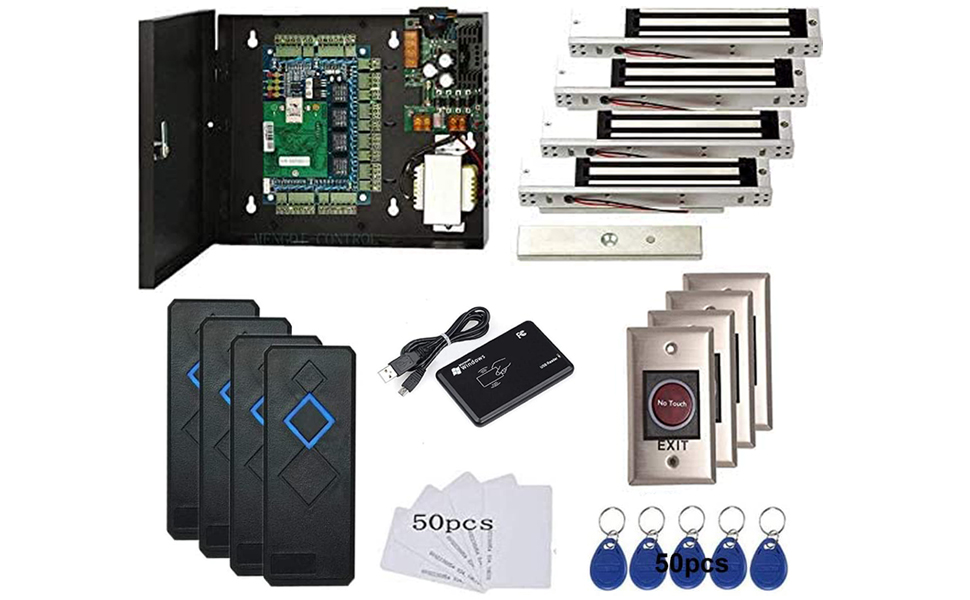
Figure 3.1: Detailed wiring for one magnetic lock. Wiring for other locks is similar.
3.1.2. RFID Reader Wiring (Per Door)
Each RFID reader connects to the control board as follows:
- Connect the RED wire of the reader to the 12V terminal on the control board.
- Connect the BLACK & GREY wires of the reader together, then connect them to the GND terminal on the control board.
- Connect the WHITE wire of the reader to the D1 terminal on the control board.
- Connect the GREEN wire of the reader to the D0 terminal on the control board.

Figure 3.2: Detailed wiring for one RFID reader. Wiring for other readers is similar.
3.1.3. No Touch Exit Button Wiring (Per Door)
Connect the No Touch Exit Button to the corresponding terminals on the control board for each door.

Figure 3.3: No Touch Exit Button.
3.2. Software Installation and Initial Programming
The management software is Windows-based and does NOT support Mac operating systems. Ensure you have a Windows computer or laptop for programming.
- Install the provided management software on your Windows computer.
- Connect the USB Enroll Reader to your computer.
- Follow the software guide to program the system. This includes registering users, assigning access privileges, and setting up time-based access rules.
- Once programming is complete, the system operates as a fully stand-alone unit, requiring no continuous connection to a computer or network.

Figure 3.4: USB Enroll Reader for registering RFID cards and key fobs.
4. Operating Instructions
4.1. Granting Access
Users can gain access through the controlled doors using the following methods:
- RFID Card/Key Fob Swipe: Present a registered RFID card or key fob to the RFID reader. A successful read will trigger the lock to open.
- No Touch Exit Button: From the inside, simply wave your hand near the No Touch Exit Button to trigger the lock and open the door.
- Smartphone APP: Use the dedicated iOS or Android smartphone application to remotely open the lock.

Figure 4.1: RFID Reader for card/key fob access.
4.2. System Features Overview
- Access Control: Control up to 4 doors, allowing entry via swiping cards/key fobs and exit via No Touch exit buttons.
- Record Keeping: Store, download, and check detailed history entry records for who opened which door at what time. Generate reports using the professional management software.
- User Capacity: Memory capacity for up to 20,000 users and 100,000 logs.
- Time-Based Access: Configure doors to auto-open/close at pre-set times during any day.
- Privilege Management: Define specific access rights, allowing certain users or groups to enter particular doors at designated times.
- User Management: Easily add, delete, activate, or deactivate users via the Windows management software. Set expiry dates/times for user privileges.
- Lost Card/Key Fob Processing: Simple process to manage lost cards or key fobs.
- Remote Access: Support for smartphone applications (iOS & Android) to open doors locally or remotely.
- Connectivity: TCP/IP based communication for the control board.
- Software Compatibility: Software supports Windows 7/8/10/11 (32-bit and 64-bit systems). Note: Mac is NOT supported.
5. Maintenance
To ensure the longevity and reliable operation of your access control system, regular maintenance is recommended:
- Keep the control panel and readers clean and free from dust.
- Periodically check all wiring connections to ensure they are secure.
- Inspect magnetic locks for any signs of wear or damage.
- Regularly back up your user data and access logs from the management software.
- Ensure the power supply box is in a well-ventilated area.
6. Troubleshooting
If you encounter issues with your access control system, refer to the following common problems and solutions:
| Problem | Possible Cause | Solution |
|---|---|---|
| Door does not unlock with card/fob. | Card/fob not registered, incorrect wiring, power issue. | Verify card/fob registration in software. Check wiring connections to reader and lock. Ensure power supply is active. |
| No Touch Exit Button not working. | Incorrect wiring, button malfunction. | Check wiring to the exit button. Test the button for physical response. |
| Software not connecting to control panel. | Network issue, incorrect IP settings, firewall. | Verify network connection (TCP/IP). Check IP address settings in software and on control panel. Disable firewall temporarily for testing. |
| Magnetic lock not holding securely. | Misalignment, insufficient power, damaged lock. | Ensure lock and armature plate are perfectly aligned. Verify 12V power supply. Inspect lock for physical damage. |
For further assistance, please contact technical support.
7. Specifications
| Feature | Specification |
|---|---|
| Brand | MENGQI-CONTROL |
| Model Number | 4 Door Access Control Kit |
| Power Source | Corded Electric |
| Voltage | 110 Volts |
| Connectivity Technology | Wired |
| Compatible Devices | Smartphone |
| Control Method | Touch |
| Magnetic Lock Holding Force | 600lbs (280kg) |
| RFID Reader Read Range | 5-10cm |
| User Capacity | Up to 20,000 users |
| Log Capacity | Up to 100,000 logs |
| Product Dimensions (L x W x H) | 10 x 5 x 5 inches |
| Item Weight | 25 pounds |
8. Warranty and Support
MENGQI-CONTROL is committed to providing quality products and service. We are security experts with over 20 years of experience, and our technical support is available to assist you.
8.1. Protection Plans
Extended protection plans are available for purchase:
- 2-Year Protection Plan: Available for $47.99 (one-time billing).
- 3-Year Protection Plan: Available for $60.99 (one-time billing).
- Complete Protect: One plan covers all eligible past and future purchases for $16.99/month.
8.2. Technical Support
We provide detailed video guides, wiring diagrams, and manuals for hardware wiring and software programming to ensure easy setup. For any questions or technical assistance, please contact SecureLife4you Security Control, the seller and manufacturer of this product.