
1. Introduction
Thank you for choosing the Rii SF108 Surface Pro Type Cover Bluetooth Keyboard. This ultra-slim, portable wireless keyboard is designed to enhance your productivity with its integrated touchpad and backlit keys. This manual provides essential information for setup, operation, and maintenance to ensure optimal performance.
2. Safety Information
- Keep the keyboard away from water, moisture, and extreme temperatures.
- Avoid dropping or subjecting the keyboard to strong impacts.
- Do not attempt to disassemble or repair the keyboard yourself. Contact qualified service personnel if needed.
- Use only the provided USB cable for charging.
3. Package Contents
Please verify that all items are present in your package:
- Rii SF108 Surface Pro Type Cover Bluetooth Keyboard
- USB Charging Cable
- Rii Certificate of Authentification
4. Product Overview
The Rii SF108 keyboard features a compact design with a full QWERTY layout, a precision multi-touch trackpad, and 7-color backlighting. It magnetically attaches to compatible Surface Pro devices for a secure connection.
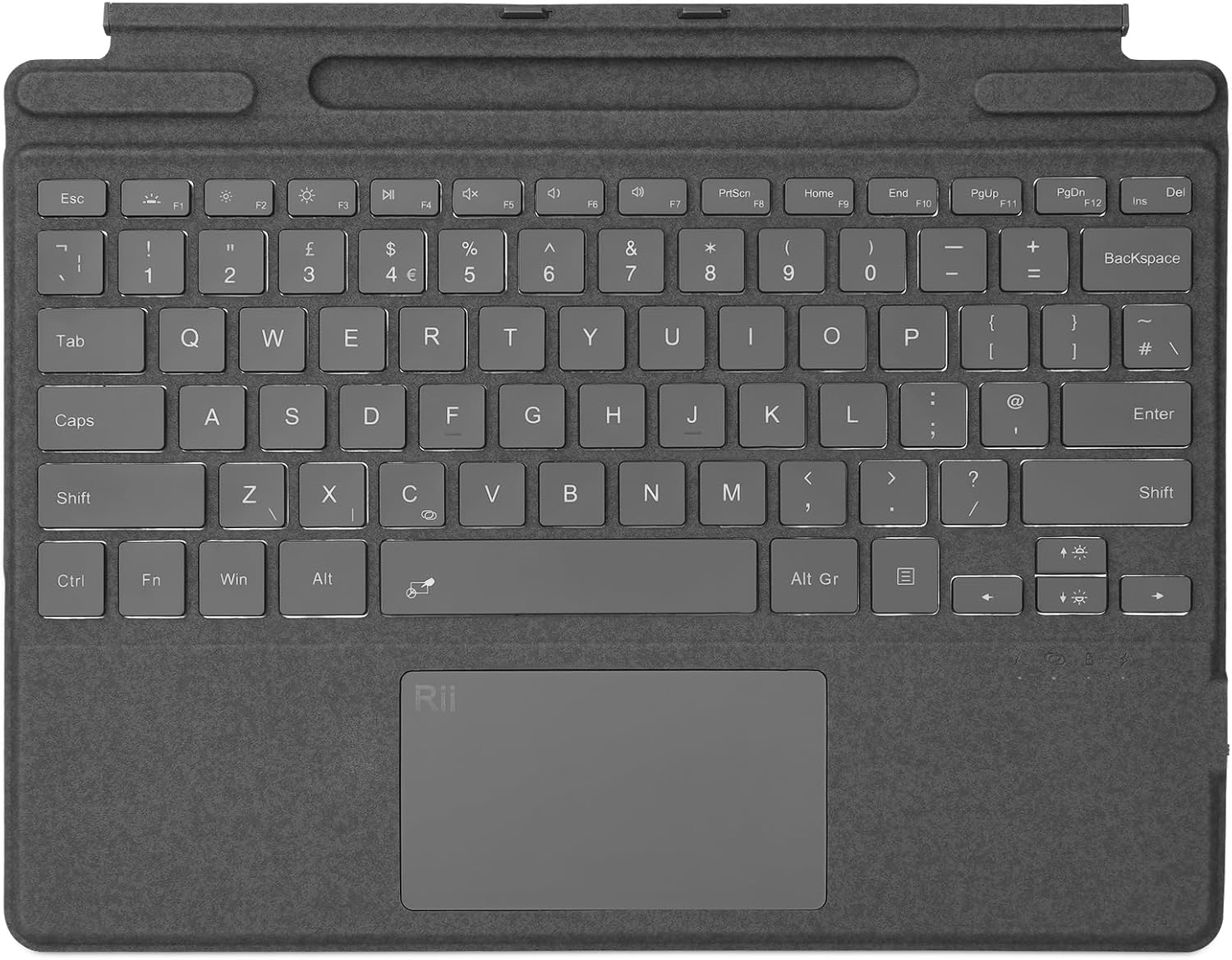
Image 1: Top-down view of the Rii SF108 keyboard, showcasing its layout and integrated touchpad.

Image 2: Diagram illustrating the dimensions (11.41in x 8.76in x 0.31in) and key features such as lightweight design, tablet screen protection, wireless Bluetooth connection, and large capacity battery.
Key Features:
- Ultra-Slim Design: Compact and lightweight for portability.
- X-Scissor Structure Keys: Provides a comfortable and responsive typing experience.
- Precision Multi-Touch Trackpad: Supports various gestures for efficient navigation.
- 7-Color Backlighting: Adjustable brightness and color options for typing in low-light conditions.
- Bluetooth 5.2 Connectivity: Ensures a stable and fast wireless connection.
- Magnetic Attachment: Securely connects to compatible Surface Pro devices.
- Type-C Charging: Convenient and fast charging for the built-in battery.
5. Setup Instructions
5.1 Charging the Keyboard
- Locate the Type-C charging port on the side of the keyboard.
- Connect the provided USB charging cable to the keyboard's Type-C port and the other end to a USB power source (e.g., computer USB port, USB wall adapter).
- The charging indicator light will illuminate. A full charge typically takes a few hours.
- Once fully charged, the indicator light may change or turn off. Disconnect the cable.
Note: The keyboard and your Surface tablet cannot charge each other. The keyboard has a 520mAh battery, offering over 100 days of standby time and more than 30 hours of working time on a single charge.

Image 3: Close-up view of the keyboard's Type-C charging port with a charging cable connected.
5.2 Attaching to Surface Pro
The keyboard features a powerful magnetic attachment strip for secure connection to your Surface Pro device.
- Align the magnetic edge of the keyboard with the corresponding port on your Surface Pro.
- The magnets will automatically snap the keyboard into place, creating a stable connection.

Image 4: Illustration showing the magnetic attachment mechanism connecting the keyboard to a Surface Pro tablet.
5.3 Bluetooth Pairing
The Rii SF108 uses Bluetooth 5.2 for wireless connection.
- Ensure the keyboard is charged and powered on.
- Press and hold the Fn + C keys simultaneously for 2-3 seconds to enter pairing mode. The Bluetooth indicator light on the keyboard will flash.
- On your Surface Pro, go to Settings > Bluetooth & devices.
- Turn on Bluetooth and select Add device.
- Choose Bluetooth from the options.
- Select "Rii Keyboard" or a similar name from the list of available devices.
- Follow any on-screen prompts to complete the pairing process. The indicator light on the keyboard will stop flashing once successfully paired.

Image 5: Visual guide demonstrating how to press Fn + C keys to initiate Bluetooth pairing for quick connection.
6. Operating Instructions
6.1 Keyboard Functions
The keyboard provides a standard QWERTY layout with additional function keys.
6.2 Backlight Control
The Rii SF108 features 7-color backlighting with 3 brightness levels.
- To change backlight color: Press Fn + ↑ (Up Arrow) or Fn + ↓ (Down Arrow) keys.
- To adjust brightness: Press the Brightness Increase (F7) or Brightness Decrease (F6) keys.
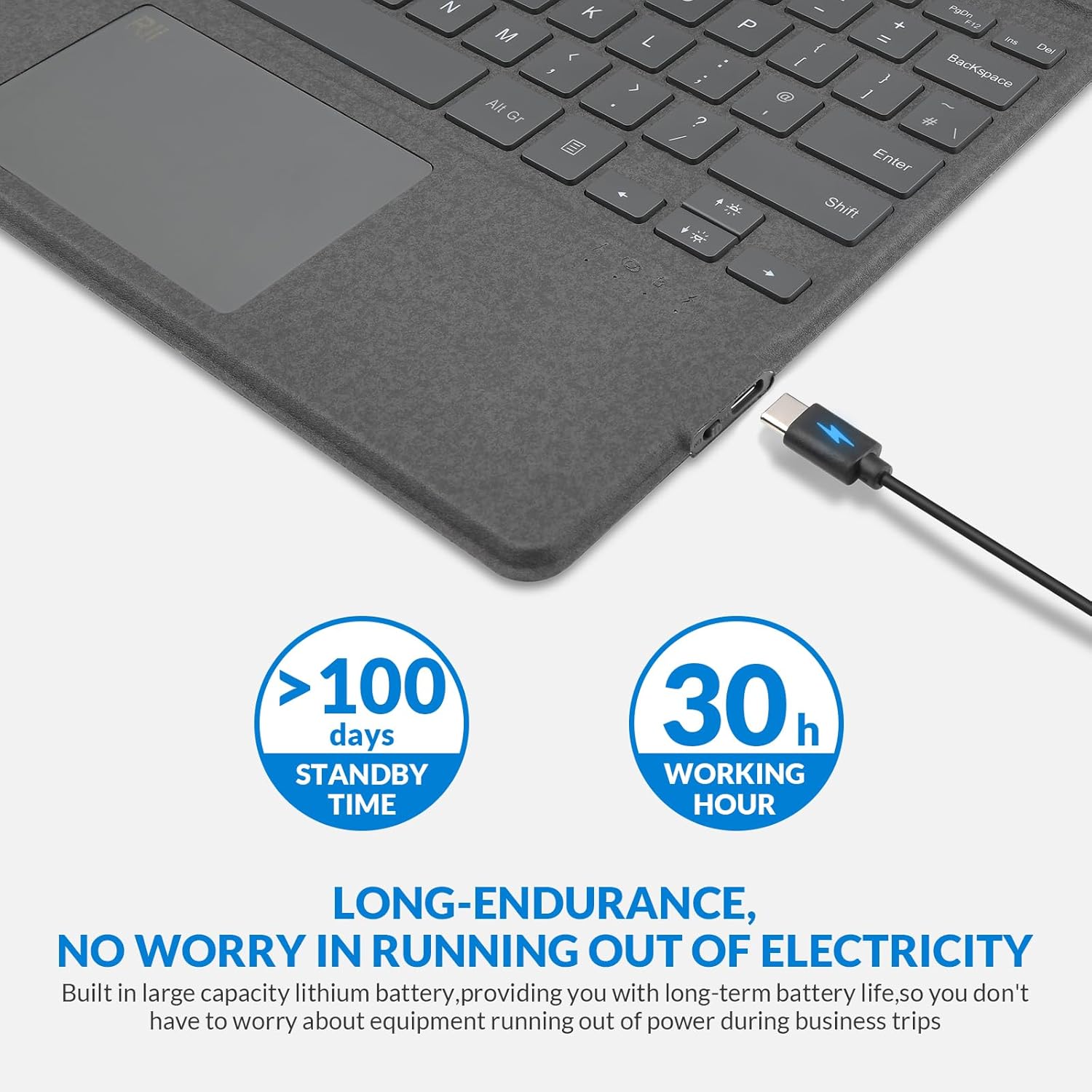
Image 6: The keyboard displaying its seven-color backlighting feature, with various color options shown below.
6.3 Multi-Touch Trackpad
The integrated precision trackpad supports various multi-touch gestures to enhance navigation and productivity.

Image 7: Close-up of the multi-touch trackpad, illustrating finger gestures for operation.
Refer to your Surface Pro's operating system settings for detailed information on customizing trackpad gestures and sensitivity.
6.4 Shortcut Keys
The keyboard includes multiple shortcut keys for quick access to common functions.

Image 8: Diagram showing the layout and functions of various shortcut keys, including ESC, Backlight control, Mute, Volume control, Play/Pause, Brightness control, Screenshot, Home, End, Page Up, Page Down, and Delete.
7. Maintenance
7.1 Cleaning
- Gently wipe the keyboard surface with a soft, lint-free cloth.
- For stubborn dirt, slightly dampen the cloth with water or a mild cleaning solution. Avoid excessive moisture.
- Do not use harsh chemicals, abrasive cleaners, or solvents.
7.2 Storage
- When not in use, store the keyboard in a cool, dry place.
- Avoid placing heavy objects on the keyboard to prevent damage.
8. Troubleshooting
If you encounter issues with your Rii SF108 keyboard, please refer to the following common solutions:
- Keyboard not connecting via Bluetooth:
- Ensure the keyboard is charged.
- Verify Bluetooth is enabled on your Surface Pro.
- Re-enter pairing mode on the keyboard (Fn + C for 2-3 seconds) and attempt to re-pair with your Surface Pro.
- Remove the keyboard from your Surface Pro's Bluetooth device list and try pairing again.
- Keys not responding or typing incorrectly:
- Check the keyboard's battery level.
- Ensure the keyboard is properly connected via Bluetooth.
- Restart your Surface Pro.
- Trackpad issues (e.g., unresponsive, incorrect gestures):
- Ensure the trackpad surface is clean and free of obstructions.
- Check your Surface Pro's operating system settings for trackpad sensitivity and gesture configurations. Adjust as needed.
- If the trackpad is overly sensitive or zooms instead of scrolls, adjust settings in Windows 11 under Settings > Touchpad.
- Backlight not working:
- Ensure the keyboard is powered on and charged.
- Use the brightness control keys (F6/F7) to adjust backlight intensity.
9. Specifications
| Brand | Rii |
| Model Number | SF108 |
| Compatible Devices | Microsoft Surface Pro 8, Surface Pro 9, Surface Pro X |
| Connectivity Technology | Bluetooth 5.2 |
| Keyboard Description | Multimedia |
| Special Feature | Backlit (7 colors, 3 brightness levels) |
| Battery Type | 1 Lithium Polymer battery (included) |
| Battery Capacity | 520mAh |
| Standby Time | More than 100 days |
| Working Time | More than 30 hours |
| Product Dimensions | 11.4 x 8.76 x 0.31 inches (28.96 x 22.25 x 0.79 cm) |
| Item Weight | 1.12 pounds (0.51 kg) |
10. Warranty and Support
For warranty information or technical support, please refer to the Rii certificate of authentification included in your package or visit the official Rii website. You may also contact Rii customer service through the retailer where the product was purchased.
For additional information and products, visit the Rii Brand Store.