
Introduction
The DYMO LetraTag 200B is a portable thermal Bluetooth label maker designed for efficient organization in home and office environments. It connects wirelessly to your Apple or Android smartphone or tablet via Bluetooth, allowing you to create and print customizable labels using the intuitive LetraTag Connect app. This manual provides essential information for setup, operation, and maintenance of your device.
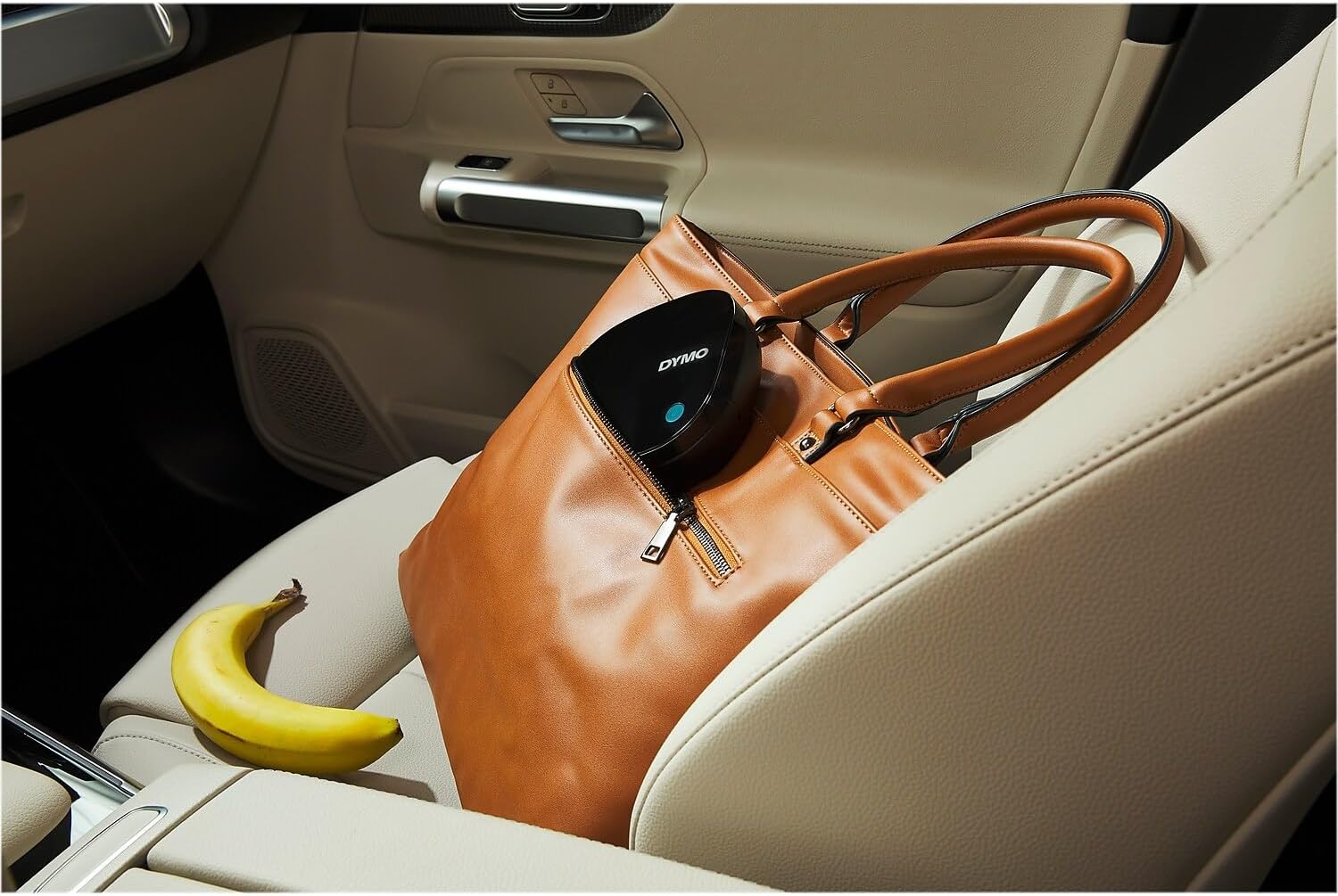
Image: The DYMO LetraTag 200B label maker fits conveniently into a bag, highlighting its portable design for on-the-go labeling.
Safety Information
- Read all instructions before using the device.
- Keep the device away from water or other liquids.
- Do not attempt to disassemble or repair the device yourself. Refer to qualified service personnel.
- Use only genuine DYMO LetraTag labels and accessories to ensure proper functionality and prevent damage.
- Dispose of batteries and old devices according to local regulations.
Package Contents
Verify that all items are present in your package:
- DYMO LetraTag 200B Bluetooth Label Maker
- 1 White Paper Label Tape
- 1 Clear Plastic Label Tape

Image: Contents of the DYMO LetraTag 200B package, including the label maker and two types of label tapes.
Product Overview
The DYMO LetraTag 200B features a compact, sleek design with a power button and a slot for label tape. Its portable nature allows for easy transport and use in various locations.
- Power Button: Located on the top surface, used to turn the device on/off.
- Label Output Slot: Where printed labels emerge.
- Battery Compartment: Located on the underside, for inserting AA batteries.
- Tape Cartridge Bay: Inside the device, for loading label tape cartridges.
Setup
1. Inserting Batteries
- Gently open the battery compartment cover on the underside of the label maker.
- Insert four (4) AA batteries, ensuring correct polarity (+/-).
- Close the battery compartment cover securely.
2. Loading Label Tape
- Open the label maker's top cover by gently lifting it.
- Insert a DYMO LetraTag label cassette into the tape cartridge bay, ensuring it clicks into place.
- Close the top cover until it latches securely.
3. App Installation and Bluetooth Pairing
- Download the 'LetraTag Connect' app from your device's app store (Apple App Store or Google Play Store).
- Ensure Bluetooth is enabled on your smartphone or tablet.
- Press and hold the power button on the label maker until the indicator light illuminates.
- Open the 'LetraTag Connect' app and follow the on-screen instructions to pair your device. The app will search for available label makers.

Image: Visual guide for connecting the label maker to a smartphone via Bluetooth for printing.
Operating Instructions
1. Creating a Label
- Once paired, open the 'LetraTag Connect' app.
- Enter your desired text into the label editor.
- Utilize the app's customization options: choose from five font sizes, 15 box styles, and over 100 icons. You can also underline text or create multiple lines.
- Preview your label to ensure it meets your requirements.
2. Printing a Label
- After customizing your label, tap the 'Print' icon in the app.
- The label maker will print the label.
- Once printed, use the integrated cutter to cleanly separate the label from the tape roll.

Image: The label maker shown with the companion app on a smartphone, illustrating the user interface for label creation.
Maintenance
1. Cleaning the Device
- Ensure the label maker is turned off before cleaning.
- Wipe the exterior with a soft, dry cloth. Do not use abrasive cleaners or solvents.
- Periodically clean the print head with a DYMO-approved cleaning tool or a cotton swab lightly dampened with isopropyl alcohol.
2. Replacing Label Tape
- Open the top cover of the label maker.
- Remove the empty label cassette.
- Insert a new DYMO LetraTag label cassette, ensuring it is properly seated.
- Close the top cover.
3. Battery Replacement
- When the battery indicator in the app or on the device suggests low power, replace the batteries.
- Open the battery compartment on the underside.
- Remove old batteries and insert new AA batteries, observing polarity.
- Close the compartment cover.
Troubleshooting
- Device not turning on: Check if batteries are inserted correctly and have sufficient charge. Replace if necessary.
- Cannot connect via Bluetooth: Ensure Bluetooth is enabled on your smartphone/tablet and the label maker is powered on and within range. Try restarting both devices.
- Poor print quality: Clean the print head. Ensure you are using genuine DYMO LetraTag tapes. Check if the tape is loaded correctly.
- Label jam: Turn off the device, open the top cover, and carefully remove any jammed tape. Ensure the tape is loaded correctly before closing.
- App issues: Ensure your app is updated to the latest version. Try restarting the app or your smartphone/tablet.
Specifications
| Feature | Detail |
|---|---|
| Brand | DYMO |
| Model Name | LetraTag 200B |
| Item Model Number | 2179979 |
| Connectivity Technology | Bluetooth |
| Printing Technology | Thermal |
| Compatible Devices | Smartphones (Apple, Android) |
| Control Method | App |
| Power Source | AA Batteries (4 required) |
| Supported Media Sizes | 1.75 x 2.5 inches |
| Product Dimensions | 1.77 x 7.5 x 4.72 inches |
| Item Weight | 15.2 ounces |
Warranty and Support
For warranty information, technical support, or to purchase additional supplies, please refer to the official DYMO website or contact their customer service. Keep your purchase receipt as proof of purchase for warranty claims.


