
1. Introduction
Thank you for choosing the Eightree Smart WLAN Power Strip. This device is designed to provide convenient control over your home appliances, offering features such as remote control, voice control, energy monitoring, and scheduling. Please read this manual carefully before use to ensure proper installation and operation.
2. Product Overview
2.1 Components
- Eightree Smart WLAN Power Strip (Model ET43)
- Integrated 1.5-meter power cable
- User Manual (this document)
2.2 Key Features
- 3 Individually Controlled AC Outlets: Each outlet can be controlled independently via the app.
- Remote Control: Control your devices from anywhere using the Smart Life app.
- Voice Control: Compatible with Amazon Alexa, Google Assistant, and SmartThings for hands-free operation.
- Energy Monitoring: Track daily, weekly, and monthly power consumption to optimize energy usage.
- Timers & Schedules: Set custom schedules and timers for automatic device operation.
- Easy Setup: Simple pairing process via Bluetooth and 2.4 GHz Wi-Fi.
- Safety Features: Built-in surge protection, flame-retardant ABS casing, and app-controlled overload protection (automatic power-off if current exceeds 17A).

Image: The Eightree Smart WLAN Power Strip, showcasing its three AC outlets, master power button, and a smartphone displaying the Smart Life app interface for individual outlet control.
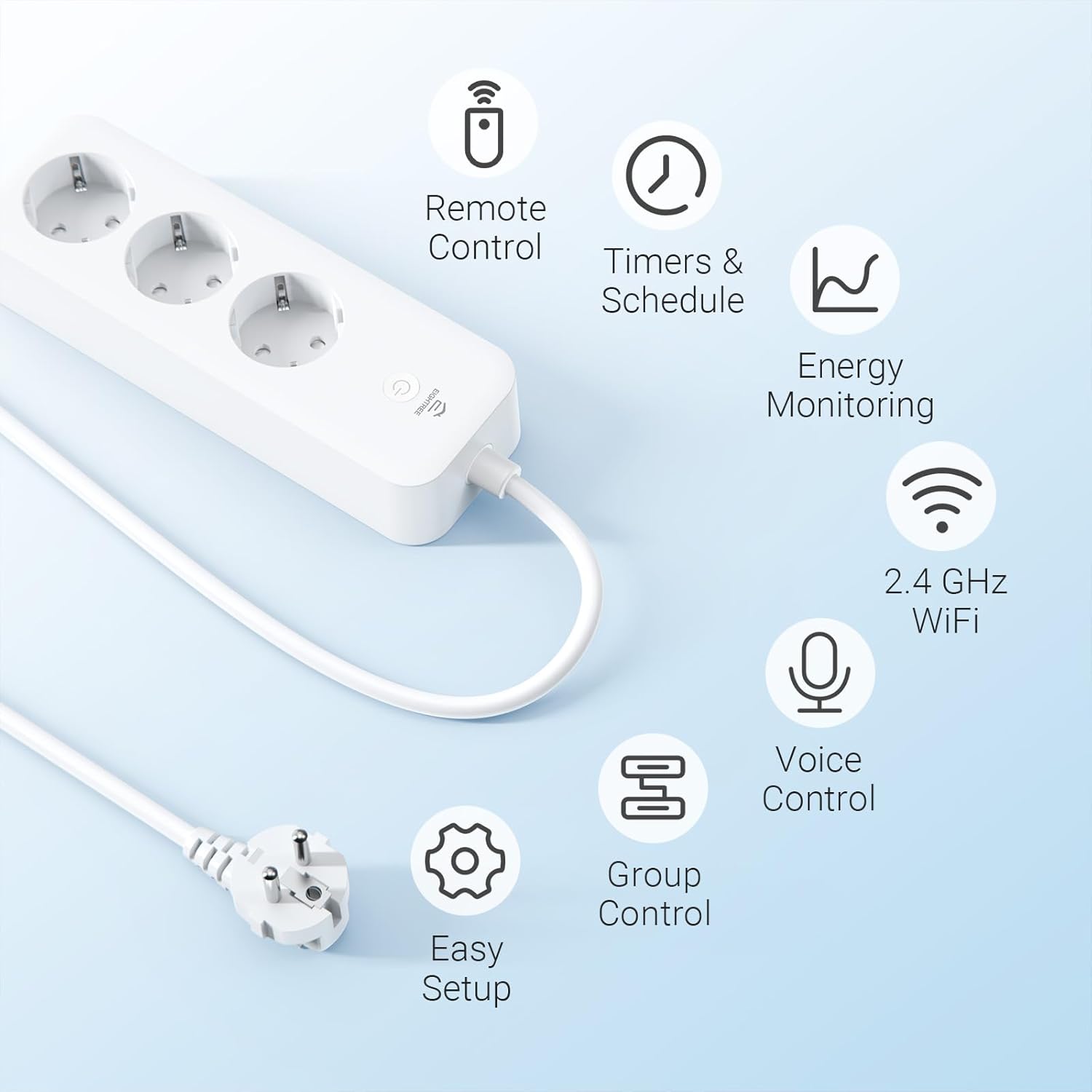
Image: A visual representation of the power strip's key features, including remote control, timers & schedule, energy monitoring, 2.4 GHz WiFi compatibility, voice control, group control, and easy setup.
3. Specifications
| Attribute | Value |
|---|---|
| Model Number | ET43 |
| Product Dimensions | 19.5 x 6.5 x 4 cm |
| Weight | 490 grams |
| Cable Length | 1.5 meters |
| Color | White |
| Total Sockets | 3 AC Outlets |
| Voltage | 230 Volt |
| Maximum Load | 16A / 3680W |
| Wireless Connectivity | 2.4 GHz Wi-Fi only |
| Compatibility | Amazon Alexa, Google Assistant, SmartThings, Smart Life App |
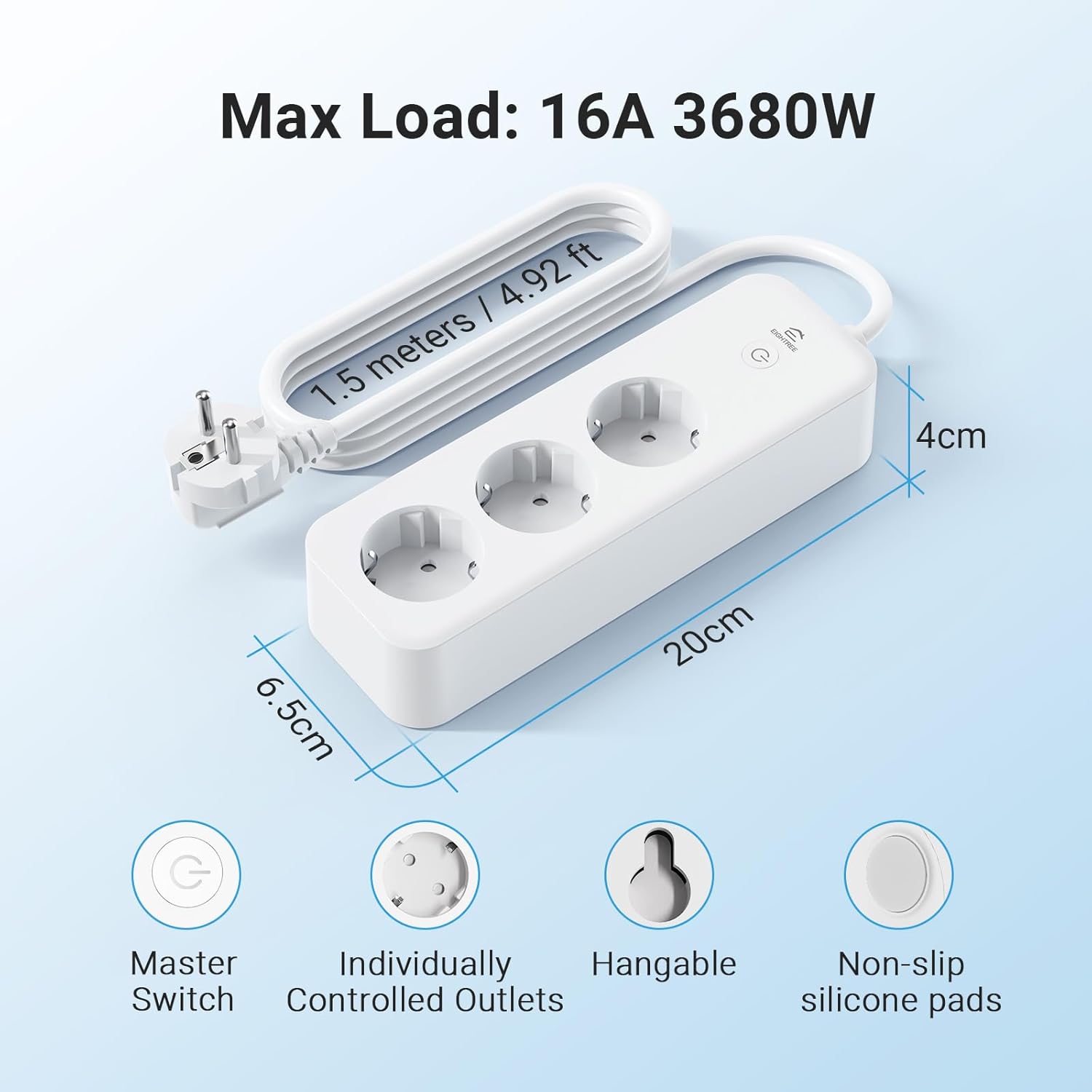
Image: Detailed view of the power strip showing its dimensions (19.5cm length, 6.5cm width, 4cm height), 1.5-meter cable, 16A/3680W max load, master switch, individually controlled outlets, hangable design, and non-slip silicone pads.
4. Setup
4.1 Before You Begin
- Ensure your Wi-Fi network is 2.4 GHz. This device does not support 5 GHz Wi-Fi.
- Have your Wi-Fi network name (SSID) and password ready.
- Keep your smartphone or tablet connected to your home 2.4 GHz Wi-Fi network.
4.2 App Installation
- Download the Smart Life app from the App Store (for iOS devices) or Google Play Store (for Android devices).
- Register a new account or log in if you already have one.
4.3 Device Pairing
- Plug the Eightree Smart WLAN Power Strip into a wall outlet.
- Press and hold the master power button on the power strip for 5-7 seconds until the indicator light blinks rapidly. This indicates it's in pairing mode.
- Open the Smart Life app on your smartphone. The app should automatically detect the power strip via Bluetooth and prompt you to add it. If not, tap the "+" icon in the top right corner and select "Add Device" or "Power Strip (Wi-Fi)".
- Follow the on-screen instructions in the app to connect the power strip to your 2.4 GHz Wi-Fi network. You will need to enter your Wi-Fi password.
- Once connected, you can rename the power strip and its individual outlets for easier identification.
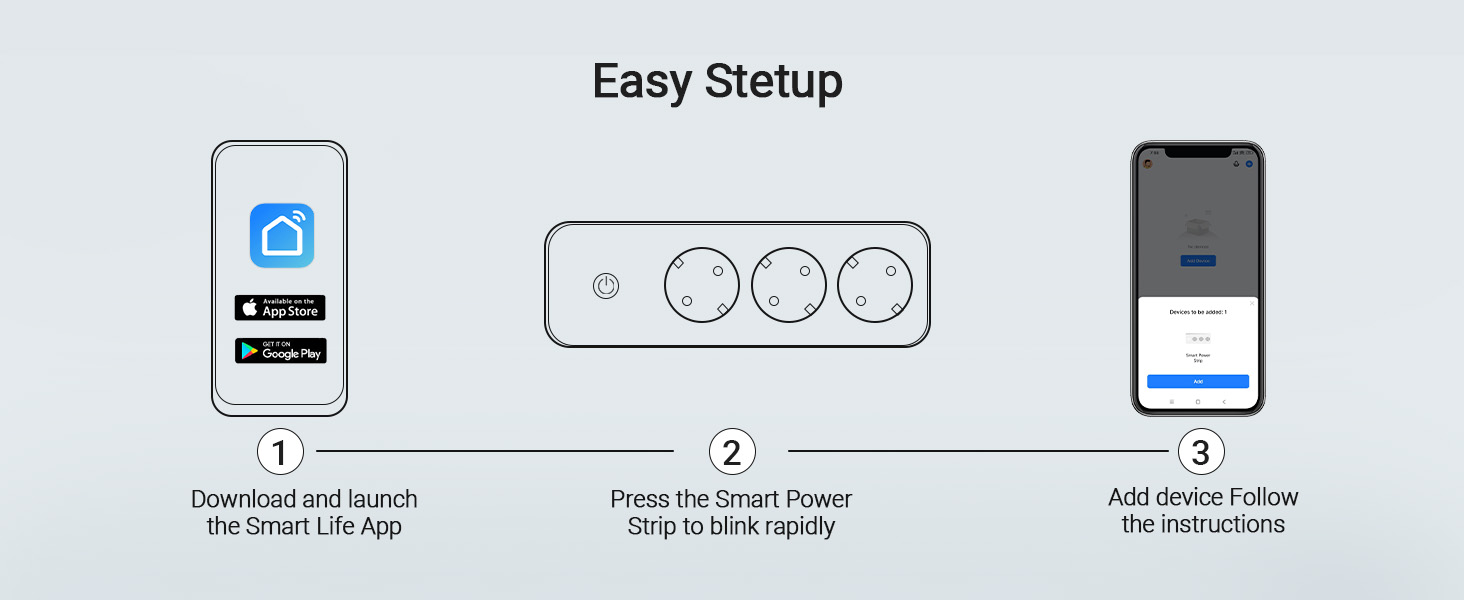
Image: A three-step visual guide for easy setup: 1) Download and launch the Smart Life App, 2) Press the Smart Power Strip button to blink rapidly, 3) Add device and follow instructions in the app.
5. Operating Instructions
5.1 Remote Control via App
- Open the Smart Life app and select your Eightree Smart WLAN Power Strip from the device list.
- You will see controls for each of the 3 AC outlets. Tap the toggle switch next to each outlet to turn it on or off independently.
- The master power button on the power strip itself can turn all connected devices on or off simultaneously.
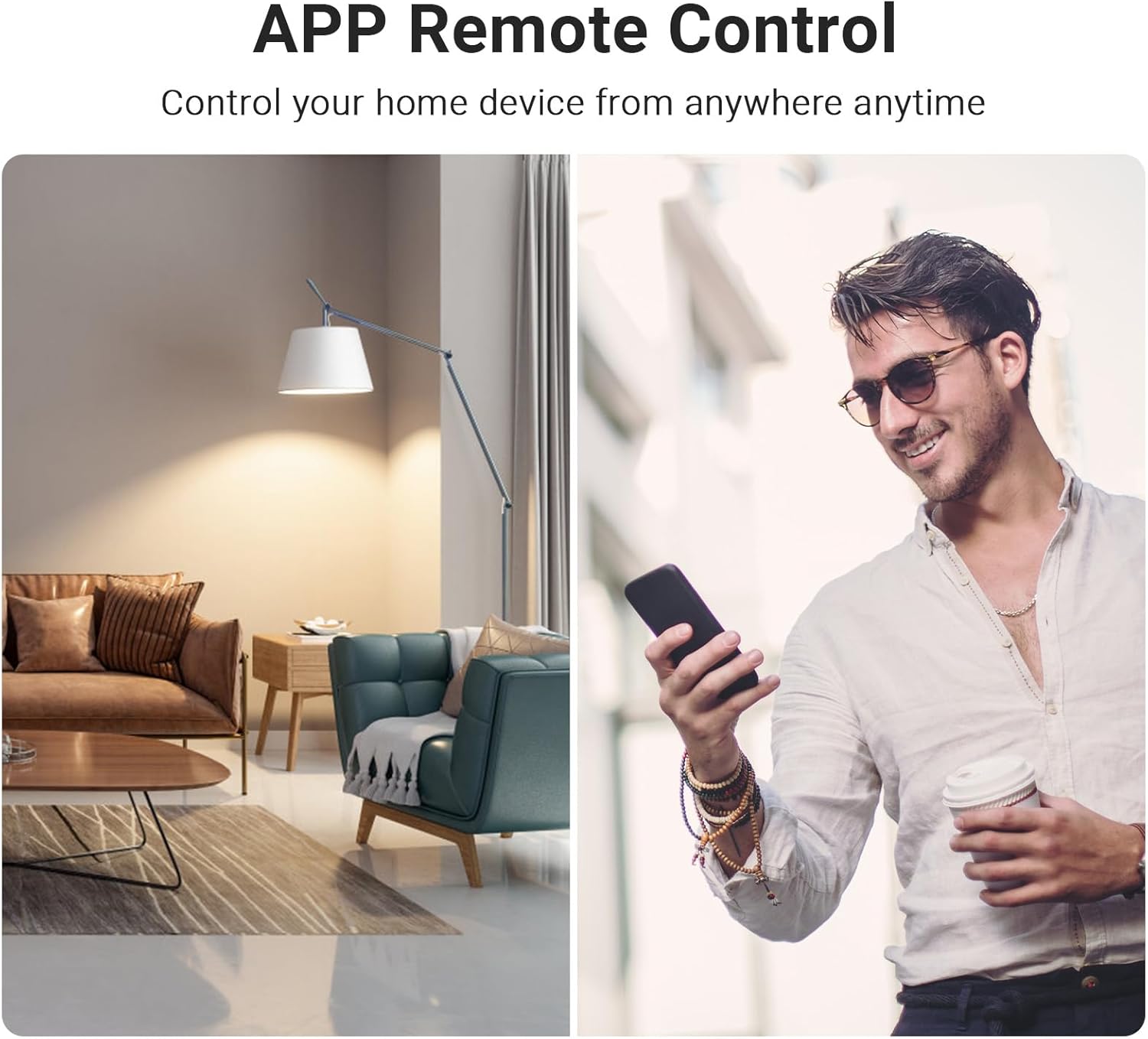
Image: A split image showing a living room with a lamp and a person outdoors using a smartphone, illustrating the convenience of APP Remote Control from anywhere.
5.2 Voice Control
The Eightree Smart WLAN Power Strip is compatible with Amazon Alexa, Google Assistant, and SmartThings. Ensure your smart speaker is linked to your Smart Life account.
- For Amazon Alexa: Enable the "Smart Life" skill in the Alexa app. Discover devices. Then, you can say commands like: "Alexa, turn on [Outlet Name]" or "Alexa, turn off the power strip."
- For Google Assistant: Link the "Smart Life" service in the Google Home app. Then, you can say commands like: "Hey Google, turn on [Outlet Name]" or "Hey Google, turn off the power strip."

Image: A setup demonstrating hands-free voice control with smart speakers (Google Home and Amazon Echo Dot) connected to the power strip, with a note reminding users to connect the smart device to Smart Life first.

Image: A woman relaxing on a sofa, using an Amazon Echo Dot to control a lamp connected to the smart power strip via voice command, demonstrating the convenience of smart home integration.
5.3 Timers and Schedules
- In the Smart Life app, select the power strip or an individual outlet.
- Tap on the "Timer" or "Schedule" option.
- Set specific times for devices to turn on or off, and choose the days of the week for the schedule to repeat.
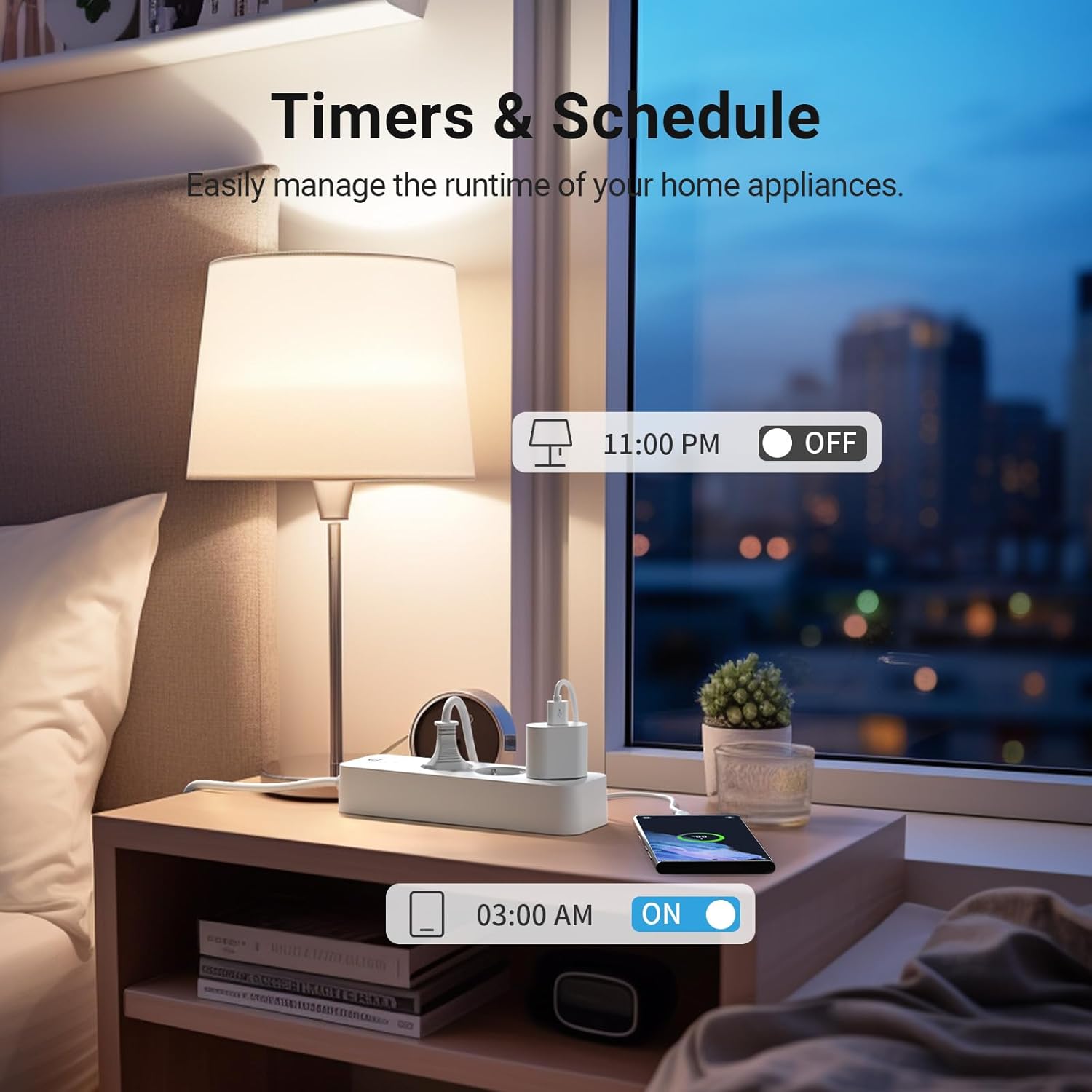
Image: A bedside scene showing the smart power strip connected to a lamp and phone charger, with an overlay illustrating timer settings for turning devices on and off at specific times (e.g., 11:00 PM OFF, 03:00 AM ON).

Image: A child reading in bed with a smart lamp, accompanied by a screenshot of the Smart Life app showing schedule settings to toggle devices on and off, such as a table lamp at 09:00 AM and 11:00 PM.
5.4 Energy Monitoring
- Navigate to the power strip's interface in the Smart Life app.
- Look for the "Energy" or "Statistics" section.
- Here, you can view real-time power consumption and historical data (daily, weekly, monthly, yearly) for the entire power strip. This helps in understanding and optimizing your electricity usage.
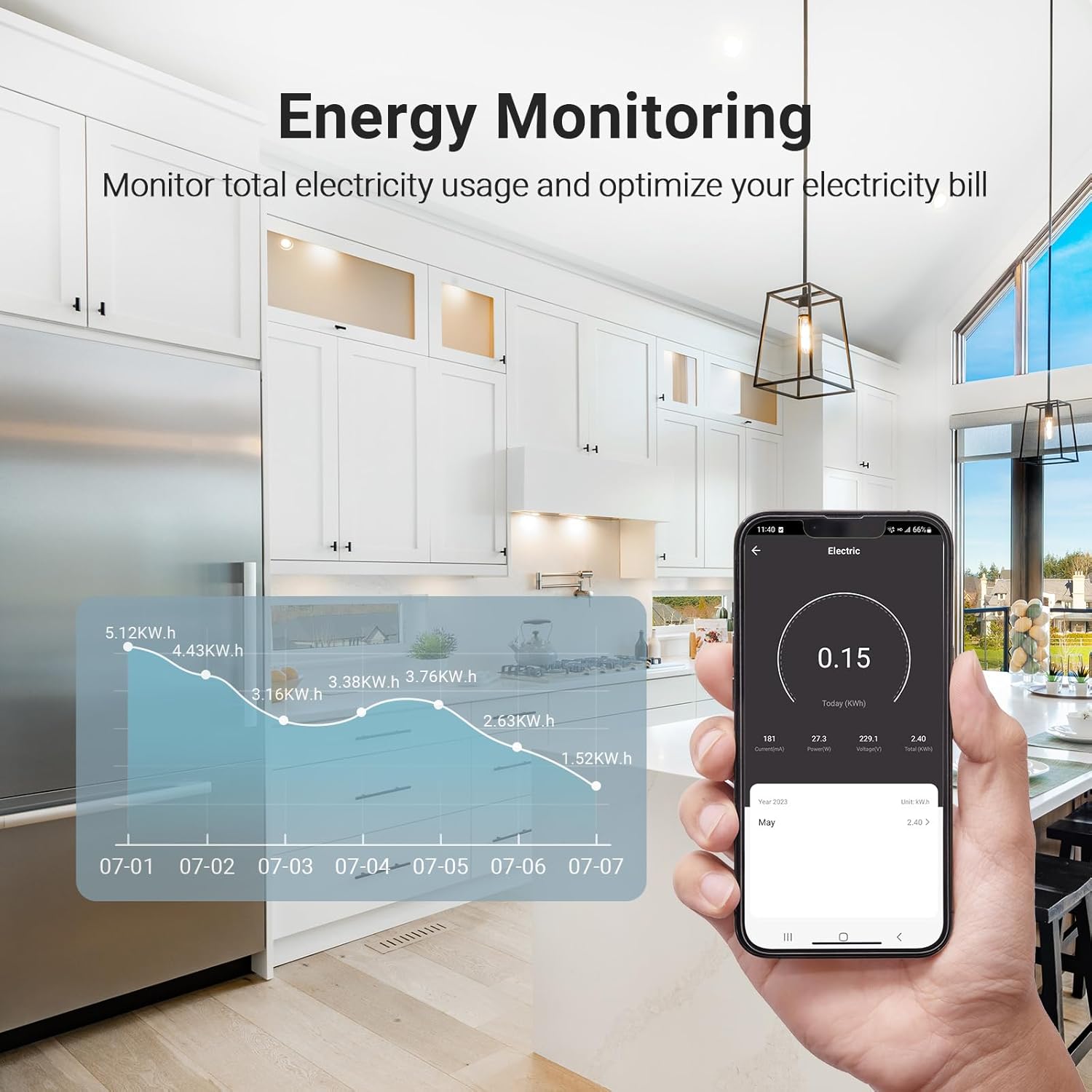
Image: A smartphone displaying an energy monitoring graph, showing daily power consumption in kWh, set against the backdrop of a modern kitchen, illustrating how to monitor total electricity usage and optimize bills.
5.5 Group Control
You can group multiple smart devices, including individual outlets of this power strip, within the Smart Life app to control them simultaneously with a single command.
5.6 Device Sharing
Share control of your Eightree Smart WLAN Power Strip with family members through the Smart Life app, allowing multiple users to manage the connected devices.

Image: A couple on a sofa looking at a smartphone, illustrating the device sharing feature in the Smart Life app, allowing family members to share control of smart homes and happiness.
6. Safety Information
- Do not exceed the maximum load of 16A / 3680W. Overloading can cause damage to the device and connected appliances, and poses a fire hazard.
- The power strip features integrated surge protection to protect your devices from voltage spikes.
- The flame-retardant ABS casing provides enhanced safety.
- An app-controlled overload protection automatically cuts off power if the current exceeds 17A.
- Do not use in wet or damp environments. This device is for indoor use only.
- Do not disassemble or modify the device. Contact customer support for any issues.
- Keep out of reach of children.
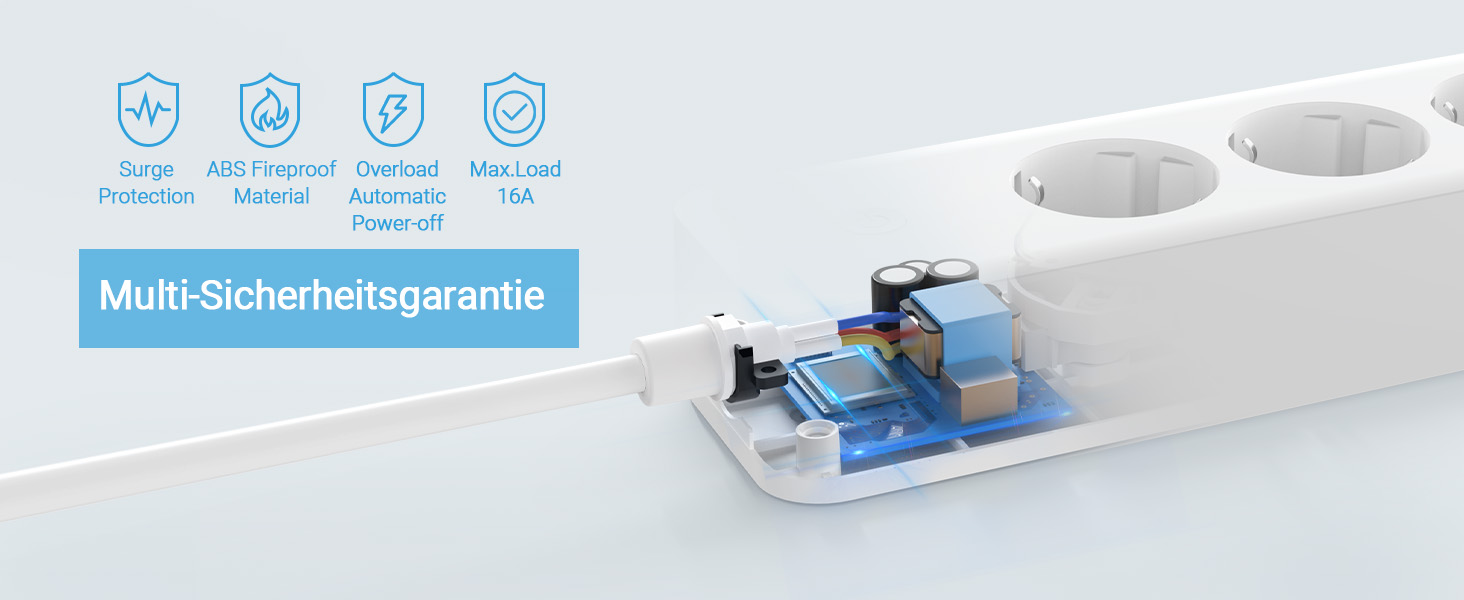
Image: A cutaway view of the power strip highlighting its multi-safety features: Surge Protection, ABS Fireproof Material, Overload Automatic Power-off, and Max. Load 16A.
7. Troubleshooting
- Device not connecting to Wi-Fi:
- Ensure your Wi-Fi network is 2.4 GHz. The device does not support 5 GHz.
- Check if the Wi-Fi signal is strong enough where the power strip is located.
- Make sure you entered the correct Wi-Fi password.
- Try restarting your Wi-Fi router and the power strip. - Voice control not working:
- Verify that the Smart Life skill/service is enabled and linked correctly in your Alexa or Google Home app.
- Ensure the power strip is online and accessible in the Smart Life app.
- Try re-discovering devices in your smart assistant app. - Outlets not responding:
- Check if the power strip is plugged in and receiving power.
- Ensure the power strip is connected to Wi-Fi and online in the Smart Life app.
- If an individual outlet is unresponsive, try toggling the master power button on the strip. - Energy monitoring data is incorrect or missing:
- Ensure the power strip is continuously connected to Wi-Fi.
- Data might take a few minutes to update.
8. Maintenance
- To clean the power strip, unplug it from the wall outlet and wipe it with a dry, soft cloth.
- Do not use liquid cleaners or abrasive materials.
- Keep the power strip away from excessive heat, direct sunlight, and moisture.
9. Warranty and Support
The Eightree Smart WLAN Power Strip comes with a 24-month worry-free warranty from the date of purchase. This warranty covers manufacturing defects and malfunctions under normal use.
For technical support, troubleshooting assistance, or warranty claims, please contact Eightree customer service through the contact information provided on your purchase platform or the official Eightree website.

Image: An image representing the Eightree brand, featuring a happy family, along with icons indicating product certifications (ETL, Intertek), fast service, and a 24-month worry-free warranty.


