
Joyroom JR-FC1
Contents
Joyroom JR-FC1 Smart Watch User Manual
Model: JR-FC1
1. Introduction
The Joyroom JR-FC1 Smart Watch is a sophisticated device designed to enhance your daily life with its blend of classic aesthetics and modern technology. This manual provides essential information on how to set up, operate, and maintain your JR-FC1 Smart Watch to ensure optimal performance and longevity.
The JR-FC1 features a traditional and elegant round case, offering smart calling functionality via Bluetooth, real-time notifications, and comprehensive health monitoring. It is built to be durable with an IP68 water resistance rating and supports a wide range of sports activities.
2. Key Features
- Smart Calling Function: One-button wireless connection for high-definition calls in various environments.
- IP68 Water Resistance: No damage in 1 meter of water for 30 minutes, making it dust and sand resistant.
- Long Battery Life: Up to 7 days of typical use and 14 days in standby mode.
- 1.3-inch IPS HD Display: Features 2.5D curved glass for clear and vivid visuals.
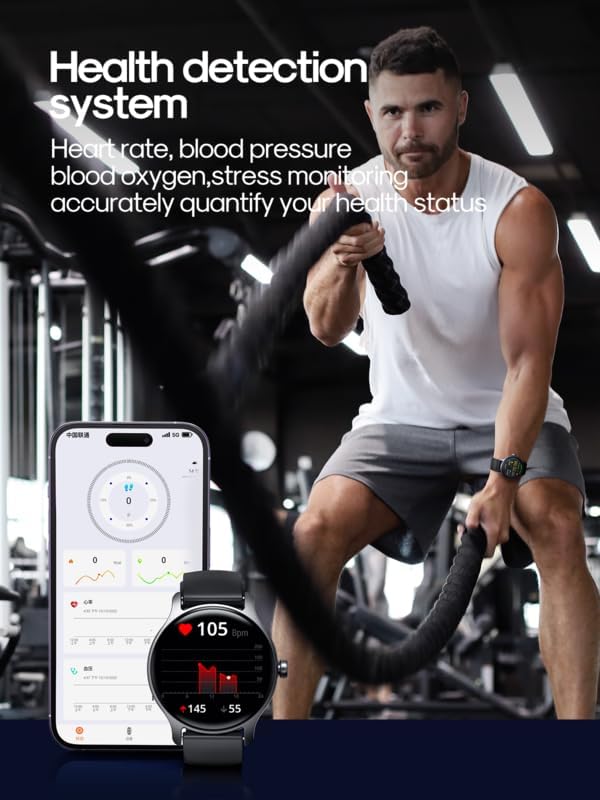
- Health Monitoring: Accurate measurement of heart rate, blood pressure, blood oxygen, and stress levels.
- Customizable Dials: Over 100 online/custom dial styles to match your personal taste.
- 94 Sports Modes: An ideal partner for a healthy lifestyle, enabling more professional exercise tracking.
- Real-time Notifications: Receive incoming call and app message notifications instantly.
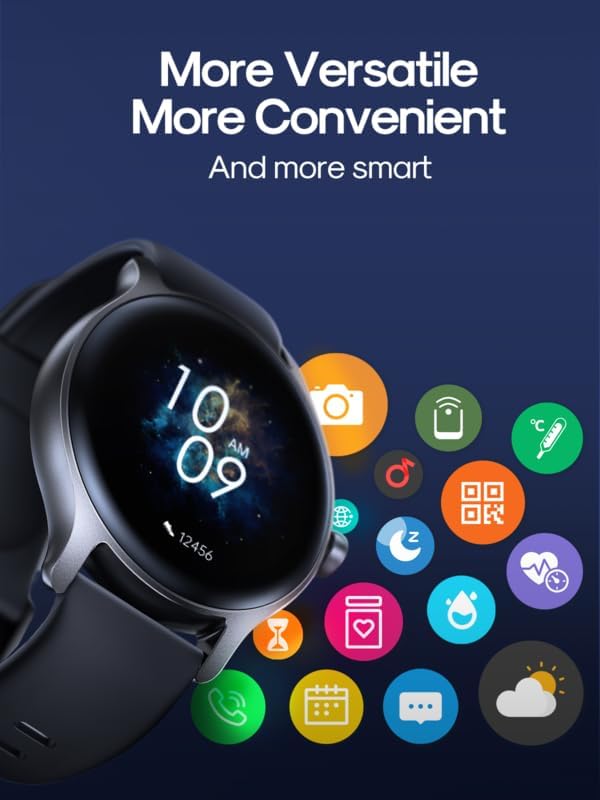
- Smart Functions: Alarm/stopwatch setting, music playback control, remote photography, and two-way watch/phone finding.
3. Package Contents
Upon unboxing your Joyroom JR-FC1 Smart Watch, please ensure all the following items are present:
- Joyroom JR-FC1 Smart Watch
- Charging Cable
- User Manual

4. Setup Guide
4.1 Initial Charging
Before first use, fully charge your JR-FC1 Smart Watch. Connect the charging cable to the watch's charging port and plug the USB end into a compatible power adapter (not included) or a computer's USB port. The watch display will indicate charging status. A full charge typically takes approximately 2 hours.

4.2 Pairing with Your Smartphone
- Download the App: Search for the official Joyroom Smart Watch app on your smartphone's app store (Google Play Store for Android or Apple App Store for iOS). Install the app.
- Enable Bluetooth: Ensure Bluetooth is enabled on your smartphone.
- Open the App: Launch the Joyroom Smart Watch app on your phone. Follow the on-screen instructions to create an account or log in.
- Add Device: Within the app, navigate to the 'Add Device' or 'Pair Device' section. The app will search for nearby JR-FC1 devices.
- Connect: Select 'JR-FC1' from the list of found devices. Confirm the pairing request on both your phone and the watch if prompted.
Once successfully paired, the watch will synchronize time and data with your smartphone.
5. Operating Instructions
5.1 Basic Navigation
The JR-FC1 features a touch-sensitive IPS HD display and a physical button on the side for navigation.
- Swipe Up/Down: Scroll through menus and notifications.
- Swipe Left/Right: Access quick functions or different widgets (e.g., heart rate, sports modes).
- Tap: Select an item or confirm an action.
- Press Side Button: Return to the home screen or wake the display.

5.2 Smart Calling Function
After pairing, you can make and receive calls directly from your watch.
- Receiving Calls: When a call comes in, the watch will display the caller ID. Tap the green icon to answer or the red icon to reject.
- Making Calls: Access the 'Dial' or 'Contacts' function on your watch. You can dial a number directly or select a contact to initiate a call.

5.3 Notifications
The watch displays real-time notifications for incoming calls and app messages.
- Viewing Notifications: Swipe down from the home screen to view your notification center.
- Clearing Notifications: Swipe left on a notification to dismiss it, or use the 'Clear All' option.

5.4 Health Monitoring
The JR-FC1 continuously monitors various health metrics.
- Accessing Data: Swipe left/right from the home screen to find the heart rate, blood pressure, blood oxygen, and stress monitoring widgets.
- Detailed View: Tap on a widget to see more detailed historical data within the watch or the connected app.
5.5 Sports Modes
The watch supports 94 different sports modes to track your workouts.
- Starting a Workout: Navigate to the 'Sports' or 'Workout' section on the watch. Select your desired activity (e.g., running, cycling, swimming).
- Tracking: The watch will begin tracking metrics relevant to your chosen activity, such as duration, calories burned, and heart rate.
- Ending a Workout: Swipe right or press the side button to pause or end the workout. Confirm to save the data.

5.6 Other Smart Functions
The JR-FC1 includes several convenient smart features:
- Alarm/Stopwatch: Set alarms or use the stopwatch function directly from the watch.
- Music Control: Control music playback on your connected smartphone (play, pause, skip tracks).
- Remote Photography: Use the watch as a remote shutter button for your phone's camera.
- Find Device: Use the watch to locate your phone (if within Bluetooth range) or vice versa.
6. Maintenance
6.1 Cleaning Your Watch
Regularly clean your watch to maintain its appearance and functionality.
- Wipe the screen and body with a soft, lint-free cloth.
- For stubborn stains, dampen the cloth slightly with water. Avoid using harsh chemicals or abrasive materials.
- Clean the charging contacts periodically to ensure a good connection.
6.2 Water Resistance (IP68)
The JR-FC1 is rated IP68, meaning it is protected against dust ingress and can withstand immersion in water up to 1 meter deep for 30 minutes. While it is water-resistant, it is not recommended for diving, hot showers, or prolonged submersion in water. Always dry the watch thoroughly after exposure to water.

6.3 Battery Care
- Avoid extreme temperatures, which can affect battery life.
- Do not leave the watch fully discharged for extended periods.
- Use only the provided charging cable.
7. Troubleshooting
If you encounter issues with your JR-FC1 Smart Watch, refer to the following common problems and solutions:
| Problem | Possible Solution |
|---|---|
| Watch won't turn on | Ensure the watch is fully charged. If it still doesn't turn on, try a hard reset (refer to the app or manufacturer's website for specific instructions). |
| Cannot pair with phone | Ensure Bluetooth is enabled on both devices. Restart both the watch and phone. Make sure the watch is not already paired with another device. Check the app for pairing instructions. |
| Notifications not received | Check app notification settings on your phone and within the Joyroom app. Ensure the watch is connected via Bluetooth. |
| Inaccurate health data | Ensure the watch is worn snugly on your wrist. Clean the sensors on the back of the watch. Avoid excessive movement during measurements. |
| Short battery life | Reduce screen brightness, disable unnecessary features (e.g., always-on display), and limit frequent notifications. Ensure the watch is fully charged. |
If the problem persists, please contact Joyroom customer support or refer to their official website for further assistance.
8. Specifications
| Feature | Detail |
|---|---|
| Brand Name | Joyroom |
| Item Model Number | JR-FC1 |
| Product Dimensions | 8 x 7 x 5 cm; 67 grams |
| Screen Size | 1.2 inches |
| Item Shape | Round |
| Operating System | Android Wear 2.0 (Compatibility) |
| Memory Storage Capacity | 64 MB |
| Battery Capacity | 220 mAh (rating unknown) |
| Connectivity Technology | USB |
| Wireless Communication Standard | Bluetooth |
| GPS | No GPS System |
| Special Features | Sand Resistant |
| Country of Origin | China |
| First Available Date | September 20, 2023 |
9. Warranty and Support
For warranty information and customer support, please refer to the official Joyroom website or contact the retailer from whom you purchased the product. Keep your proof of purchase for warranty claims.
Documents and downloads
Ask a question about this manual
Ask about setup, troubleshooting, compatibility, parts, safety, or missing instructions. Manuals+ will review the question and use this page’s manual context to help answer it.