
Sovol SV07
Contents
Sovol SV07 3D Printer User Manual
Model: SV07 | Brand: Sovol
1. Introduction to the Sovol SV07 3D Printer
The Sovol SV07 is a high-performance 3D printer designed for both enthusiasts and professionals, featuring advanced Klipper firmware for exceptional speed and precision. It incorporates a 5-inch high-resolution touch screen for intuitive control and an all-metal hotend capable of reaching 300℃, allowing for a wide range of filament compatibility. The planetary direct drive extruder ensures consistent and accurate filament extrusion, while the 25-point auto-leveling system simplifies bed calibration for optimal first layer adhesion.
Key Features Overview
- Klipper Firmware: Enables print speeds up to 500mm/s for rapid project completion.
- 5-inch Touch Screen: Provides a user-friendly interface for easy navigation and control.
- 300℃ All-Metal Hotend: Supports printing with various high-temperature materials like ABS, Nylon, and PC.
- Planetary Direct Drive Extruder: Offers precise extrusion and improved filament feeding.
- 25-point Auto Leveling: Ensures a perfect first layer and consistent print quality.
- Double-Sided PEI Plate: Provides excellent adhesion and easy print removal.
- Integrated Tool Drawer: Convenient storage for essential tools.
- Filament Run-out Sensor: Automatically pauses prints when filament runs out.
- Resume Printing Function: Continues prints seamlessly after power interruptions.

Figure 1: The Sovol SV07 3D Printer, showcasing its compact design and a sample 3D print.
Product Overview Video
Video 1: An official overview of the Sovol SV07 3D Printer, highlighting its main features and capabilities.
2. Setup and First Use
2.1 Initial Assembly and Connections
The Sovol SV07 comes partially assembled. Follow the included quick start guide for detailed assembly instructions. Ensure all cables are securely connected before powering on the printer. The 5-inch Klipper touch screen connects via a dedicated cable to the printer's main unit.

Figure 2: The 5-inch Klipper touch screen, providing access to printer settings and controls.
2.2 Bed Leveling and Z-Offset Calibration
Accurate bed leveling is crucial for successful prints. The SV07 features a 25-point auto-leveling system. After initial setup, perform the Z-offset calibration to ensure the correct distance between the nozzle and the print bed.
- Manual Adjustment: Before auto-leveling, ensure the four leveling nuts under the print bed are tightened counter-clockwise as much as possible, then loosen them two full turns clockwise. This provides a good starting point for the auto-leveling process.
- Z-Offset Calibration: Navigate to the "Machine Leveling" menu on the touch screen and select "Z Calibrate". Follow the on-screen prompts. The printer will auto-home, then move the nozzle to the center of the bed. Place a piece of A4 paper between the nozzle and the hotbed. Adjust the Z-offset by raising or lowering the nozzle until you feel slight resistance when pulling the paper, but the nozzle does not completely press the paper. Avoid large adjustments at once to prevent nozzle collision with the hotbed. Accept the new Z-offset value and restart the system.
- Bed Leveling (Screws Adjust): After Z-offset, return to "Machine Leveling" and select "Bed Level". Click "Screws Adjust". The printer will move the nozzle to each of the four corners. At each corner, use the leveling nuts under the bed to adjust the height. The screen will indicate if you need to turn clockwise (CW) or counter-clockwise (CCW) and by how much. Aim to get the values for each corner within 00:10. Repeat this process several times until all corners are within tolerance.
- Bed Mesh Generation: Once the corners are adjusted, click "Bed Mesh" to generate a comprehensive bed mesh. This process detects the bed's surface variations and compensates for them during printing. After the detection is complete, restart the system.

Figure 3: The auto-leveling sensor accurately detects hotbed unevenness across 25 points.
Video 2: A detailed guide on how to level the bed and calibrate the Z-offset on the Sovol SV07.
3. Operating the Printer
3.1 Loading Filament
The SV07 features a planetary dual gear direct drive extruder for precise filament feeding. To load filament, ensure the hotend is preheated to the appropriate temperature for your material. Insert the filament into the filament run-out sensor, then push it through the extruder until it emerges from the nozzle.

Figure 4: The planetary dual gear direct drive extruder, designed for higher drive ratio and lighter motor for precise extrusion.
3.2 Starting a Print
The SV07 supports printing via U disk (USB drive) or Wi-Fi connection. Prepare your 3D model using a slicing software (e.g., Sovol 3D Cura, PrusaSlicer, or Ultimaker Cura) and save it as a G-code file. Transfer the G-code file to a USB drive and insert it into the printer's touch screen unit, or transfer it via Wi-Fi if configured.
- From USB: On the touch screen, navigate to the "Print" menu, select "USB", and choose your G-code file. Confirm to start printing.
- Via Wi-Fi (FluidD): The Klipper firmware allows for remote control via a web interface (FluidD). Connect your printer to your local network. You can upload G-code files and monitor prints directly from your computer or mobile device.

Figure 5: The SV07 can achieve print speeds up to 500mm/s, significantly reducing print times. 250mm/s is recommended for optimal results.
3.3 Filament Compatibility
Thanks to its 300℃ high-temperature all-metal hotend, the Sovol SV07 is compatible with a wide range of filaments. This includes common materials like PLA, PETG, and TPU, as well as more advanced filaments such as ABS, Nylon, Carbon Fiber, PC, and Wood. For printing above 260℃, an enclosure is recommended to maintain stable temperatures and prevent warping.

Figure 6: The 300℃ all-metal hotend allows for printing with a diverse range of materials.
4. Maintenance and Care
4.1 Print Bed Maintenance
The double-sided black PEI plate offers excellent adhesion and easy print removal. To maintain optimal adhesion, it is recommended to wipe the PEI surface with isopropyl alcohol before each print. If one side shows wear, simply flip the plate over to use the other side, extending its lifespan.

Figure 7: The flexible, double-sided PEI plate provides strong adhesion and easy print removal without tools.
4.2 Cooling System
The SV07 is equipped with an extra-large fan at the rear of the extruder, providing triple airflows to quickly cool prints. Regularly inspect the fan for any dust or debris buildup and clean as necessary to ensure efficient cooling, especially during high-speed printing.

Figure 8: The triple cooling fan system ensures rapid cooling of prints for better layering and results.
4.3 Integrated Tool Drawer
The printer includes a convenient tool drawer for quick storage of your 3D printing tools. Keeping tools organized helps maintain a tidy and efficient workspace.
Figure 9: The built-in tool drawer provides convenient storage for accessories, keeping your workspace organized.
5. Troubleshooting
5.1 Print Quality Issues (Z-Offset Fine-Tuning)
During printing, if the print nozzle is too close to the bed, resulting in rough or scratched prints, fine-tune the Z-offset by increasing its value (moving the nozzle up). If the print nozzle is too far from the bed, leading to poor adhesion or detached prints, fine-tune the Z-offset by decreasing its value (moving the nozzle down). Adjust in small increments (e.g., 0.01mm or 0.05mm) until the first layer is smooth and adheres well.
5.2 Filament Run-out
The SV07 is equipped with a filament run-out sensor. If the filament runs out or breaks during a print, the printer will automatically pause the printing process. Replace the filament and resume the print from where it left off.
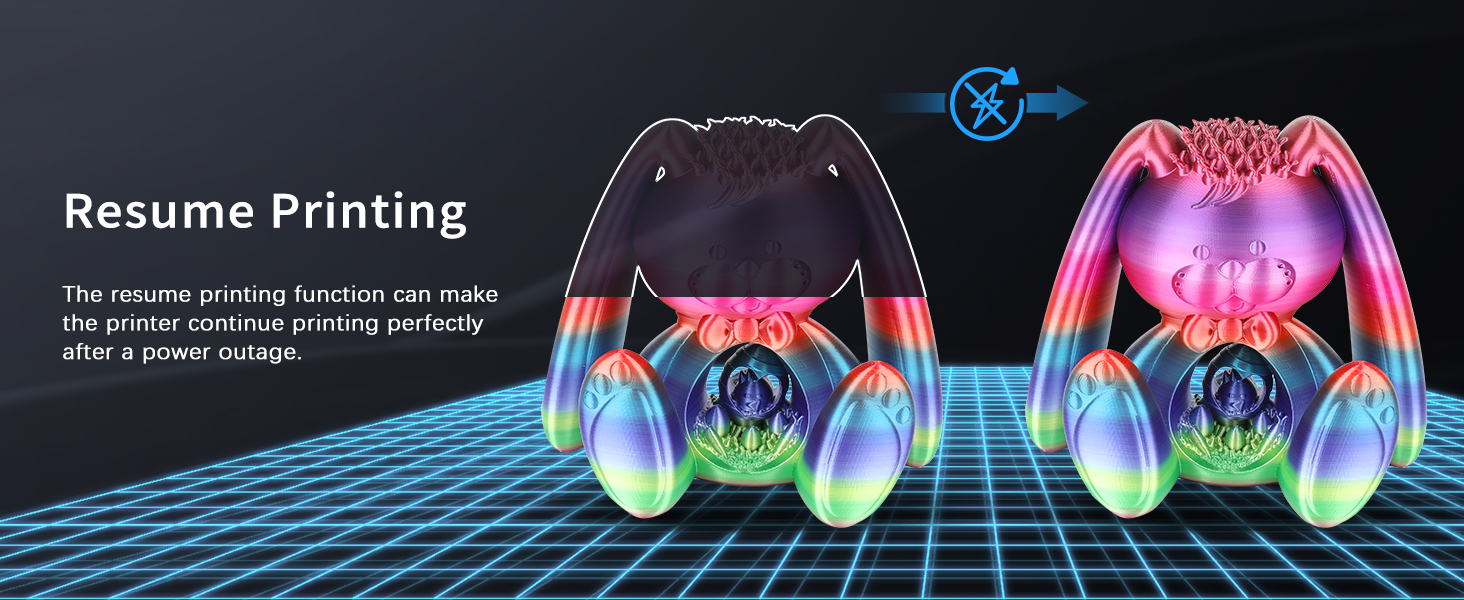
Figure 10: The filament run-out sensor automatically pauses printing when filament is depleted or broken.
5.3 Power Outage Recovery
In the event of a power outage, the Sovol SV07's resume printing function allows the printer to continue the print perfectly from the point of interruption once power is restored. This feature minimizes material waste and saves time on long prints.
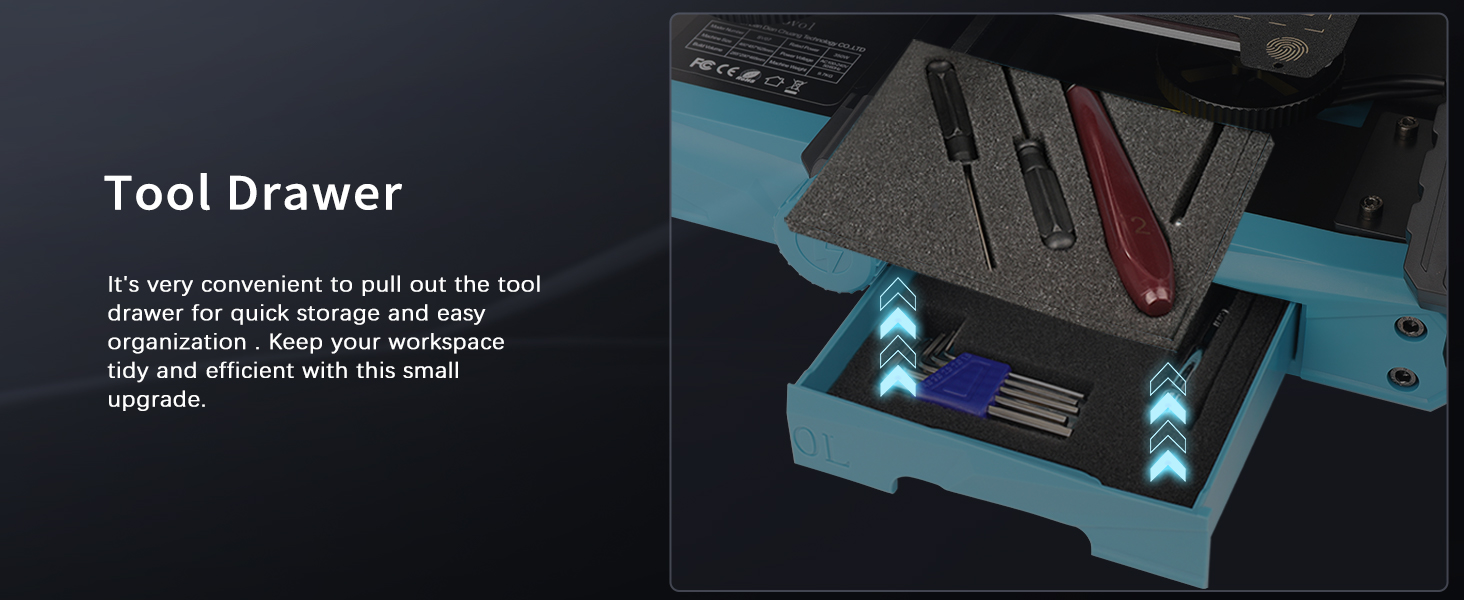
Figure 11: The resume printing function ensures seamless continuation of prints after unexpected power loss.
6. Specifications
| Feature | Detail |
|---|---|
| Print Size | 220mm * 220mm * 250mm (8.66 x 8.66 x 9.84 inches) |
| Nozzle Temperature | ≤ 300℃ |
| Hotbed Temperature | ≤ 100℃ |
| Power Supply | Meanwell 350W / 24V |
| Operating System | Windows, Linux, Mac |
| Voltage | Input 115/230V 50/60HZ, Output 24V |
| Print Mode | U disk, Type C connection, Wifi Connection |
| Printer Dimensions | 460mm * 457mm * 625mm (including filament holder) |
| Item Weight | 13.45 Kilograms (29.6 pounds) |
| Printing Accuracy | +/- 0.001mm |
| Nozzle Diameter | 0.4mm (Replaceable) |
| Diameter of Filament | 1.75mm |
| File Format Support | G-Code |
| Recommended Printing Speed | ≤ 250mm/s |

Figure 12: Detailed dimensions of the Sovol SV07 3D Printer.
7. Warranty and Support
For detailed warranty information, technical support, and service inquiries, please refer to the official Sovol website or contact their customer support channels. Keep your purchase receipt for warranty claims. Online resources, including FAQs and community forums, may also be available for additional assistance.
Documents and downloads
Ask a question about this manual
Ask about setup, troubleshooting, compatibility, parts, safety, or missing instructions. Manuals+ will review the question and use this page’s manual context to help answer it.