
LAMTTO 9 Inch apple carplay for car
LAMTTO 9-Inch Wireless Car Stereo User Manual
Model: 9 Inch apple carplay for car
Brand: LAMTTO
1. Introduction
This manual provides essential information for the installation, operation, and maintenance of your LAMTTO 9-Inch Wireless Car Stereo. Please read this manual thoroughly before using the product to ensure proper function and safety. This device is designed to enhance your driving experience with features like wireless Apple CarPlay, Android Auto, GPS navigation, and a backup camera.
2. What's in the Box
Carefully unpack all components and check for any damage. If any items are missing or damaged, please contact customer support.
- 1 x 9 Inch Caplay Screen Monitor
- 1 x 9.8 ft Car Charger Cable
- 1 x 4.65ft Aux cable
- 1 x Suction Cup Bracket and Desktop Bracket
- 1 x Waterproof Rear Camera with 26.2ft cable
3. Key Features
- Wireless Apple CarPlay and Android Auto: Seamlessly connect your smartphone for navigation, music, and calls with voice control.
- Video Playback: Supports Apple Airplay and Android Cast for playing 1080P videos on the 1024*600 HD touchscreen.
- Bluetooth Stereo Output: High-quality sound output and built-in microphone for hands-free calling.
- 1080P Adjustable Backup Camera: Includes a waterproof 170° viewing angle camera with HD color night vision for parking assistance.
- Online Maps and Real-time GPS Navigation: Utilizes your phone's map applications (e.g., Google Maps, Waze) for real-time navigation on the 9-inch HD IPS display.
4. Setup and Installation
4.1 Mounting the Device
The device comes with both a suction cup bracket and a desktop bracket for flexible installation. Choose the method that best suits your vehicle's dashboard or windshield.

Figure 4.1: Mounting options for the car stereo. The suction cup bracket offers 360-degree rotation and 180-degree tilt, while the desktop bracket provides a stable base.
4.2 Power Connection
Connect the provided 9.8 ft car charger cable to the device and your vehicle's cigarette lighter socket.
4.3 Connecting to Your Smartphone (Wireless CarPlay/Android Auto)
Follow these steps to connect your iPhone or Android device wirelessly:
For iPhone (Apple CarPlay):
- Turn on Wi-Fi and Bluetooth on your iPhone.
- On your iPhone, connect to the device's Bluetooth (named T86xxxx).
- Allow the connection prompt on your iPhone.
- Select 'Use CarPlay' when prompted.
- After 10-20 seconds, the connection should be successful.

Figure 4.2: iPhone connection process for Apple CarPlay.
For Android (Android Auto):
- Turn on Wi-Fi and Bluetooth on your Android phone.
- On your Android phone, connect to the device's Bluetooth (named T86xxxx).
- Allow the connection prompt on your Android phone.
- After 10-20 seconds, the connection should be successful.

Figure 4.3: Android phone connection process for Android Auto.
4.4 Backup Camera Installation
The waterproof rear camera comes with a 26.2ft cable. Install the camera at the rear of your vehicle and route the cable to the main unit. Ensure the camera is securely mounted and the cable is not pinched or exposed to excessive wear.

Figure 4.4: The 1080P FHD rear camera provides a wide 170-degree view with adjustable parking assistance lines. Note: This camera is for auxiliary reversing and observing the rear of the car, not for recording.
5. Operating Instructions
5.1 Voice Control and GPS Navigation
Once connected to Apple CarPlay or Android Auto, you can use voice commands (Siri/Google Assistant) for various functions, including GPS navigation, playing music, sending messages, and making phone calls.
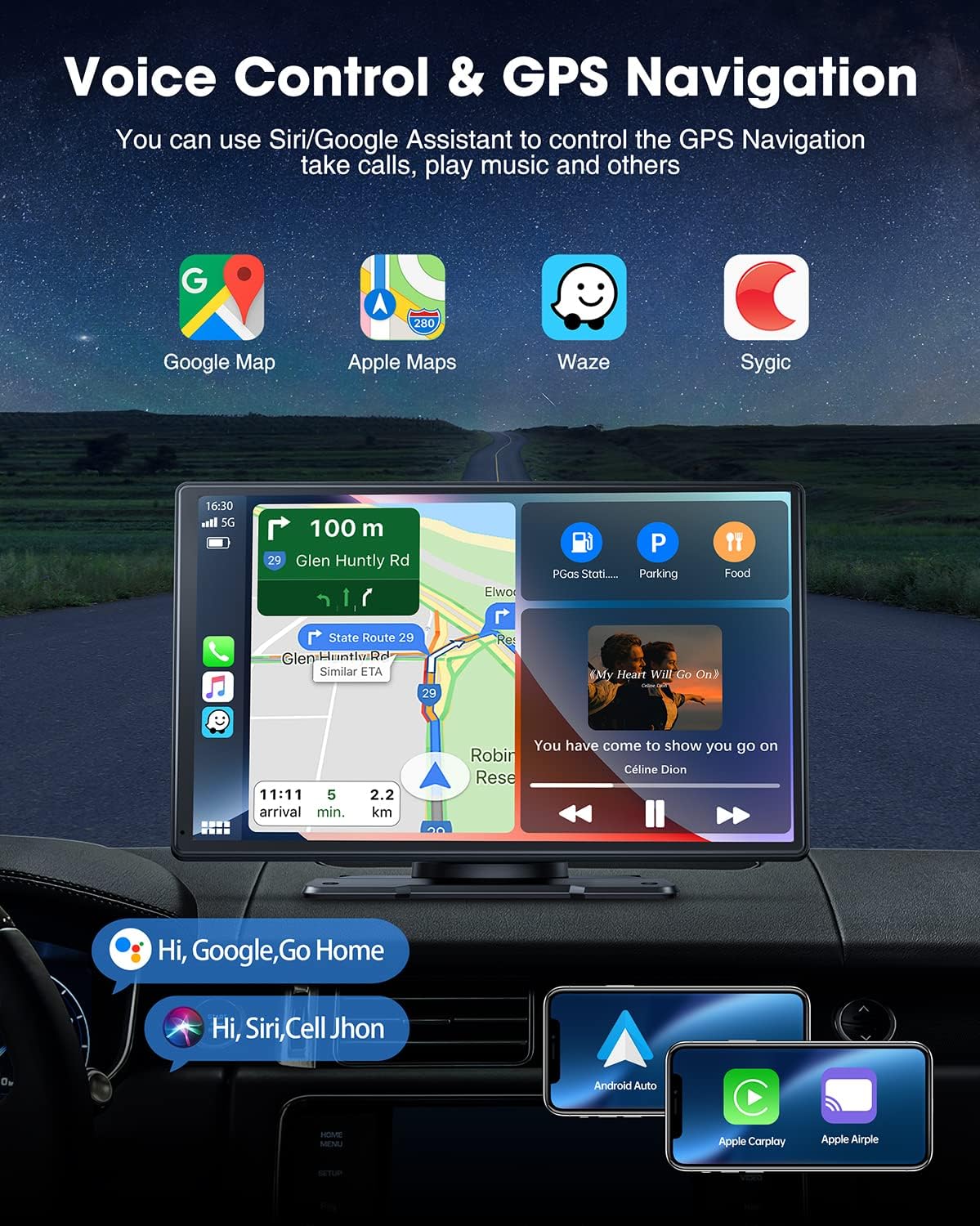
Figure 5.1: Voice control allows hands-free operation for navigation, music, and calls.
5.2 Audio Output Options
The car stereo offers multiple ways to output audio to your car's speakers:
- Built-in Speaker: The unit has its own speaker for direct audio output.
- AUX Connection: Use the provided 4.65ft Aux cable to connect the stereo to your car's AUX input.
- FM Transmitter: Transmit audio wirelessly to your car's FM radio by tuning both devices to the same FM frequency.
- Bluetooth Connection: Connect the car stereo to your car's existing Bluetooth audio system for high-quality sound.

Figure 5.2: Various audio output methods for flexible integration with your vehicle's sound system.
Bluetooth Connection to Car Speaker:
- After successfully connecting to CarPlay/Android Auto, click the menu icon on the stereo screen.
- Click 'Audio Output'.
- Click 'BT Audio'.
- The stereo will now connect to your car's Bluetooth audio.

Figure 5.3: Steps for connecting the car stereo to your vehicle's Bluetooth audio system.
5.3 Phone Mirror Link (Apple Airplay / Android Cast)
To mirror your phone's screen to the car stereo, ensure both your phone and the car stereo are connected to the same Wi-Fi network. For iPhone, select 'SmartScreen' in the screen mirroring options within your iPhone's control center. This allows you to display content like YouTube or TikTok videos.

Figure 5.4: Phone Mirror Link functionality, primarily for Apple Airplay.
6. Maintenance
- Cleaning: Use a soft, dry cloth to clean the screen and exterior. Avoid abrasive cleaners or solvents.
- Software Updates: Periodically check for firmware updates to ensure optimal performance and compatibility. Refer to customer support for instructions on how to update the firmware.
- Cable Management: Ensure all cables are neatly routed and secured to prevent damage or interference.
7. Troubleshooting
If you encounter issues with your LAMTTO car stereo, please refer to the following common problems and solutions:
| Problem | Possible Cause / Solution |
|---|---|
| Device does not power on. | Check the car charger cable connection. Ensure the vehicle's cigarette lighter socket is functioning. |
| Wireless CarPlay/Android Auto fails to connect. | Ensure Wi-Fi and Bluetooth are enabled on your phone. Verify no other devices are occupying the stereo's Wi-Fi/Bluetooth. Try restarting both the stereo and your phone. |
| Touchscreen is unresponsive or lags. | Restart the device. Ensure the screen is clean and free of debris. If the issue persists, a firmware update might be required (contact support). |
| Suction cup mount does not hold securely. | Ensure the mounting surface is clean and dry. Press the middle button on the suction cup firmly to create a vacuum seal. Consider using the desktop bracket if the suction cup is not suitable for your surface. |
| No audio output from car speakers. | Check the selected audio output method (Built-in, AUX, FM, Bluetooth). Ensure the AUX cable is fully inserted. If using FM, verify the frequency matches. If using Bluetooth, ensure the stereo is connected to your car's Bluetooth audio. |
Things to Know Before Use:
- Before connecting your phone to the Carplay Screen, please check whether the WIFI and Bluetooth are occupied by other devices.
- When connecting your phone to Carplay, please turn on your phone's Bluetooth and WIFI first.
- After the connection is successful, Bluetooth will automatically disconnect, and data will mainly be transmitted via WIFI at this time.
- Try to use Bluetooth to connect to the car audio. Bluetooth transmission is more stable than AUX and FM.
- If you need a car charger with USB interface, please contact our after-sales team.
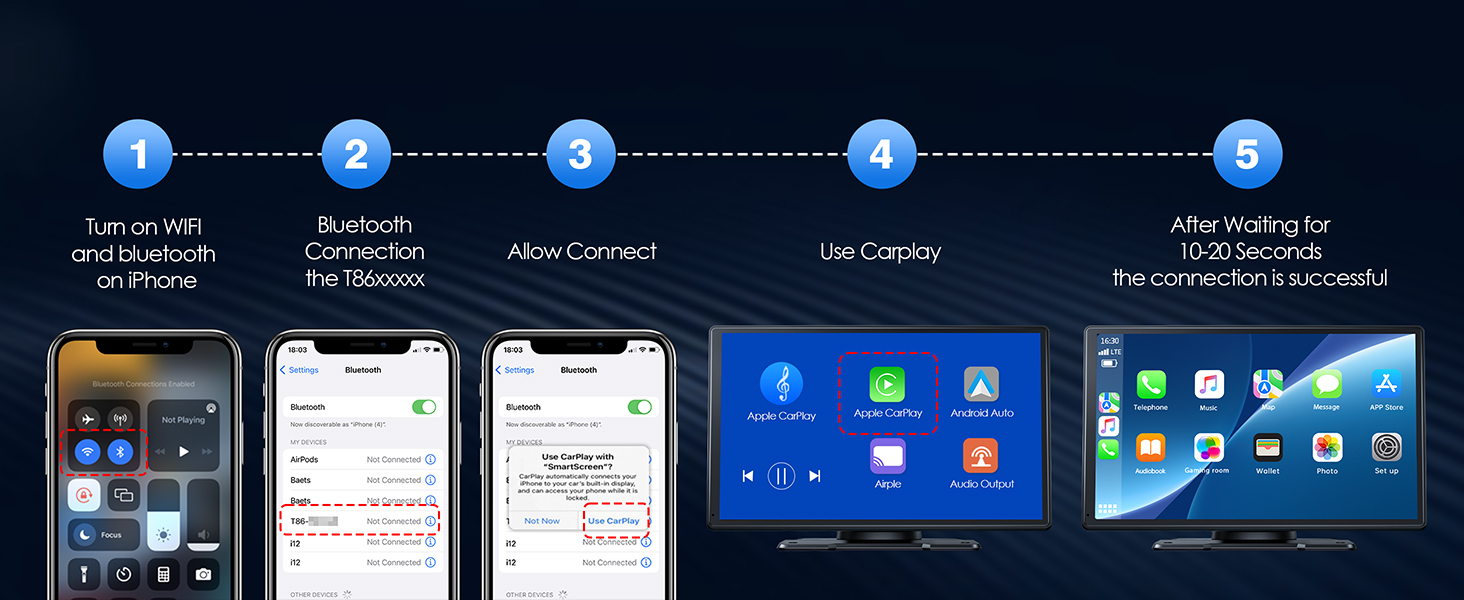
Figure 7.1: Important considerations for optimal performance.
8. Specifications
| Feature | Detail |
|---|---|
| Model Number | 9 Inch apple carplay for car |
| Package Dimensions | 10.31 x 6.54 x 3.9 inches |
| Item Weight | 2.7 pounds |
| Operating System | iOS, Android |
| Wireless Communication | Bluetooth, Wi-Fi, FM |
| Connectivity Technologies | AUX, Wi-Fi, FM |
| Special Features | Touchscreen Wireless Carplay & Android Auto with Backup Cam |
| Human Interface Input | Touchscreen, Microphone |
| Scanner Resolution | 1080p |
| Color | Black |
| Compatible Devices | Android Above 11, iPhone Above 6 |
| Connector Type | USB Type-C |
| Audio Output Mode | Stereo |
| Surround Sound Channel Configuration | 2.0 |
| Video Encoding | H.264 or H.265 (HEVC) |
9. Warranty and Support
LAMTTO provides a 12-month after-sale service for this product. For any inquiries, technical assistance, or warranty claims, please contact our customer support team. We offer 24 hours, 7 days a week customer support to assist you.

Figure 9.1: Customer support and warranty information.
Related documents9 Inch apple carplay for car


Ask a question about this manual
Ask about setup, troubleshooting, compatibility, parts, safety, or missing instructions. Manuals+ will review the question and use this page’s manual context to help answer it.