1. Introduction
Thank you for choosing the UrbanX Wireless Bluetooth Keyboard and Mouse Combo. This manual provides detailed instructions for setting up, operating, and maintaining your new peripheral devices. Please read this manual thoroughly before use to ensure optimal performance and longevity of your product.
2. Package Contents
Please check the package contents to ensure all items are present:
- UrbanX Bluetooth Wireless Keyboard
- UrbanX Wireless Mouse
- Shared USB Receiver (stored in the mouse battery compartment)
- USB Charging Cable
- User Guide
3. Product Overview
The UrbanX Keyboard and Mouse Combo is designed for versatility and comfort, featuring dual-mode connectivity (Bluetooth and 2.4GHz wireless) and long-lasting rechargeable batteries.
3.1 Keyboard Features
- Full-Size Layout: Includes a numeric keypad and arrow keys for comprehensive functionality.
- Low-Profile Keys: Designed for a quiet and comfortable typing experience.
- Hotkeys: Dedicated keys for Windows functions such as volume control, playback, and copy/paste.
- Dual-Mode Connectivity: Supports Bluetooth (BT1, BT2) and 2.4GHz wireless connection.
- Multi-Device Support: Easily switch between up to three connected devices.

Image: The UrbanX keyboard highlighting the BT1, BT2, and 2.4G connection buttons for multi-device pairing.

Image: The UrbanX keyboard and mouse, illustrating the low-profile, scissor-switch keys designed for quiet and comfortable typing.
3.2 Mouse Features
- Ergonomic Design: Shaped to reduce hand strain during extended use.
- DPI Switch: Allows adjustment of cursor speed for precision or rapid movement.
- Dual-Mode Connectivity: Supports Bluetooth (BT1, BT2) and 2.4GHz wireless connection.
- USB Receiver Storage: The nano USB receiver is conveniently stored within the mouse.

Image: The underside of the UrbanX mouse, indicating its Bluetooth and 2.4GHz dual-mode wireless capabilities.
4. Setup Instructions
The UrbanX combo offers two connection methods: 2.4GHz wireless via USB receiver or Bluetooth.
4.1 2.4GHz Wireless Connection (USB Receiver)
- Locate the nano USB receiver stored in the battery compartment of the mouse.
- Plug the USB receiver into an available USB port on your computer or device.
- Turn on the keyboard and mouse using their respective power switches.
- The devices should connect automatically. No additional drivers are required.
4.2 Bluetooth Connection
The keyboard and mouse can connect to up to two Bluetooth devices each (BT1 and BT2 channels).
4.2.1 Keyboard Bluetooth Pairing
- Turn on the keyboard.
- Press and hold the BT1 or BT2 button for 3-5 seconds until the indicator light flashes, indicating pairing mode.
- On your device (e.g., laptop, tablet, smartphone), go to Bluetooth settings and search for new devices.
- Select "UrbanX Keyboard" from the list of available devices.
- Follow any on-screen prompts to complete the pairing.
- Repeat for a second Bluetooth device using the other BT channel (BT2 if BT1 was used first).
4.2.2 Mouse Bluetooth Pairing
- Turn on the mouse.
- Press and hold the BT1 or BT2 button (usually on the bottom of the mouse) for 3-5 seconds until the indicator light flashes.
- On your device, go to Bluetooth settings and search for new devices.
- Select "UrbanX Mouse" from the list.
- Follow any on-screen prompts to complete the pairing.
- Repeat for a second Bluetooth device using the other BT channel.

Image: An illustration showing the UrbanX keyboard and mouse connected to a tablet (Channel 1), a laptop (Channel 2), and a smartphone (Channel 3), demonstrating multi-device connectivity.
5. Operating Instructions
5.1 Switching Between Devices
To switch between connected devices:
- Keyboard: Press the BT1, BT2, or 2.4G button briefly to switch to the corresponding connected device.
- Mouse: Press the BT1, BT2, or 2.4G button (usually on the bottom) briefly to switch to the corresponding connected device.
5.2 Keyboard Hotkeys
The keyboard features dedicated hotkeys for quick access to common functions. These are typically located on the F-keys row and activated by pressing the Fn key in combination with the desired F-key, or directly depending on the operating system.
| Key Combination | Function |
|---|---|
| Fn + F1 | Media Player |
| Fn + F2 | Volume Down |
| Fn + F3 | Volume Up |
| Fn + F4 | Mute |
| Fn + F5 | Previous Track |
| Fn + F6 | Next Track |
| Fn + F7 | Play/Pause |
| Fn + F8 | Stop |
| Fn + F9 | Home Page |
| Fn + F10 | |
| Fn + F11 | My Computer |
| Fn + F12 | Calculator |
| Fn + Esc | Lock Screen |
Note: Some hotkey functions may vary depending on your operating system (Windows, macOS, Android, iPadOS).
5.3 Mouse DPI Adjustment
The mouse features a DPI switch button, usually located near the scroll wheel. Press this button to cycle through different cursor speeds (DPI settings). This allows you to adjust the sensitivity of the mouse to your preference.
6. Charging Instructions
Both the keyboard and mouse are equipped with rechargeable Li-polymer batteries.
- Connect the provided USB charging cable to the charging port on the keyboard or mouse.
- Plug the other end of the USB cable into a USB power source (e.g., computer USB port, USB wall adapter).
- An indicator light will typically show the charging status. It will turn off or change color when fully charged.
Battery Life:
- Keyboard: Up to 6 months on a single charge (based on 2 hours of non-stop use per day).
- Mouse: Up to 4 months on a single charge (based on 2 hours of non-stop use per day).
- Charging Time: Approximately 2 hours for a full charge.
- Standby Time: Exceeds 2160 hours (90 days).

Image: The UrbanX keyboard and mouse shown connected via USB cables for charging, with indicators for charging time and standby time.
7. Maintenance
To ensure the longevity and optimal performance of your UrbanX Keyboard and Mouse Combo:
- Cleaning: Use a soft, dry cloth to wipe the surfaces. For stubborn dirt, a slightly damp cloth can be used, ensuring no moisture enters the device.
- Storage: Store the devices in a cool, dry place away from direct sunlight and extreme temperatures.
- Avoid Liquids: Do not expose the devices to water or other liquids.
- Handle with Care: Avoid dropping or subjecting the devices to strong impacts.
8. Troubleshooting
If you encounter issues with your UrbanX Keyboard and Mouse Combo, please refer to the following common solutions:
| Problem | Possible Solution |
|---|---|
| Devices not connecting via 2.4GHz |
|
| Devices not connecting via Bluetooth |
|
| Keyboard/Mouse not responding |
|
| Cursor movement is erratic or slow |
|
9. Specifications
| Feature | Detail |
|---|---|
| Model Number | UXM030 |
| Connectivity Technology | Bluetooth, 2.4GHz Wireless |
| Compatible Devices | HP ENVY 17t CG Laptop, Mobile Phone, Tablet, Laptop, Smartphone, PC, Mac (Windows, macOS, iPadOS, Android, Chrome OS) |
| Keyboard Description | US Layout, Full-Size, Low-Profile, Scissor-Switch |
| Special Features | Ergonomic, Rechargeable, Multi-Device Switching |
| Power Source | Battery Powered (Built-in Li-polymer) |
| Keyboard Battery Life | Up to 6 months (2 hours/day usage) |
| Mouse Battery Life | Up to 4 months (2 hours/day usage) |
| Charging Time | Approx. 2 hours |
| Operating Range | Up to 33 feet (10 meters) |
| Product Dimensions (Keyboard) | 17.1 x 5.1 x 0.7 inches (approximate) |
| Product Dimensions (Mouse) | 4.5 x 2.2 x 1 inches (approximate) |
| Item Weight | 1.54 ounces (Mouse only, approximate) |
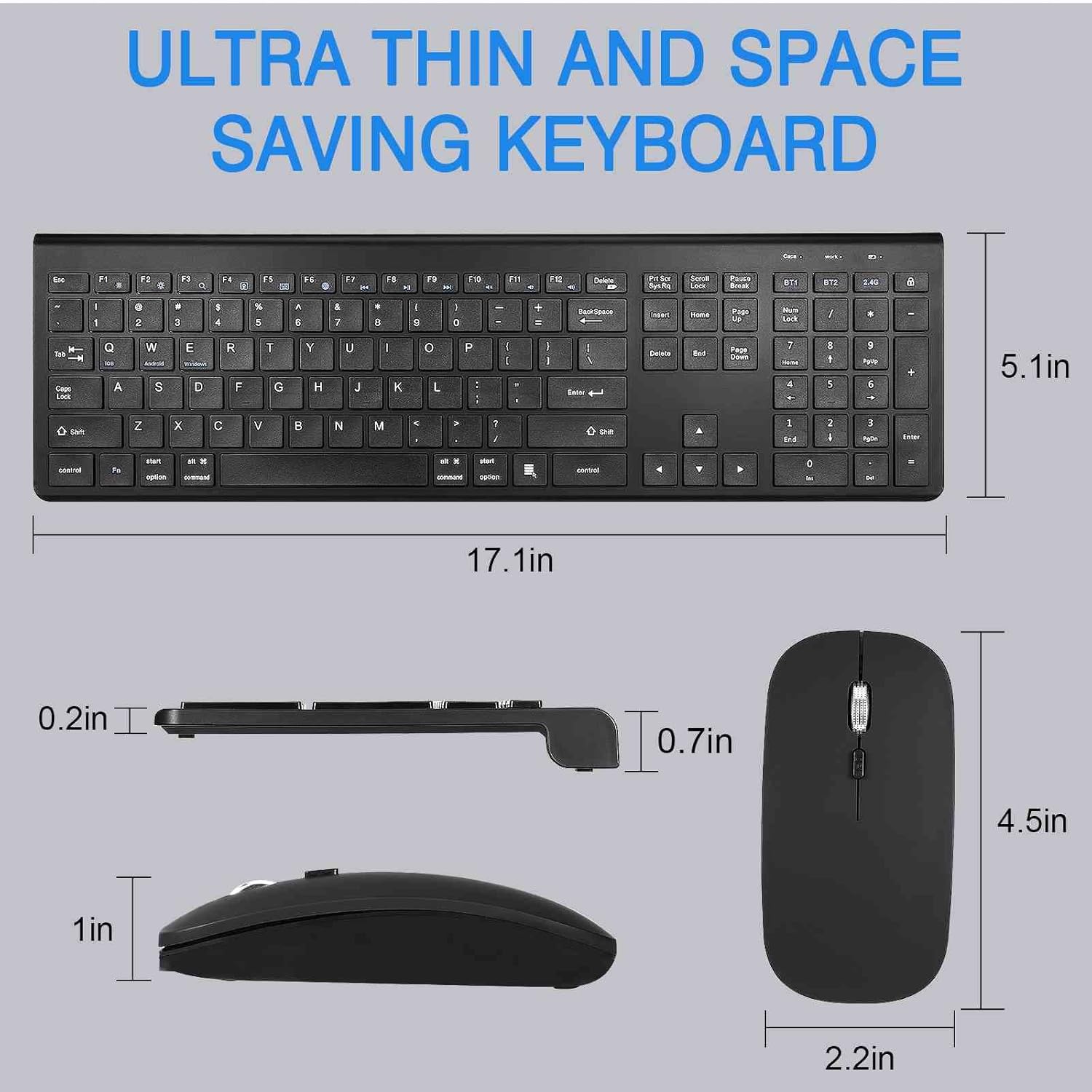
Image: Detailed dimensions of the UrbanX keyboard and mouse, showing their ultra-thin and space-saving design.
10. Warranty and Support
The UrbanX Keyboard and Mouse Combo comes with a 1-year warranty from the date of purchase.
For technical support, warranty claims, or any questions regarding your product, please contact UrbanX customer support. Refer to the contact information provided on the product packaging or the UrbanX official website.


