Introduction
Welcome to the user manual for your Samsung Galaxy A14 5G. This guide provides essential information to help you set up, operate, maintain, and troubleshoot your device. Please read this manual thoroughly to ensure optimal performance and safe use of your smartphone.
The Samsung Galaxy A14 5G is designed to offer a seamless mobile experience with its advanced features and connectivity. Familiarize yourself with its functions to make the most of your device.
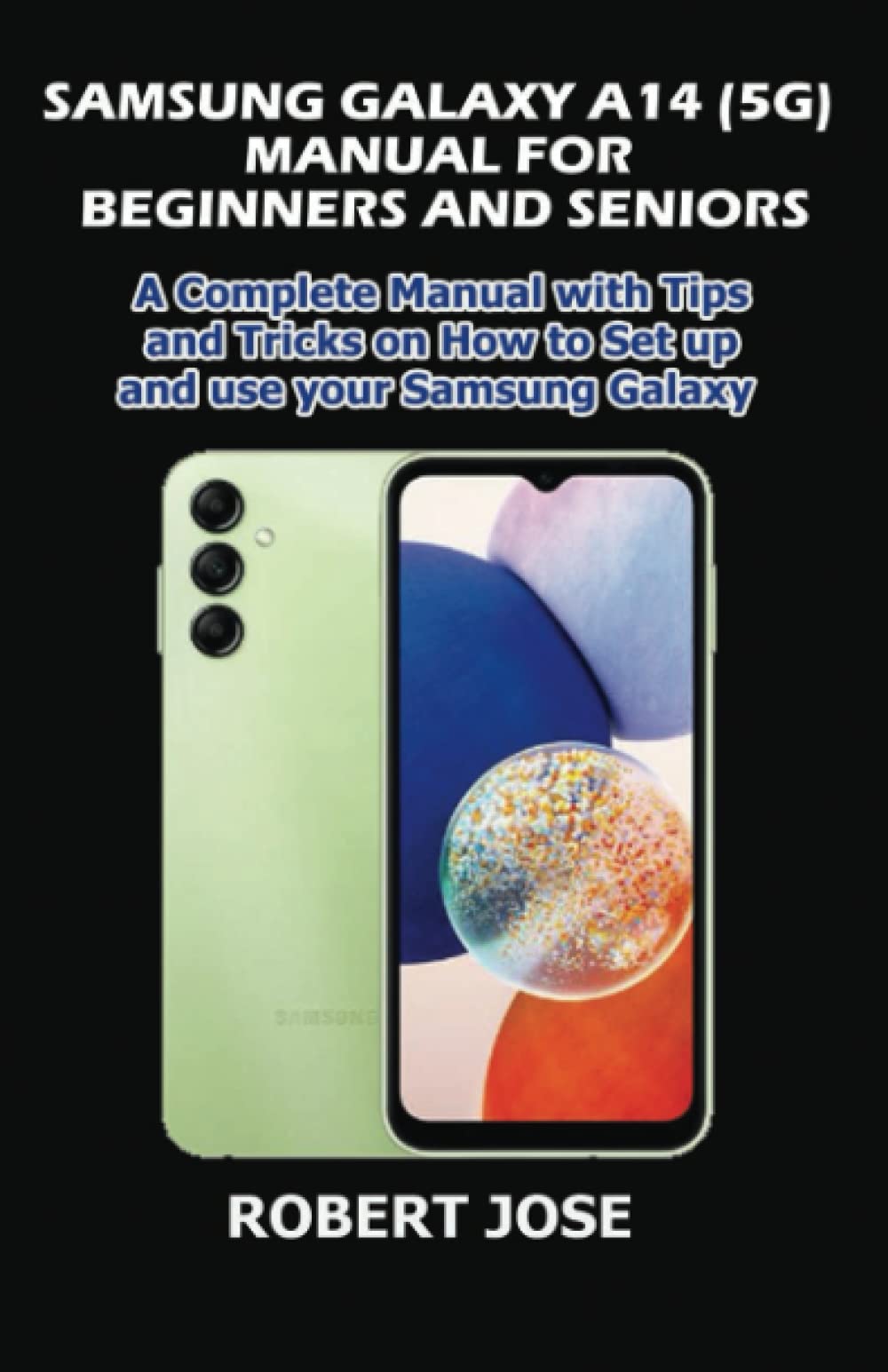
Image: Cover of the Samsung Galaxy A14 5G User Manual book. This image represents the physical manual that contains these instructions.
Setup
1. Unboxing and Initial Charge
Carefully remove your Samsung Galaxy A14 5G and its accessories from the packaging. Before first use, it is recommended to fully charge the device using the provided USB cable and power adapter.
- Connect the USB cable to the charging port on your phone.
- Plug the other end of the cable into the power adapter, then into a wall outlet.
- The charging indicator will appear on the screen.
2. Inserting the SIM Card and microSD Card
Your device uses a Nano-SIM card. A microSD card (sold separately) can be inserted for additional storage.
- Locate the SIM tray on the side of your phone.
- Insert the ejection pin into the hole on the SIM tray to open it.
- Place the Nano-SIM card into the SIM slot with the gold contacts facing down.
- If using a microSD card, place it into the designated slot on the tray.
- Gently push the tray back into the slot until it is flush with the phone's body.
3. Powering On and Initial Configuration
To power on your device, press and hold the Power/Side key until the Samsung logo appears. Follow the on-screen prompts to complete the initial setup, including language selection, Wi-Fi connection, Google account setup, and security settings.
Operating
1. Basic Navigation
- Home Screen: The main screen where you can access apps and widgets.
- Notifications Panel: Swipe down from the top of the screen to view notifications and quick settings.
- App Drawer: Swipe up from the Home screen to access all installed applications.
- Recent Apps: Tap the Recent Apps button (usually a square icon) to view and switch between recently used applications.
2. Making Calls and Sending Messages
- Calls: Open the Phone app, enter the number, and tap the call icon.
- Messages: Open the Messages app, tap the new message icon, enter the recipient and your message.
3. Internet and Connectivity
- Wi-Fi: Go to Settings > Connections > Wi-Fi to connect to a wireless network.
- Mobile Data: Ensure mobile data is enabled in Settings > Connections > Data usage for internet access via your cellular network.
- Bluetooth: Pair with other devices via Settings > Connections > Bluetooth.
4. Camera Usage
Open the Camera app from the Home screen or App Drawer. Tap the shutter button to take a photo. Swipe left or right to switch between different camera modes (e.g., Photo, Video, Portrait).
Features
The Samsung Galaxy A14 5G comes with several key features:
- 5G Connectivity: Experience faster download and upload speeds, and lower latency with 5G networks (where available).
- Large Display: Enjoy content on a vibrant 6.6-inch FHD+ display.
- Multi-Camera System: Capture detailed photos with the 50MP main camera, depth camera, and macro camera.
- Long-Lasting Battery: A 5000mAh battery provides extended usage time.
- Fingerprint Sensor: Securely unlock your device using the side-mounted fingerprint sensor.
Maintenance
1. Battery Care
- Avoid extreme temperatures.
- Do not let the battery drain completely regularly.
- Use only Samsung-approved chargers and cables.
2. Cleaning Your Device
Use a soft, lint-free cloth to clean the screen and body of your phone. Avoid using harsh chemicals or abrasive materials.
3. Software Updates
Regularly check for software updates to ensure your device has the latest features and security patches. Go to Settings > Software update > Download and install.
Troubleshooting
| Problem | Solution |
|---|---|
| Device not turning on | Ensure the battery is charged. Press and hold the Power/Side key for at least 10 seconds to force restart. |
| Apps crashing or freezing | Close and reopen the app. Clear the app's cache (Settings > Apps > [App Name] > Storage > Clear cache). Restart the device. |
| Poor Wi-Fi connection | Restart your router and phone. Forget the network and reconnect (Settings > Connections > Wi-Fi). |
| Battery draining quickly | Check battery usage in Settings > Battery and device care > Battery. Reduce screen brightness, disable unnecessary features (GPS, Bluetooth, Wi-Fi when not in use). |
Specifications
Below are some key specifications for the Samsung Galaxy A14 5G. Note that specifications may vary by region and carrier.
- Display: 6.6-inch FHD+ LCD
- Processor: Octa-core (e.g., MediaTek Dimensity 700 or Exynos 1330, depending on region)
- RAM: 4GB / 6GB
- Storage: 64GB / 128GB (expandable via microSD up to 1TB)
- Rear Camera: 50MP (Main) + 2MP (Macro) + 2MP (Depth)
- Front Camera: 13MP
- Battery: 5000mAh (typical)
- Operating System: Android with One UI
- Connectivity: 5G, Wi-Fi 802.11 a/b/g/n/ac, Bluetooth 5.2, USB Type-C
Safety Information
To prevent injury to yourself and others or damage to your device, read all safety information before using the device.
- Do not use damaged power cords or plugs, or loose electrical sockets.
- Do not touch the device, power cord, or power outlet with wet hands.
- Do not bend or damage the power cord.
- Do not use your device in a hospital or near medical equipment without permission.
- Avoid exposing your device to very cold or very hot temperatures.
- Do not store your device near or in heaters, microwaves, cooking equipment, or high-pressure containers.
Warranty and Support
Your Samsung Galaxy A14 5G is covered by a limited warranty. For specific warranty terms and conditions, please refer to the warranty card included with your device or visit the official Samsung website for your region.
For technical support, service, or further assistance, please contact Samsung Customer Service:
- Website: www.samsung.com/support
- Phone: Refer to your regional Samsung support page for local contact numbers.
Please have your device's model number and serial number ready when contacting support.