
ASHATA ASHATAkpz46bt1gu
ASHATA 1080P Body Worn Camera User Manual
Model: ASHATAkpz46bt1gu
Introduction
Thank you for purchasing the ASHATA 1080P Body Worn Camera. This versatile device is designed for various applications, including car recording, home security, office monitoring, and outdoor sports. It features 1080P video recording, adjustable LED lighting, and a compact, wearable design. Please read this manual thoroughly before use to ensure proper operation and to maximize the camera's potential.
Safety Information
- Do not expose the device to extreme temperatures, direct sunlight, or high humidity.
- Keep the camera away from water unless specifically stated as waterproof for a particular use case.
- Avoid dropping or subjecting the camera to strong impacts.
- Do not attempt to disassemble or repair the device yourself. Contact qualified service personnel for assistance.
- Use only the provided charging cable and accessories.
- Ensure proper ventilation when charging.
Package Contents
Please check the package contents to ensure all items are present:
- ASHATA 1080P Body Worn Camera
- USB Charging Cable
- Lanyard
- SIM Ejector Tool (for reset hole access)
- User Manual

Image: The ASHATA Body Worn Camera shown with its USB charging cable, lanyard, and a small tool for accessing the reset hole.
Video: An unboxing and overview of the ASHATA 1080P Body Worn Camera, demonstrating its components and initial handling.
Product Overview
Familiarize yourself with the camera's components:

Image: Front view of the camera, highlighting the lens and LED lights.

Image: Detailed diagram illustrating the camera's dimensions and key features such as the HD lens, flashlight, charging port, Micro SD card slot, and reset hole.
- HD Lens: Central camera lens for video recording.
- LED Lights: Multiple LED lights for illumination and warning signals.
- Record/ON/OFF Button: Main control button for power and recording.
- Flashlight/Warning LED ON/OFF Button: Controls the lighting modes.
- Micro SD Card Slot: For inserting a memory card (supports up to 128GB).
- USB Port: For charging and data transfer.
- Reset Hole: Used to reset the device if needed.
- Sling Hole: For attaching the lanyard.
Setup
1. Charging the Camera
Before first use, fully charge the camera. Connect the camera to a USB power source (e.g., computer USB port, wall adapter) using the provided USB cable.
- The red LED will flash during charging.
- The red LED will remain solid when fully charged.
- A full charge provides approximately 5.5 hours of continuous video recording.
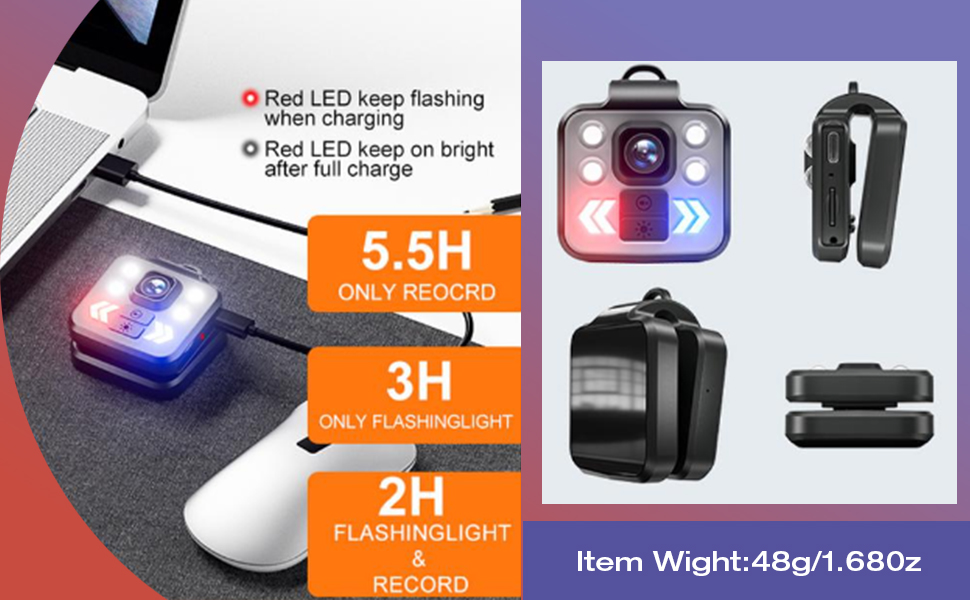
Image: Charging the camera and battery life indications for different modes.
2. Inserting a Micro SD Card
The camera requires a Micro SD card (not included) for storing recordings. It supports cards up to 128GB.
- Locate the Micro SD card slot on the side of the camera.
- Gently insert the Micro SD card into the slot until it clicks into place. Ensure the card is oriented correctly.
- To remove, gently push the card in again until it springs out.

Image: Side view of the camera showing the Micro SD card slot and USB port.
3. Time Stamp Setting
To set or update the time stamp on your recordings:
- Connect the camera to your computer via the USB cable.
- The camera will be recognized as a removable disk.
- Create a new text file named "time.txt" in the root directory of the camera's storage.
- Open "time.txt" and enter the current date and time in the format: YYYYMMDDHHMMSS Y/N (e.g., 20231027143000 Y for October 27, 2023, 2:30 PM with time stamp, or N to disable).
- Save the file and safely eject the camera from your computer.
- The time stamp will be updated upon the next power cycle.
Operating Instructions
1. Power On/Off
- Power On: Press and hold the Record/ON/OFF button for a few seconds until the indicator lights turn on.
- Power Off: Press and hold the Record/ON/OFF button for a few seconds until the indicator lights turn off.
2. Video Recording
The camera features a one-click video recording design for ease of use.
- Start Recording: With the camera powered on, short press the Record/ON/OFF button. The blue LED will flash to indicate recording is in progress.
- Stop Recording: Short press the Record/ON/OFF button again. The blue LED will stop flashing, and the recording will be saved.
- The camera automatically saves video files every 5 minutes.
- If the memory card is full, the camera will automatically overwrite the oldest files.

Image: Key features of the portable camera, including video resolution and battery life.
3. Flashlight Mode
The camera has three lighting modes for its flashlight function, with up to 200 lumens brightness.
- Short press the Flashlight/Warning LED ON/OFF button to cycle through the modes:
- 100% Brightness
- 50% Brightness
- 30% Brightness
- Press again to turn off the flashlight.
4. Warning Light Mode
To activate the warning lights (red and blue flashing alternately):
- Long press the Flashlight/Warning LED ON/OFF button.
- Long press again to turn off the warning lights.
- Note: If you need to record video without the LED warning lights, you must first turn on the record mode, then turn on the warning light. If you turn on the warning light first, the camera will be in warning light mode and not recording.
5. Webcam Mode
The camera can function as a webcam when connected to a computer.
- Connect the camera to your computer using the USB cable.
- The computer should automatically detect the camera as a webcam.
- Open your preferred video conferencing software or camera application to use the camera.
6. Video Replaying and File Transfer
You can access and transfer recorded videos and photos using two methods:
- Direct USB Connection:
- Connect the camera to your computer using the provided USB cable.
- The camera will appear as a removable disk drive.
- Open the drive to view and transfer your files.
- Using a Card Reader:
- Remove the Micro SD card from the camera.
- Insert the Micro SD card into a compatible card reader.
- Connect the card reader to your computer to access the files.

Image: Illustration of connecting the camera directly to a computer via USB or using a card reader to access files.
Maintenance
- Clean the camera lens and body with a soft, dry cloth. Do not use abrasive cleaners or solvents.
- Store the camera in a cool, dry place away from direct sunlight when not in use.
- Regularly back up your important recordings to a computer or external storage device.
- Format the Micro SD card periodically to maintain optimal performance and prevent data corruption.
Troubleshooting
| Problem | Possible Cause | Solution |
|---|---|---|
| Camera does not power on. | Low battery; device frozen. | Charge the camera fully. If unresponsive, use the SIM ejector tool to press the reset hole. |
| Cannot record video. | No Micro SD card; SD card full or corrupted; incorrect mode. | Insert a Micro SD card. Delete old files or format the card. Ensure you are in video recording mode (blue LED flashing). |
| Time stamp is incorrect or not saving. | Time.txt file not created or formatted correctly. | Ensure the "time.txt" file is in the root directory and formatted exactly as YYYYMMDDHHMMSS Y/N. Re-save and restart the camera. |
| Cannot connect to computer. | Faulty USB cable; driver issue; camera not in data transfer mode. | Try a different USB cable or USB port. Restart your computer. Ensure the camera is powered on when connecting. |
Specifications
| Feature | Detail |
|---|---|
| Model Name | ASHATAkpz46bt1gu |
| Video Capture Resolution | 1080p |
| Video Capture Format | AVI |
| Flash Memory Type | SD (supports up to 128GB) |
| Supported Audio Format | MP3 |
| Connectivity Technology | USB |
| Special Feature | Waterproof (IP65) |
| Battery Capacity | 1000mAh |
| Continuous Video Recording | > 5.5 hours |
| Flashlight Brightness | Up to 200lm (3 modes: 100%, 50%, 30%) |
| Item Weight | 3.07 ounces (approx. 87g) |
| Dimensions | Approx. 5.5cm x 4.5cm x 3cm (2.1in x 1.7in x 1.2in) |
Warranty and Support
For warranty information or technical support, please refer to the product packaging or contact ASHATA customer service through the retailer's platform where the product was purchased. Keep your purchase receipt as proof of purchase.
Ask a question about this manual
Ask about setup, troubleshooting, compatibility, parts, safety, or missing instructions. Manuals+ will review the question and use this page’s manual context to help answer it.