
1. Product Overview
The Acogedor Page Turner Pedal is a compact and portable Bluetooth foot pedal designed to simplify page turning for electronic music, e-books, presentations, and other digital content. It features multiple page-turning modes and wide compatibility with various operating systems and applications.
- Four Page Flip Modes: Offers two standard page-turning modes and two simulated manual page-turning modes for versatile control.
- Compact and Portable: Designed for easy transport, fitting into pockets and bags.
- Multi-System Compatibility: Supports iOS, Android, OS X, and Windows systems for mobile phones, tablets, and computers.
- Easy Operation: Eliminates the need for manual page turning, allowing hands-free control.
- Rechargeable Battery: Equipped with a 230mAh rechargeable battery, providing up to 73 hours of continuous use.
2. Setup Guide
2.1 Charging the Device
Before initial use, fully charge the page turner pedal. Use the provided Type-C USB cable to connect the pedal to a power source.

Image: The page turner pedal connected via its Type-C charging port. The image highlights the anti-slip base for stability during use.
2.2 Power On/Off
Locate the ON/OFF switch on the side of the device. Slide the switch to the 'ON' position to power on the pedal. Slide to 'OFF' to power off.
2.3 Bluetooth Connection
To connect the pedal to your device (smartphone, tablet, or computer):
- Ensure the pedal is powered on.
- Long press the 'Connect' key on the pedal. The mode light will flash, indicating it is searching for a Bluetooth connection.
- On your device, go to Bluetooth settings and search for available devices.
- Select the 'PT23' (or similar) device from the list to pair. The mode light on the pedal will stop flashing once successfully connected.

Image: Visual representation of the Bluetooth connection process, showing the pedal wirelessly connected to a smartphone and a tablet displaying sheet music.
3. Operating Instructions
3.1 Page Turning Modes
The pedal offers four distinct modes (M1, M2, M3, M4) to accommodate different applications and user preferences. You can switch between modes by clicking the 'Connect' key.
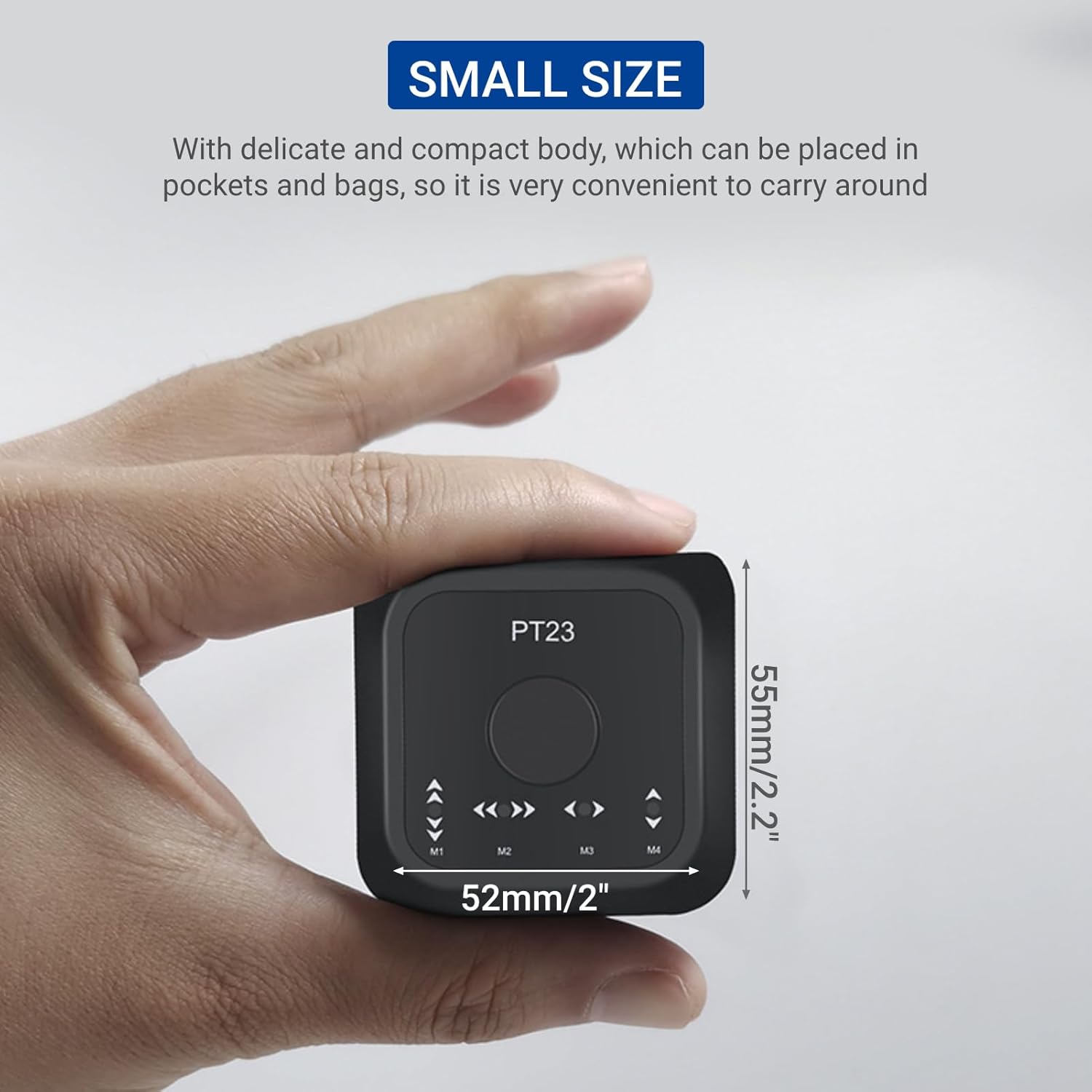
Image: The page turner pedal displaying its mode buttons (M1-M4) and central control, surrounded by icons of compatible software, highlighting its wide application support.
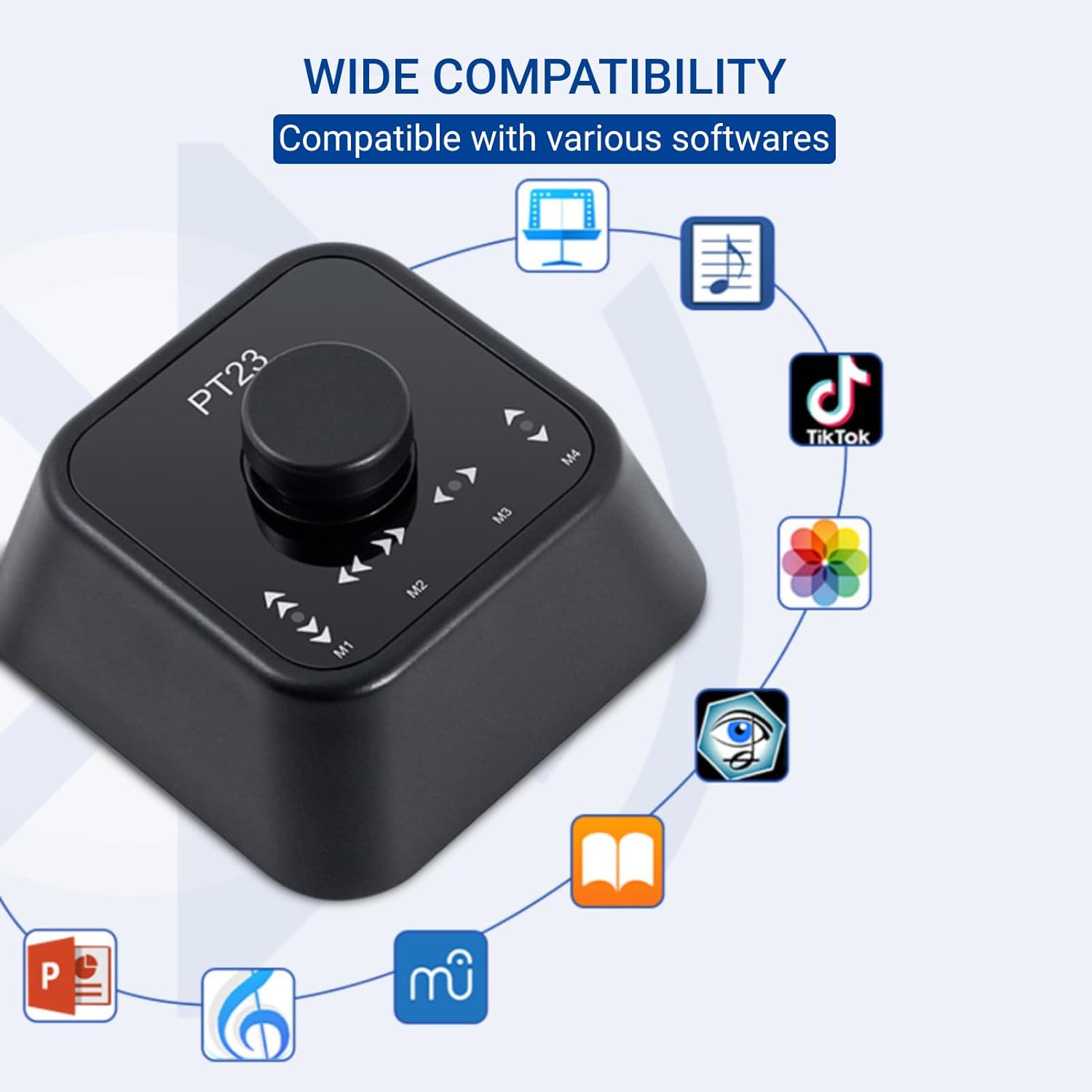
Image: Detailed explanation of the four operating modes (M1-M4) with a table outlining the functions for single press, double press, and press-and-hold actions for each mode.
| Mode | Function | One Press | Double Press | Press and Hold |
|---|---|---|---|---|
| Mode 1 | Simulate hand flip over, Turn up or down | Up | Down | Continue Up |
| Mode 2 | Simulate hand flip over, Turn left or right | Left | Right | Continue Left |
| Mode 3 | Turn left or right | Left | Right | Continue Left |
| Mode 4 | Turn up or down | Up | Down | Continue Up |
Select the appropriate mode based on the application you are using and the desired page-turning direction.

Image: A musician demonstrating hands-free page turning using the Acogedor pedal while playing a guitar, with sheet music displayed on a tablet.
4. Maintenance
4.1 Cleaning
Wipe the pedal with a soft, dry cloth. Avoid using abrasive cleaners or solvents that could damage the surface.
4.2 Battery Care
To prolong battery life, avoid fully discharging the pedal frequently. Recharge the device when the battery indicator is low. If storing for an extended period, charge the battery to approximately 50% every few months.
5. Troubleshooting
5.1 Device Not Powering On
- Ensure the ON/OFF switch is in the 'ON' position.
- Check battery level. If low, connect the pedal to a power source using the Type-C cable and charge it.
5.2 Unable to Connect via Bluetooth
- Ensure the pedal is powered on and within range of your device (typically 10 meters).
- Verify that Bluetooth is enabled on your device.
- Long press the 'Connect' key on the pedal to enter pairing mode (mode light flashing).
- If previously paired, try unpairing and re-pairing the device from your device's Bluetooth settings.
- Restart both the pedal and your connecting device.
5.3 Page Turning Not Working Correctly
- Ensure the pedal is successfully connected via Bluetooth.
- Check the selected mode (M1-M4) on the pedal. Different applications may require different modes for optimal functionality. Refer to the 'Page Turner Pedal Mode Functions' table.
- Verify that the application you are using supports external page-turning commands.
6. Specifications
- Model Number: Acogedorvpekfwhyo9-11
- Brand: Acogedor
- Connectivity: Bluetooth
- Battery: 230mAh Rechargeable
- Continuous Use Time: Up to 73 hours
- Charging Port: Type-C USB
- Compatibility: iOS, Android, OS X, Windows
- Dimensions: Approximately 52mm x 55mm (2 inches x 2.2 inches)
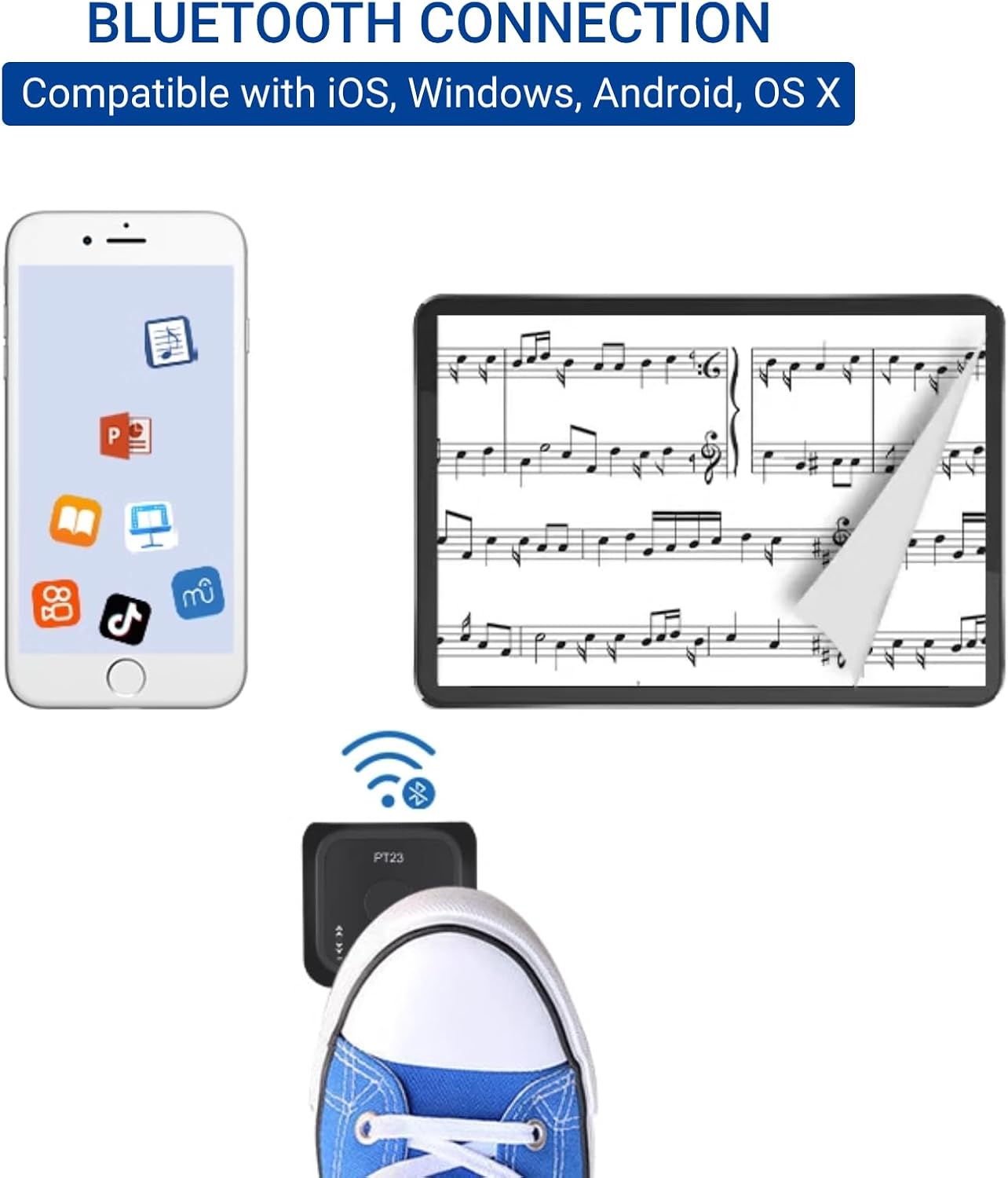
Image: The compact size of the Acogedor Page Turner Pedal, with approximate dimensions indicated for reference.
7. Warranty and Support
For warranty information or technical support, please refer to the product packaging or contact Acogedor customer service directly. Keep your purchase receipt for any warranty claims.