
1. Introduction
The Audizio Cuneo is a versatile digital alarm clock radio designed to enhance your audio experience. It features DAB+ and FM radio tuners for a wide range of stations, Bluetooth connectivity for streaming from your smart devices, and a convenient wireless induction charging pad for compatible smartphones. Its compact design and alarm functions make it an ideal companion for your bedside table or any room.
This manual provides detailed instructions on how to set up, operate, and maintain your Audizio Cuneo radio to ensure optimal performance and longevity.
2. Safety Information
Please read these safety instructions carefully before using the device and keep them for future reference. Incorrect use may result in electric shock or fire.
- Power Source: Only use the provided power adapter. Ensure the voltage matches the requirements of the device.
- Water and Moisture: Do not expose the unit to rain, moisture, or dripping/splashing liquids. Do not place objects filled with liquids, such as vases, on the unit.
- Ventilation: Ensure adequate ventilation. Do not block ventilation openings.
- Heat: Keep the unit away from heat sources such as radiators, heat registers, stoves, or other apparatus (including amplifiers) that produce heat.
- Cleaning: Unplug the unit from the power outlet before cleaning. Use a soft, dry cloth. Do not use liquid cleaners or aerosol cleaners.
- Batteries: If using backup batteries, ensure correct polarity. Do not mix old and new batteries, or different types of batteries. Remove batteries if the unit is not used for a long period.
- Servicing: Do not attempt to service this product yourself. Refer all servicing to qualified service personnel.
3. Package Contents
Carefully unpack the box and ensure all items are present and in good condition.
- Audizio Cuneo DAB+ Radio
- Power Adapter (9V)
- User Manual
4. Product Overview
4.1 Front View and Display
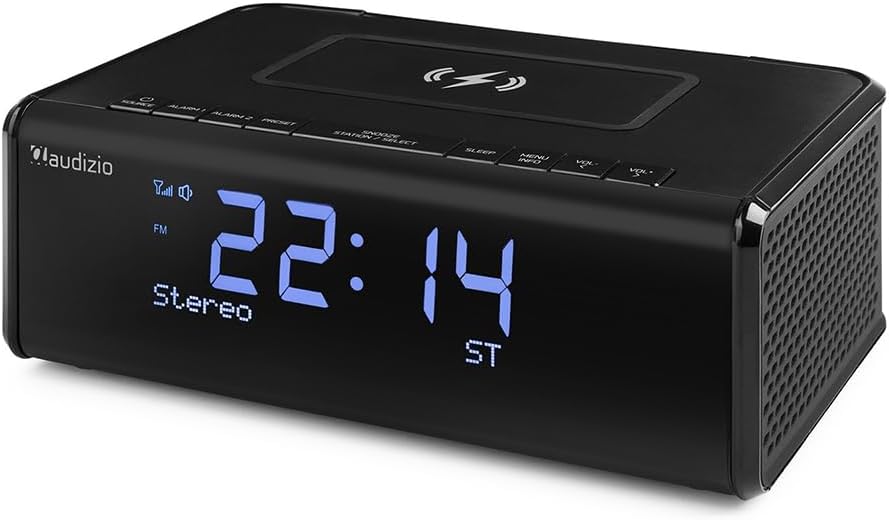
Image 4.1: Front view of the Audizio Cuneo radio, displaying the time and current radio mode (FM/DAB+). The large LCD screen shows clear, blue digits.

Image 4.2: Close-up of the Audizio Cuneo radio's front display, showing the time and date. The display is a clear LCD with blue backlighting.
The front of the Audizio Cuneo features a large, backlit LCD display that shows the time, date, radio frequency/station information, and current mode. The display has a 3-step dimmer for adjustable brightness.
4.2 Top Panel Controls and Wireless Charging Pad

Image 4.3: Top view of the Audizio Cuneo radio, highlighting the control buttons and the central wireless charging pad. The buttons are clearly labeled for easy access.

Image 4.4: Overhead view of the Audizio Cuneo radio, emphasizing the wireless charging area marked with a lightning bolt symbol. Control buttons are visible below the charging pad.
The top panel houses all primary control buttons and the wireless induction charging pad. These controls allow you to navigate menus, adjust volume, set alarms, and select radio stations.
- SOURCE: Power On/Off, switch between DAB+, FM, and Bluetooth modes.
- ALARM 1 / ALARM 2: Set and activate Alarm 1 and Alarm 2.
- PRESET: Access and save preset radio stations.
- SNOOZE / STATION / SELECT: Snooze active alarm, navigate stations, confirm selections.
- SLEEP: Set sleep timer.
- MENU / INFO: Access menu options, display information.
- VOL- / VOL+: Decrease/Increase volume.
4.3 Rear Panel Connections and Battery Compartment

Image 4.5: Rear view of the Audizio Cuneo radio, showing the open battery compartment for AAA batteries (not included), the USB charging port, and the 3.5mm headphone jack. The DC power input is also visible.

Image 4.6: Side view of the Audizio Cuneo radio, highlighting the USB charge port located on the back panel, labeled for 5V-1A USB charge output.
The rear panel includes essential ports and the battery compartment for backup power.
- DC IN: Power adapter input (9V).
- USB OUT: USB port for wired charging of external devices (5V/1A).
- HEADPHONE: 3.5mm jack for private listening.
- BATTERY COMPARTMENT: For 2x AAA backup batteries (not included).
5. Setup
5.1 Power Connection
- Connect the provided 9V power adapter to the DC IN port on the rear of the Audizio Cuneo.
- Plug the power adapter into a standard wall outlet (230Vac/50Hz).
5.2 Battery Installation (Optional Backup)
The Audizio Cuneo can operate on mains power, but 2x AAA batteries (not included) can be installed for alarm backup during power outages.
- Open the battery compartment cover on the rear of the unit.
- Insert 2x AAA batteries, ensuring correct polarity (+/-) as indicated inside the compartment.
- Close the battery compartment cover securely.
5.3 Initial Power On
Once connected to power, the unit will typically power on automatically or enter standby mode. Press the SOURCE button to turn the unit on if it is in standby.
The radio will automatically synchronize the time and date via DAB+ signal once a station is tuned, or you may need to set it manually if no DAB+ signal is available.
6. Operating Instructions
6.1 Power On/Off and Mode Selection
- Press the SOURCE button to turn the unit on or off (standby mode).
- While the unit is on, press the SOURCE button repeatedly to cycle through available modes: DAB+, FM, and Bluetooth.
6.2 DAB+ Radio Operation

Image 6.1: The Audizio Cuneo radio display indicating active DAB+ and FM tuner capabilities, showing current time and stereo status.
- Select DAB+ mode using the SOURCE button.
- The radio will automatically perform a full scan for available DAB+ stations upon first use.
- To manually scan, press MENU/INFO, then use SNOOZE/STATION/SELECT to navigate to 'Full Scan' and confirm.
- Use the SNOOZE/STATION/SELECT button to browse through the list of available stations. Press to select a station.
- Saving Presets: While listening to a station, press and hold the PRESET button. Use SNOOZE/STATION/SELECT to choose a preset number (1-30), then press to confirm.
- Recalling Presets: Briefly press the PRESET button. Use SNOOZE/STATION/SELECT to select your desired preset, then press to confirm.
6.3 FM Radio Operation
- Select FM mode using the SOURCE button.
- To auto-scan for stations, press and hold SNOOZE/STATION/SELECT. The radio will scan and stop at the next available station.
- To manually tune, briefly press SNOOZE/STATION/SELECT, then use VOL- / VOL+ to fine-tune the frequency.
- Saving Presets: Same as DAB+ (see 6.2).
- Recalling Presets: Same as DAB+ (see 6.2).
6.4 Bluetooth Streaming

Image 6.2: The Audizio Cuneo radio positioned next to a smartphone, illustrating its Bluetooth connectivity for streaming music from mobile devices.
- Select Bluetooth mode using the SOURCE button. The display will show "Bluetooth Pairing" or similar, and the unit will enter pairing mode.
- On your smartphone or other Bluetooth device, enable Bluetooth and search for available devices.
- Select "Audizio Cuneo" from the list of devices. Once paired, the display will show "Bluetooth Connected".
- You can now play audio from your device through the Audizio Cuneo. Use the volume controls on the radio or your device to adjust the sound level.
6.5 Alarm Function

Image 6.3: The Audizio Cuneo radio's LCD display showing various alarm settings and dimmer options, indicating its functionality as an alarm clock.
The unit features dual alarms (Alarm 1 and Alarm 2).
- Setting an Alarm: Press and hold either ALARM 1 or ALARM 2 button.
- Use SNOOZE/STATION/SELECT and VOL- / VOL+ to set the alarm time (hour and minute), alarm source (Buzzer, DAB+, or FM), and alarm volume.
- Set the alarm frequency (Daily, Weekdays, Weekends, Once).
- Press the respective ALARM button again to activate/deactivate the alarm. An alarm icon will appear on the display when active.
- Snooze: When the alarm sounds, press the SNOOZE/STATION/SELECT button to activate snooze. The alarm will pause for a set period (e.g., 9 minutes) and sound again.
- Stop Alarm: To stop the alarm completely, press any other button (e.g., SOURCE, ALARM 1/2).
- Sleep Timer: Press the SLEEP button repeatedly to set a sleep timer (e.g., 15, 30, 45, 60, 90 minutes, or OFF). The radio will automatically turn off after the selected time.
6.6 Wireless Charging
The Audizio Cuneo features a wireless induction charging pad on its top surface.
- Ensure the Audizio Cuneo is powered on and connected to the mains.
- Place your Qi-compatible smartphone directly onto the wireless charging pad, aligning it centrally over the charging symbol.
- The phone should indicate that it is charging. If not, slightly adjust its position.
Note: Your smartphone must be compatible with wireless charging (Qi standard) for this feature to work.
6.7 Headphone Use
For private listening, connect any standard 3.5mm headphones to the HEADPHONE jack on the rear panel. The internal speaker will automatically mute when headphones are connected.
6.8 Display Settings
The LCD display has a 3-step dimmer. Press the MENU/INFO button repeatedly to cycle through different brightness levels for the display.
7. Maintenance
7.1 Cleaning
- Always unplug the unit from the power outlet before cleaning.
- Use a soft, dry, lint-free cloth to wipe the surfaces of the radio.
- Do not use abrasive cleaners, waxes, or solvents as they may damage the finish.
7.2 Battery Replacement
If using backup batteries, replace them when the low battery indicator appears on the display or if the unit fails to maintain time during a power outage. Follow the instructions in section 5.2 for battery installation.
7.3 Storage
If you plan to store the unit for an extended period, disconnect it from the power supply and remove any backup batteries to prevent leakage.
8. Troubleshooting
| Problem | Possible Cause | Solution |
|---|---|---|
| No power | Power adapter not connected or faulty. | Ensure power adapter is securely plugged into the unit and a working wall outlet. |
| No sound from radio/Bluetooth | Volume too low; Muted; Headphones connected. | Increase volume; Check if headphones are plugged in; Ensure unit is not muted. |
| Poor radio reception (DAB+/FM) | Weak signal; Antenna not extended. | Extend the telescopic antenna fully; Reposition the unit for better reception; Perform a full scan for DAB+ stations. |
| Bluetooth pairing issues | Unit not in pairing mode; Device too far; Already paired to another device. | Ensure unit is in Bluetooth mode and displaying "Pairing"; Move device closer; Disconnect from other Bluetooth devices. |
| Wireless charging not working | Phone not Qi-compatible; Phone not aligned; Phone case too thick. | Verify phone supports Qi wireless charging; Re-align phone on the pad; Remove thick phone case. |
| Alarm not sounding | Alarm not activated; Volume too low; Incorrect time/date. | Ensure alarm is set and activated (icon visible); Increase alarm volume; Check time and date settings. |
9. Specifications
| Feature | Specification |
|---|---|
| Product Type | Digital Alarm Clock Radio |
| Model Number | Cuneo |
| Radio Tuner | DAB+, FM |
| Bluetooth Version | Bluetooth Streaming |
| Wireless Charging | Induction (Qi-compatible) |
| Display Type | LCD with Backlight (3-step dimmer) |
| Alarm Functions | Dual Alarm, Buzzer/Radio Alarm, Snooze, Sleep Timer |
| Clock Display | 12/24 Hour Format |
| Radio Presets | 30 (DAB+/FM combined) |
| Headphone Output | 3.5mm Jack |
| USB Connection | USB for wired charging (5V/1A) |
| Power Input | 9V DC (via 230Vac/50Hz adapter) |
| Backup Batteries | 2x AAA (not included) |
| Dimensions (L x W x H) | 17 x 10.5 x 5.8 cm |
| Weight | 0.45 kg |
| Color | Black |
10. Warranty and Support
10.1 Manufacturer's Warranty
The Audizio Cuneo DAB+ Radio comes with a 2-year manufacturer's warranty. This warranty covers defects in materials and workmanship under normal use. Please retain your proof of purchase for warranty claims.
10.2 Customer Support
For technical assistance, troubleshooting beyond this manual, or warranty inquiries, please contact your retailer or visit the official Audizio website for support information. Please have your product model number (Cuneo) and proof of purchase ready when contacting support.

