
1. Introduction
This manual provides comprehensive instructions for the installation, operation, and maintenance of your MAXHUB 86 C8630 Interactive Display. Please read this manual thoroughly before using the product to ensure proper and safe operation. The MAXHUB C8630 is an advanced interactive display designed for collaborative environments, offering features such as high-resolution display, touch interaction, and integrated communication tools.
2. Safety Information
Observe the following safety precautions to prevent damage to the product and ensure user safety:
- Do not expose the display to water or moisture.
- Ensure proper ventilation around the display to prevent overheating.
- Use only the power adapter supplied with the device.
- Do not attempt to disassemble or repair the unit yourself. Refer all servicing to qualified personnel.
- Keep the display away from direct sunlight and heat sources.
- Handle the display with care during installation and relocation due to its size and weight.
3. Package Contents
Verify that all items are present in the package:
- MAXHUB 86 C8630 Interactive Display
- Power Cable
- Remote Control (with batteries)
- Stylus Pens (2x)
- Wall Mount Bracket (optional, may be sold separately)
- User Manual (this document)
- Warranty Card
4. Setup
4.1 Unpacking
Carefully remove the display from its packaging. It is recommended that two or more people handle the display due to its size and weight. Retain the packaging for future transport or storage.
4.2 Placement and Mounting
The MAXHUB C8630 can be wall-mounted or placed on a compatible mobile stand. Ensure the mounting surface or stand can support the display's weight (approximately 12.45 pounds). For wall mounting, follow the instructions provided with the wall mount bracket. Ensure the display is level and securely fastened.
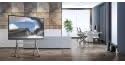
Image: MAXHUB 86 C8630 Interactive Display positioned on a mobile stand, suitable for flexible office or classroom environments.
4.3 Connecting Power and Input Sources
Connect the power cable to the display's power input port and then to a grounded electrical outlet. Connect your desired input sources (e.g., laptop, document camera) to the available HDMI, USB, or other relevant ports on the display.
4.4 Initial Power-On
Press the power button on the display or the remote control. The display will power on and show the MAXHUB home screen.
5. Operating Instructions
5.1 Home Screen Overview
The home screen provides quick access to key functions such as Whiteboard, Presentation, Meeting, and Wireless ScreenShare. Navigation can be done via touch or remote control.

Image: The MAXHUB 86 C8630 home screen, displaying date, time, and primary function icons for quick access to collaboration tools.
5.2 Using the Whiteboard Function
Select the "Write" icon to access the interactive whiteboard. Use the stylus pens or your fingers to write, draw, and annotate. The whiteboard supports multiple pages and various pen colors and sizes.
5.3 Presentation Mode
Choose "Presentation" to display content from connected devices. Use the input source selection menu to switch between HDMI, USB, or other connected sources. You can annotate directly on presentations.

Image: The MAXHUB 86 C8630 displaying a data graph during a presentation in a conference room, demonstrating its use for visual data analysis.
5.4 Wireless Screen Sharing
The "Wireless ScreenShare" function allows users to project content from their laptops, tablets, or smartphones to the display without cables. Follow the on-screen instructions to connect your device using the provided application or QR code.
5.5 Meeting Functions
The "Meeting" function integrates video conferencing capabilities. Connect a camera and microphone (if not built-in or external) to initiate or join video calls. The display supports various conferencing platforms.

Image: The MAXHUB 86 C8630 displaying a video conference, highlighting its capability for remote collaboration and virtual meetings.
6. Maintenance
6.1 Cleaning the Display
To clean the screen, gently wipe it with a soft, lint-free cloth. For stubborn marks, use a screen-cleaning solution specifically designed for electronic displays. Do not use abrasive cleaners or solvents. Ensure the display is powered off and unplugged before cleaning.
6.2 Storage
If storing the display for an extended period, power it off, unplug it, and cover it to protect from dust. Store in a cool, dry place, ideally in its original packaging.
7. Troubleshooting
| Problem | Possible Cause | Solution |
|---|---|---|
| No power | Power cable disconnected; power outlet issue | Check power cable connection; try a different outlet. |
| No image on screen | Incorrect input source selected; faulty cable connection | Verify input source selection; check HDMI/USB cable connections. |
| Touchscreen unresponsive | Software glitch; calibration issue | Restart the display; perform touchscreen calibration (refer to settings menu). |
| Wireless screen sharing fails | Network issue; incorrect connection code | Ensure both devices are on the same network; re-enter connection code. |
If the problem persists after attempting these solutions, please contact customer support.
8. Specifications
| Feature | Detail |
|---|---|
| Model Number | C8630 |
| Brand | MAXHUB |
| Display Size | 86 inches (diagonal) |
| Product Dimensions | 19.69 x 19.69 x 11.02 inches |
| Item Weight | 12.45 pounds |
| Connectivity | HDMI, USB, Wireless (specifics may vary by model) |
| Touch Technology | Multi-touch (specifics may vary by model) |
9. Warranty and Support
The MAXHUB 86 C8630 Interactive Display comes with a standard manufacturer's warranty. Please refer to the warranty card included in your package for specific terms and conditions. For technical support, troubleshooting assistance, or warranty claims, please contact MAXHUB customer service through their official website or the contact information provided on the warranty card.
For the latest support information and resources, visit the official MAXHUB website: www.maxhub.com


