
1. Introduction
This manual provides instructions for the installation, configuration, and operation of the Grandstream GWN7802 16-Port Gigabit Ethernet Layer 2+ Managed Network Switch. Please read this manual thoroughly before attempting to install or operate the device.
2. Product Overview
The Grandstream GWN7802 is a Layer 2+ managed network switch designed for small to medium-sized businesses. It features 16 Gigabit Ethernet ports and 4 SFP ports, providing high-performance connectivity and advanced management capabilities for robust network infrastructure.
2.1 Key Features
- 16 Gigabit Ethernet ports for high-speed wired connections.
- 4 SFP ports for fiber optic uplinks.
- Layer 2+ management features including VLAN, QoS, IGMP Snooping.
- Robust metal casing for durability.
- Easy management via web user interface or console port.
3. Hardware Overview
Familiarize yourself with the physical components of the GWN7802 switch.
3.1 Front Panel
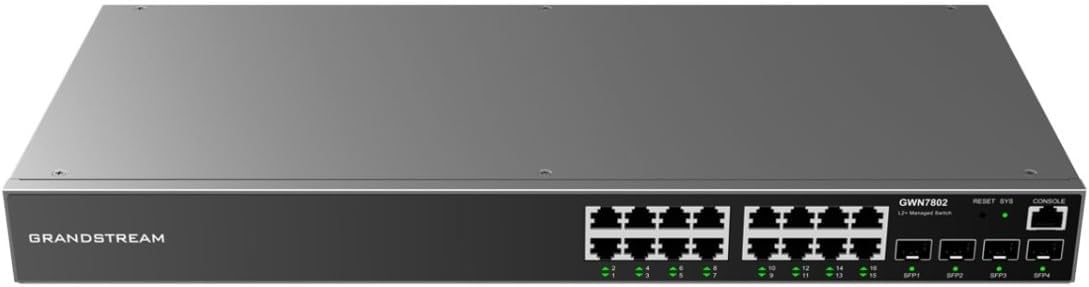
Figure 1: Front view of the Grandstream GWN7802 switch. This image displays the 16 Gigabit Ethernet ports, 4 SFP ports, RESET button, SYS LED indicator, and CONSOLE port.
- Ethernet Ports (1-16): RJ45 ports for connecting network devices.
- SFP Ports (SFP1-SFP4): Slots for SFP transceivers to establish fiber optic connections.
- RESET Button: Used to reset the device to factory defaults (press and hold for 10 seconds).
- SYS LED: System status indicator.
- CONSOLE Port: RJ45 port for command-line interface (CLI) access.
3.2 Rear Panel

Figure 2: Rear view of the Grandstream GWN7802 switch. This image highlights the AC power input connector and the grounding screw.
- AC Power Input: Connector for the power cord (100-240V AC, 50/60Hz).
- Grounding Screw: For connecting a grounding wire (recommended for safety).
4. Setup and Installation
4.1 Package Contents
Verify the following items are included in your package:
- Grandstream GWN7802 Network Switch
- Power Cord
- Rack-mount brackets (if applicable)
- Quick Installation Guide
If any items are missing or damaged, please contact your vendor for assistance.
4.2 Mounting the Switch
The GWN7802 can be placed on a desktop or mounted in a standard 19-inch equipment rack.
4.2.1 Desktop Placement
Place the switch on a flat, stable surface. Ensure adequate ventilation around the device to prevent overheating.
4.2.2 Rack Mounting (Optional)
If rack-mounting, attach the provided rack-mount brackets to the sides of the switch using the included screws. Secure the switch into a standard 19-inch equipment rack.
4.3 Connecting Power
- Connect one end of the power cord to the AC power input on the rear panel of the switch.
- Connect the other end of the power cord to a grounded electrical outlet.
- Ensure the power source is within the specified voltage range (100-240V AC).
- The SYS LED on the front panel will illuminate when power is supplied.
4.4 Connecting Network Cables
- Connect Ethernet cables from your network devices (computers, servers, other switches) to the RJ45 Ethernet ports (1-16) on the front panel.
- For fiber optic connections, insert compatible SFP transceivers into the SFP ports (SFP1-SFP4) and connect fiber optic cables.
- Verify that the link/activity LEDs for the connected ports are illuminated, indicating a successful connection.
5. Operating the Switch
5.1 LED Indicators
The front panel LEDs provide status information:
- SYS LED:
- Solid Green: Device is operating normally.
- Flashing Green: Device is booting up or performing an operation.
- Off: Device is powered off.
- Port LEDs (Ethernet/SFP):
- Solid Green: Link established.
- Flashing Green: Data activity.
- Off: No link.
5.2 Initial Configuration Access
The GWN7802 can be managed via a web-based graphical user interface (GUI) or a command-line interface (CLI) through the console port.
5.2.1 Web GUI Access
- Connect a computer to any Ethernet port of the GWN7802.
- Ensure your computer's IP address is in the same subnet as the switch's default IP address (refer to the Quick Installation Guide or manufacturer's documentation for the default IP).
- Open a web browser and enter the switch's IP address.
- Enter the default username and password (typically "admin" for both, but verify with documentation).
- Follow the on-screen prompts to configure your network settings.
5.2.2 Console Port Access
For advanced configuration, connect a console cable (RJ45 to DB9) from the switch's CONSOLE port to your computer's serial port. Use a terminal emulation program (e.g., PuTTY, Tera Term) with the following settings:
- Baud Rate: 115200
- Data Bits: 8
- Parity: None
- Stop Bits: 1
- Flow Control: None
6. Maintenance
6.1 Firmware Updates
Regularly check the Grandstream website for the latest firmware versions. Firmware updates can provide new features, performance improvements, and security enhancements. Follow the instructions provided with the firmware package for the update process.
6.2 Cleaning
To maintain optimal performance, keep the switch clean. Use a soft, dry cloth to wipe the exterior. Do not use liquid or aerosol cleaners. Ensure ventilation openings are free from dust and obstructions.
6.3 Environmental Considerations
Operate the switch within its specified environmental limits (temperature, humidity). Avoid exposing the device to direct sunlight, excessive heat, or moisture.
7. Troubleshooting
7.1 No Power
- Ensure the power cord is securely connected to both the switch and the electrical outlet.
- Verify the electrical outlet is functional.
- Check the power cord for any damage.
7.2 No Link on Port
- Verify the Ethernet or fiber optic cable is properly connected at both ends.
- Check the cable for damage.
- Ensure the connected device is powered on and functioning correctly.
- Try connecting to a different port on the switch.
7.3 Cannot Access Web GUI
- Ensure your computer's IP address is in the same subnet as the switch.
- Verify the switch's IP address is correct.
- Clear your browser's cache or try a different browser.
- Temporarily disable any firewall software on your computer.
- If the IP address is unknown or forgotten, consider using the console port for access or performing a factory reset (see 7.4).
7.4 Factory Reset
If you encounter persistent issues or forget the management credentials, you can reset the switch to its factory default settings. Warning: This will erase all custom configurations.
- With the switch powered on, locate the RESET button on the front panel.
- Using a paperclip or a similar pointed object, press and hold the RESET button for approximately 10 seconds.
- Release the button when the SYS LED starts flashing rapidly.
- The switch will reboot with factory default settings.
8. Specifications
Detailed technical specifications for the Grandstream GWN7802 switch.
| Feature | Value |
|---|---|
| Brand | Grandstream |
| Model Name | GWN7802 |
| Internal Model Number | IN-TISA-NSWSAR0377 |
| Ports | 16x Gigabit Ethernet, 4x SFP |
| Data Transfer Rate | 16 Gigabits Per Second |
| Case Material | Metal |
| Product Dimensions (L x W x H) | 19.69 x 19.69 x 11.02 inches |
| Item Weight | 7.13 pounds |
| Power Input | 100-240V AC, 50/60Hz |
| Compatible Devices | Desktop, Servers, Network Devices |
9. Safety Information
- Do not expose the device to water or moisture.
- Do not open or attempt to repair the device. Refer all servicing to qualified personnel.
- Ensure proper grounding for electrical safety.
- Use only the power adapter provided with the device.
- Keep the device away from heat sources and direct sunlight.
- Ensure adequate ventilation to prevent overheating.
10. Warranty and Support
For warranty information and technical support, please refer to the official Grandstream website or contact your authorized Grandstream reseller. Keep your purchase receipt for warranty claims.
Grandstream Official Website: www.grandstream.com


