
HIKMICRO FQ35
HIKMICRO Falcon FQ35 Thermal Imaging Camera User Manual
Model: FQ35
1. Introduction
The HIKMICRO Falcon FQ35 Thermal Imaging Camera is a portable night vision device designed for various outdoor activities, including surveillance, security, and recreation. It features a high-resolution infrared sensor and an advanced OLED display, making it a top-tier option for thermal observation.

Figure 1: HIKMICRO Falcon FQ35 Thermal Imaging Camera
2. Product Features
2.1. Precision and Image Clarity
- Equipped with a 640 x 512 pixel infrared detector for high image resolution.
- Features a 1024 x 768 pixel OLED screen for clear and precise images, even in low light or complete darkness.
- Capable of detecting temperatures ranging from -20°C to 550°C, suitable for diverse applications.
2.2. Portability and Ease of Use
- Compact and lightweight design ensures easy transport.
- Rechargeable battery provides up to 5 hours of continuous use.
- Intuitive and user-friendly interface for immediate operation.
- Observation and hotspot functions are ready-to-use.
2.3. High Thermal Sensitivity
- Integrated highly sensitive thermal detector for precise temperature detection.
- Image enhancement function ensures clear images even in challenging conditions like high humidity or smoke.

Figure 2: Side view showing HIKMICRO branding
3. Setup
3.1. Unboxing and Initial Inspection
Carefully unpack all components from the box. Verify that all items listed in the packing list are present and undamaged. This typically includes the thermal camera, USB cable, power adapter, and user manual.
3.2. Charging the Battery
Before first use, fully charge the device. Connect the USB cable to the camera's charging port and the other end to the power adapter. Plug the adapter into a power outlet. The charging indicator light will show the charging status (e.g., red for charging, green for fully charged). A full charge can take several hours.
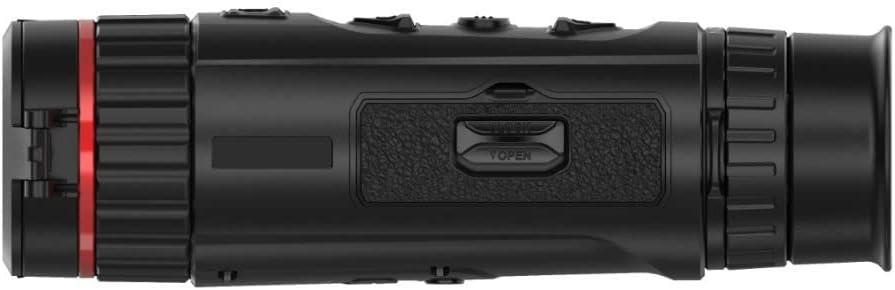
Figure 3: Side view showing the battery compartment/port area
3.3. Powering On/Off
To power on the device, press and hold the power button (usually marked with a power symbol) for a few seconds until the screen illuminates. To power off, press and hold the power button again until the device shuts down.
3.4. Initial Configuration
Upon first power-on, you may be prompted to set up basic parameters such as language, date, and time. Follow the on-screen instructions to complete these settings.
4. Operating Instructions
4.1. Basic Viewing and Focusing
Hold the camera to your eye and adjust the eyepiece for comfortable viewing. Rotate the focus ring on the objective lens until the image appears sharp and clear. This manual focus ensures optimal image quality for different distances.
4.2. Menu Navigation and Settings
The device features several buttons on the top panel for navigation and control. Typically, there is a menu button to access settings, arrow buttons for navigation, and an OK/confirm button. Explore the menu to adjust settings such as brightness, contrast, color palettes (e.g., White Hot, Black Hot, Red Hot, Fusion), and digital zoom levels.
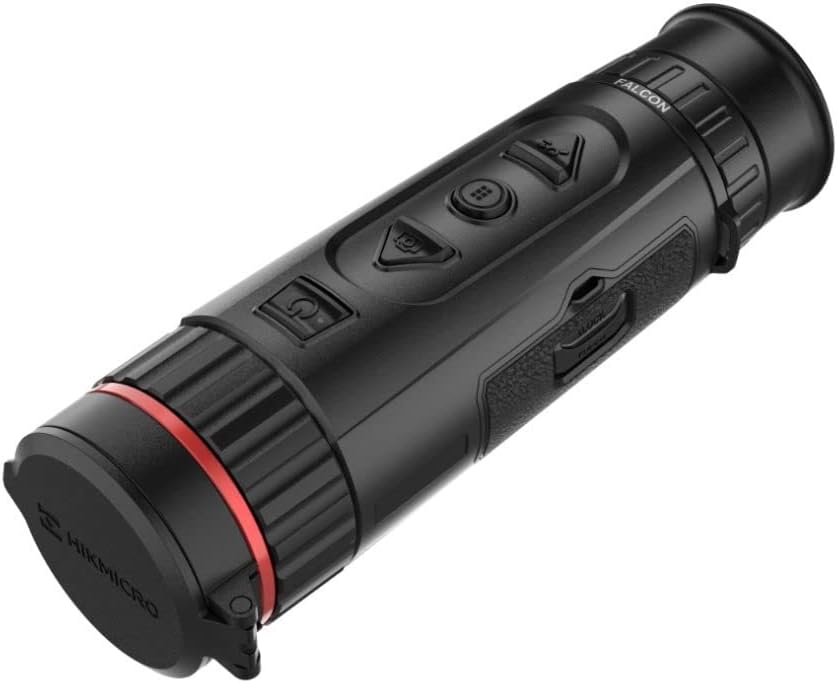
Figure 4: Top view showing the control buttons
4.3. Image and Video Recording
Most thermal cameras have dedicated buttons for capturing still images and recording videos. Press the photo button to take a snapshot. Press the video button once to start recording and again to stop. Recorded media is typically stored on internal memory or a removable SD card (if applicable).
4.4. Hotspot Tracking
The FQ35 features an automatic hotspot tracking function that identifies and highlights the hottest point in the field of view. This is particularly useful for quickly locating objects with higher temperatures.
4.5. Connectivity (Smartphone)
The camera can connect to a smartphone via Wi-Fi for live view, remote control, and media transfer. Download the official HIKMICRO app from your device's app store and follow the in-app instructions to establish a connection.
5. Maintenance
5.1. Cleaning the Device
- Lens: Use a soft, lint-free cloth specifically designed for optical lenses. Gently wipe the lens surface. Avoid using abrasive materials or harsh chemicals.
- Body: Wipe the camera body with a soft, damp cloth. Do not use solvents, alcohol, or corrosive cleaners.
5.2. Battery Care
- Charge the battery regularly, even if the device is not in frequent use, to maintain battery health.
- Avoid fully discharging the battery frequently.
- Do not expose the battery to extreme temperatures (hot or cold) for prolonged periods.
5.3. Storage
When not in use, store the thermal camera in its protective case in a cool, dry place, away from direct sunlight and excessive humidity. Ensure the lens cap is on to protect the objective lens.

Figure 5: Front view with lens cap open
6. Troubleshooting
This section addresses common issues you might encounter with your HIKMICRO Falcon FQ35.
| Problem | Possible Cause | Solution |
|---|---|---|
| Device does not power on. | Low or depleted battery. | Charge the battery fully. |
| Image is blurry or out of focus. | Incorrect focus adjustment. Dirty lens. | Adjust the focus ring. Clean the objective lens. |
| Short battery life. | Battery not fully charged. High screen brightness. | Ensure battery is fully charged. Reduce screen brightness in settings. |
| Cannot capture images/videos. | Insufficient storage space. | Delete old files or transfer them to another device. |
| Wi-Fi connection issues. | Incorrect Wi-Fi settings. App issues. | Ensure Wi-Fi is enabled on both devices. Restart the camera and app. Refer to app instructions. |
7. Specifications
Below are the key technical specifications for the HIKMICRO Falcon FQ35 Thermal Imaging Camera.
| Feature | Specification |
|---|---|
| Brand | HIKMICRO |
| Model Name | FQ35 |
| Manufacturer Part Number | HK022 |
| Infrared Detector Resolution | 640 x 512 pixels |
| OLED Screen Resolution | 1024 x 768 pixels |
| Temperature Detection Range | -20°C to 550°C |
| Eyepiece Lens Description | High-performance germanium aspherical lens |
| Telescope Mount Description | Mount |
| Focus Type | Manual Focus |
| Field of View | 20 degrees |
| Compatible Devices | Camera, Smartphone |
| Battery Life | Up to 5 hours (continuous use) |
| Country of Origin | China |
8. Warranty and Support
For warranty information, technical support, or service inquiries, please refer to the warranty card included with your product or visit the official HIKMICRO website. Keep your purchase receipt as proof of purchase for warranty claims.
Official HIKMICRO Website: www.hikmicrotech.com
Related documentsFQ35


Ask a question about this manual
Ask about setup, troubleshooting, compatibility, parts, safety, or missing instructions. Manuals+ will review the question and use this page’s manual context to help answer it.