
1. Introduction
Thank you for choosing the Roinvou 9-inch Android 13 Car Stereo. This manual provides detailed instructions for the installation, operation, and maintenance of your new head unit, designed specifically for Honda CRV models from 2002 to 2006. Please read this manual thoroughly before installation and use to ensure proper functionality and safety.
2. Product Overview
The Roinvou 2+64G CarPlay head unit features a 9-inch HD capacitive touch screen with 1024x600 resolution, offering a modern upgrade for your vehicle's infotainment system. It integrates advanced features for enhanced driving experience.
Key Features:
- Android 13 Operating System with 2GB RAM and 64GB ROM.
- 9-inch HD Capacitive Touch Screen (1024x600 resolution).
- Wireless and Wired Apple CarPlay & Android Auto.
- Built-in GPS Navigation with support for online and offline maps.
- 5GHz WiFi connectivity for internet access and app downloads.
- Bluetooth for hands-free calling, music streaming, and contact synchronization.
- FM/RDS Radio with 18 preset stations.
- Android/iOS Mirror Link functionality.
- Support for Steering Wheel Control.
- Includes AHD Backup Camera for reversing assistance.
- Multiple EQ options and 28 customizable desktop themes.
What's in the Box:
- Roinvou Car Stereo for Honda CR-V
- Power Cable
- USB Adapter Cable
- RCA Cable
- GPS Antenna
- AHD Backup Camera
- External Microphone
- Rear Camera Input Cable
- Dual USB Cable
- Installation Tool

Image: Roinvou 9-inch Android 13 Car Stereo with included accessories, including the main unit, backup camera, and external microphone.

Image: Diagram illustrating the complete package contents, including the main unit dimensions, various cables, antennas, and tools.
3. Safety Information
- Professional Installation Recommended: Due to the complexity of car electrical systems, professional installation is highly recommended to prevent damage to the unit or vehicle.
- Power Disconnection: Always disconnect the vehicle's battery before beginning any installation work to avoid electrical shorts.
- Wiring: Ensure all wiring connections are secure and properly insulated to prevent short circuits.
- Driving Safety: Do not operate the unit in a way that distracts you from driving. Always prioritize road safety.
- Temperature: Avoid exposing the unit to extreme temperatures or direct sunlight for prolonged periods.
4. Setup and Installation
This section outlines the general steps for installing the Roinvou car stereo in a Honda CRV (2002-2006). Specific vehicle disassembly instructions may vary and are not covered here. Refer to your vehicle's service manual for detailed panel removal procedures.
Installation Steps:
- Preparation: Disconnect the negative terminal of your car battery. Gather all necessary tools, including the provided installation tool.
- Remove Old Head Unit: Carefully remove the existing factory radio and trim panels. This typically involves prying off plastic trim pieces and unscrewing the old unit.
- Transfer Components: Transfer essential components such as the air vents and hazard button from the old unit's frame to the new Roinvou unit's frame. The hazard button usually slides out forward by pressing on its side tabs.
- Wiring Connections:
- Connect the main power cable harness from the Roinvou unit to your vehicle's wiring harness.
- Connect the GPS antenna and position it in a location with a clear view of the sky (e.g., dashboard).
- Connect the radio antenna.
- Connect the external microphone cable and route it to a suitable location (e.g., near the sun visor).
- If installing the backup camera, connect its power and video cables according to the diagram provided. The camera's red wire connects to the backup light's positive (+12V), and the black wire to ground (GND). The pink wire from the head unit connects to the reversing light positive signal.
- Connect any additional USB cables or RCA cables as needed.
- Test Functionality: Before fully reassembling, temporarily reconnect the battery and power on the unit to test basic functions like power, audio, touch screen response, and camera input.
- Secure the Unit: Once tested, carefully mount the Roinvou head unit into the dashboard opening and secure it with screws.
- Reassemble: Reinstall all trim panels and reconnect the battery.

Image: View of the Honda CRV dashboard before the installation of the Roinvou car stereo, showing the factory radio.

Image: View of the Honda CRV dashboard after the successful installation of the Roinvou 9-inch car stereo, showing the integrated display.

Image: Detailed wiring diagram showing connections for the main unit, RCA cables, USB, GPS antenna, radio antenna, and backup camera.
5. Operating Instructions
5.1. Wireless CarPlay & Android Auto
The unit supports both wireless and wired Apple CarPlay and Android Auto, allowing seamless integration with your smartphone for navigation, music, calls, and messages.
- Connection: Connect your iPhone via wireless CarPlay or Android phone via wireless Android Auto. Some Samsung phones may have restrictions.
- Features: Access phone features through the car stereo's touchscreen, including voice-assisted control.
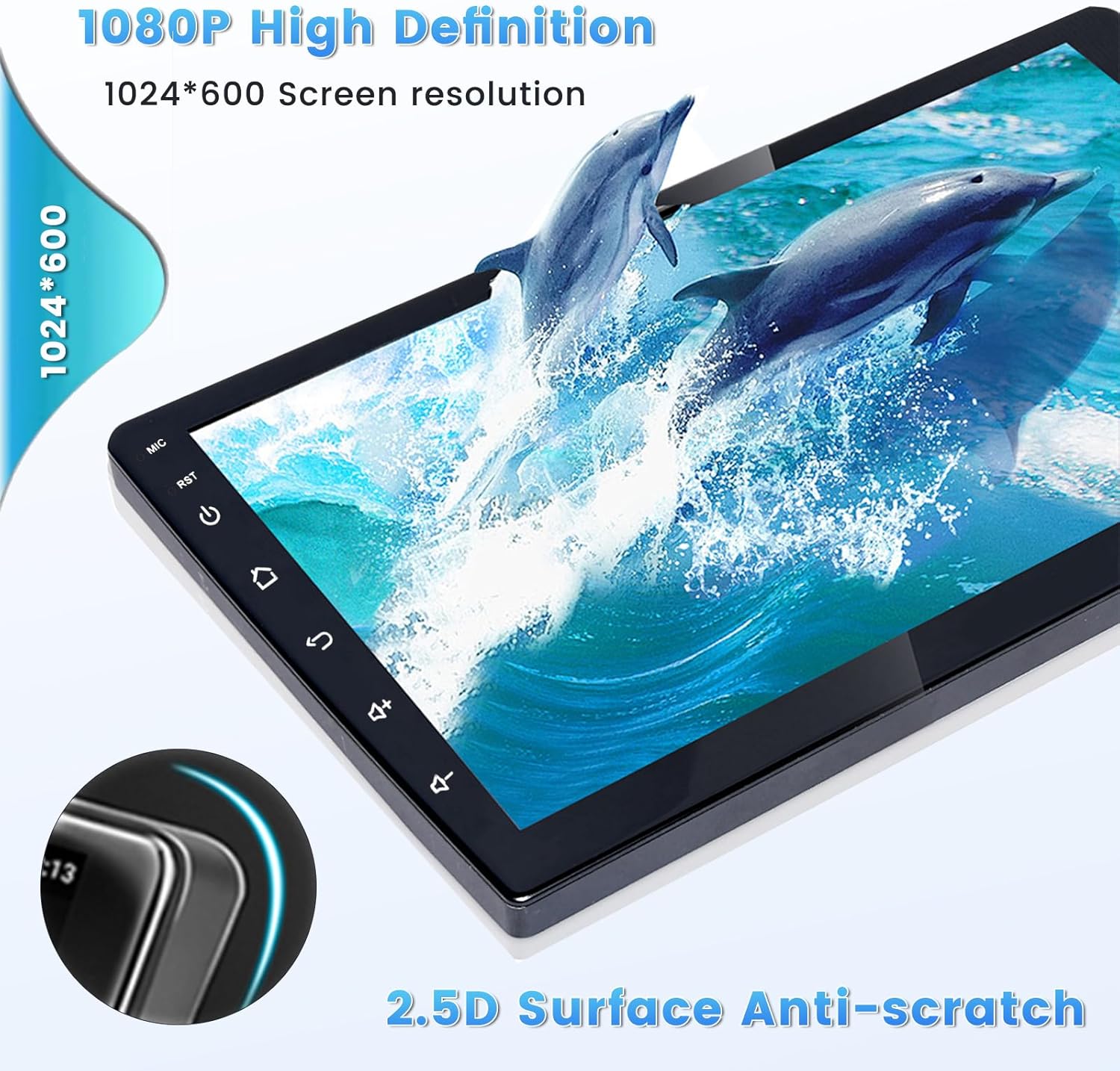
Image: Demonstrates the user interface for Wireless CarPlay and Android Auto, showing navigation, music, and communication apps.
5.2. GPS Navigation & WiFi
The built-in GPS module supports various navigation software and free offline maps. Connect to WiFi for online maps and access to the Play Store.
- Offline Maps: Pre-installed or downloadable offline maps can be used without an internet connection.
- Online Maps & Apps: Connect to a WiFi hotspot (e.g., from your phone) to use online navigation apps like Waze and download other applications from the Play Store (e.g., YouTube, TikTok).

Image: Illustrates the online and offline navigation capabilities of the car stereo, showing map interfaces.

Image: Depicts the WiFi function, showing various applications available for download from the Play Store.
5.3. Bluetooth Functionality
The unit features Bluetooth for hands-free communication and audio streaming.
- Pairing: Pair your smartphone via Bluetooth for hands-free calling, music playback, and contact synchronization.
- Microphone: Utilize the built-in or external microphone for clear voice communication.

Image: Shows the Bluetooth interface for making calls and playing music, with a phone connected.
5.4. FM/RDS Radio
Enjoy stable FM radio reception with RDS (Radio Data System) for enhanced information.
- Tuning: Supports manual, semi-automatic, and fully automatic channel search.
- Presets: Save up to 18 preset stations.
- RDS: Provides channel broadcasting, weather forecasts, and real-time road conditions where available.

Image: Displays the FM/RDS radio interface with frequency display and preset buttons.
5.5. Android/iOS Mirror Link
Mirror your phone's screen onto the head unit display.
- Connection: Connect via WiFi hotspot or your phone's original USB cable.
- Control: Android supports bidirectional control, while iPhone supports unidirectional control. (Some Samsung phones may have restrictions).
5.6. Steering Wheel Control (SWC)
Control the head unit functions directly from your steering wheel.
- Without CANBUS Decoder: Connect the steering wheel control wires (Key1/Key2) in the power cable to the corresponding port or wire of your original car. Then, go to "SteeringWheel-Key" in the unit's settings for manual matching to activate button functions.
- With CANBUS Decoder: Connect the CANBUS before powering on the machine. Navigate to Apps > Settings > Factory Settings (1234) > CAN Settings. Select the brand of the CANBUS decoder and then the matching model and year according to your vehicle's actual situation to ensure SWC works properly.

Image: Explains how to set up steering wheel controls, differentiating between systems with and without a CANBUS decoder.
5.7. Backup Camera & Reversing Input
The included AHD backup camera provides a clear view when reversing.
- Automatic Switch: The unit automatically switches to the reverse image when the vehicle is put into reverse gear.
- Features: High definition, waterproof, wide-angle view, and night vision capabilities.

Image: Shows the backup camera display with guidelines and a diagram for connecting the camera to the vehicle's reversing lights.
5.8. User Interface Themes
Customize your head unit's appearance with 28 different desktop themes.

Image: A collage displaying 28 different user interface themes available for customization on the Roinvou car stereo.
6. Maintenance
- Screen Cleaning: Use a soft, lint-free cloth to gently wipe the touchscreen. Avoid abrasive cleaners or harsh chemicals.
- Software Updates: Periodically check for software updates through the unit's settings or the manufacturer's website to ensure optimal performance and access to new features.
- General Care: Keep the unit free from dust and debris. Avoid spilling liquids on the device.
7. Troubleshooting
This section addresses common issues you might encounter.
| Problem | Possible Cause | Solution |
|---|---|---|
| Unit does not power on | Loose power connection, blown fuse, incorrect wiring. | Check all power cable connections. Inspect vehicle fuses and the unit's fuse. Ensure correct wiring according to the diagram. |
| No sound or poor audio quality | Speaker wires disconnected, incorrect audio settings, volume too low. | Verify speaker wire connections. Check audio settings (EQ, balance, fader). Increase volume. |
| Bluetooth microphone quality is poor | External microphone not properly connected or positioned, internal microphone interference. | Ensure the external microphone is securely plugged in and positioned optimally (e.g., clipped to the visor, away from vents). Test both internal and external microphones if applicable. |
| GPS signal is weak or inaccurate | GPS antenna obstructed or improperly placed. | Ensure the GPS antenna has a clear line of sight to the sky, typically on the dashboard. Avoid placing it under metal objects. |
| CarPlay/Android Auto not connecting | Incorrect phone settings, incompatible phone, loose USB connection, WiFi issues. | Ensure your phone's CarPlay/Android Auto settings are enabled. Try a different USB cable. Check WiFi connection for wireless modes. Some Samsung phones may have restrictions. |
| Unit is laggy or unresponsive | Too many apps running, low memory, software glitch. | Close unnecessary applications. Restart the unit. Perform a factory reset if the issue persists (back up data first). Ensure software is up to date. |
| Radio function does not work | Antenna not connected, poor signal, internal fault. | Check the radio antenna connection. Try tuning to different stations. If the issue persists, contact support. |
| Unit randomly turns off or shows error code | Power supply issue, internal component failure, software corruption. | Check power connections and vehicle's electrical system. If error codes appear, note them and contact customer support for specific guidance. |
8. Specifications
| Feature | Specification |
|---|---|
| Brand | Roinvou |
| Model Name | 2+64G CarPlay |
| Operating System | Android 13 |
| RAM / ROM | 2GB RAM / 64GB ROM |
| Screen Size | 9 Inches (23 cm visible diagonal) |
| Screen Resolution | 1024 x 600 |
| Special Features | Wireless/Wired CarPlay & Android Auto, 5G Wi-Fi, Bluetooth, IPS Touchscreen, FM RDS Radio, EQ Settings, Mirror Link, GPS Navigation, DSP, Steering Wheel Control, 28 Desktop Themes |
| Connectivity Technology | Bluetooth, USB, Wi-Fi |
| Map Type | North America (supports online/offline maps) |
| Vehicle Service Type | Car (Honda CRV 2002-2006) |
| Mounting Type | Dashboard Mount |
| Product Dimensions | 9.45 x 4.53 x 8.66 inches |
| Item Weight | 3.37 pounds |
9. Warranty and Support
Roinvou provides customer support and warranty services for this product.
- Warranty: The product comes with a one-year warranty.
- Returns: A 30-day refund/replacement policy is available.
- Customer Support: For any questions, technical assistance, or troubleshooting not covered in this manual, please contact Roinvou customer service.
You can reach Roinvou customer support via email at: roinvouservices@163.com

Image: Provides contact information for Roinvou customer support, including an email address.


