
DONGFXK 09cff878-e12e-4697-bdc3-a1c63a4617b4
Smart Hub for Automatic Blinds User Manual
Brand: DONGFXK
Product Overview
The DONGFXK Smart Hub is designed to seamlessly integrate your automatic blinds with popular smart home ecosystems such as Amazon Alexa and Google Home. This compact device acts as a bridge, allowing you to control your motorized blinds through voice commands, smartphone applications, and automated schedules, enhancing convenience and smart living.


Setup Guide
1. What's in the Box
- DONGFXK Smart Hub
- User Manual (this document)
2. Initial Connection
To begin, plug the Smart Hub into a standard USB power adapter (not included) or a USB port on a compatible device. Ensure it is placed within a reasonable range of your automatic blinds and your Wi-Fi router for optimal signal strength.
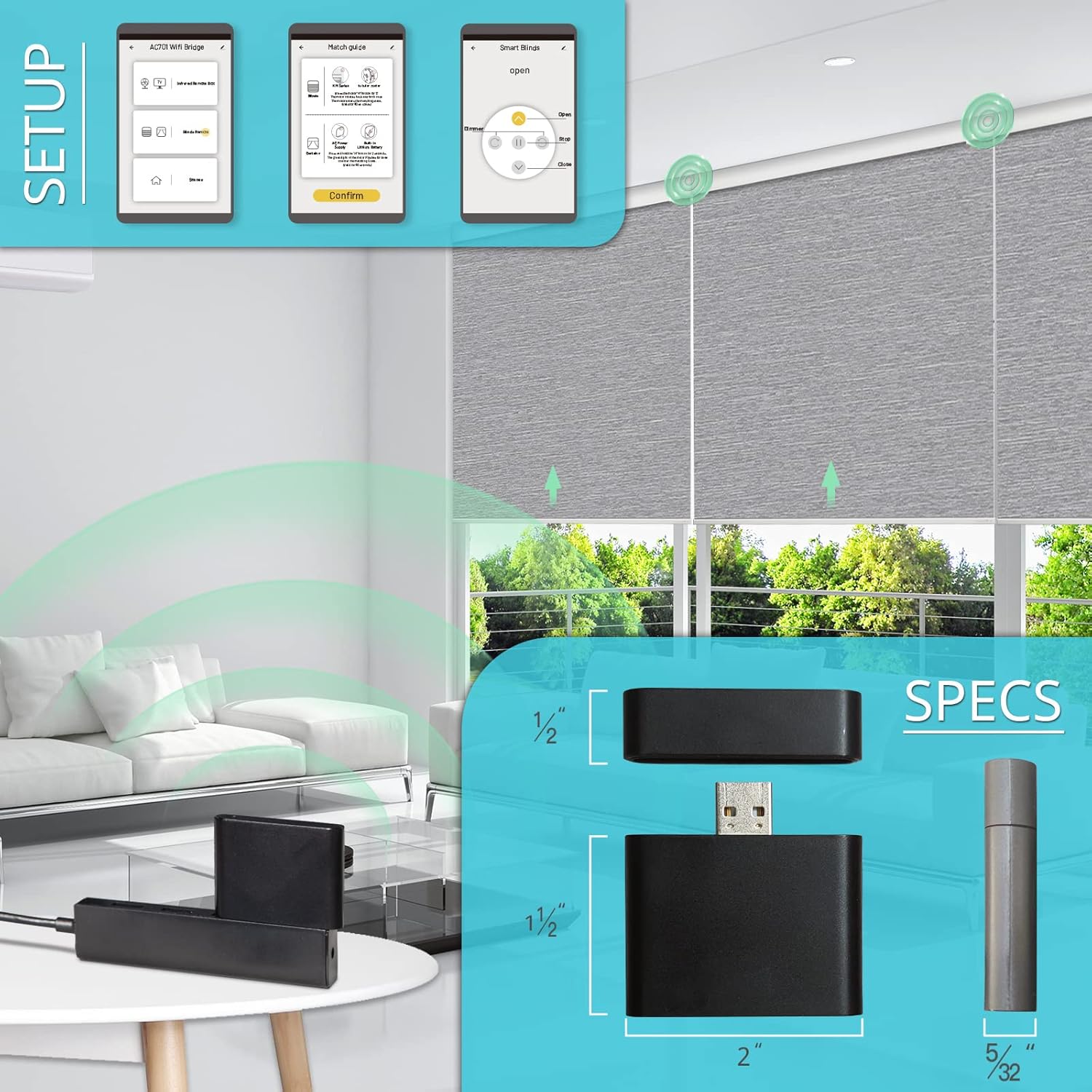
3. App Download and Pairing
Download the Tuya Smart application from your smartphone's app store (available for iOS and Android). Follow the in-app instructions to add the Smart Hub as a new device. This typically involves putting the hub into pairing mode (refer to the hub's LED indicator for status) and confirming the connection within the app.
Once connected, you can proceed to add and manage your automatic blinds through the Tuya Smart app.
Operating Instructions
1. Connecting to Automatic Blinds
After the Smart Hub is successfully added to the Tuya Smart app, you can begin pairing your automatic blinds. Each blind typically has a pairing button or sequence. Refer to your specific blind's manual for its pairing procedure. Within the Tuya app, select the Smart Hub and follow the prompts to discover and add your blinds. Ensure the blinds are within the hub's signal range during pairing.

2. Smart Home Integration (Alexa/Google Home)
The DONGFXK Smart Hub is compatible with Amazon Alexa and Google Home. To enable voice control:
- Open the Alexa or Google Home app on your smartphone.
- Navigate to the "Skills" (Alexa) or "Works with Google" (Google Home) section.
- Search for and enable the "Tuya Smart" skill/service.
- Link your Tuya Smart account when prompted.
- Once linked, discover devices. Your blinds connected to the Smart Hub should now appear and be controllable via voice commands.
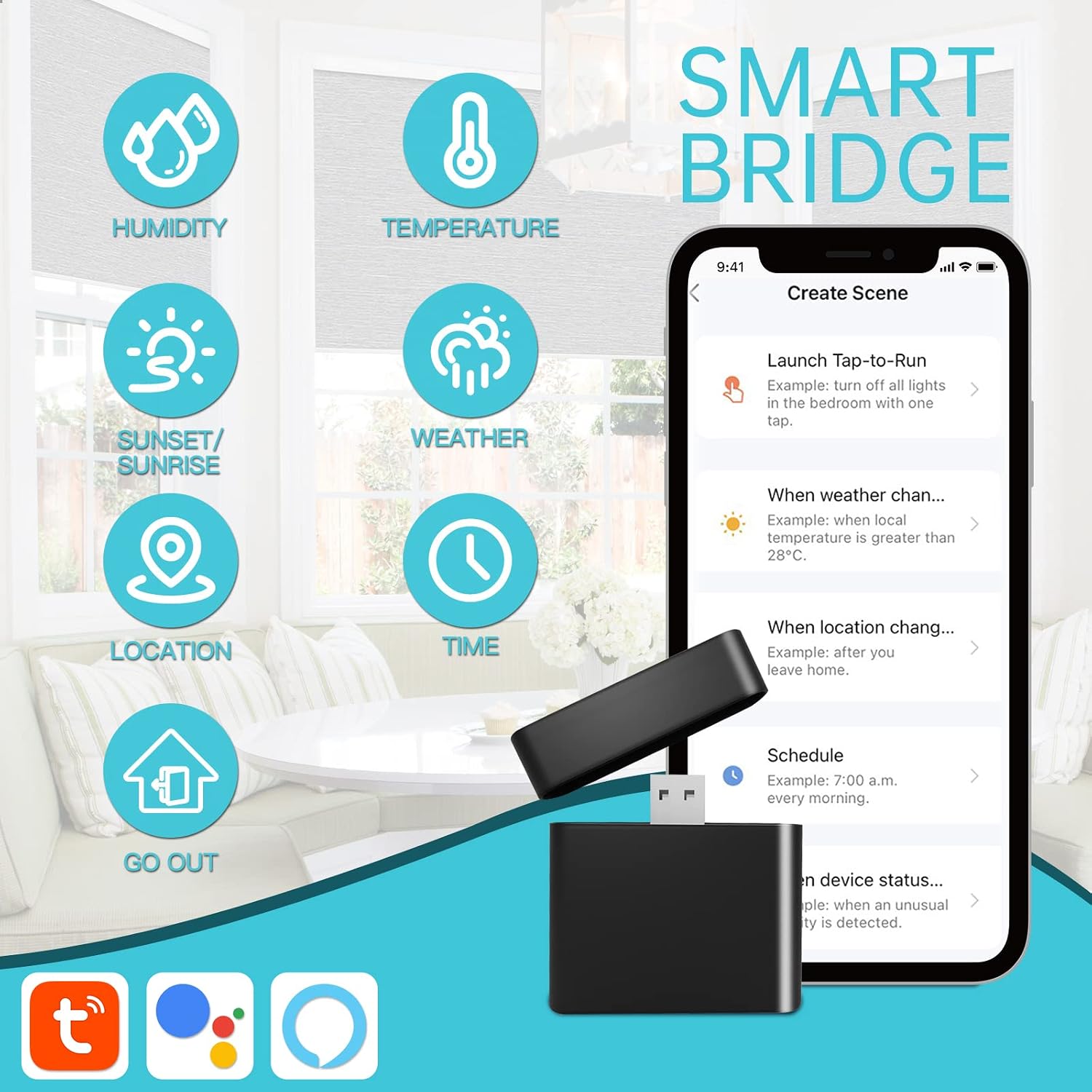
3. Creating Scenes and Schedules
The Tuya Smart app allows you to create custom scenes and schedules for your blinds. This enables automated actions based on time, weather, or other smart home device triggers.
- Scenes: Combine multiple actions into one command (e.g., "Good Morning" scene to open all blinds).
- Schedules: Set specific times for blinds to open or close automatically (e.g., open at sunrise, close at sunset).
Maintenance
1. Cleaning
To clean the Smart Hub, gently wipe its exterior with a soft, dry cloth. Do not use liquid cleaners, aerosols, or abrasive materials, as these can damage the device.
2. Firmware Updates
Periodically check the Tuya Smart app for available firmware updates for your Smart Hub. Keeping the firmware updated ensures optimal performance, security, and compatibility with new features or devices. Follow the in-app instructions for any update procedures.
Troubleshooting
If you encounter issues with your DONGFXK Smart Hub, refer to the table below for common problems and their solutions.
| Problem | Solution |
|---|---|
| Hub not connecting to Wi-Fi or app. |
|
| Automatic blinds not responding to the hub. |
|
| Voice commands (Alexa/Google Home) are not working. |
|
For more detailed troubleshooting or specific error codes, please refer to the official installation manual provided by DONGFXK.
Specifications
- Brand: DONGFXK
- Model Number: 09cff878-e12e-4697-bdc3-a1c63a4617b4
- Product Dimensions: 5"L x 0.8"W
- Color: Black
- Operation Mode: Automatic
- Control Type: Opening and closing
- Connectivity: Wi-Fi (via Tuya Smart app)
- Compatibility: Amazon Alexa, Google Home
- Manufacturer: DONGFXK
- First Available Date: November 23, 2023
Warranty and Support
For information regarding product warranty, please refer to the documentation included with your purchase or visit the official DONGFXK website. Support for the Smart Hub is primarily provided through the Tuya Smart application's help section and the manufacturer's customer service channels.
If you require further assistance, please contact DONGFXK customer support directly through their official website or the contact information provided on your product packaging.
Related documents09cff878-e12e-4697-bdc3-a1c63a4617b4


Ask a question about this manual
Ask about setup, troubleshooting, compatibility, parts, safety, or missing instructions. Manuals+ will review the question and use this page’s manual context to help answer it.