
Lenovo ZABF0322US
Lenovo Tab P11 (Gen 2) Tablet User Manual
Model: ZABF0322US
1. Introduction
This manual provides essential information for the proper use and care of your Lenovo Tab P11 (Gen 2) tablet. Please read this manual thoroughly to ensure optimal performance and longevity of your device. The Lenovo Tab P11 (Gen 2) is a versatile tablet featuring an 11.5-inch 2K IPS touchscreen display, powered by a MediaTek Helio G99 processor, and running Android 12L. It includes the Lenovo Precision Pen 2 for enhanced interaction.

Image 1.1: The Lenovo Tab P11 (Gen 2) tablet shown with its accompanying Precision Pen 2.
2. What's in the Box
Verify that all items are present in the product packaging:
- Lenovo Tab P11 (Gen 2) Tablet
- Lenovo Precision Pen 2
- Charger
- Quick Start Guide (may vary by region)
- Safety and Warranty Information (may vary by region)
3. Initial Setup
3.1 Charging the Tablet
Before first use, fully charge the tablet using the provided charger. Connect the charger to the tablet's USB-C port and plug it into a power outlet. The battery indicator on the screen will show charging status.
3.2 Powering On/Off
- To Power On: Press and hold the Power button until the Lenovo logo appears.
- To Power Off: Press and hold the Power button, then select 'Power off' from the options on the screen.
- To Restart: Press and hold the Power button, then select 'Restart' from the options.
3.3 Initial Android Setup
Upon first power-on, follow the on-screen prompts to configure your tablet:
- Select your preferred language.
- Connect to a Wi-Fi network.
- Sign in with your Google account or create a new one.
- Review and accept the terms and conditions.
- Set up screen lock (PIN, pattern, password, or fingerprint).
3.4 Inserting a MicroSD Card (Optional)
The tablet supports microSD cards for expanded storage. Locate the card slot on the side of the tablet. Use the provided SIM ejector tool (if included) to open the tray. Insert the microSD card with the gold contacts facing down, then close the tray securely.
3.5 Connecting the Lenovo Precision Pen 2
The Lenovo Precision Pen 2 is included for precise input. The pen typically connects automatically via Bluetooth when first used with the tablet. Ensure the pen is charged. If connection issues occur, check Bluetooth settings on the tablet to pair the pen manually.
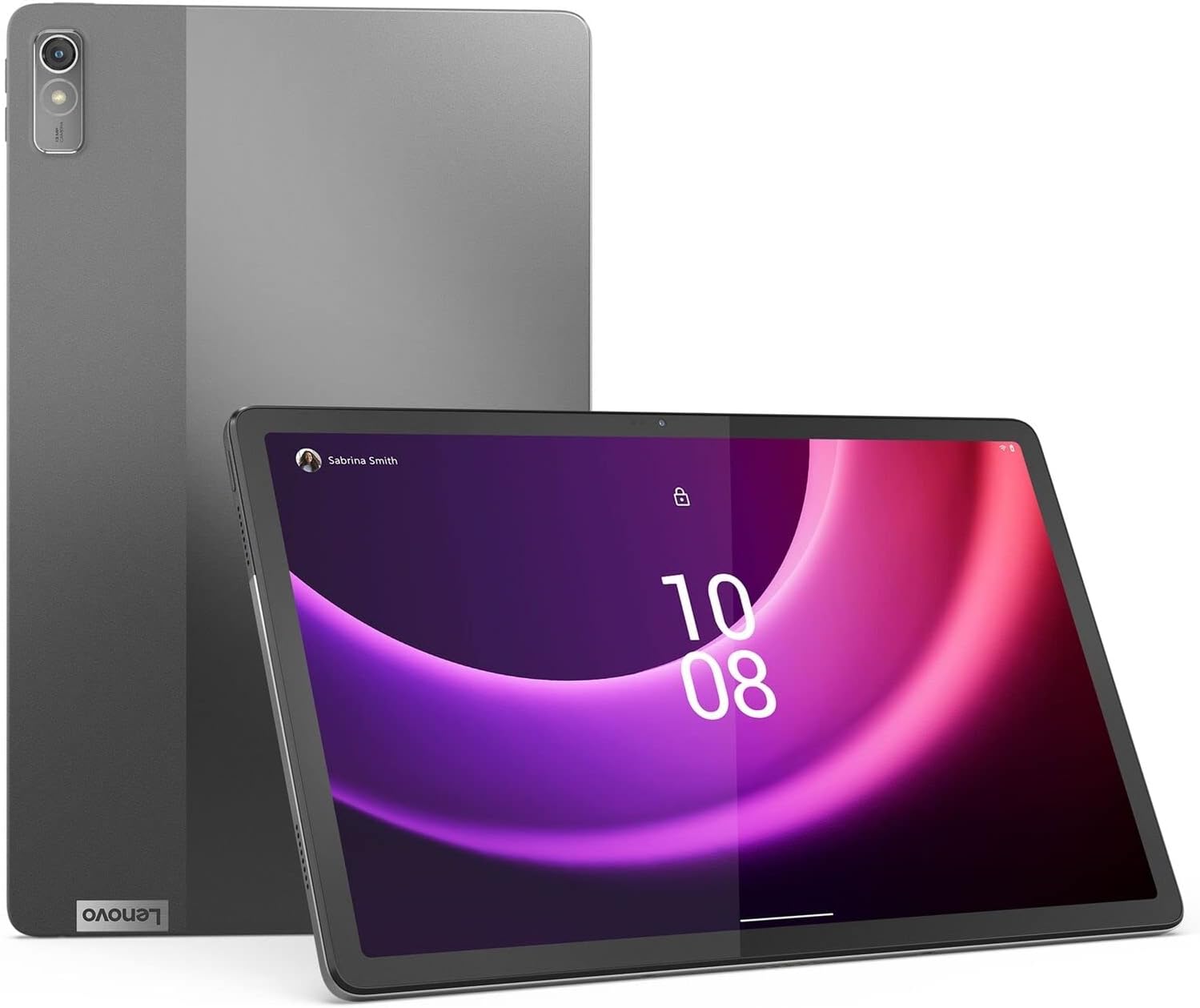
Image 3.1: The Lenovo Tab P11 (Gen 2) tablet and Precision Pen 2, ready for use.
4. Operating Instructions
4.1 Touchscreen Navigation
The tablet's primary interface is the touchscreen. Use gestures such as tapping, swiping, pinching, and spreading to navigate the operating system and applications.
- Tap: Select an item or open an app.
- Swipe: Scroll through lists or switch between home screens.
- Pinch/Spread: Zoom in or out on images and web pages.
4.2 Using the Lenovo Precision Pen 2
The Precision Pen 2 allows for precise input, drawing, and note-taking. It supports pressure sensitivity for varied line thickness and shading. Specific app functionalities may vary.
- Writing/Drawing: Use the pen directly on the screen.
- Button Functions: The pen may have programmable buttons for quick actions like erasing or opening specific apps. Refer to the pen's dedicated settings for customization.
4.3 Connecting to Networks
- Wi-Fi: Go to Settings > Network & internet > Wi-Fi. Select your desired network and enter the password if required.
- Bluetooth: Go to Settings > Connected devices > Connection preferences > Bluetooth. Turn on Bluetooth and pair with compatible devices like headphones or keyboards.
4.4 Camera Usage
The tablet is equipped with an 8 MP front camera and a 13 MP rear camera. Open the Camera app to capture photos and videos.
- Switch Cameras: Tap the camera icon to switch between front and rear cameras.
- Capture: Tap the shutter button to take a photo or start/stop video recording.
4.5 Media Playback
The 11.5-inch 2K display and integrated audio system provide an immersive media experience.

Image 4.1: The Lenovo Tab P11 (Gen 2) tablet being used for video playback.

Image 4.2: The Lenovo Tab P11 (Gen 2) tablet showcasing its audio capabilities with a dynamic visual.
5. Maintenance
5.1 Cleaning the Device
To clean the tablet, use a soft, lint-free cloth. For stubborn marks, slightly dampen the cloth with water or a screen cleaner specifically designed for electronics. Avoid using harsh chemicals, abrasive materials, or excessive moisture.
5.2 Battery Care
To maximize battery life:
- Avoid extreme temperatures.
- Do not allow the battery to fully discharge frequently.
- Unplug the charger once the battery is full.
5.3 Software Updates
Regularly check for and install software updates to ensure your tablet has the latest features, security patches, and performance improvements. Go to Settings > System > System update to check for updates.
5.4 Storage Management
Periodically review your tablet's storage to free up space. Delete unnecessary files, uninstall unused apps, or move large files to cloud storage or an external microSD card.
6. Troubleshooting
This section addresses common issues you might encounter with your Lenovo Tab P11 (Gen 2).
6.1 Tablet Not Powering On
- Ensure the battery is charged. Connect the charger and wait a few minutes before attempting to power on.
- Press and hold the Power button for at least 10-15 seconds to force a restart.
6.2 Screen Unresponsive
- Restart the tablet.
- If the screen is completely frozen, force a restart by holding the Power button.
6.3 Wi-Fi Connectivity Issues
- Ensure Wi-Fi is enabled in Settings.
- Restart your Wi-Fi router.
- Forget the network in tablet settings and reconnect.
6.4 Lenovo Precision Pen 2 Not Working
- Ensure the pen is charged.
- Check Bluetooth settings on the tablet to confirm the pen is paired. If not, attempt to re-pair it.
- Restart both the tablet and the pen (if applicable).
6.5 Factory Reset (Last Resort)
If issues persist, a factory reset may resolve them. Warning: This will erase all data on your tablet. Back up important data before proceeding. Go to Settings > System > Reset options > Erase all data (factory reset).
7. Specifications
| Feature | Detail |
|---|---|
| Model | ZABF0322US |
| Processor | MediaTek Helio G99 (8C, 2x A76 @2.2GHz + 6x A55 @2.0GHz) |
| Operating System | Android™ 12L |
| Memory (RAM) | 4 GB LPDDR4X (Soldered) |
| Storage | 64 GB UFS 2.2 |
| Display | 11.5" 2K (2000 x 1200) IPS, Touchscreen, 400 nits |
| Graphics Coprocessor | Mali-G57 MC2 |
| Front Camera | 8 MP Fixed-focus |
| Rear Camera | 13 MP Auto-focus |
| Pen | Lenovo Precision Pen 2 (Included) |
| WLAN | WiFi 6E 802.11AX |
| Bluetooth | Bluetooth® 5.2 |
| Average Battery Life | 8 Hours |
| Item Weight | 1.1 pounds (approx. 499g) |
| Product Dimensions | 10.5 x 6.6 x 0.2 inches (approx. 26.7 x 16.8 x 0.5 cm) |
8. Warranty Information
The Lenovo Tab P11 (Gen 2) comes with a One Year Mail-in Warranty. This warranty covers manufacturing defects and hardware malfunctions under normal use. For specific terms, conditions, and limitations, please refer to the warranty documentation included with your product or visit the official Lenovo support website.
Keep your proof of purchase for warranty claims.
9. Support
For further assistance, technical support, or to access updated drivers and software, please visit the official Lenovo Support website:
You can also find FAQs, community forums, and contact information for customer service on the support portal.
Related Documents - ZABF0322US
 |
Lenovo Tab P11 (2nd Gen) Safety, Warranty, and Quick Start Guide Comprehensive guide for Lenovo Tab P11 (2nd Gen) (TB350FU, TB350XU) covering setup, safety, warranty, accessories, and support. Get started with your new tablet. |
 |
Lenovo Tab P11: Safety, Warranty, and Quick Start Guide Comprehensive guide for the Lenovo Tab P11 (models TB-J606F and TB-J606L), covering essential safety precautions, warranty details, quick start instructions, and guidance on using accessories like the Keyboard Pack and Precision Pen 2. |
 |
Lenovo Tab P11 Pro (2nd Gen) Safety, Warranty & Quick Start Guide Official safety, warranty, and quick start guide for the Lenovo Tab P11 Pro (2nd Gen) tablet (model TB132FU), including setup, accessories, and important safety information. |
 |
Lenovo Tab P11 User Guide Comprehensive user guide for the Lenovo Tab P11 (TB-J606F and TB-J606L) detailing setup, features, and troubleshooting. |
 |
Lenovo Tab P11 (2nd Gen) User Guide Comprehensive user guide for the Lenovo Tab P11 (2nd Gen) tablet, covering setup, features, settings, and safety information. Includes model numbers TB350FU and TB350XU. |
 |
Lenovo Tab P11 Plus: Safety, Warranty & Quick Start Guide A comprehensive guide for the Lenovo Tab P11 Plus, covering safety information, warranty details, and quick start instructions for models TB-J616F and TB-J616X. Includes setup, accessory usage, and regulatory compliance. |