
Fellow Tally Pro Precision Scale
Fellow Tally Pro Studio Digital Coffee Scale Instruction Manual
Model: Tally Pro Precision Scale
Brand: Fellow
Introduction
The Fellow Tally Pro Studio Digital Coffee Scale is engineered for precision in coffee brewing and general kitchen use. This manual provides detailed instructions for setting up, operating, and maintaining your scale to ensure optimal performance and longevity. Its super sensitive and accurate design, combined with a luminous OLED screen and unique Brew Assist Mode, guides you to perfectly proportioned pour-over coffee and precise measurements for various small goods.

Image: Top-down view of the Fellow Tally Pro Studio Digital Coffee Scale, showcasing its sleek matte black design and circular weighing platform.
Setup
Unboxing and Initial Inspection
Carefully remove all components from the packaging. Verify that all items listed in the 'What's in the Box' section are present and undamaged. The package should contain the Fellow Tally Pro Studio Edition Coffee Scale.
Charging the Battery
The Tally Pro scale is powered by 1 Lithium Ion battery. Before first use, ensure the scale is fully charged. Connect the provided charging cable to the scale and a suitable power source. The OLED screen will indicate charging status. A full charge provides approximately 13 hours of continuous use or 1-2 months of daily use.
Placement
Place the scale on a flat, stable surface to ensure accurate readings. Avoid placing it near heat sources, direct sunlight, or areas with excessive vibration.
Operating Instructions
The Fellow Tally Pro features three versatile modes: Weigh Mode, Timer Mode, and Brew Assist Mode. Navigate between modes using the control dial and buttons.

Image: The OLED screen of the Tally Pro scale illustrating the three operational modes: Weigh, Timer, and Brew Assist.
1. Weigh Mode
In Weigh Mode, the scale displays measurements in grams (g), ounces (oz), pounds (lbs), or milliliters (ml). It is accurate to the tenth of a gram (0.1g).
- Power On/Off: Press and hold the power button (left button) to turn the scale on or off.
- Change Units: Briefly press the unit button (right button) to cycle through available units (g, oz, lbs, ml).
- Tare Function: Place an empty container on the weighing platform and press the tare button (center button) to reset the display to zero before adding ingredients.
2. Timer Mode
Timer Mode is ideal for tracking brew times. It operates independently or in conjunction with weighing functions.
- Start/Stop Timer: Press the timer button (left button) to start or stop the timer.
- Reset Timer: Press and hold the timer button to reset it to zero.
3. Brew Assist Mode
The unique Brew Assist Mode guides you to achieve your desired coffee-to-water ratio for pour-over brewing. This mode simplifies the process by calculating the target water weight based on your coffee dose and preferred ratio.
- Select Ratio: Use the control dial to set your preferred coffee-to-water ratio (e.g., 1:15, 1:16).
- Add Coffee: Place your pour-over setup on the scale and add your desired amount of coffee grounds. The scale will display the coffee weight.
- Pour Water: The screen will then indicate the target water weight needed to achieve your selected ratio. Pour water slowly until the target is met.

Image: The Tally Pro scale actively assisting in a pour-over coffee preparation, displaying real-time measurements and ratio guidance.

Image: A hand interacting with the tactile control dial of the Tally Pro scale, demonstrating ease of use for adjusting settings.
Maintenance
Cleaning
The Tally Pro features a removable weigh pan for easy cleaning. Wipe the glass top and body with a soft, damp cloth. Do not immerse the scale in water or use abrasive cleaners. Ensure the scale is completely dry before storage or next use.
Battery Care
To prolong battery life, avoid fully discharging the battery frequently. Recharge the scale when the battery indicator is low. Store the scale in a cool, dry place when not in use for extended periods.
Troubleshooting
- Inaccurate Readings: Ensure the scale is on a flat, stable surface. Recalibrate if necessary (refer to manufacturer's website for calibration instructions). Avoid placing objects on the scale during power-on.
- Scale Not Turning On: Check battery charge. Connect to power source and attempt to turn on again.
- Display Errors: If an error code appears, try turning the scale off and on again. If the error persists, contact customer support.
Specifications
| Feature | Detail |
|---|---|
| Product Dimensions | 9.06 x 8.46 x 2.56 inches |
| Item Weight | 1.22 Pounds |
| Model Number | Tally Pro Precision Scale |
| Batteries | 1 Lithium Ion battery required |
| Brand | Fellow |
| Color | Black |
| Recommended Uses | Food |
| Special Feature | Lightweight, Portable |
| Display Type | OLED |

Image: Visual representation of the Fellow Tally Pro scale's dimensions, highlighting its compact and sleek profile.
Warranty and Support
For warranty information and customer support, please visit the official Fellow website. You can also register your Tally Pro Precision Scale on their website to potentially receive an extra year on your warranty and other special benefits.
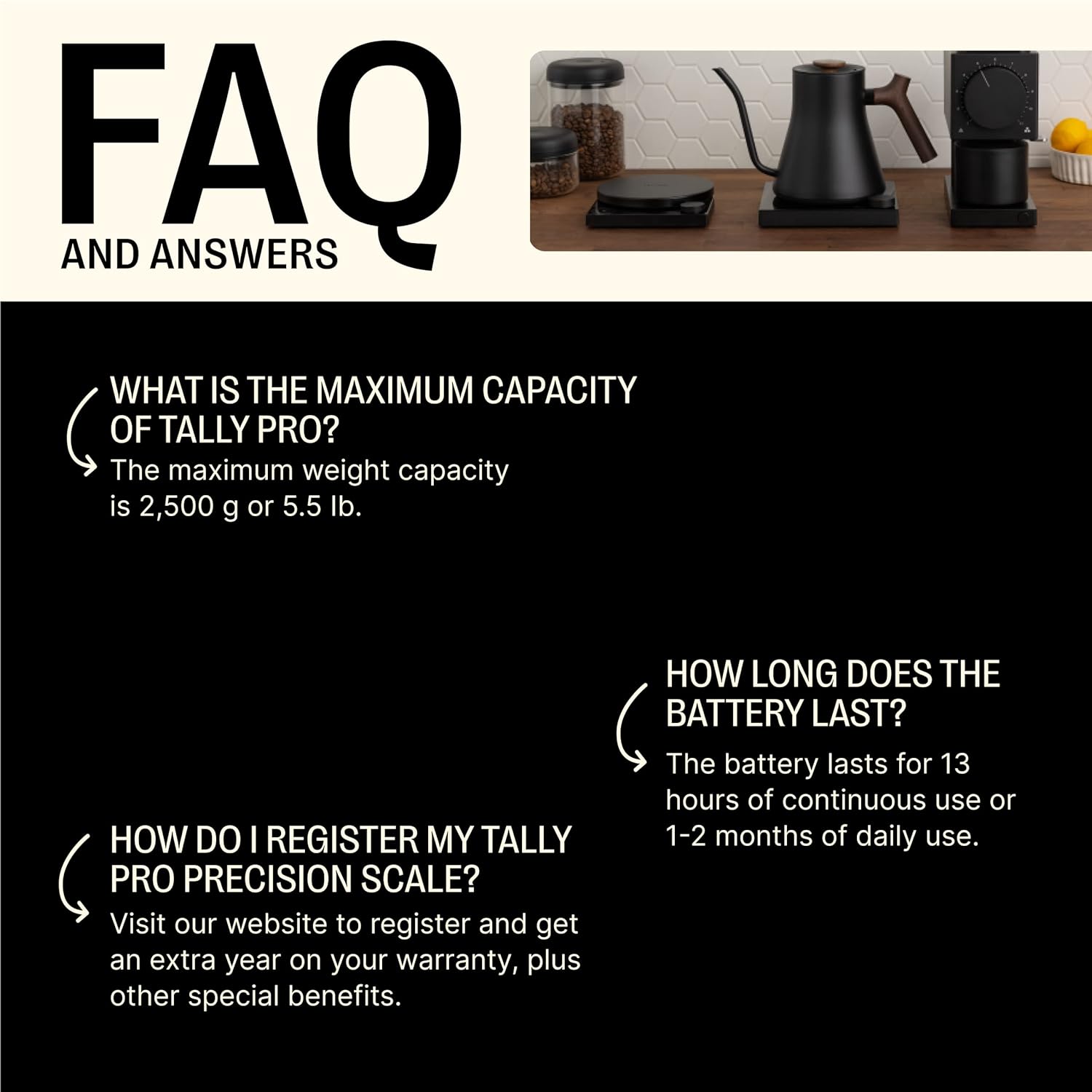
Image: A frequently asked questions graphic for the Tally Pro, detailing maximum capacity, battery life, and warranty registration instructions.
Related documentsTally Pro Precision Scale


Ask a question about this manual
Ask about setup, troubleshooting, compatibility, parts, safety, or missing instructions. Manuals+ will review the question and use this page’s manual context to help answer it.