
Inateck KB04111 Gray
Contents
Inateck Detachable iPad Keyboard Case User Manual
Model: KB04111 Gray
Brand: Inateck
1. Introduction
Thank you for choosing the Inateck Detachable iPad Keyboard Case. This versatile accessory transforms your iPad into a powerful productivity tool, offering enhanced typing comfort and multiple viewing angles. Designed for seamless integration, it features a precise touchpad, vibrant 7-color backlight, and advanced keys for efficient work and entertainment.
Compatibility
This keyboard case is specifically designed for the following iPad models:
- iPad Air 11-inch M3/M2 (2025/2024)
- iPad Air 5th Gen 2022 (A2591/A2589/A2588)
- iPad Air 4th Gen 2020 (A2325/A2324/A2316/A2072)
- iPad Pro 11-inch 4th Gen 2022 (A2435/A2759/A2761/A2762)
- iPad Pro 11-inch 3rd Gen 2021 (A2301/A2377/A2459/A2460)
- iPad Pro 11-inch 2nd Gen 2020 (A2228/A2068/A2230/A2231)
- iPad Pro 11-inch 1st Gen 2018 (A1980/A2013/A1934/A1979)

Image: Detailed compatibility information for the Inateck keyboard case.
2. What's in the Box
Upon opening your Inateck Detachable iPad Keyboard Case package, you should find the following items:
- Keyboard
- Touchpad
- Manual
3. Setup
3.1 Installing and Removing Your iPad
The Inateck keyboard case is designed for easy installation and removal of your iPad. The iPad is securely held within the case, which then magnetically attaches to the keyboard.
Video: Demonstrates how to install and remove the iPad from the Inateck keyboard case (0:34).
To Install:
- Align your iPad with the case, ensuring the camera cutout and ports match.
- Gently press the iPad into the case, starting from one corner and working your way around until it snaps securely into place.
- Once the iPad is in the protective case, align the case with the magnetic strip on the keyboard. The magnets will automatically secure the iPad case to the keyboard.
To Remove:
- First, detach the iPad case from the magnetic keyboard by gently pulling them apart.
- From the back of the iPad case, gently push the iPad out from the corners, applying even pressure until it releases from the case.
3.2 Bluetooth Pairing
To use the keyboard, you need to pair it with your iPad via Bluetooth.
- Ensure the keyboard is charged.
- Turn on the keyboard using the power switch (usually located on the side).
- On your iPad, go to Settings > Bluetooth.
- Turn on Bluetooth. Your iPad will search for nearby devices.
- Look for "Inateck Keyboard" or a similar name in the list of devices and tap on it to connect.
- If prompted, enter the pairing code displayed on your iPad screen using the keyboard, then press Enter.
- Once connected, the keyboard's indicator light will confirm successful pairing.
4. Operating Instructions
4.1 Five Placement Modes
The detachable design allows for flexible use, adapting to various activities:
- Work Mode: Traditional laptop-like setup for typing and productivity.
- Study Mode: Ideal for note-taking and research.
- Watching Movies Mode: Detach the keyboard and use the case as a stand for comfortable viewing.
- Drawing Mode: Lay the iPad flat with a slight incline for creative tasks.
- Reading Mode: Fold the case back for a comfortable handheld reading experience.

Image: The keyboard case supports five versatile placement modes for different uses.

Image: User actively typing on the keyboard in a typical work setup.

Image: iPad in viewing mode, ideal for watching movies or videos.

Image: iPad positioned for drawing or creative tasks with an Apple Pencil.
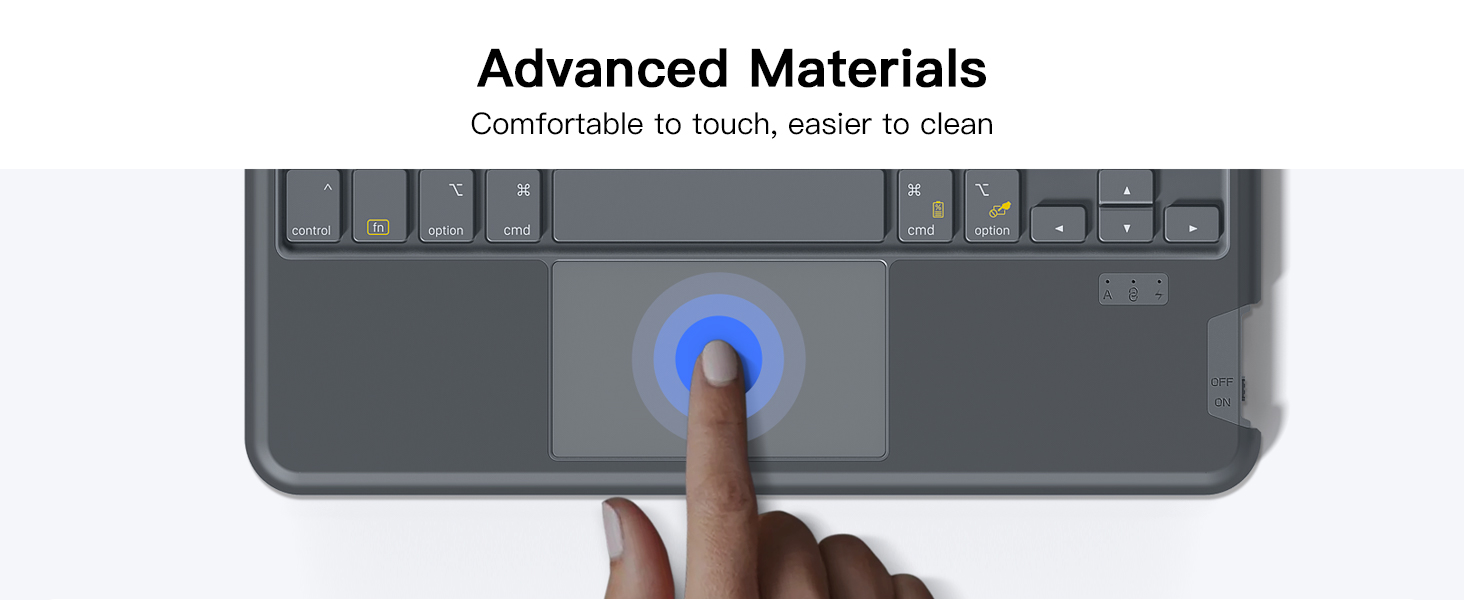
Image: iPad in a comfortable reading position.
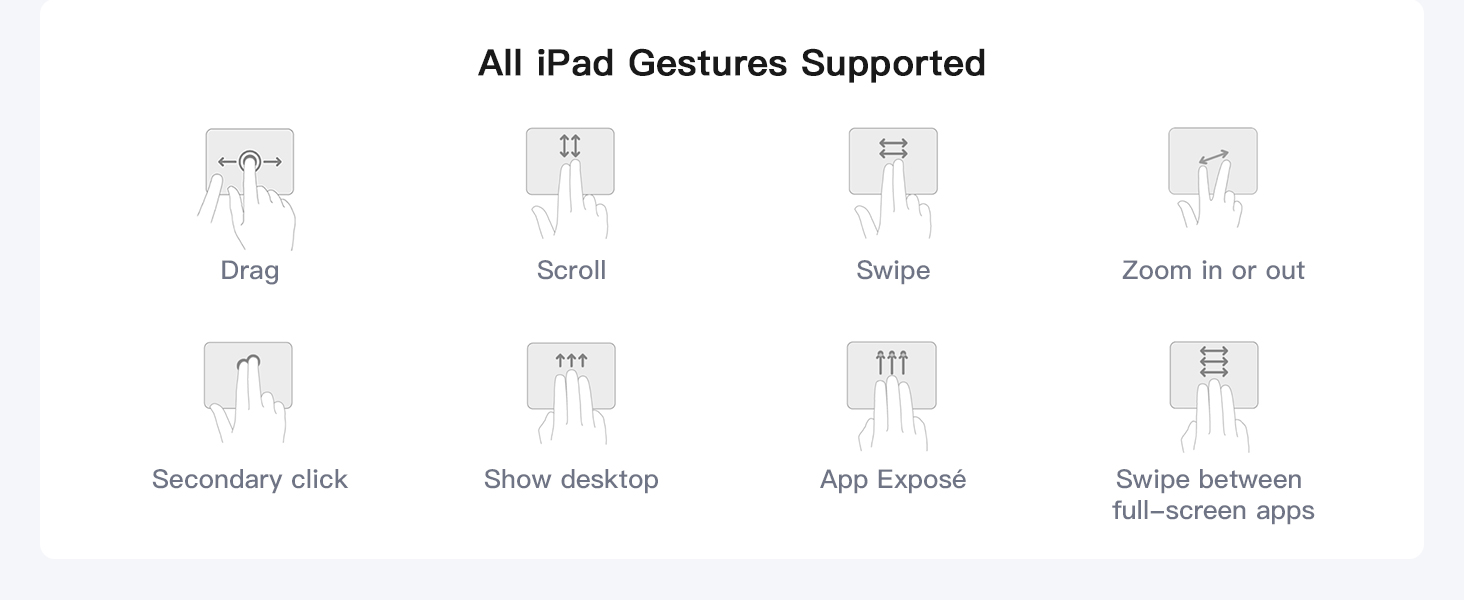
Image: The keyboard case in a compact, portable state.
4.2 7-Color Backlight
The keyboard features a 7-color backlight with 3 adjustable brightness levels, allowing you to type comfortably in various lighting conditions, from dim environments to bright rooms.
- Press the light bulb icon key to cycle through the 7 colors.
- Press the Fn + light bulb icon keys to adjust the brightness levels (Low, Medium, High).
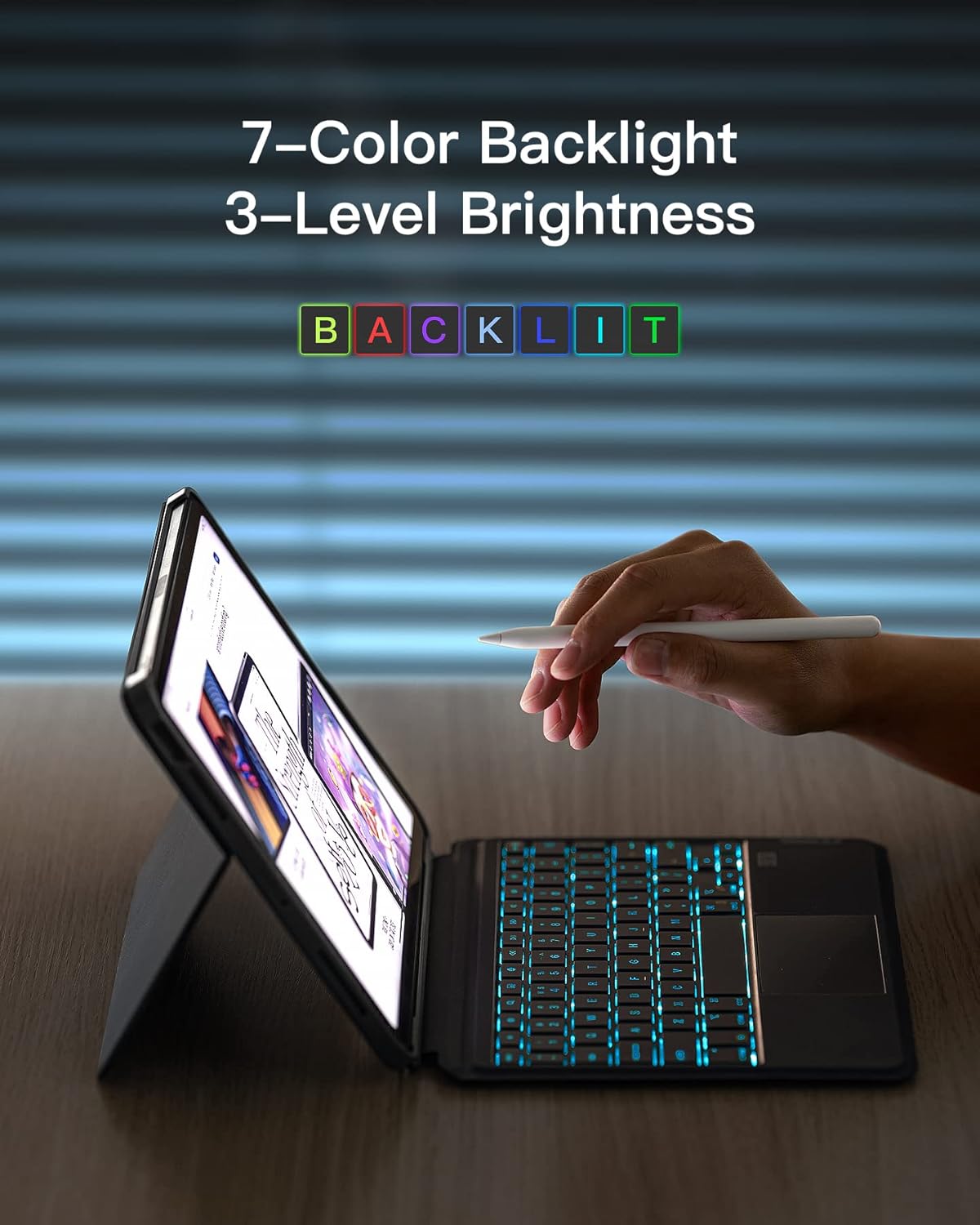
Image: The keyboard's 7-color backlight feature in use.
4.3 Precise Touchpad
The full-area pressure-sensitive touchpad supports all standard iPad gestures, providing a laptop-like experience without the need for an external mouse.

Image: The high-performance touchpad for precise control.
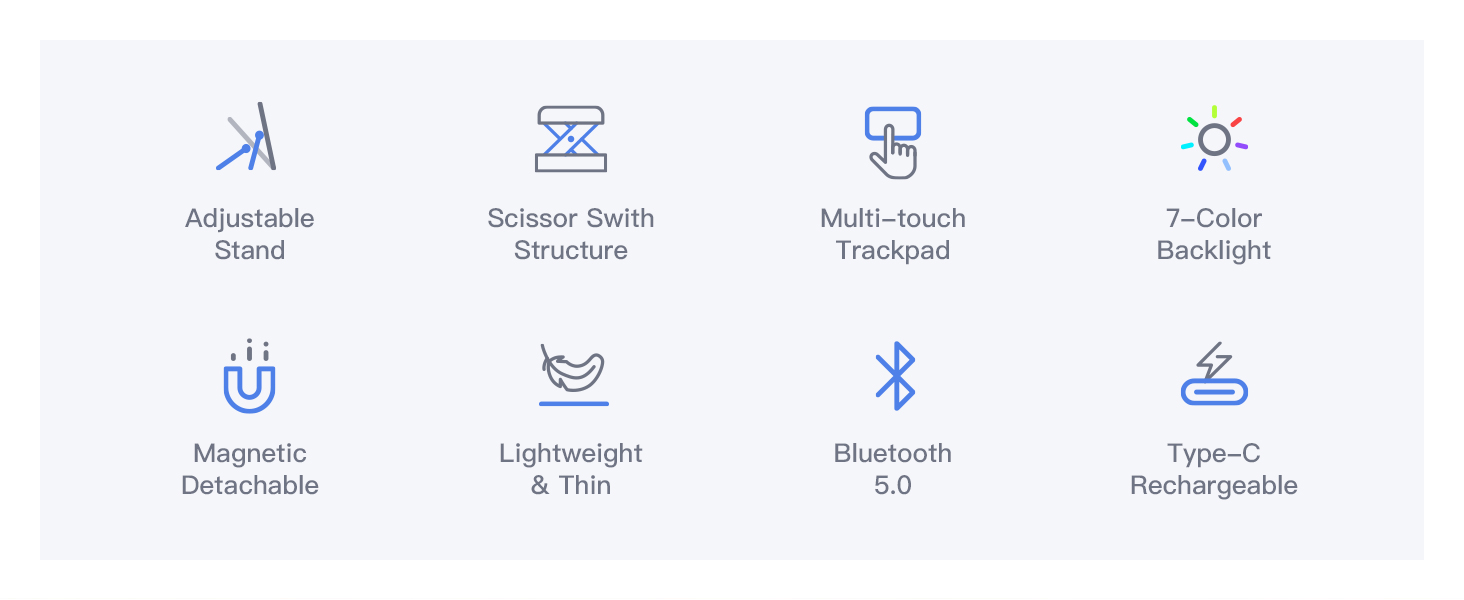
Image: Visual guide to supported iPad gestures on the touchpad.
4.4 Advanced Keys
The keyboard features a scissor switch structure for comfortable and accurate typing, 1mm short key travel for responsiveness, and independent shortcut keys for increased efficiency.

Image: Features of the advanced keys for improved typing experience.
5. Maintenance
To ensure the longevity and optimal performance of your Inateck keyboard case, follow these maintenance guidelines:
- Cleaning: Use a soft, lint-free cloth slightly dampened with water or a mild cleaning solution to wipe down the exterior of the case and keys. Avoid harsh chemicals or abrasive materials.
- Dust Removal: Use compressed air to remove dust and debris from between the keys.
- Storage: When not in use for extended periods, store the keyboard case in a cool, dry place away from direct sunlight and extreme temperatures.
- Avoid Liquids: Keep liquids away from the keyboard to prevent damage to internal components.
6. Troubleshooting
If you encounter any issues with your Inateck keyboard case, please refer to the following common problems and solutions:
6.1 Keyboard Not Connecting/Responding
- Check Power: Ensure the keyboard is turned on and has sufficient battery charge.
- Re-pair Bluetooth: Go to your iPad's Bluetooth settings, forget the keyboard device, and then re-pair it following the instructions in Section 3.2.
- Restart Devices: Restart both your iPad and the keyboard.
- Interference: Move away from other wireless devices that might cause interference.
6.2 Touchpad Lag or Unresponsiveness
- Clean Touchpad: Ensure the touchpad surface is clean and free of dirt or oils.
- Firmware Update: Check the Inateck official website for any available firmware updates for your keyboard model.
- iPad Settings: Ensure your iPad's accessibility settings for pointer control are configured correctly.
- Remove Protective Films: Some users have reported that removing any clear protective films on the magnetic connection points can improve responsiveness.
6.3 Backlight Not Working
- Check Battery: Low battery can affect backlight functionality. Charge the keyboard fully.
- Adjust Brightness: Ensure the brightness level is not set to the lowest setting (off). Press the light bulb icon key to cycle through colors and brightness.
7. Specifications
| Brand | Inateck |
| Series | 11 Detachable Keyboard for iPad Pro 4/3/2/1 & iPad Air 5/4 |
| Item Model Number | KB04111-G-US |
| Hardware Platform | Laptop |
| Operating System | iOS |
| Item Weight | 1.3 pounds |
| Product Dimensions | 9.94 x 7.24 x 0.75 inches |
| Color | Gray |
| Power Source | Battery Powered |
| Batteries | 1 Lithium Polymer battery required (included) |
| Connectivity Technology | Bluetooth |
| Keyboard Description | Virtual/Landscape |
| Recommended Uses | Everyday Use, Education, Business |
| Special Feature | Removable, Backlit, Trackpad, Rechargeable |
| Number of Keys | 78 |
| Keyboard Backlighting Color Support | RGB |
8. Warranty and Support
Inateck products are built with quality and customer satisfaction in mind. For specific warranty information regarding your KB04111 keyboard case, please refer to the warranty card included in your product packaging or visit the official Inateck website.
Customer Support
If you require further assistance, have questions, or need to report an issue, please contact Inateck customer support through their official channels. You can often find support contact information, FAQs, and product registration on the Inateck website:
Visit the Inateck Store on Amazon
Please have your product model number (KB04111) and purchase details ready when contacting support to ensure a quicker resolution.
Ask a question about this manual
Ask about setup, troubleshooting, compatibility, parts, safety, or missing instructions. Manuals+ will review the question and use this page’s manual context to help answer it.