
1. Introduction
This manual provides detailed instructions for the installation, operation, and maintenance of your FOSCAM V8EP 4K IP PoE Security Camera. The V8EP is an 8-megapixel outdoor camera designed for home and business surveillance, featuring 4K Ultra HD resolution, AI human and vehicle detection, color night vision, two-way audio, and Power over Ethernet (PoE) for simplified setup.

Image 1.1: FOSCAM V8EP Camera and App Interface
2. Product Overview
2.1 Package Contents
- 1x FOSCAM V8EP 8MP Outdoor IP Camera
- 1x Quick Setup Guide
- 1x Ethernet Cable
- 1x Surveillance Sign
- 1x Waterproof Lid
2.2 Key Features
- 4K 8MP Ultra HD Resolution: Captures video at 3840x2160p with 6X digital zoom for clear details.
- AI Human & Vehicle Detection: Advanced algorithms identify humans and vehicles, reducing false alarms.
- Color Night Vision: Provides full-color video in low-light conditions up to 66 feet using built-in spotlights.
- Siren Alert & Spotlights: Deters intruders with an audible siren and bright spotlights upon detection.
- Two-Way Audio: Built-in microphone and speaker allow for real-time communication.
- Power over Ethernet (PoE): Simplifies installation by delivering power and data through a single Ethernet cable.
- IP66 Weatherproof: Designed to withstand various outdoor weather conditions.

Image 2.1: 4K Ultra HD Clarity Comparison
3. Setup
3.1 PoE Installation
The FOSCAM V8EP camera utilizes Power over Ethernet (PoE) technology, requiring only one Ethernet cable for both power supply and data transmission. This simplifies wiring and installation.
- Mount the Camera: Securely mount the camera to a wall or desired surface using the provided mounting hardware. Ensure the camera is positioned to cover the desired surveillance area.
- Connect Ethernet Cable: Connect one end of the Ethernet cable to the camera's PoE port.
- Connect to PoE Switch/NVR: Connect the other end of the Ethernet cable to a PoE switch, PoE injector, or a Foscam NVR. Ensure the PoE device is powered on.
- Network Connection: Connect your PoE switch or NVR to your router for network access.

Image 3.1: PoE Installation Diagram
3.2 App Setup and Initial Connection
To access and manage your camera, download the Foscam app on your smartphone.
- Download Foscam App: Search for "Foscam" in your device's app store (iOS or Android) and install the application.
- Create Account: Open the app and follow the prompts to create a new Foscam account or log in if you already have one.
- Add Camera: In the app, select the option to add a new camera. Follow the on-screen instructions, which typically involve scanning a QR code on the camera or manually entering its details.
- Configure Settings: Once connected, you can configure various camera settings, including network preferences, recording schedules, and alert notifications.
4. Operation
4.1 AI Detection
The FOSCAM V8EP camera features intelligent AI detection capabilities to distinguish between different types of motion.
- Human Detection: Identifies human figures, reducing alerts from non-human movements.
- Vehicle Detection: Recognizes vehicles, useful for monitoring driveways or parking areas.
- Custom Motion Zones: You can define specific areas within the camera's field of view where motion detection should be active, ignoring irrelevant areas to minimize false alarms.
- Adjustable Sensitivity: Sensitivity levels for detection can be adjusted via the Foscam app to suit your environment.

Image 4.1: AI Human and Vehicle Detection
4.2 Night Vision
The camera provides advanced night vision options for clear surveillance in low-light conditions.
- Color Starlight Night Vision: Utilizes a high-quality sensor and F/1.6 aperture to capture color video in very low ambient light, extending up to 66 feet.
- Integrated Spotlights: Built-in spotlights (4500K) can be activated manually or automatically upon motion detection to illuminate the area and enable full-color night vision.
- Infrared (IR) Night Vision: When spotlights are off, the camera automatically switches to infrared mode for black and white video in complete darkness.
- Schedule Spotlights: You can set schedules for when the spotlights should be active.

Image 4.2: Color Night Vision with Spotlights
4.3 Two-Way Audio
Communicate directly through the camera using its integrated microphone and speaker.
- Real-time Communication: Speak to visitors or deter unwanted individuals from your smartphone via the Foscam app.
- Audio Monitoring: Listen to audio from the camera's location.
Image 4.3: Two-Way Audio Functionality
4.4 Alarm System
When abnormal activity is detected, the camera can trigger an alarm to deter intruders and notify you.
- Siren Activation: An audible siren can be triggered automatically or manually.
- Spotlight Activation: Spotlights can flash to draw attention and illuminate the scene.
- Instant Alerts: Receive push notifications, emails, or alerts on your device, allowing you to respond promptly.
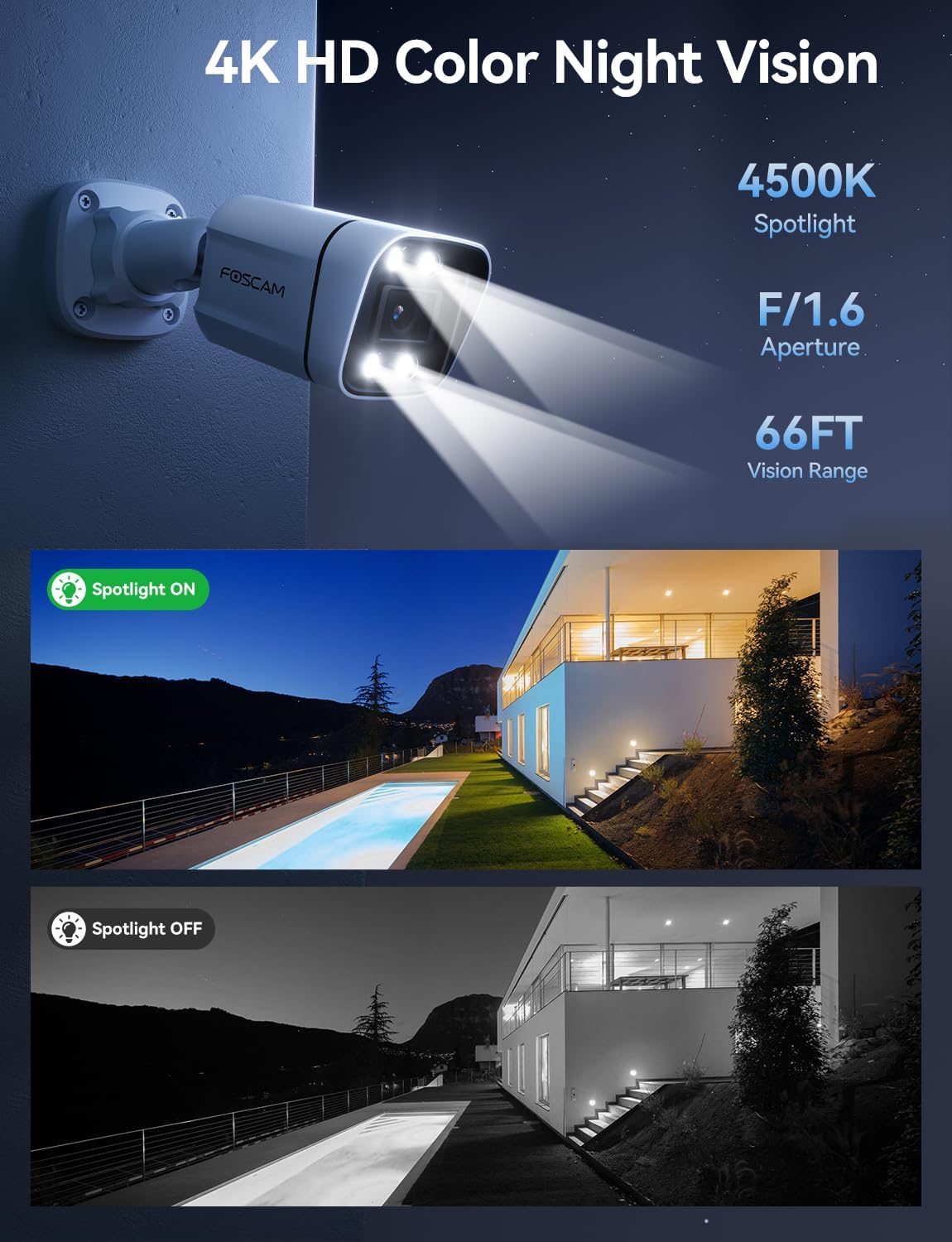
Image 4.4: Sound and Light Alarm System
4.5 Remote Access and Compatibility
Monitor your property from anywhere at any time.
- Foscam App/VMS: Access live view, recordings, and settings through the Foscam mobile app or Foscam VMS software on a computer.
- Smart Home Integration: Compatible with Alexa and Google Assistant for voice control and integration into smart home ecosystems.
- NVR/NAS Compatibility: Supports Blue Iris, Homey, Synology NAS, Qnap NAS, and ONVIF-enabled NVRs for local storage and advanced management.

Image 4.5: Remote Access Across Devices
5. Maintenance
5.1 Weather Resistance
The FOSCAM V8EP camera features an IP66 weatherproof housing, ensuring reliable operation in various outdoor conditions, including rain, snow, and dust.

Image 5.1: IP66 Weatherproof Design
5.2 General Care
- Cleaning: Periodically clean the camera lens and housing with a soft, damp cloth to remove dirt and debris that may affect image quality. Do not use harsh chemicals.
- Cable Inspection: Regularly inspect the Ethernet cable and connections for any signs of wear or damage.
- Firmware Updates: Keep the camera's firmware updated through the Foscam app to ensure optimal performance and access to new features.
6. Troubleshooting
- No Power/Connectivity: Ensure the Ethernet cable is securely connected to both the camera and a powered PoE device (switch/injector/NVR). Verify the PoE device is functioning correctly and connected to your network.
- Cannot Connect to App: Ensure your smartphone is connected to the same network as the camera during initial setup. Restart the camera and your router. Verify the Foscam app is updated to the latest version.
- Frequent False Alarms: Adjust the AI detection sensitivity settings in the Foscam app. Utilize custom motion zones to exclude areas with irrelevant movement (e.g., swaying trees, busy roads).
- Poor Night Vision: Ensure the camera lens is clean. Check if the spotlights are enabled and functioning. Verify there are no obstructions blocking the camera's view.
- No Web Interface: Note that this camera model primarily uses the Foscam app for configuration and live viewing. A direct web interface may not be available for all settings.
7. Specifications
| Feature | Specification |
|---|---|
| Model Name | V8EP |
| Video Capture Resolution | 4K (3840x2160p) |
| Effective Still Resolution | 8 MP |
| Frame Rate | 20 fps |
| Field Of View | 110 Degrees |
| Digital Zoom Ratio | 20X |
| Connectivity Technology | Wired (PoE) |
| Connectivity Protocol | Ethernet |
| Power Source | Corded Electric (via PoE) |
| Indoor/Outdoor Usage | Indoor, Outdoor |
| International Protection Rating | IP66 |
| Night Vision Range | 66 Feet (Color Starlight) |
| Flash Memory Supported Size Maximum | 256 GB (Micro SD) |
| Item Dimensions (L x W x H) | 4.3 x 3.94 x 7.6 inches |
| Item Weight | 1.34 pounds |
| Controller Type | Alexa, Google Assistant, Blue Iris, Homey, Synology NAS, Qnap NAS, NVR |
8. Warranty and Support
FOSCAM is committed to providing reliable products and customer service.
- Technical Support: FOSCAM offers 24/7 fast reply and lifetime technical support for its products.
- Quality Guarantee: The product comes with a 180-day quality guarantee.
- Returns: Enjoy 30-day free returns.
- Replacement: Free replacement and fast delivery are provided for eligible issues.
For further assistance, please visit the official FOSCAM website or contact their customer support.


