
1. Introduction
The LG 32" UltraGear 4K UHD (3840x2160) Gaming Monitor, model 32GR93U-B, is designed to deliver a high-performance gaming experience. This manual provides essential information for the proper setup, operation, and maintenance of your monitor.
Key Features:
- 4K UHD Resolution (3840 x 2160): Experience stunning visual clarity and detail.
- 144Hz Refresh Rate: Enjoy ultra-smooth gameplay with reduced motion blur.
- 1ms (GtG) Response Time: Minimize ghosting and achieve rapid pixel transitions.
- VESA DisplayHDR 400: Enhanced contrast and vibrant colors for a dynamic visual experience.
- NVIDIA G-SYNC Compatible & AMD FreeSync Premium: Synchronizes the monitor's refresh rate with your GPU for tear-free gaming.
- HDMI 2.1 Connectivity: Supports 4K UHD at up to 144Hz for PC and 120Hz for next-gen consoles.
- Ergonomic Stand: Offers tilt, height, and pivot adjustments for personalized viewing comfort.
2. Setup
2.1 Package Contents
Before assembly, ensure all components are present:
- LG 32GR93U-B Monitor Display
- Stand Base
- Stand Column
- Power Cable
- HDMI Cable
- DisplayPort Cable
- USB Upstream Cable
- User Manual (this document)
2.2 Stand Assembly
- Carefully place the monitor display face down on a soft, clean surface to prevent scratches.
- Attach the stand column to the back of the monitor until it clicks into place.
- Secure the stand base to the stand column using the provided screw.
- Place the assembled monitor on a stable desk or table.

Image: Rear view of the LG UltraGear monitor with the stand securely attached. The stand provides stability and supports the monitor's ergonomic adjustments.
2.3 Connecting Cables
Connect the necessary cables to the monitor and your computer/console:
- Power: Connect the power cable to the monitor's power input and then to a wall outlet.
- Video: Connect either an HDMI 2.1 cable or a DisplayPort cable from your computer/console to the corresponding port on the monitor. For 4K UHD at 144Hz, a compatible graphics card and HDMI 2.1 or DisplayPort 1.4 are required.
- USB Upstream: Connect the USB upstream cable from the monitor to your computer to enable the monitor's USB ports.
- Audio: For headphone output, connect your headphones to the 4-Pole HP Out port.

Image: Detailed view of the monitor's connectivity ports, including HDMI 2.1, DisplayPort, and USB ports, located on the rear panel.

Image: A diagram highlighting the increased bandwidth of HDMI 2.1 (48Gbps) compared to HDMI 2.0 (18Gbps), enabling higher resolutions and frame rates.
3. Operating Instructions
3.1 Power On/Off
Press the joystick button located at the bottom center of the monitor to power it on or off. A short press will bring up the OSD menu, while a long press will power off the monitor.

Image: The joystick button, located at the bottom center of the monitor, used for power control and OSD navigation.
3.2 On-Screen Display (OSD) Menu Navigation
Press the joystick button once to access the OSD menu. Use the joystick to navigate through the options:
- Game Mode: Select predefined settings optimized for various game genres.
- Game Adjust: Customize gaming-specific features like Black Stabilizer, Dynamic Action Sync, and Crosshair.
- Picture Adjust: Fine-tune brightness, contrast, sharpness, and color temperature.
- Input: Select the active input source (HDMI 1, HDMI 2, DisplayPort).
- General: Access general settings including Power LED, Automatic Standby, and OSD Lock.
- Information: View current resolution, refresh rate, and total power on time.

Image: The monitor's On-Screen Display (OSD) menu, providing access to various settings for game modes, picture adjustments, and general monitor configurations.
3.3 Gaming Features
- NVIDIA G-SYNC Compatible / AMD FreeSync Premium: These technologies synchronize the monitor's refresh rate with your GPU's frame rate to eliminate screen tearing and stuttering. Ensure these features are enabled in both your graphics card settings and the monitor's OSD.
- 1ms (GtG) Response Time: This feature ensures minimal input lag and quick pixel response for fast-paced gaming.
- HDR400: For compatible content, enable HDR in your operating system settings and on the monitor for enhanced dynamic range.

Image: The NVIDIA G-SYNC Compatible logo, indicating support for adaptive synchronization to reduce screen tearing.

Image: The AMD FreeSync Premium logo, signifying support for fluid, tear-free gaming experiences.

Image: Visual representation of VESA DisplayHDR 400, illustrating enhanced contrast and color fidelity.
4. Ergonomic Adjustments
The monitor stand allows for various adjustments to optimize your viewing comfort:
- Height Adjustment: Raise or lower the monitor to eye level.
- Tilt Adjustment: Tilt the screen forward or backward to reduce glare and improve viewing angle.
- Pivot Adjustment: Rotate the screen 90 degrees for portrait mode viewing.
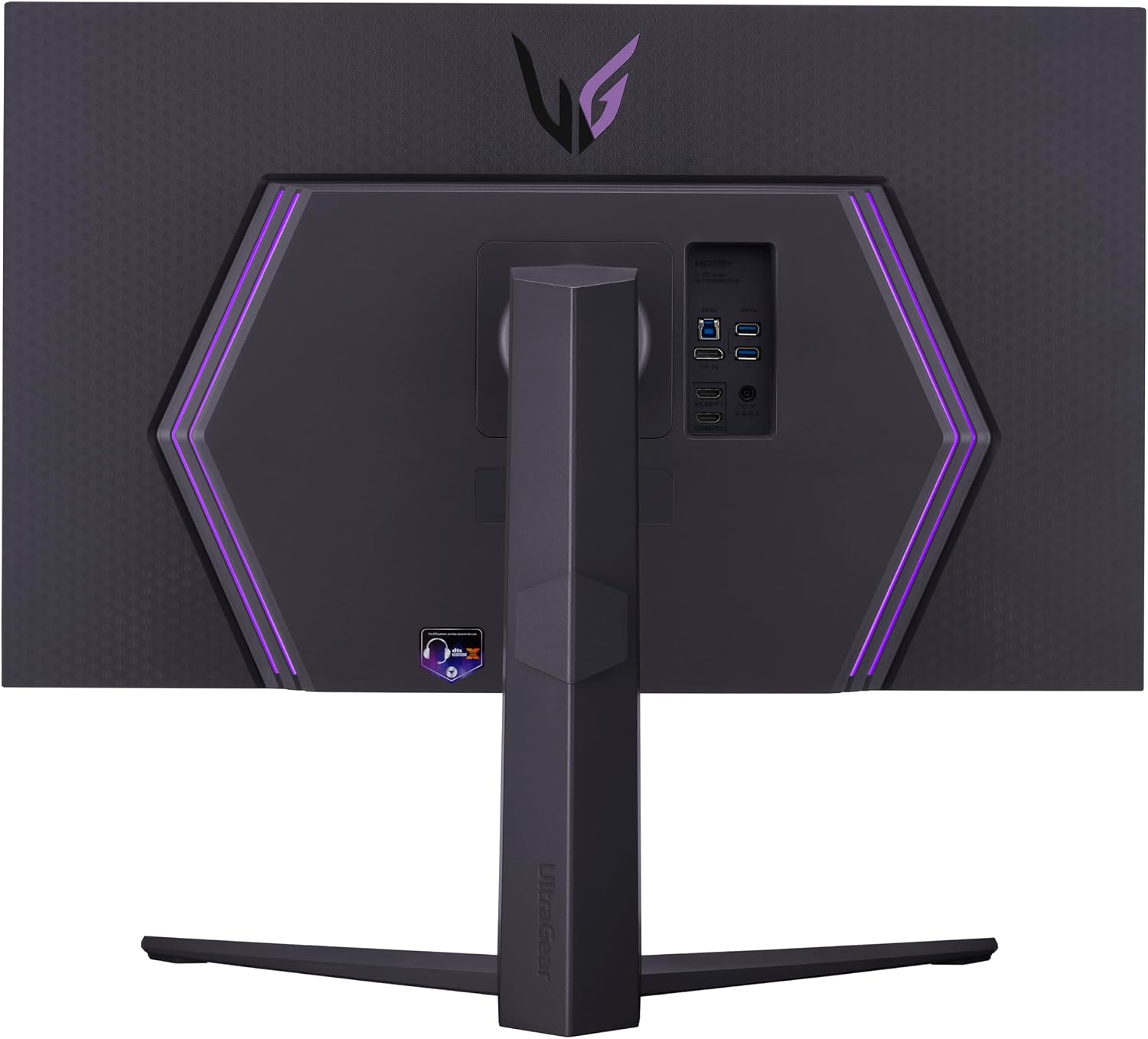
Image: Side profile of the monitor demonstrating its adjustable height range for ergonomic positioning.

Image: Visual guide to the monitor's ergonomic design, showcasing its capabilities for tilt, height, and pivot adjustments to suit user preferences.
5. Maintenance
Proper care ensures the longevity and optimal performance of your monitor:
- Cleaning the Screen: Gently wipe the screen with a soft, lint-free cloth. For stubborn marks, lightly dampen the cloth with water or a specialized screen cleaner. Avoid harsh chemicals.
- Cleaning the Casing: Use a soft, dry cloth to clean the monitor casing.
- Ventilation: Ensure the monitor's ventilation openings are not blocked to prevent overheating.
- Power Off: Always power off the monitor when not in use for extended periods.
6. Troubleshooting
If you encounter issues with your monitor, refer to the following common solutions:
- No Power:
- Check if the power cable is securely connected to both the monitor and the power outlet.
- Ensure the power outlet is functioning correctly.
- No Signal / Blank Screen:
- Verify that the video cable (HDMI or DisplayPort) is firmly connected to both the monitor and your computer/console.
- Select the correct input source using the OSD menu.
- Ensure your computer/console is powered on and outputting a signal.
- Screen Tearing / Stuttering:
- Confirm that NVIDIA G-SYNC Compatible or AMD FreeSync Premium is enabled in both your graphics card settings and the monitor's OSD.
- Update your graphics card drivers to the latest version.
- Poor Picture Quality / Incorrect Colors:
- Adjust picture settings (brightness, contrast, color temperature) via the OSD menu.
- Ensure the correct color profile is selected in your operating system.
- For HDR content, ensure HDR is enabled in your system settings and the monitor. If brightness is uncomfortable, consider adjusting HDR settings or using SDR mode.
- Limited Viewing Angles / Grayed Out Corners (especially on large screens):
- Adjust your seating position or the monitor's tilt to find an optimal viewing angle.
- Ensure you are not sitting too close to the screen.
- Backlight Bleed / Poor Black Uniformity:
- This can be inherent to IPS panel technology. Adjusting ambient lighting may help minimize its appearance.
- If local dimming is enabled and causing distraction (e.g., blooming), consider disabling it in the OSD menu.
7. Specifications
| Feature | Detail |
|---|---|
| Brand | LG |
| Model Number | 32GR93U-B |
| Screen Size | 32 Inches |
| Resolution | UHD (3840 x 2160) |
| Aspect Ratio | 16:9 |
| Refresh Rate | 144 Hz |
| Response Time | 1 Millisecond (GtG) |
| Display Type | LCD (IPS Panel) |
| Brightness | 400 cd/m² |
| Contrast Ratio | 1000:1 |
| Viewing Angle | 178 Degrees |
| HDR Support | VESA DisplayHDR 400 |
| Adaptive Sync | NVIDIA G-SYNC Compatible, AMD FreeSync Premium |
| Connectivity | 2x HDMI 2.1, 1x DisplayPort, 3x USB (1 Upstream, 2 Downstream) |
| Audio Output | 4-Pole HP Out (DTS HP:X) |
| Ergonomics | Tilt, Height, Pivot |
| Item Weight | 18.3 Pounds |
| UPC | 195174053874 |
8. Warranty and Support
Your LG 32" UltraGear Gaming Monitor comes with a 1 Year Parts & Labor warranty.
For technical support, troubleshooting assistance, or warranty claims, please visit the official LG support website or contact their customer service. Keep your purchase receipt and monitor's serial number handy for faster service.
Official LG Support: https://www.lg.com/us/support
9. Official Product Videos
LG 144Hz Refresh Rate UltraGear Monitor
Video: An official video from LG Electronics showcasing the 144Hz refresh rate of the UltraGear monitor, highlighting its smooth performance for gaming.