
1. Introduction
This manual provides detailed instructions for the installation, operation, maintenance, and troubleshooting of your ASRock RX7600 PG 8GO AMD Radeon RX 7600 Phantom Gaming 8GB OC Graphics Card. Please read this manual thoroughly before installation to ensure proper setup and optimal performance.

Figure 1: Front view of the ASRock RX7600 PG 8GO graphics card, showcasing its triple-fan cooling system and customizable RGB lighting in the central fan.
2. Package Contents
Please check the contents of your product package. If any items are missing or damaged, contact your retailer.
- ASRock RX7600 PG 8GO AMD Radeon RX 7600 Phantom Gaming 8GB OC Graphics Card
- Quick Installation Guide or Documentation (may vary by region)
3. System Requirements
Ensure your system meets the following minimum requirements for proper operation:
- Motherboard: PCI Express-compliant motherboard with one x16 graphics slot.
- Power Supply: Minimum 550W power supply with one 8-pin PCIe power connector.
- Operating System: Windows 10/11 64-bit or Linux 64-bit.
- Processor: AMD Ryzen or Intel Core processor.
- Memory: 8GB system memory (16GB recommended).
4. Setup
4.1. Physical Installation
Before beginning, ensure your computer is powered off and unplugged from the wall outlet. Ground yourself to prevent electrostatic discharge.
- Open your computer case.
- Locate an available PCI Express x16 slot on your motherboard. Remove any expansion slot covers that may be blocking the slot.
- Carefully align the graphics card with the PCIe x16 slot and press down firmly until it is securely seated. Ensure the retention clip on the PCIe slot locks into place.
- Secure the graphics card to the computer case with the appropriate screw(s).
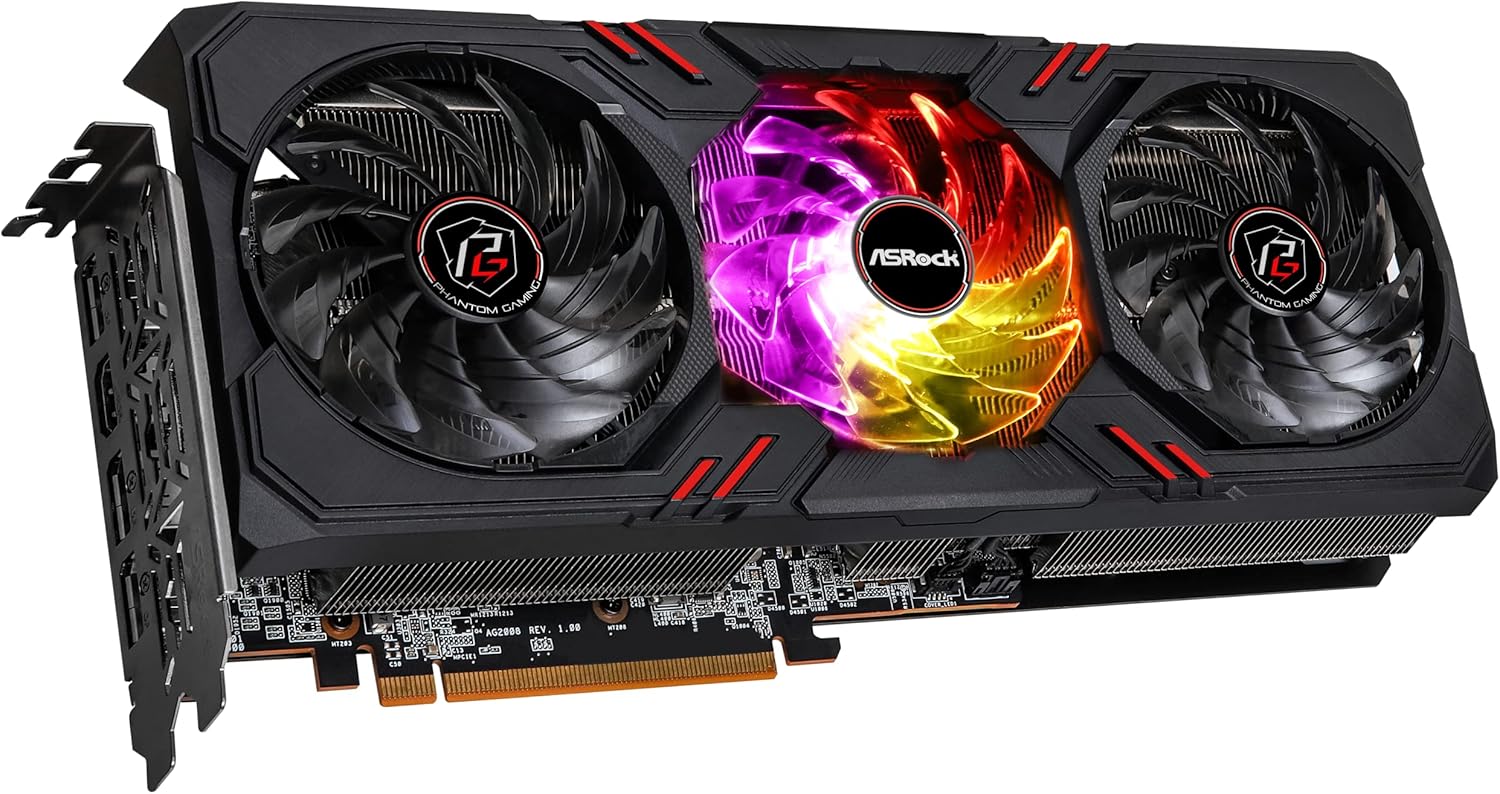
Figure 2: Angled front view of the graphics card, highlighting the PCI Express connector for motherboard installation.
4.2. Power Connection
Connect the 8-pin PCIe power cable from your power supply to the corresponding power connector on the graphics card. Ensure the connector is fully seated.

Figure 3: Top view of the graphics card, showing the location of the 8-pin PCIe power connector.
4.3. Display Connection
Connect your monitor(s) to the display output ports on the graphics card. This card features 3 x DisplayPort 2.1 and 1 x HDMI 2.1 ports. Use the appropriate cable for your display.
4.4. Driver Installation
After physical installation, close your computer case, plug in the power cable, and power on your system. You will need to install the latest AMD Radeon drivers for optimal performance and stability.
- Visit the official AMD website: www.amd.com/support.
- Navigate to the driver download section and select your graphics card model (AMD Radeon RX 7600).
- Download the latest recommended driver package for your operating system.
- Run the downloaded installer and follow the on-screen instructions to complete the driver installation. A system restart may be required.
5. Operating
5.1. First Boot
Upon the first boot after driver installation, your display resolution may automatically adjust. You can configure display settings through your operating system's display settings or the AMD Adrenalin Software.
5.2. Software Utilities
AMD Adrenalin Software: This software suite provides comprehensive control over your graphics card, including game optimization, performance monitoring, fan control, and display settings. It is installed as part of the driver package.
ASRock Polychrome SYNC: For controlling the RGB lighting on your graphics card, download and install the ASRock Polychrome SYNC utility from the ASRock website. This allows synchronization with other compatible ASRock components.
6. Maintenance
Regular maintenance helps ensure the longevity and optimal performance of your graphics card.
- Dust Removal: Periodically clean dust from the heatsink fins and fan blades using compressed air. Ensure the fans are not spinning during cleaning to prevent damage.
- Fan Inspection: Check fan operation regularly. If a fan is making unusual noises or not spinning, investigate the cause.
- Software Updates: Keep your graphics drivers updated to the latest version for performance improvements and bug fixes.
7. Troubleshooting
7.1. No Display Output
- Ensure the monitor is connected to the graphics card, not the motherboard's integrated graphics port.
- Verify the graphics card is fully seated in the PCIe slot.
- Check that the 8-pin PCIe power connector is securely attached.
- Test with a different display cable or monitor if possible.
7.2. Driver Issues
- If experiencing crashes or instability, perform a clean installation of the graphics drivers. Use a utility like Display Driver Uninstaller (DDU) in Safe Mode to remove old drivers before installing new ones.
- Ensure your operating system is up to date.
7.3. Performance Problems
- Verify that your system meets the recommended specifications for the applications or games you are running.
- Monitor GPU temperature and usage using AMD Adrenalin Software to identify potential thermal throttling.
- Ensure your power supply is sufficient and providing stable power.
7.4. Overheating
- Ensure adequate airflow within your computer case.
- Clean dust from the graphics card's heatsink and fans.
- Check fan speeds in AMD Adrenalin Software; adjust fan curves if necessary.
8. Specifications
| Feature | Specification |
|---|---|
| Graphics Processor | AMD Radeon RX 7600 |
| Architecture | AMD RDNA™ 3 |
| Compute Units | 32 (with RT+AI Accelerators) |
| Boost Clock* | Up to 2755 MHz |
| Game Clock** | 2355 MHz |
| Memory | 8GB GDDR6 |
| Memory Interface | 128-Bit |
| Memory Clock | 18 Gbps |
| AMD Infinity Cache™ | 32MB |
| Display Outputs | 3 x DisplayPort™ 2.1 with DSC, 1 x HDMI™ 2.1 |
| PCI Express | PCIe® Express 4.0 |
| Power Connector | 1 x 8-pin |
| DirectX Support | Microsoft® DirectX® 12 Ultimate |
| Max Resolution | 7680x4320 |
*Boost Clock is the maximum frequency achievable on the GPU running a bursty workload. Boost clock achievability, frequency, and sustainability will vary based on several factors, including but not limited to: thermal conditions and variation in applications and workloads.
**Game Clock is the expected GPU clock when running typical gaming applications, set to typical TGP (Total Graphics Power). Actual individual game clock results may vary.
9. Warranty and Support
This ASRock graphics card typically comes with a 3-year limited warranty. Warranty terms and conditions may vary by region and retailer. Please retain your proof of purchase for warranty claims.
For technical support, driver downloads, and further product information, please visit the official ASRock website:
When contacting support, please have your product model (RX7600 PG 8GO) and serial number ready.