Introduction
This manual provides comprehensive instructions for the XTRIKE ME GH510 USB RGB Gaming Headset. Please read this guide carefully to ensure proper setup, operation, and maintenance of your headset. Retain this manual for future reference.
Product Overview
The XTRIKE ME GH510 is a USB RGB gaming headset designed for an immersive audio experience. Key features include:
- Double head beam design for comfort and durability.
- Closed, over-ear design for powerful bass sounds and passive noise isolation.
- Static RGB lighting effects for an enhanced gaming aesthetic.
- 50mm speaker drivers for clear stereo sound.
- Omnidirectional microphone for clear communication.
Headset Components
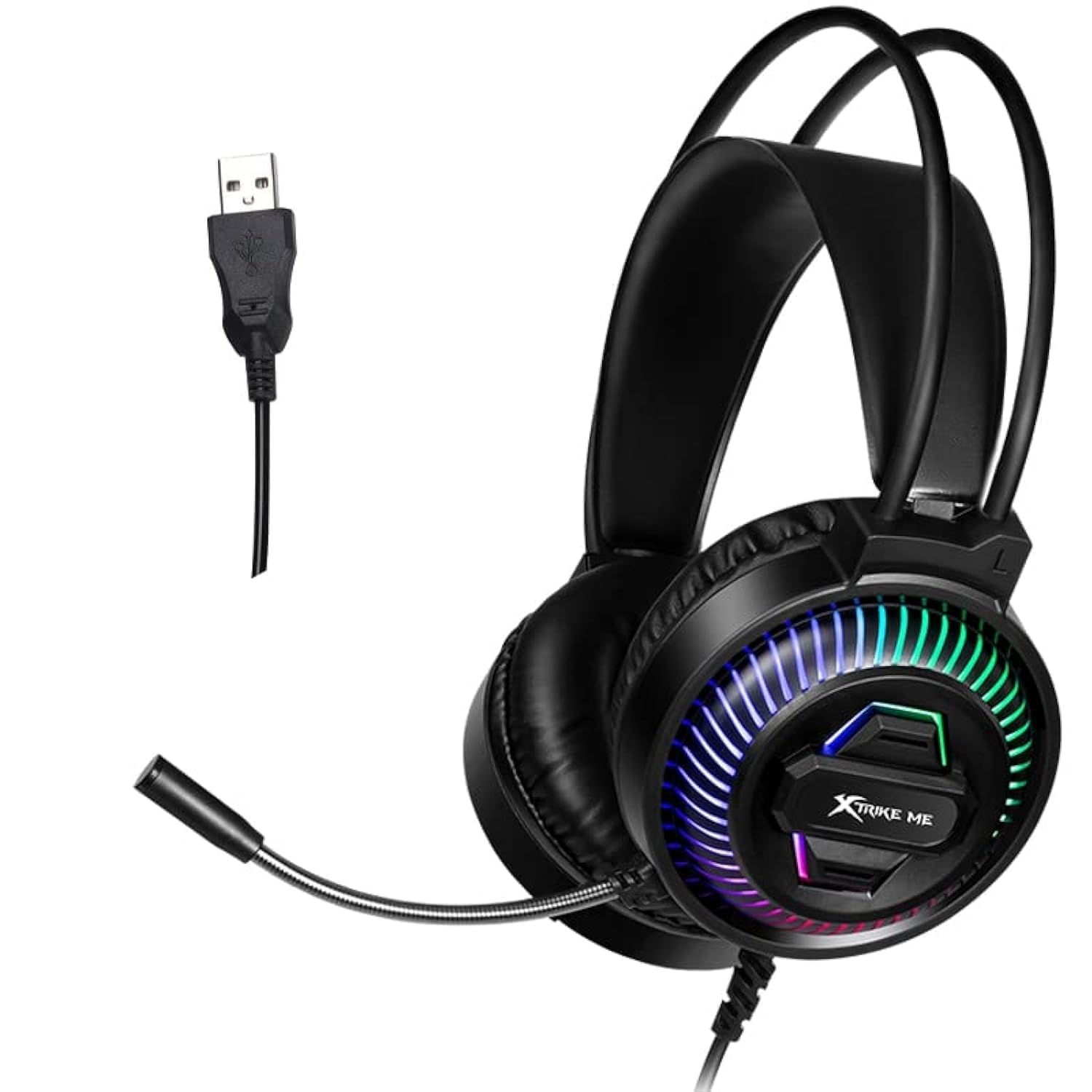
Image: Front view of the XTRIKE ME GH510 USB RGB Gaming Headset, showcasing the earcups with static RGB lighting and the adjustable microphone.
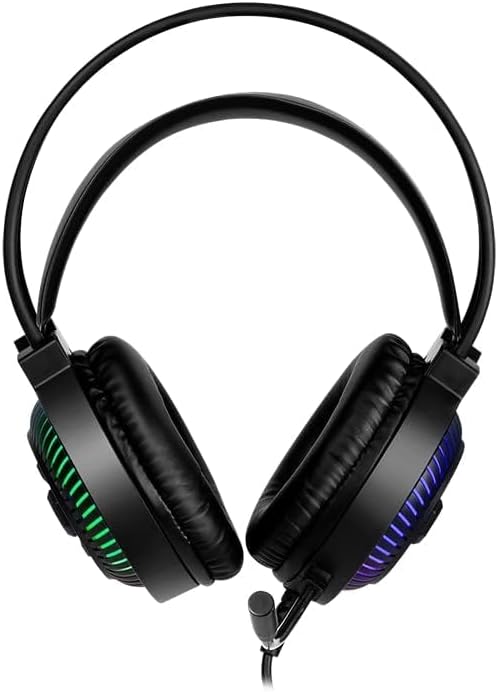
Image: Top-down view of the XTRIKE ME GH510 USB RGB Gaming Headset, highlighting the double head beam design and the plush earcups.
Setup Instructions
Connecting the Headset
- Locate an available USB 2.0 port on your computer.
- Plug the USB connector of the XTRIKE ME GH510 headset into the USB port.
- The operating system (Windows 7 or above) should automatically detect and install the necessary drivers. This process may take a few moments.
- Once installed, the headset's static RGB lighting will illuminate, indicating it is powered on.
System Compatibility
The XTRIKE ME GH510 headset is compatible with computers running Windows 7 or above.
Operating Instructions
Audio Playback
After successful installation, the headset should be set as the default audio output device. You can verify this in your operating system's sound settings:
- Windows: Right-click the speaker icon in the taskbar, select "Sound settings" or "Playback devices," and ensure the XTRIKE ME GH510 is selected as the default output.
Microphone Usage
The omnidirectional microphone is designed for clear voice capture. To use the microphone:
- Adjust the microphone boom to a comfortable position near your mouth.
- Ensure the headset is selected as the default recording device in your operating system's sound settings.
- Windows: Right-click the speaker icon in the taskbar, select "Sound settings" or "Recording devices," and ensure the XTRIKE ME GH510 is selected as the default input.
RGB Lighting
The headset features static RGB lighting effects on the earcups. These lights activate automatically when the headset is connected to a powered USB port. There are no user-adjustable controls for the lighting effects; they remain static.
Maintenance
Cleaning
- Disconnect the headset from your computer before cleaning.
- Use a soft, dry cloth to wipe down the earcups and headband.
- For stubborn dirt, a slightly damp cloth can be used, but ensure no moisture enters the speaker grilles or USB connector.
- Do not use harsh chemicals or abrasive cleaners.
Storage
- Store the headset in a cool, dry place away from direct sunlight and extreme temperatures.
- Avoid placing heavy objects on the headset to prevent damage.
- When not in use, consider storing it on a headset stand to maintain its shape and prevent cable tangles.
Troubleshooting
No Sound from Headset
- Check USB Connection: Ensure the USB connector is fully inserted into a working USB port. Try a different USB port.
- Check System Sound Settings: Verify that the XTRIKE ME GH510 is selected as the default playback device in your operating system's sound settings.
- Volume Levels: Ensure the volume is not muted and is turned up in both your operating system and any applications you are using.
- Compatibility: Confirm your operating system is Windows 7 or above.
Microphone Not Working
- Check Microphone Position: Ensure the microphone boom is positioned correctly and not obstructed.
- Check System Sound Settings: Verify that the XTRIKE ME GH510 is selected as the default recording device in your operating system's sound settings.
- Microphone Volume: Check microphone input levels in your system settings and any communication software.
RGB Lighting Not On
- USB Power: Ensure the headset is connected to a powered USB port. The RGB lighting is static and should illuminate automatically upon connection.
- Try Another USB Port: A faulty USB port might not supply sufficient power.
Technical Specifications
| Feature | Specification |
|---|---|
| Model Number | XT-GH-510 |
| Sound | Stereo |
| Speaker Size | 50mm |
| Rated Power | 10mW |
| Speaker Impedance | 20 Ω ± 15% |
| Speaker Sensitivity | 110dB ± 3 dB |
| Microphone Size | 6 x 2.7mm |
| Microphone Type | Omnidirectional |
| Microphone Sensitivity | -38dB ± 3 dB |
| Frequency Response | 20Hz-20KHz |
| Backlight | Static RGB |
| Connectors | USB 2.0 |
| Cable Length | 2.1m |
| Compatibility | Windows 7 or above |
| Package Dimensions | 30 x 18.5 x 10.5 cm |
| Weight | 390 g |
Safety Information
- Avoid prolonged listening at high volume levels to prevent hearing damage.
- Do not expose the headset to water or excessive moisture.
- Keep the headset away from extreme temperatures and direct heat sources.
- Do not attempt to disassemble or modify the headset. This will void any potential warranty and may cause damage.
- Dispose of the product responsibly according to local regulations.
Warranty and Support
Specific warranty details and support contact information are not provided within the product description. Please refer to the retailer or manufacturer's official website for warranty claims and technical assistance.


