1. Introduction
This manual provides detailed instructions for the installation, operation, and maintenance of the FRONTECH H110 Chipset Motherboard. This motherboard is designed to support 6th, 7th, and 8th generation Intel CPUs with an LGA1151 socket, featuring 2x DDR4 RAM slots, 4x SATA slots, NVMe/M.2 slot, and various connectivity options including USB 3.0, USB 2.0, HDMI, and VGA ports. Please read this manual thoroughly before proceeding with installation to ensure proper setup and functionality.
2. Safety Information
Always observe the following safety precautions when handling and installing the motherboard:
- Electrostatic Discharge (ESD) Prevention: Wear an anti-static wrist strap or frequently touch a grounded metal object (e.g., the computer case) before handling components.
- Power Disconnection: Ensure the power supply is unplugged from the wall outlet before installing or removing any components.
- Component Compatibility: Verify that all components (CPU, RAM, power supply) are compatible with this motherboard model.
- Proper Ventilation: Ensure adequate airflow within the computer case to prevent overheating.
- Handle with Care: Avoid touching pins or sensitive components directly. Hold the motherboard by its edges.
3. Package Contents
The FRONTECH H110 Motherboard package typically includes:
- FRONTECH H110 Chipset Motherboard
- SATA Cable
- I/O Shield/Bracket
- User Manual (this document)
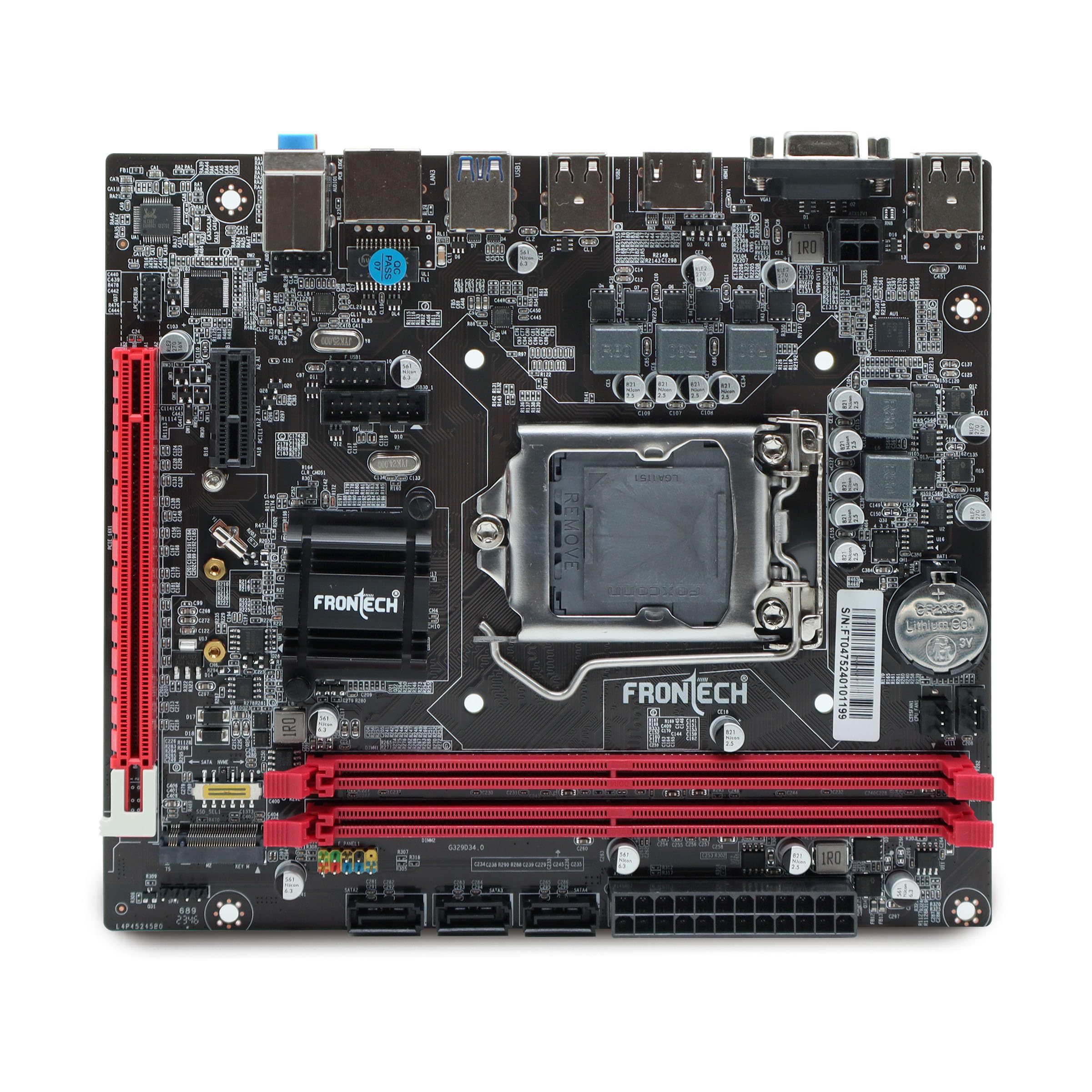
Image: FRONTECH H110 Motherboard with included accessories and packaging.
4. Product Overview
4.1 External Connectors (Rear I/O Panel)
The rear I/O panel provides various ports for connecting external devices:
- USB 2.0 Ports: For connecting peripherals like keyboards, mice, and printers.
- USB 3.0 Ports: For high-speed data transfer with compatible devices.
- LAN Port (RJ45): For network connectivity.
- Audio Ports: For connecting speakers, headphones, and microphones.
- HDMI Port: For digital video and audio output.
- VGA Port: For analog video output.

Image: Detailed view of the FRONTECH H110 Motherboard's rear I/O panel, highlighting USB 2.0, USB 3.0, LAN, and Audio ports.

Image: Close-up of the HDMI and VGA display output ports on the FRONTECH H110 Motherboard.
4.2 Internal Connectors and Slots
Key internal components and connectors include:
- LGA1151 CPU Socket: Supports 6th, 7th, and 8th generation Intel Core i3/i5/i7 processors.
- DDR4 RAM Slots (x2): Supports dual-channel DDR4 memory up to 32GB at speeds of 2400 MHz.
- NVMe/M.2 Slot: For high-speed solid-state drives.
- PCIe x16 Slot: For graphics cards and other expansion cards.
- SATA Slots (x4): For connecting SATA storage devices like HDDs and SSDs.
- ATX Power Connector: Main power input from the power supply.
- Fan Connectors: For connecting CPU and chassis fans.
- Front Panel Connectors: For power button, reset button, USB ports, and audio jacks on the computer case.

Image: The FRONTECH H110 Motherboard highlighting the two DDR4 RAM slots and the NVMe/M.2 slot.

Image: Internal view of the FRONTECH H110 Motherboard, indicating SATA ports, the main power socket, and the CPU socket area.
5. Setup and Installation
Follow these steps for proper installation of your FRONTECH H110 Motherboard:
- Prepare the Case: Install the I/O shield into the rear opening of your computer case.
- Install the Motherboard: Carefully place the motherboard into the case, aligning the screw holes. Secure it with screws.
- Install the CPU: Open the CPU socket lever, align the CPU with the socket (match the golden triangle/notch), gently place it in, and close the lever. Apply thermal paste and install the CPU cooler.
- Install RAM: Open the clips on the DDR4 slots, align the RAM modules with the notch, and press down firmly until the clips snap into place.
- Install Storage Devices: Connect SATA data cables from the motherboard to your SATA SSDs/HDDs. If using an NVMe SSD, install it into the M.2 slot and secure it with a screw.
- Connect Power Supply: Connect the 24-pin ATX power connector and the 4/8-pin CPU power connector from your power supply to the motherboard. Connect power to your storage devices and graphics card (if applicable).
- Connect Front Panel Cables: Connect the power switch, reset switch, HDD LED, power LED, front USB, and front audio cables from your case to the corresponding headers on the motherboard. Refer to the motherboard diagram for exact pin locations.
- Install Graphics Card (Optional): If using a dedicated graphics card, insert it into the PCIe x16 slot and secure it. Connect any required PCIe power cables from the power supply.
- Connect Peripherals: Connect your monitor, keyboard, mouse, and other peripherals to the rear I/O panel.
6. Operating Instructions
After successful installation, follow these steps to operate your system:
- Power On: Ensure all connections are secure, then plug in the power supply and press the power button on your computer case.
- BIOS/UEFI Access: During startup, repeatedly press the DEL or F2 key to enter the BIOS/UEFI setup utility. Here you can configure boot order, system time, and other advanced settings.
- Operating System Installation: Insert your operating system installation media (USB drive or DVD) and follow the on-screen prompts to install your preferred OS.
- Driver Installation: After OS installation, install the necessary drivers for the motherboard chipset, audio, LAN, and graphics. These are typically provided on a CD/DVD or can be downloaded from the manufacturer's website.
7. Maintenance
Regular maintenance helps ensure the longevity and optimal performance of your motherboard:
- Dust Cleaning: Periodically clean dust from the motherboard and components using compressed air. Ensure the system is powered off and unplugged before cleaning.
- BIOS Updates: Check the manufacturer's website for BIOS/UEFI updates. Update only if necessary and follow the instructions carefully to avoid system damage.
- Driver Updates: Keep your drivers updated for optimal performance and compatibility.
- Environmental Control: Operate the computer in a clean, dry, and well-ventilated environment.
8. Troubleshooting
If you encounter issues, refer to the following common troubleshooting steps:
- No Power: Check all power connections (24-pin ATX, CPU power, wall outlet). Ensure the power supply switch is on.
- No Display: Verify monitor connection and input source. Reseat the graphics card (if applicable) and RAM modules. Try booting with only one RAM stick.
- System Not Booting/Random Crashes: Check RAM installation. Ensure CPU cooler is properly seated. Verify all cables are securely connected. A faulty power supply can also cause instability.
- Peripheral Not Detected: Try connecting the peripheral to a different USB port. Ensure drivers are installed.
- Overheating: Ensure all fans are spinning correctly. Clean dust from heatsinks and fans. Verify proper thermal paste application on the CPU.
- BIOS/UEFI Issues: If you cannot enter BIOS or experience issues, try clearing the CMOS (refer to motherboard diagram for CMOS clear jumper/button).
9. Specifications
Below are the technical specifications for the FRONTECH H110 Motherboard:

Image: FRONTECH H110 Motherboard with a summary of its specifications.
| Feature | Specification |
|---|---|
| Brand | FRONTECH |
| Model Number | H110/1151 SOCKET DDR4 |
| Chipset | H110 Express Chipset |
| CPU Socket | LGA 1151 |
| Compatible Processors | Intel Core i3/i5/i7 (6th, 7th, 8th Gen) |
| Memory Technology | DDR4 |
| Memory Slots | 2 x DDR4 DIMM |
| Maximum Memory Supported | 32 GB |
| Memory Clock Speed | 2400 MHz |
| Graphics Card Interface | PCIe x16 |
| Storage Interfaces | 4 x SATA 3.0, 1 x NVMe/M.2 Slot |
| USB Ports | 2 x USB 3.0, 4 x USB 2.0 (Rear I/O) |
| Display Outputs | 1 x HDMI, 1 x VGA |
| LAN | 1 x Ethernet Port (Realtek 10/100/1000 Mbps) |
| Audio | 3-in-1 Audio Ports (F-speaker, F-audio) |
| Form Factor | ATX |
| Product Dimensions | 17 x 19 x 2.1 cm |
| Item Weight | 490 g |
10. Warranty and Support
The FRONTECH H110 Motherboard comes with a 1-year warranty from the date of purchase. For warranty claims or technical support, please contact FRONTECH customer service. Keep your proof of purchase for warranty validation.
For further assistance, please visit the official FRONTECH website or contact their support channels.


