
1. Product Overview
The BALILA CM300 Conference Speaker and Microphone system is designed to provide clear and effective audio communication for various meeting environments, from large conference calls to online education and home office use. It features 6 wireless microphones with 360° voice pickup and AI noise reduction for superior sound quality.
Key features include:
- Omnidirectional USB Conference Microphone with 6 wireless microphones for wide coverage.
- Enhanced voice pickup with real-time echo cancellation, de-reverberation, and ambient noise suppression.
- Excellent sound quality with real-time voice optimization and background noise reduction.
- Instant setup and strong compatibility with leading platforms like Skype for Business, Zoom, WebEx, GoToMeeting, Google Hangout, Facetime, and Chromebox.
- Portable and lightweight design for easy transport.

Figure 1: BALILA CM300 Conference Speaker and its five wireless microphones.

Figure 2: Illustration of superior sound quality with noise reduction, ensuring clear audio for remote participants.

Figure 3: Various applications of the CM300, including Zoom/Skype for Business, Online Education, Home Office, and Video Conference settings.
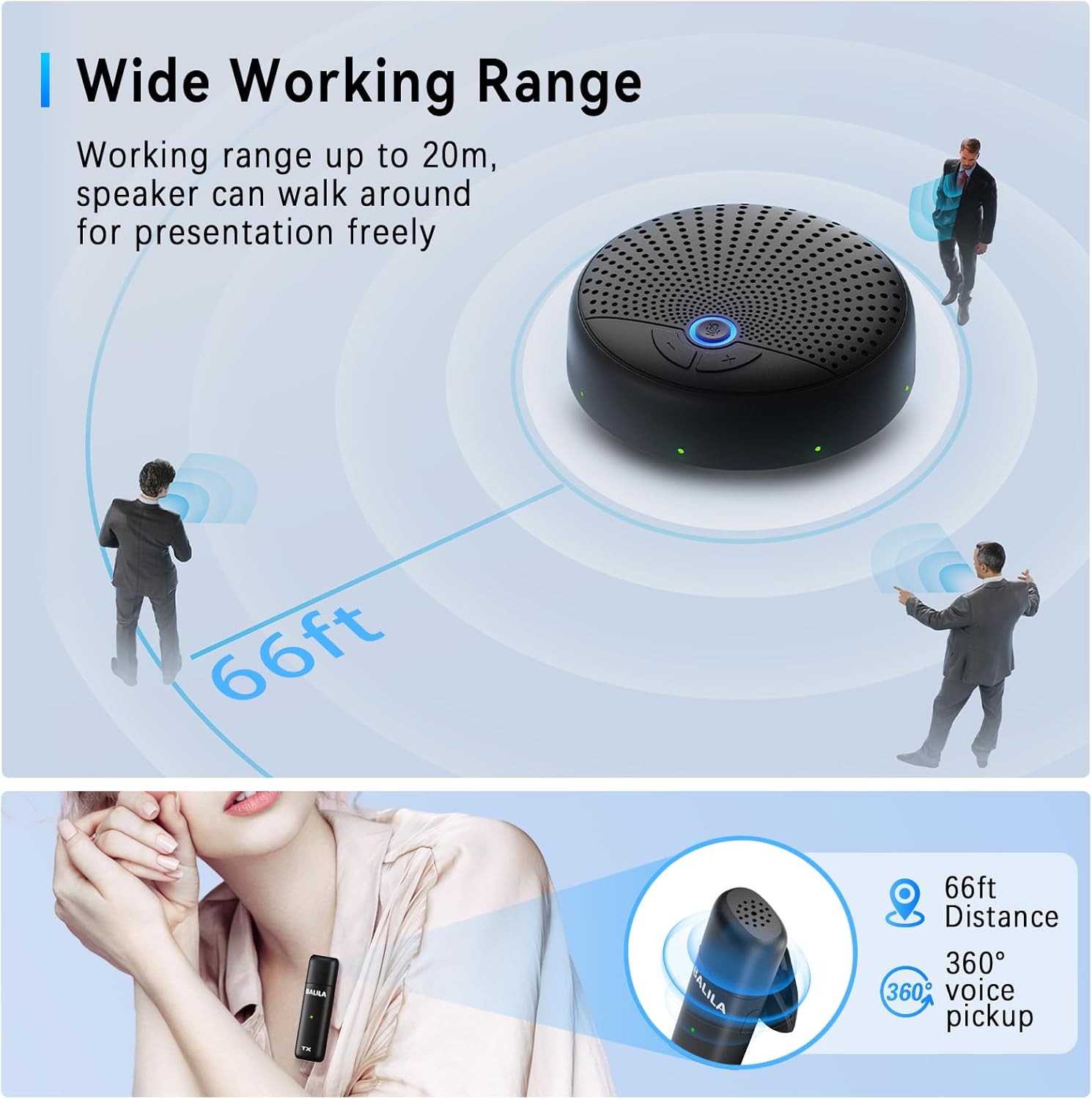
Figure 4: The speaker and microphones offer a wide working range of up to 20 meters (66 feet) with 360° voice pickup.
2. What's in the Box
Upon opening the package, please verify that all components are present:
- 1 x Conference Speaker (Main Unit)
- 5 x Wireless Microphones (Transmitters)
- 1 x USB Cable (USB-C to USB-A)
- 1 x USB-A to USB-C Adapter
- 1 x User Manual

Figure 5: Contents of the BALILA CM300 package, including the speaker, wireless microphones, USB cable, and user manual.
3. Setup Guide
3.1 Connecting to Your Computer
- Connect the provided USB-C cable to the USB-C port on the BALILA conference speaker.
- Connect the other end of the USB-C cable to your computer's USB-C port. If your computer only has USB-A ports, use the included USB-A to USB-C adapter.
- Ensure the speaker is powered on. The power button will illuminate.

Figure 6: The CM300 speaker can be connected to a smartphone via USB-C or a laptop using the USB-C to USB-A cable and adapter for plug-and-play functionality.
3.2 Pairing Wireless Microphones
The wireless microphones are pre-paired with the main speaker unit. To activate them:
- For each transmitter (wireless microphone), press and hold the power button for 3 seconds until the indicator light turns green.
- The microphones are now ready for use.

Figure 7: A single wireless microphone transmitter, ready for use after powering on.
3.3 Sound Settings Configuration (Windows Example)
To ensure optimal performance, configure your computer's sound settings:
- Go to your computer's Sound Settings (e.g., right-click the speaker icon in the taskbar and select "Sound settings").
- Under "Output," select "USB PHONE" as your output device.
- Under "Input," select "USB PHONE" as your input device.
- Adjust the master volume as needed.
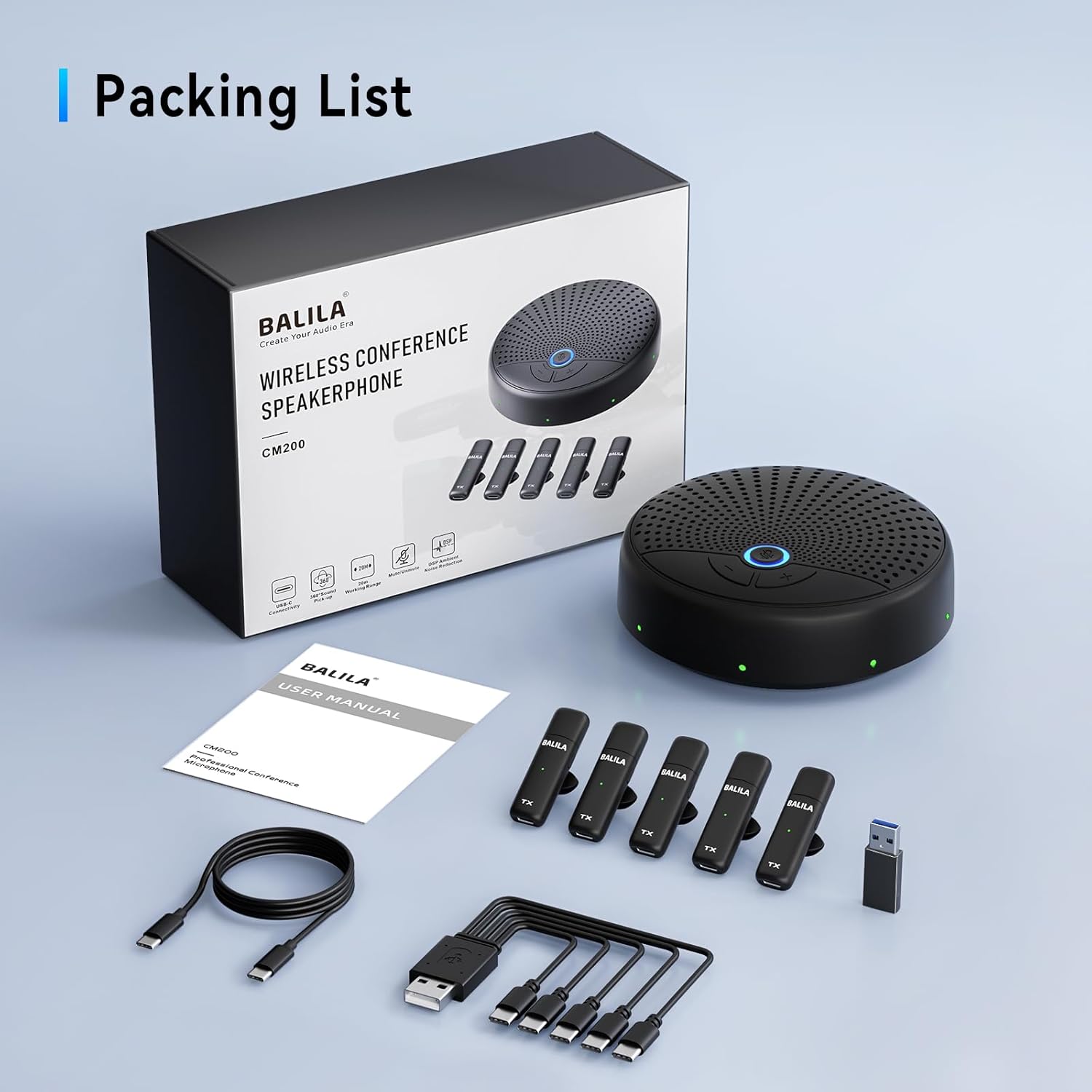
Figure 8: The CM300 is universally compatible with various conferencing platforms and operating systems, requiring selection of "USB PHONE" in sound settings.
For a visual guide on setup, please refer to the official product video:
Video 1: "How to Use CM200 Conference Microphone with Your Computer" - This video demonstrates the connection process and sound settings configuration for the conference speaker and microphones.
4. Operating Instructions
4.1 Volume Control
The main speaker unit features dedicated buttons for volume adjustment:
- Press the '+' button to increase the speaker volume.
- Press the '-' button to decrease the speaker volume.
4.2 Mute Function
To mute or unmute the microphones:
- Press the central Mute button on the main speaker unit to mute all connected microphones. The indicator light will change to red. Your calling partners will not hear your voice.
- Press the Mute button again to unmute the microphones. The indicator light will return to blue/green, indicating the microphones are working.
Figure 9: The main speaker unit features a convenient mute button for quick control over microphone input.
4.3 Power Management
The main speaker unit has an 8-hour battery life. For extended use, keep it connected to a power source via the USB cable.

Figure 10: The CM300 speaker provides extended playtime, suitable for long meetings or presentations.
5. Maintenance
To ensure the longevity and optimal performance of your BALILA CM300 system, follow these maintenance guidelines:
- Cleaning: Use a soft, dry cloth to clean the speaker and microphones. Do not use liquid cleaners or aerosols, as they may damage the components.
- Storage: Store the device in a cool, dry place away from direct sunlight and extreme temperatures.
- Battery Care: For optimal battery life, avoid fully discharging the unit frequently. Charge the device regularly, even if not in use for extended periods.
- Handling: Handle the speaker and microphones with care to prevent drops or impacts that could damage internal components.
6. Troubleshooting
If you encounter issues with your BALILA CM300, please refer to the following common troubleshooting steps:
| Problem | Possible Cause | Solution |
|---|---|---|
| No sound from speaker / Microphones not picking up audio | Incorrect sound settings; Loose connection; Muted microphones. |
|
| Echo or feedback during calls | Speaker too close to computer/other microphones; High volume settings; Room acoustics. |
|
| Wireless microphones not connecting | Microphone not powered on; Out of range; Battery low. |
|
If the problem persists after trying these steps, please contact customer support.
7. Specifications
| Feature | Detail |
|---|---|
| Model Name | Conference Speaker and Microphone |
| Speaker Type | Multimedia / Conference |
| Special Features | Clip, Echo Control, Mute Function, Noise Reduction, Volume Control |
| Recommended Uses | Gaming, Streaming, Video Conference |
| Compatible Devices | Laptop, Smartphone |
| Controller Type | Button |
| Battery Life | 8 Hours (Speaker) |
| Included Components | Microphones, Speaker, USB Cable |
| Maximum Range | 20 Meters (Wireless Microphones) |
| Number of Items | 6 (1 Speaker, 5 Mics) |
| Wireless Communication Technology | Wi-Fi (for internal communication, not external Wi-Fi network) |
| Speaker Size | 4.33 Inches (Diameter) |
| Power Source | Battery Powered |
| Signal-to-Noise Ratio | 78 dB |
| Number of Batteries | 1 Lithium Polymer (included) |
| Bluetooth Range | 10 Meters |
| Number of Microphones | 5 |
| Style | 5 Wireless Mics |
| Indoor/Outdoor Usage | Indoor |
| Product Dimensions | 4.33 x 4.33 x 1.57 inches |
| Item Weight | 13.1 ounces |
| Speaker Maximum Output Power | 5 Watts |
| Connectivity Technology | USB, Wireless |
| Audio Output Mode | Stereo |
| Mounting Type | Tabletop Mount |
8. Warranty and Support
BALILA products are manufactured with high-quality standards. For information regarding warranty coverage, technical support, or service inquiries, please refer to the warranty card included in your product packaging or visit the official BALILA website. Please retain your proof of purchase for warranty claims.
For further assistance, you may also contact BALILA customer support through the platform where you purchased the product.
