

1. Introduction
The Thinlerain 15.6 inch FHD 1080p portable monitor is designed to provide a high-quality visual experience on the go. It features a vibrant IPS touchscreen, delivering crisp and clear visuals with a 1080p resolution. This monitor incorporates Eye Care technology to ensure comfortable viewing during extended use by reducing blue light and flicker. With versatile connectivity options including two USB-C ports and an HDMI port, it seamlessly connects to various devices such as PCs, mobile phones, and gaming consoles. The monitor is housed in a durable plastic casing and includes an integrated stand for stable positioning and optimal viewing angles.

2. Product Features
- High-Definition Portable Display: Enjoy crisp and clear visuals with the 15.6-inch Full HD (1920x1080p) IPS touchscreen.
- Eye Care Technology: Equipped with features to reduce blue light and flicker, ensuring a comfortable viewing experience even during prolonged use.
- Versatile Connectivity: Features two USB-C ports and one HDMI port for seamless connection to a wide range of devices, including PCs, smartphones, and gaming consoles.
- Durable and Portable Design: Encased in a lightweight plastic housing with an integrated stand, offering both durability and ease of transport.
- Advanced 10-Point Touch: Provides a highly sensitive and intuitive multi-touch experience for precise and smooth interactions.


3. Package Contents
Please verify that all items are present in the package:
- Thinlerain 15.6 inch Portable Touchscreen Monitor
- User Manual
- Power Cord
- USB to Type-C Cable
- HDMI Cable

4. Setup and Connections
This section details how to connect your Thinlerain portable monitor to various devices.
4.1 Port Overview

4.2 Connection Methods
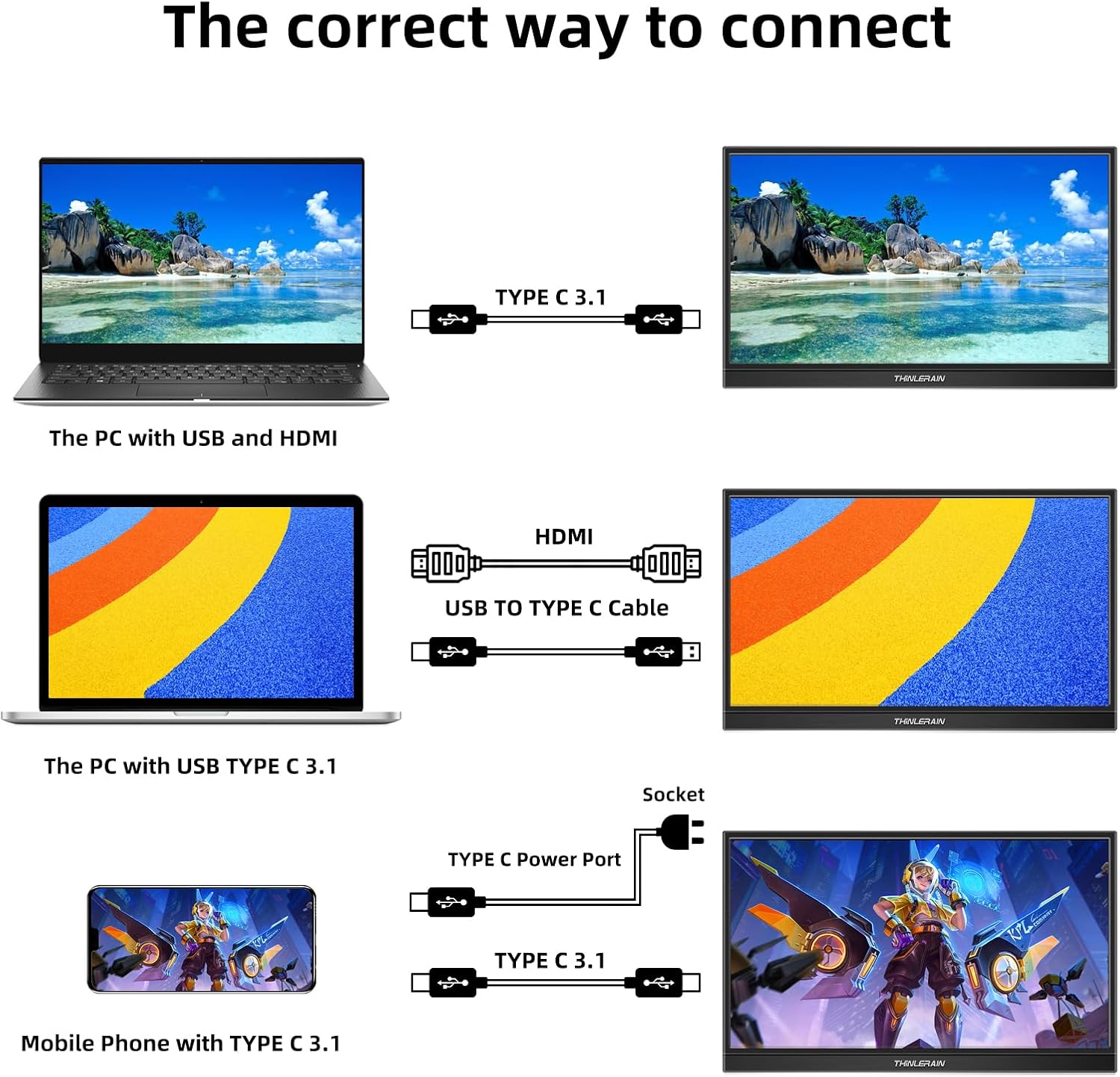
The monitor supports multiple connection types:
- PC with USB and HDMI: Connect the HDMI cable for video and a USB cable for power and touch functionality.
- PC with USB Type-C 3.1: Use a single USB Type-C 3.1 cable for both video, power, and touch.
- Mobile Phone with USB Type-C 3.1: Connect your compatible smartphone using a USB Type-C 3.1 cable for display and touch.
- Power Connection: Ensure the monitor receives adequate power via the Type-C Power Port, especially when connecting to devices that do not supply sufficient power through a single cable.
5. Operating Instructions
Familiarize yourself with the monitor's controls and touchscreen functions.
5.1 Basic Controls
- Power On/Off: Long press the dedicated power button (often combined with the menu button) to turn the monitor on or off.
- Volume Control: Use the designated volume buttons to adjust audio output.
- Brightness Adjustment: Use the brightness buttons to increase or decrease screen brightness.
- Menu Navigation: Press the menu button to access the On-Screen Display (OSD) menu. Use the volume/brightness buttons to navigate and select options.
5.2 Touchscreen Functionality
The 10-point touchscreen allows for intuitive interaction:
- Touch: Single tap to select items or activate functions.
- Enlarge/Zoom Out: Use two fingers to pinch in or out to zoom.
- Drag: Press and hold an item, then move your finger to drag it across the screen.
- Two-finger Touch: Utilize for specific application functions or right-click actions.

6. Specifications
| Feature | Specification |
|---|---|
| Brand | Thinlerain |
| Model Number | HD-156 |
| Screen Size | 15.6 Inches |
| Display Resolution | 1920 x 1080 (FHD) |
| Aspect Ratio | 16:9 |
| Response Time | 5 milliseconds |
| Display Type | LED, IPS |
| Voltage | 5 Volts |
| Total USB Ports | 2 (Type-C) |
| Hardware Interface | USB Type C, HDMI |
| Specific Uses | Business |
| Manufacturer | Thinlerain |
| EPREL Registration Number | 1897080 |
7. Troubleshooting
If you encounter issues with your monitor, please refer to the following common troubleshooting steps:
- No Display: Ensure all cables (power, video) are securely connected. Try a different video cable or port. Verify the power adapter is functioning.
- No Touch Functionality: Confirm that the USB-C cable supports data transfer for touch, or that a separate USB cable is connected for touch input if using HDMI. Ensure your device's drivers are up to date.
- Flickering Screen: Check cable connections. Adjust refresh rate settings on your connected device. Ensure the monitor is receiving stable power.
- No Sound: Verify that the audio output is set to the monitor on your connected device. Check the monitor's volume settings.
- Image Quality Issues: Adjust brightness, contrast, and color settings via the OSD menu. Ensure the display resolution on your connected device matches the monitor's native resolution (1920x1080).
For further assistance, please contact Thinlerain customer support.
8. Maintenance
To ensure the longevity and optimal performance of your Thinlerain portable monitor, follow these maintenance guidelines:
- Cleaning the Screen: Use a soft, lint-free cloth lightly dampened with water or a non-abrasive screen cleaner. Avoid harsh chemicals, alcohol, or ammonia-based cleaners.
- Cleaning the Casing: Wipe the monitor's casing with a soft, dry cloth.
- Storage: When not in use, store the monitor in a cool, dry place, away from direct sunlight and extreme temperatures. It is recommended to use a protective sleeve or case to prevent scratches.
- Handling: Handle the monitor with care to avoid dropping or impacting the screen.
- Ventilation: Ensure proper ventilation around the monitor to prevent overheating.
9. Warranty and Support
Thinlerain products are designed for reliability and performance. For information regarding warranty coverage, terms, and conditions, please refer to the warranty card included with your product or visit the official Thinlerain website.
If you require technical support, have questions about product operation, or need assistance with troubleshooting, please contact Thinlerain customer service through the contact information provided on the official website or in your product documentation.