
1. Introduction and Overview
The DOCKCASE Explorer Edition Visual Smart USB C Hub (6-in-1) is a versatile and stylish solution designed to expand the connectivity of your USB-C enabled devices. It integrates essential ports to meet daily needs, featuring a unique visual display that provides real-time information and allows for customized usage. This hub is engineered for enhanced performance and convenience, making it an ideal addition to your setup for both work and leisure.

Figure 1: DOCKCASE Explorer Edition Visual Smart USB C Hub.
2. Product Features
- 6-in-1 Functionality: Combines multiple essential ports into a single compact device, including HDMI, Gigabit Ethernet, USB-C data, and USB-A data ports.
- Visual Smart Display: Features a 1.44-inch, 128x128 16-bit high-color LCD that intelligently identifies peripherals and displays real-time data information such as power delivery, data transfer rates, and display resolution.
- High-Speed Data Transfer: Equipped with 2 USB-A 3.0 and 1 USB-C data ports supporting up to 5Gbps high-speed transmission.
- 4K@60Hz HDMI Output: Supports media display at resolutions up to 4K@60Hz for crisp, clear visuals.
- Gigabit Ethernet: Provides a stable and fast wired network connection up to 1Gbps.
- 100W Power Delivery (PD): Supports high-velocity pass-through charging up to 100W, allowing you to power your laptop while using the hub.
- Smart Heat Dissipation: Built-in CH579M chip and uni-body aluminum alloy shell with fin pattern cover ensure efficient heat dissipation, maintaining stable operation and lower temperatures.
- D-Key Button Control: A dedicated button for operating the control panel, allowing users to rotate the display direction or access various functions and operation modes.
- Detachable Cable Design: Allows for easy replacement of the cable to suit different needs or extend the hub's lifespan.

Figure 2: Real-time data display on the DOCKCASE Hub.
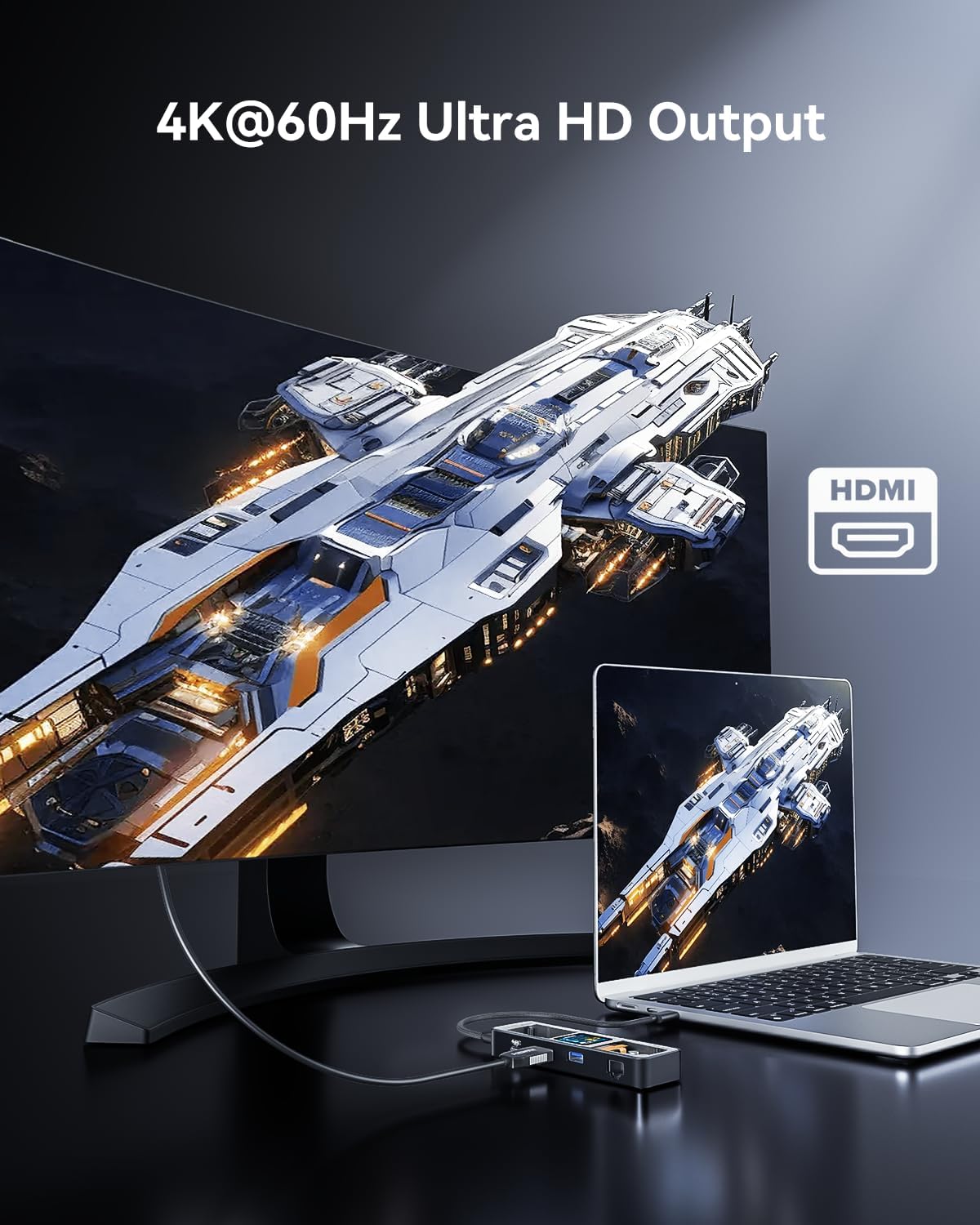
Figure 3: 4K@60Hz Ultra HD Output capability.

Figure 4: Fast and Stable Gigabit Ethernet connection.

Figure 5: 100W Power Delivery 3.0 Charging.

Figure 6: High-speed file transfer via USB 3.0 ports.

Figure 7: Overview of the 6-in-1 ports for massive expansion.
3. Package Contents
Upon opening the package, please verify that all items listed below are present and in good condition:
- 1 x DockCase USB C Smart Visual Hub
- 1 x USB-C to C Full-Featured Data Cable (0.98ft)
- 1 x User Manual (this document)
4. Setup Guide
Setting up your DOCKCASE Explorer Edition Hub is straightforward. Follow these steps to begin using your device:
- Connect to Host Device: Plug the included USB-C to C full-featured data cable into the "HOST" USB-C port on the DOCKCASE Hub and the other end into a compatible USB-C port on your laptop, tablet, or smartphone.
- Connect Power (Optional but Recommended): For optimal performance, especially when connecting multiple peripherals or charging your host device, connect a USB-C Power Delivery (PD) charger (up to 100W, not included) to the "PD" USB-C port on the DOCKCASE Hub. This enables pass-through charging for your host device.
- Connect Peripherals: Connect your desired peripherals (e.g., HDMI monitor, Ethernet cable, USB-A devices, USB-C data devices) to the corresponding ports on the DOCKCASE Hub.
- Observe Display: The smart visual display will automatically power on and show real-time information about connected devices and power status.

Figure 8: Device compatibility information.

Figure 9: USB-C port type compatibility guide.
5. Operating Instructions
The DOCKCASE Hub's smart display and D-Key button provide intuitive control and real-time feedback:
- Real-time Monitoring: The LCD screen continuously displays critical information such as input/output power, connected display resolution (e.g., 1920x1080 60Hz), data transfer speeds for USB ports (e.g., 5Gbps), and Ethernet connection status. It also shows the internal chip temperature for smart heat management.
- D-Key Button Functionality:
- Short Press: Quickly rotate the display direction on the hub's screen. This is useful if the hub is oriented differently.
- Long Press (6 seconds): Enter the hub's control panel. From here, you can navigate through various settings and functions to customize the hub's operation. Double-click to switch control options, and long-press for 3 seconds to confirm a selection.
- Port Usage:
- HDMI Port: Connect to an external monitor or TV for video output. Supports up to 4K@60Hz.
- Gigabit Ethernet Port: Connect an RJ45 Ethernet cable for a stable wired internet connection.
- USB-A 3.0 Ports (x2): Connect USB-A peripherals such as keyboards, mice, flash drives, or external hard drives for data transfer up to 5Gbps.
- USB-C Data Port (x1): Connect USB-C peripherals for data transfer up to 5Gbps. Note: This port does not support video output.
- 100W PD Input Port: Connect a USB-C PD charger to power the hub and provide pass-through charging to your host device. Note: This port is for power input only and does not support data transfer.

Figure 10: Real-time monitoring and D-Key button interaction.
6. Maintenance
To ensure the longevity and optimal performance of your DOCKCASE Explorer Edition Hub, please follow these maintenance guidelines:
- Cleaning: Use a soft, dry, lint-free cloth to clean the exterior of the hub. Avoid using liquid cleaners, aerosols, or abrasive materials, as they may damage the device.
- Heat Management: The hub is designed with smart heat dissipation. Ensure proper airflow around the device and avoid covering its surfaces during operation to prevent overheating. The display can show the internal temperature if it exceeds 39 degrees Celsius.
- Storage: When not in use, store the hub in a cool, dry place away from direct sunlight and extreme temperatures.
- Cable Care: Handle the detachable USB-C cable with care. Avoid sharp bends or excessive pulling, which can damage the cable or the hub's port.
7. Troubleshooting
If you encounter issues with your DOCKCASE Explorer Edition Hub, refer to the following common troubleshooting tips:
- No Display or Incorrect Information:
- Ensure the hub is properly connected to your host device.
- If the display orientation is incorrect, short press the D-Key button to rotate it.
- Try disconnecting and reconnecting the USB-C cable from both the hub and your host device.
- Ethernet Connection Issues:
- If the network port does not come up initially, try replugging the USB-C lead to your device and/or the RJ45 Ethernet cable.
- Ensure your network cable is securely connected and functional.
- Power Delivery (PD) Not Working or Low Wattage:
- Verify that your USB-C PD charger is connected to the correct "PD" port on the hub.
- Ensure the USB-C cable you are using supports the required Power Delivery wattage (e.g., 100W). Not all USB-C cables are rated for high wattage. Using a full-featured data cable is recommended.
- Check if your host device supports USB-C Power Delivery through its connected port.
- Peripherals Not Recognized or Slow Data Transfer:
- Ensure the peripherals are securely plugged into the correct ports on the hub.
- Verify that your host device's USB-C port supports data transfer. Some USB-C ports may only support charging.
- If using an external hard drive or other high-power device, ensure the hub is connected to an external power source via the PD port.
8. Specifications
| Feature | Detail |
|---|---|
| Product Dimensions | 0.63 x 4.96 x 1.5 inches |
| Item Weight | 5.6 ounces |
| ASIN | B0C61JLDQZ |
| Brand | DockCase |
| Color | Black |
| Hardware Interface | Ethernet, HDMI, USB-A, USB-C |
| Special Features | Fast Charging, Fast Data Transfer, Pass Through Charge, Plug and Play, Visual Smart Display, D-Key Control |
| Compatible Devices | Laptops (MacBook Air/Pro, XPS, etc.), Tablets (iPad Pro/Air/Mini), Gaming Consoles (Nintendo Switch, Steam Deck, ASUS ROG Ally) |
| Power Delivery | Up to 100W |
| HDMI Resolution | Up to 4K@60Hz |
| Ethernet Speed | Up to 1Gbps |
| USB Data Speed | Up to 5Gbps (USB 3.0) |
9. Warranty and Support
The DOCKCASE Explorer Edition Visual Smart USB C Hub comes with a 12-month warranty from the date of purchase. This warranty covers manufacturing defects and issues arising from normal use.
For technical support, warranty claims, or any inquiries, please contact DockCase customer service. You can find more information and contact details on the official DockCase website: www.dockcase.com.
DockCase is committed to providing friendly and responsive customer service to ensure your satisfaction.


