
Hexgears I4-L-CrimsonQuick
Hexgears I4 USB-C Aluminum Gaming Keyboard User Manual
Model: I4-L-CrimsonQuick
Introduction
Thank you for choosing the Hexgears I4 USB-C Aluminum Gaming Keyboard. This mechanical keyboard is designed for performance and customization, featuring Kailh Red Switches, vibrant RGB backlighting, durable PBT keycaps, and a hot-swappable PCB. This manual provides detailed instructions for setup, operation, maintenance, and troubleshooting to ensure optimal use of your new keyboard.

Image: Hexgears I4 Gaming Keyboard with RGB Backlight. This image displays the full layout of the Hexgears I4 keyboard, showcasing its RGB lighting across all keys.
Package Contents
Please verify that all items are present in the package:
- 1 x Hexgears I4 Mechanical Keyboard
- 1 x USB-C Cable
- 1 x Keycap Puller
- 1 x Switch Puller
- 1 x User Manual
Setup Guide
Connecting the Keyboard
- Locate the USB-C port on the Hexgears I4 keyboard, typically on the top edge.
- Connect one end of the provided USB-C cable to the keyboard's USB-C port.
- Connect the other end of the USB-C cable to an available USB-A port on your computer (Windows or Mac OS).
- The keyboard will be automatically recognized by your operating system. No additional drivers are typically required for basic functionality.
Driver Installation (Optional)
For advanced customization, including macro programming and detailed RGB lighting control, download the Hexgears Driver software from the official Hexgears website. Follow the on-screen instructions for installation.
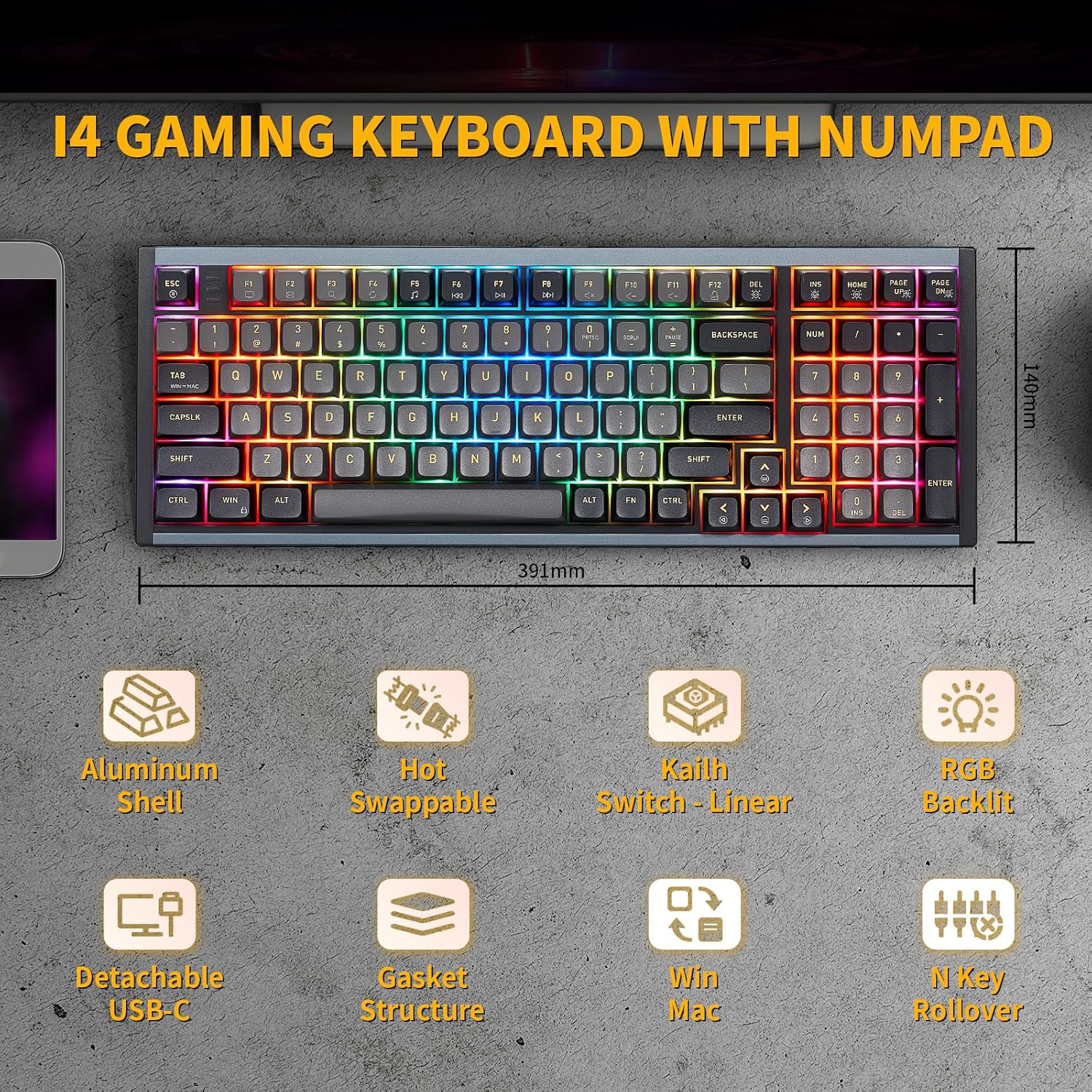
Image: Hexgears I4 Keyboard Dimensions. This image illustrates the physical dimensions of the Hexgears I4 keyboard, including length and width measurements.
Operating Instructions
Basic Keyboard Functions
The Hexgears I4 functions as a standard full-size keyboard. All keys are pre-programmed for their standard functions. The keyboard features N-key rollover (NKRO) for accurate registration of multiple simultaneous keystrokes.
RGB Backlight Control
The Hexgears I4 features 16.8 million dynamic RGB backlight options. Use the following key combinations to control the lighting effects:
- Fn + Home: Toggle Backlight constant brightness mode.
- Fn + Page Up: Toggle Backlight breathing mode.
- Fn + Del: Cycle through Backlight effect modes.
- Fn + Page Down: Adjust Backlight brightness.
- Fn + Ins: Cycle through Backlight colors.
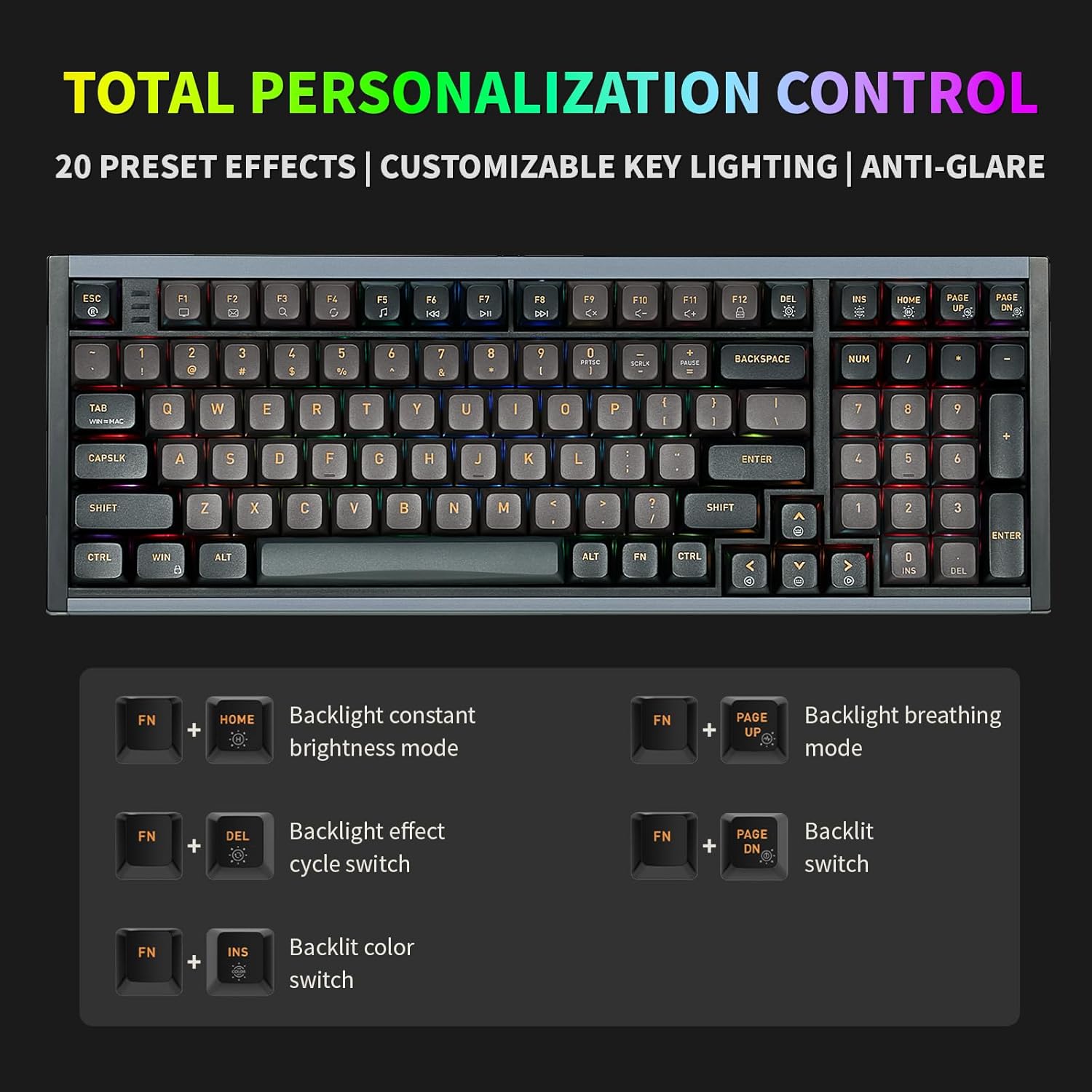
Image: Hexgears I4 RGB Control Key Combinations. This image displays the keyboard with highlighted keys and their corresponding Fn key combinations for controlling RGB lighting effects.
Hot-Swappable Switches
The Hexgears I4 is equipped with a hot-swappable PCB, allowing you to change mechanical switches without soldering. It is compatible with most 3-pin and 5-pin mechanical switches.
- Power off the keyboard and disconnect it from your computer.
- Use the provided keycap puller to gently remove the desired keycap.
- Use the provided switch puller to carefully grip the switch from its top and bottom clips, then pull it straight up to remove it.
- Align the pins of the new switch with the holes on the PCB. Ensure the pins are straight to avoid bending.
- Gently press the new switch into place until it clicks securely.
- Replace the keycap.

Image: Hexgears I4 Hot-Swappable PCB Diagram. This image illustrates the hot-swappable PCB feature, showing how switches can be easily removed and replaced.
Programmable Keys and Macros
Utilize the Hexgears Driver software to remap keys, create custom macros, and personalize RGB lighting effects. This allows for advanced customization tailored to your specific needs for gaming or productivity.

Image: Hexgears Driver Software Interface. This image shows the user interface of the Hexgears Driver software, demonstrating options for lighting effects, color selection, and brightness control.
Maintenance
Cleaning the Keyboard
To maintain the keyboard's appearance and functionality:
- Disconnect the keyboard from your computer before cleaning.
- Use a soft, lint-free cloth slightly dampened with water or a mild cleaning solution to wipe down the keycaps and aluminum case.
- For dust and debris between keycaps, use compressed air or a small brush.
- Avoid spraying liquids directly onto the keyboard.
Keycap and Switch Care
The PBT keycaps are durable, but avoid harsh chemicals. When removing keycaps or switches, use the provided tools to prevent damage to the components or the PCB.
Troubleshooting
| Issue | Possible Cause | Solution |
|---|---|---|
| Keyboard not responding | Loose cable connection, incorrect USB port, driver issue. | Ensure USB-C cable is securely connected. Try a different USB port on your computer. Restart your computer. Reinstall Hexgears Driver if applicable. |
| RGB backlight not working or inconsistent | Lighting mode off, software conflict, power issue. | Check RGB control key combinations (Fn + keys). Ensure Hexgears Driver is updated. Try connecting to a different USB port. |
| Specific keys not registering | Loose switch, faulty switch, debris under keycap. | Remove keycap and switch. Check for debris. Reinsert switch firmly. If issue persists, replace the switch. |
| Macros not working | Incorrect macro programming, driver not running. | Verify macro settings in Hexgears Driver. Ensure the driver software is running in the background. |
Specifications
| Feature | Detail |
|---|---|
| Model Number | I4-L-CrimsonQuick |
| Dimensions (L x W x H) | 15.39 x 5.51 x 1.89 inches (39.09 x 14.00 x 4.80 cm) |
| Item Weight | 2.66 pounds (1.21 kg) |
| Connectivity | USB-C Wired |
| Switch Type | Kailh Red Switch (Linear Feel) |
| Keycap Material | PBT (Double-shot) |
| Backlight | RGB (16.8 Million Colors) |
| Hot-Swappable | Yes (Compatible with 3/5 pin mechanical switches) |
| Anti-Ghosting | N-key Rollover (NKRO) |
| Compatible OS | Windows, Mac OS |
| Case Material | Aluminum |
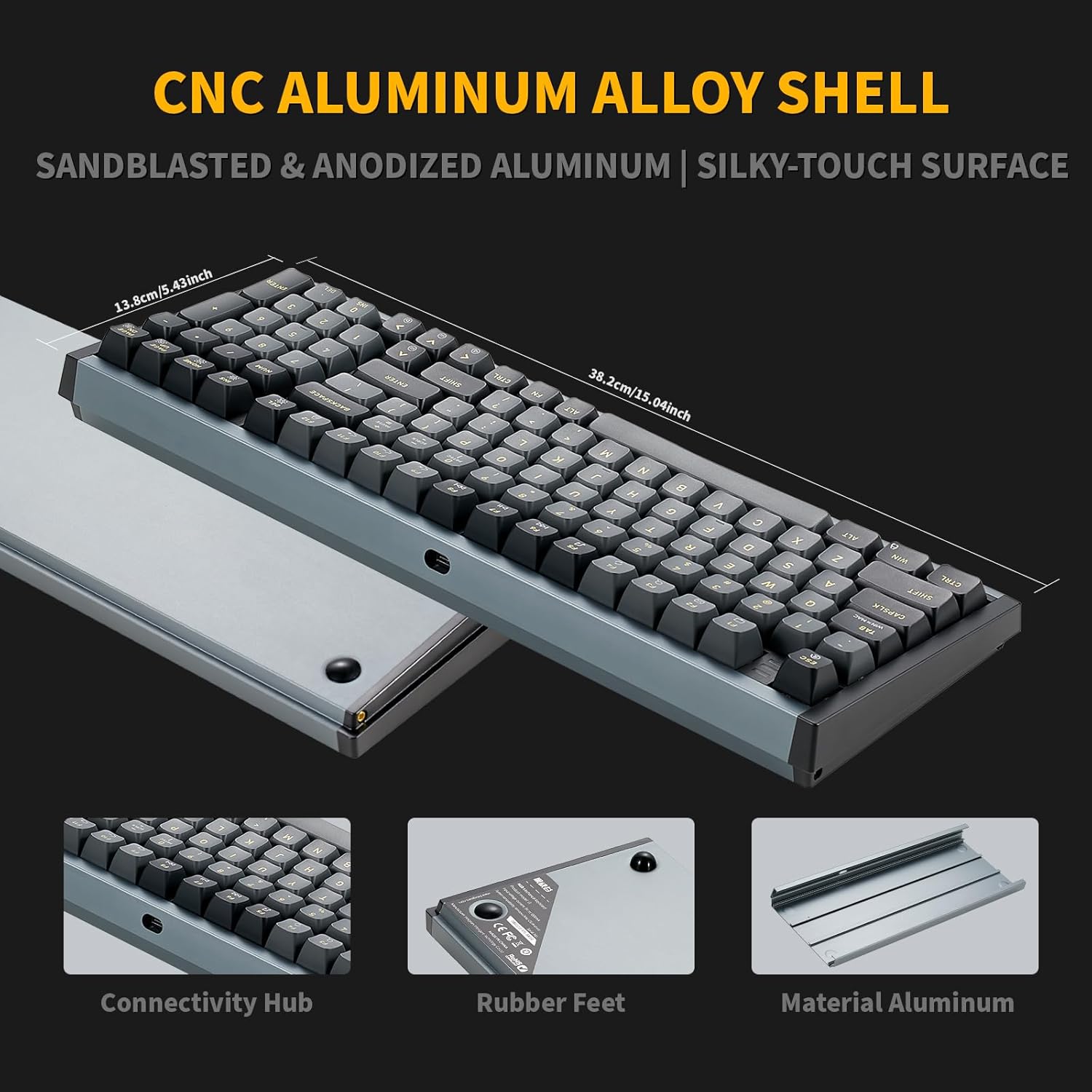
Image: Hexgears I4 Aluminum Shell Detail. This image highlights the sandblasted and anodized aluminum shell of the keyboard, emphasizing its premium finish and durability.

Image: Kailh Crimson Quick Switch Specifications. This image provides details on the Kailh Crimson Quick Switches, including operating force, conduction stroke, and sound level, along with a force-travel diagram.

Image: Hexgears I4 Custom-Built Gasket Structure. This diagram illustrates the internal layers of the keyboard, including PBT keycaps, mechanical switches, locating plate, EVA filling cotton, PCB, axle seat, silicone gasket, and aluminum alloy lower cover, showcasing the custom-built gasket design.
Warranty and Support
Warranty Information
Hexgears products are manufactured to high-quality standards. For specific warranty terms and conditions, please refer to the warranty card included with your product or visit the official Hexgears website. Keep your proof of purchase for warranty claims.
Customer Support
If you encounter any issues or have questions regarding your Hexgears I4 keyboard, please contact Hexgears customer support through their official website or the contact information provided in your product documentation. You may also visit the Hexgears Store on Amazon for additional resources.
Ask a question about this manual
Ask about setup, troubleshooting, compatibility, parts, safety, or missing instructions. Manuals+ will review the question and use this page’s manual context to help answer it.