
Dangbei DBOX01
Contents
Dangbei DBOX01 1080p Full HD Projector User Manual
Model: DBOX01
Introduction
The Dangbei DBOX01 is a high-performance 1080p Full HD projector designed for an immersive home theater experience. Featuring 2100 ISO lumens brightness, native licensed Netflix, dual 10W Dolby Audio speakers, and smart adjustment capabilities like auto focus and auto keystone correction, this projector delivers exceptional visual and audio quality with ease of use.
This manual provides detailed instructions for setting up, operating, maintaining, and troubleshooting your DBOX01 projector to ensure optimal performance and longevity.

Image: Front view of the Dangbei DBOX01 projector, showcasing its sleek design and lens.
Setup
1. Unboxing and Components
Carefully remove all components from the packaging. The box should contain:
- Dangbei DBOX01 1080P Projector x 1
- Power Adapter 180W (18V/10A) x 1
- AC Cord x 1
- Remote Control x 1
- Instruction Manual x 1
2. Placement
Place the projector on a stable, flat surface. Ensure there is adequate ventilation around the unit. For optimal viewing, position the projector directly in front of your projection surface (wall or screen). The projector supports a projection size of up to 180 inches, with a best recommended size of 80-120 inches.

Image: Illustration showing various projection sizes (60", 100", 180") and their corresponding distances, demonstrating the projector's massive projection capability.
3. Power Connection
Connect the AC cord to the power adapter, then plug the adapter into the DC input port on the projector. Finally, plug the AC cord into a power outlet.
4. Initial Setup and Smart Screen Adaption
Upon first power-on, the DBOX01 will automatically perform smart adjustments. Equipped with ToF and CMOS sensors, it offers 4-in-1 smart adjustments:
- Auto Focus: Automatically adjusts the image clarity.
- 6-way Auto Keystone Correction: Corrects distorted images to a perfect rectangular shape from various angles.
- Intelligent Screen Fit: Automatically scales the image to fit your projection screen.
- Obstacle Avoidance: Detects and adjusts the projection area to avoid obstacles on the wall.

Image: Diagram illustrating the projector's smart screen adaptation features including auto focus, keystone correction, intelligent screen fit, and intelligent obstacle avoidance.
5. Connectivity
The DBOX01 offers various connectivity options:
- HDMI: Connect external devices like gaming consoles, Blu-ray players, or laptops.
- USB: Play media directly from USB drives.
- Bluetooth: Connect external audio devices such as soundbars or headphones.
- Wi-Fi: Connect to your home network for streaming services.
- LAN: Wired network connection for stable internet access.
- S/PDIF: Digital audio output.
- 3.5mm Jack: Analog audio output.

Image: Close-up view of the projector's rear panel, showing various input/output ports including USB, HDMI, S/PDIF, LAN, and DC power input.
Operating
1. Powering On/Off
Press the power button on the projector or the remote control to turn the unit on or off. The projector features a fast boot function for quick startup.
2. Navigation and User Interface
Use the provided remote control to navigate the projector's Linux-based operating system. The interface is designed for intuitive access to applications and settings.
3. Accessing Streaming Services
The DBOX01 comes with officially licensed and pre-installed Netflix, YouTube, and Prime Video. Dedicated buttons on the remote control provide instant access to these platforms. Ensure the projector is connected to the internet via Wi-Fi or LAN.
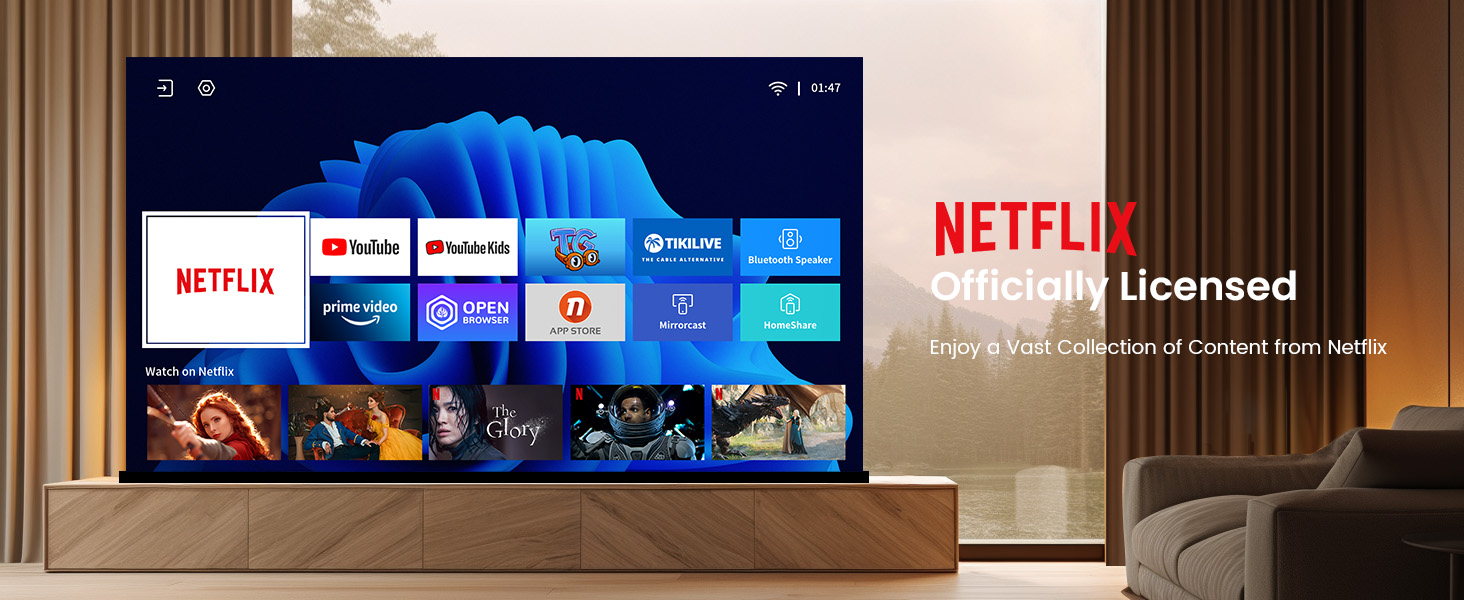
Image: Screenshot of the projector's home screen, highlighting the Netflix, YouTube, and Prime Video applications, indicating official licensing.
4. Adjusting Settings
Access the settings menu to customize your viewing experience. Key adjustments include:
- Brightness: The AI Brightness Adjustment feature identifies ambient light and automatically adjusts the image brightness. Manual adjustments are also available.
- Sound: The dual 10W speakers with Dolby Audio provide rich sound. Adjust volume and sound modes as desired. The projector operates with a noise level of less than 24dB.
- Image Mode: Select from various preset image modes or customize your own. The projector supports HDR10 and HLG for vibrant colors.

Image: Visual representation of the AI Brightness Adjustment feature, showing how the projector adapts to different lighting conditions.

Image: Diagram illustrating the internal speaker components and the concept of room-filling surround sound with Dolby Digital technology.
5. Screen Mirroring/Casting
The projector supports screen mirroring from compatible devices, allowing you to display content from your smartphone or tablet wirelessly.

Image: A person holding a smartphone, mirroring its display to the projector, showing a dog surfing on the projection surface.
Maintenance
1. Cleaning the Lens
Gently wipe the projector lens with a soft, lint-free cloth specifically designed for optical surfaces. Avoid using abrasive cleaners or excessive pressure.
2. Cleaning Vents and Exterior
Use a soft, dry cloth to clean the exterior of the projector. Periodically clear dust from the ventilation grilles using a soft brush or compressed air to ensure proper airflow and prevent overheating.
3. Lamp Life
The DBOX01 utilizes an advanced light source designed to last for 30,000 hours, significantly reducing the need for lamp replacement.

Image: Text overlay indicating "30000 Hours" against a misty forest background, representing the long lifespan of the projector's light source.
4. Storage
When not in use for extended periods, store the projector in a cool, dry place, away from direct sunlight and extreme temperatures. It is recommended to use the original packaging for storage.
Troubleshooting
If you encounter issues with your Dangbei DBOX01 projector, refer to the following common problems and solutions:
| Problem | Possible Cause | Solution |
|---|---|---|
| No image projected | Power issue, incorrect input source, lens cap on. | Check power connection. Ensure correct HDMI/USB input is selected. Remove lens cap. |
| Image is blurry/out of focus | Auto focus malfunction, projector moved. | Ensure projector is stable. The auto-focus feature should correct this automatically. If not, check for manual focus options in settings. |
| Image is distorted (trapezoid shape) | Projector not perpendicular to screen. | The 6-way auto keystone correction should automatically adjust. If needed, manually trigger keystone correction from the settings menu. |
| No sound | Volume too low, incorrect audio output, external device audio settings. | Increase volume. Check audio output settings on projector and connected devices. Ensure external speakers are properly connected if used. |
| Cannot connect to Wi-Fi/Bluetooth | Incorrect password, out of range, network issue. | Verify Wi-Fi password. Move projector closer to router. Restart router and projector. |
| Stuck pixel on screen | Hardware defect. | Contact customer support for assistance. |
For persistent issues not covered here, please refer to the official Dangbei support resources or contact customer service.
Specifications
| Feature | Detail |
|---|---|
| Brand | Dangbei |
| Model Number | DBOX01 |
| Display Resolution | 1920 x 1080 (Full HD) |
| Brightness | 2100 ISO Lumens |
| Light Source Life | 30,000 Hours |
| Audio | Dual 10W Speakers with Dolby Audio |
| Special Features | Built-In Speaker, Auto Focus, Auto Keystone Correction, Intelligent Screen Fit, Obstacle Avoidance, Built-In Wi-Fi, Built-In Media Player, Native Licensed Netflix |
| Connectivity Technology | Bluetooth, Wi-Fi, USB (x2), HDMI (x2), 3.5mm Jack, S/PDIF, LAN |
| Product Dimensions | 9.68 x 8.22 x 6.81 inches |
| Item Weight | 10.12 pounds |
| Visible Screen Diagonal | Up to 180 inches (458 cm) |
| Noise Level | Under 24dB |
Warranty and Support
Dangbei offers a hassle-free warranty for the DBOX01 projector. For specific warranty terms and conditions, please refer to the warranty card included with your product or visit the official Dangbei website.
If you require technical assistance, troubleshooting beyond this manual, or have questions regarding your product, please contact Dangbei customer support. Contact information can typically be found on the official website or in your product packaging.
Documents and downloads
Ask a question about this manual
Ask about setup, troubleshooting, compatibility, parts, safety, or missing instructions. Manuals+ will review the question and use this page’s manual context to help answer it.