1. Introduction
This manual provides essential information for setting up, operating, maintaining, and troubleshooting your MEDION ERAZER Crawler E40 gaming laptop. Please read this manual thoroughly to ensure proper use and to maximize the performance and longevity of your device.

Figure 1: Front view of the MEDION ERAZER Crawler E40 Gaming Laptop.
The MEDION ERAZER Crawler E40 is a high-performance gaming laptop designed for an immersive gaming experience. It features an Intel i5-12450H processor, 16GB DDR5 RAM, an NVIDIA GeForce RTX 4050 graphics card with 6GB VRAM, and a 512GB SSD. The 15.6-inch Full HD display boasts a 144Hz refresh rate for smooth visuals. It comes pre-installed with Windows 11 Home Plus 64-bit.
2. Initial Setup
2.1 Unpacking and First Power On
- Carefully remove the laptop and all accessories from the packaging.
- Place the laptop on a stable, flat surface.
- Connect the power adapter to the laptop's power input port and then plug it into a wall outlet.
- Open the laptop lid and press the power button, typically located above the keyboard or on the side.
- Follow the on-screen instructions to complete the initial Windows 11 setup, including language selection, network connection, and user account creation.
2.2 Connecting Peripherals
Your ERAZER Crawler E40 laptop offers various ports for connecting external devices:

Figure 2: Left side ports including USB and Ethernet.
- USB Ports: Connect USB devices such as mice, keyboards, or external storage drives. The laptop includes 1x USB 2.0, 1x USB 3.2 Gen 2 Type A, 1x USB 3.2 Gen 1 Type A, and 1x USB 3.2 Gen 2 Type C.
- HDMI Port: Connect an external monitor or TV using an HDMI cable.
- Mini DisplayPort: Connect an external display using a Mini DisplayPort cable.
- Ethernet (RJ45) Port: For a wired network connection.
- Audio Combo Jack: For connecting headphones or a headset with a combined microphone and audio jack.

Figure 3: Right side ports including USB and audio jacks.
3. Operating Instructions
3.1 Keyboard and Touchpad
The laptop features a QWERTY keyboard with backlighting. You can typically adjust the backlight intensity or turn it off using function keys (Fn + specific F-key, refer to your laptop's key legends). The integrated touchpad supports multi-touch gestures for navigation.
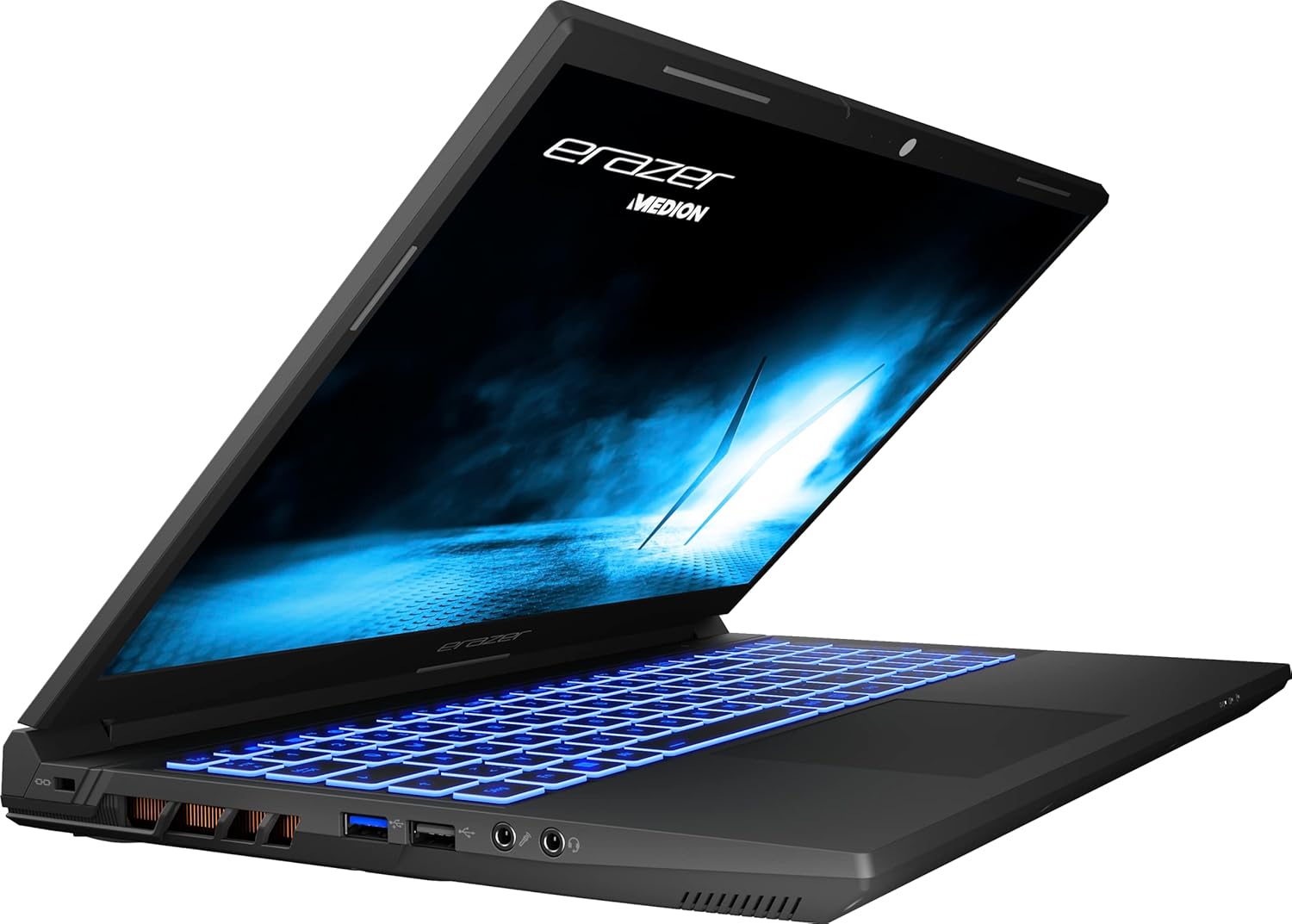
Figure 4: Keyboard and display of the ERAZER Crawler E40.
3.2 Display Settings
The 15.6-inch Full HD (1920 x 1080) display operates at a 144Hz refresh rate, providing smooth visuals, especially beneficial for gaming. You can adjust display settings, such as brightness, resolution, and refresh rate, through Windows Display Settings (Right-click on desktop > Display settings).
3.3 Wireless Connectivity
- Wi-Fi: The laptop supports Intel WiFi 6E for high-speed wireless internet access. Connect to available Wi-Fi networks via the Windows network settings.
- Bluetooth: Integrated Bluetooth 5.2 allows you to connect wireless peripherals like headphones, speakers, or game controllers. Enable Bluetooth in Windows settings to pair devices.
4. Maintenance and Care
- Cleaning: Use a soft, lint-free cloth to clean the screen and chassis. For stubborn marks, slightly dampen the cloth with water or a screen-safe cleaner. Avoid harsh chemicals.
- Ventilation: Ensure the laptop's ventilation grilles are clear of obstructions to prevent overheating. Regularly clean dust from the vents using compressed air.
- Battery Care: To prolong battery life, avoid frequently discharging the battery completely. If storing the laptop for an extended period, charge it to around 50-60%.
- Software Updates: Regularly update your operating system, drivers (especially graphics drivers), and security software to ensure optimal performance and protection.
- Storage: Store the laptop in a cool, dry place away from direct sunlight and extreme temperatures.
5. Troubleshooting
This section addresses common issues you might encounter with your MEDION ERAZER Crawler E40 laptop.
| Problem | Possible Solution |
|---|---|
| Laptop does not power on. | Ensure the power adapter is securely connected to both the laptop and a working power outlet. Check if the power outlet is functional. Try holding the power button for 15-20 seconds to perform a hard reset. |
| Display is blank or black. | Check if the laptop is powered on. Try connecting an external monitor to see if there is output. Adjust display brightness using function keys. |
| Slow performance or freezing. | Close unnecessary applications. Check Task Manager for high CPU/RAM usage. Ensure drivers are updated. Run a virus scan. Ensure adequate ventilation to prevent thermal throttling. |
| Wi-Fi or Bluetooth not working. | Ensure Wi-Fi/Bluetooth is enabled in Windows settings. Restart the laptop. Update wireless drivers. Check for physical switches or function keys that might disable wireless communication. |
| Battery drains quickly. | Adjust power settings in Windows to a more power-efficient mode. Reduce screen brightness. Close background applications. Disconnect unnecessary peripherals. |
6. Technical Specifications
| Feature | Specification |
|---|---|
| Brand | MEDION |
| Model Name | ERAZER Crawler E40 |
| Model Number | BB00188 |
| Color | Black |
| Operating System | Windows 11 Home Plus 64 Bit |
| Processor | Intel Core i5-12450H (2.0 GHz, boost up to 4.7 GHz) |
| Number of Cores | 6 |
| RAM (Installed) | 16 GB DDR5 4800MHz (2x 8GB Samsung) |
| Maximum RAM | 16 GB |
| Storage | 512 GB SSD (Phison) |
| Display Size | 15.6 Inches |
| Display Resolution | 1920 x 1080 pixels (Full HD) |
| Refresh Rate | 144 Hz |
| Graphics Card | NVIDIA GeForce RTX 4050 (6 GB VRAM) |
| Wireless Connectivity | Intel WiFi 6E, Bluetooth 5.2 |
| Ports | 1x USB 2.0, 1x USB 3.2 Gen 2 Type A, 1x USB 3.2 Gen 1 Type A, 1x USB 3.2 Gen 2 Type C, 1x Mini Display 1.4a, 1x HDMI v2.1, 1x LAN (RJ45), 1x Audio Combo (audio out & mic in) |
| Keyboard Layout | QWERTY |
| Dimensions (L x W x H) | 32.9 x 1.6 x 21.9 cm |
| Product Weight | 3.66 Kilograms |
| Battery Type | 1 Lithium-ion battery required |
7. Warranty and Support
MEDION products are backed by a manufacturer's warranty. For specific warranty terms and conditions, please refer to the documentation included with your product or visit the official MEDION support website. As MEDION is part of the Lenovo group, support resources may also be available through Lenovo channels.
For technical assistance, driver downloads, or service requests, please visit the official MEDION support portal. Have your model number (BB00188) and serial number ready when contacting support.
- Online Support: Visit the MEDION official website for FAQs, driver downloads, and contact information.
- Customer Service: Contact MEDION customer service for direct assistance.


