
Introduction
Thank you for choosing the Woox R4259 Smart Indoor Camera. This device is designed to provide reliable indoor surveillance with advanced features such as motion detection, two-way audio, and night vision. This manual will guide you through the setup, operation, and maintenance of your camera to ensure optimal performance and security for your home or business.
Package Contents
Please check the package contents carefully. If any items are missing or damaged, contact your retailer.
- 1 x Woox R4259 Smart Indoor Camera
- 1 x Power Adapter (DC 5V 1A)
- 1 x USB Type-C Cable
- 1 x User Manual
Product Overview
Familiarize yourself with the components of your Woox R4259 Smart Indoor Camera.
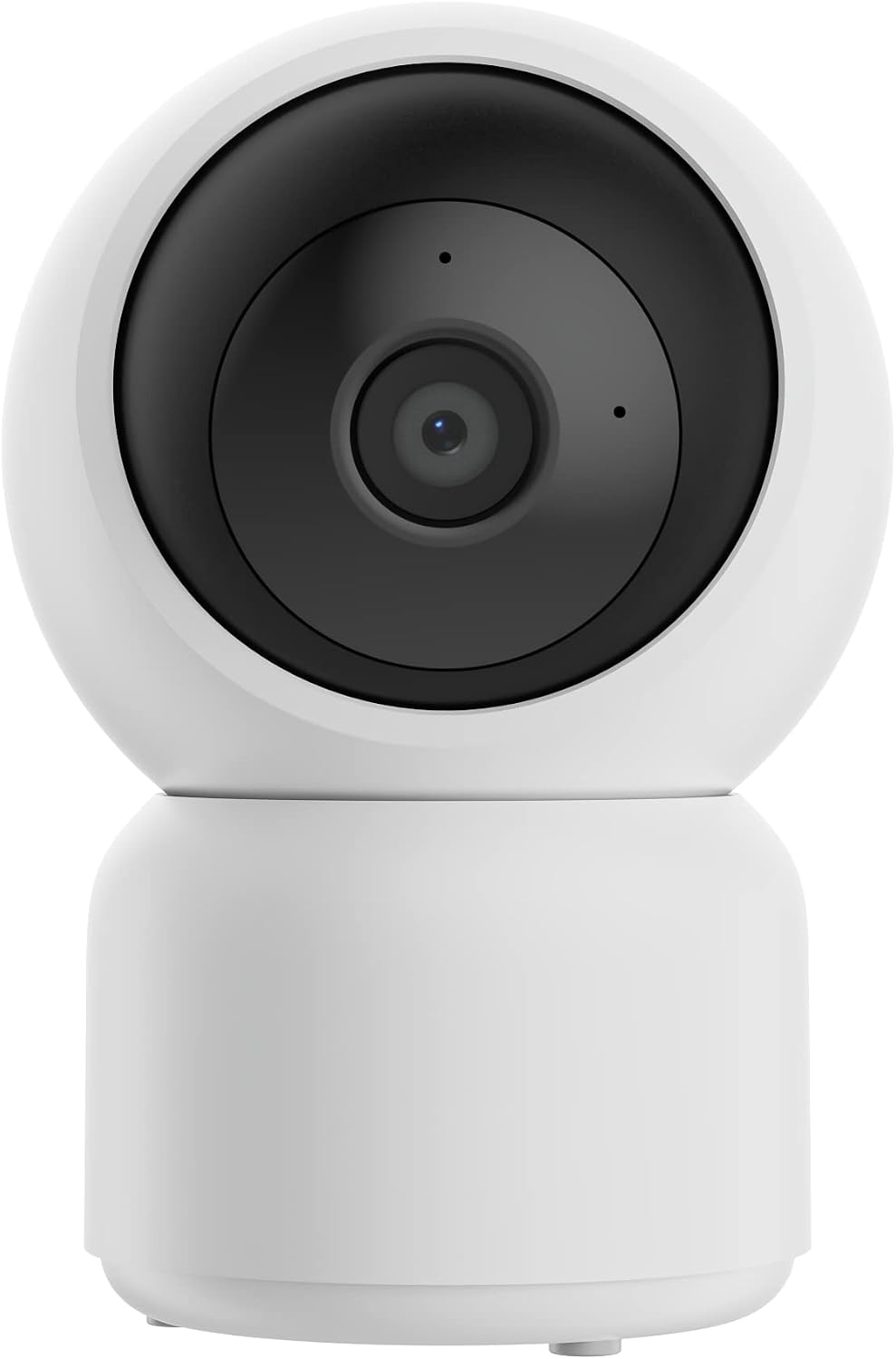
Figure 1: Front view of the camera, showing the lens and indicator light.

Figure 2: Back view of the camera, highlighting the speaker grille and USB-C power port.

Figure 3: The camera's ability to pan and tilt, providing a wide field of view.

Figure 4: Example placement of the camera in an indoor environment.
Setup
1. App Download
Download the Woox Home application from your mobile device's app store:
After installation, open the app and create a new account or log in if you already have one.
2. Device Pairing
- Connect the USB Type-C cable to the camera's power port and the power adapter. Plug the adapter into a power outlet.
- Wait for the camera's indicator light to flash, indicating it's ready for pairing.
- Open the Woox Home app, tap the "+" icon to add a new device.
- Select "Security Camera" or "Smart Camera" from the device list.
- Follow the on-screen instructions in the app to connect the camera to your Wi-Fi network. This typically involves scanning a QR code generated by the app with the camera's lens.
- Once connected, the indicator light will turn solid, and the camera will appear in your app's device list.
3. Placement
The Woox R4259 camera is designed for indoor use. It can be placed on a flat surface or mounted on a wall. Ensure the camera is placed within range of your Wi-Fi network for stable connectivity. For optimal performance, position the camera to cover the desired monitoring area without obstructions.
Operating Instructions
1. Live View
Open the Woox Home app and tap on the camera's name in your device list to access the live video feed. You can switch between HD (2304x1296) and SD (640x360) resolution for live streaming based on your network conditions.
2. Pan and Tilt Control
From the live view screen, use the directional controls within the app to remotely adjust the camera's viewing angle. The camera supports 355° horizontal pan and a vertical tilt range (down 15°, up 50°, privacy up 70°).
3. Motion Detection and Alerts
The camera features programmable motion detection. To configure:
- Navigate to the camera settings in the Woox Home app.
- Enable motion detection and adjust the sensitivity level as needed.
- Set up real-time alerts via app push notifications or email for detected motion events.
4. Video Recording
The camera supports recording video clips upon motion detection. Recordings can be stored on a local microSD card (not included) or via cloud storage (subscription may be required). Access recorded footage through the playback feature in the Woox Home app.
5. Two-Way Audio
Utilize the built-in microphone and speaker for two-way communication. From the live view, tap the microphone icon to speak through the camera, and listen to audio from the camera's environment.
6. Night Vision
The camera is equipped with two infrared (IR) lights for clear night vision in black and white mode. It has an effective IR distance of 8-10 meters (23 feet). Night vision can be set to automatic activation based on ambient light or manually controlled via the app.
Maintenance
1. Cleaning
To maintain optimal image quality, gently wipe the camera lens with a soft, dry, lint-free cloth. Do not use harsh chemicals or abrasive cleaners.
2. Firmware Updates
Periodically check for firmware updates through the Woox Home app. Keeping your camera's firmware up-to-date ensures access to the latest features, security enhancements, and bug fixes.
Troubleshooting
If you encounter issues with your Woox R4259 camera, refer to the following common solutions:
- Camera Offline: Ensure the camera is powered on and within Wi-Fi range. Check your Wi-Fi router and internet connection. Try restarting the camera by unplugging and re-plugging it.
- Unable to Pair: Make sure your Wi-Fi network is 2.4GHz (5GHz is not supported). Ensure your phone is connected to the same Wi-Fi network during pairing. Reset the camera if necessary (refer to app instructions for reset procedure).
- Poor Video Quality: Check your internet speed. If streaming in HD, try switching to SD resolution. Ensure the camera lens is clean and free from obstructions.
- Motion Detection Not Working: Verify that motion detection is enabled in the app settings and sensitivity is adjusted appropriately. Check the detection schedule if one is set.
- No Audio: Ensure the microphone and speaker functions are enabled in the app. Check your phone's volume settings.
For further assistance, consult the FAQ section within the Woox Home app or contact customer support.
Specifications
| Model | R4259 |
| Image Sensor | 1/4" 1-megapixel Progressive CMOS |
| Lens Length | 4 mm |
| Video Resolution | HD (2304 x 1296) / SD (640 x 360) |
| Effective Pixels | 3 Megapixels |
| Viewing Angle (H/V/D) | 79.5°/43.1°/93.6° |
| Pan/Tilt Angle | 355° Pan / (Down 15°, Up 50°, Privacy Up 70°) Tilt |
| Night Vision | Black and white mode, 2 IR lights, 8-10m (23 ft) IR distance, Auto/Manual IR control |
| Audio | Built-in 1W 8Ω speaker, Integrated microphone |
| Power Source | DC 5V 1A via USB (No battery included) |
| Housing Material | White ABS, UL94 V-0 fire resistance, IP20 protection |
| Connectivity | Wi-Fi (2.4GHz) |
| Mounting Type | Wall mount |
| Dimensions (L x W x H) | 7.2 x 7.25 x 11.3 cm |
| Weight | 325 grams |
| Recommended Use | Indoor Security |
| Compatible Devices | Smartphone (Android, iOS) |
| Tuya SDK Version | 4.9.10 |
Warranty Information
Woox products typically come with a limited warranty. Please refer to the warranty card included in your product packaging or visit the official Woox website for detailed warranty terms and conditions specific to your region. Keep your purchase receipt as proof of purchase for warranty claims.
Customer Support
For technical support, product inquiries, or troubleshooting assistance, please visit the Woox official website or contact their customer service team. Contact information can usually be found on the Woox website or in the Woox Home app's 'About Us' or 'Help' section.
Website: www.wooxhome.com (Please check for regional websites)