
1. Introduction
Thank you for choosing the FTes RFKits Tuya IP68 Waterproof Remote Access Control Keypad. This device provides a secure and convenient way to manage access to your property. Featuring a touch keypad with backlight, IP68 waterproof rating, and support for up to 2000 users, it integrates seamlessly with the Tuya Smart app for remote control and user management. This manual will guide you through the installation, operation, and maintenance of your new access control system.
2. Product Features
- Remote Access Control: Manage and unlock your door remotely via the Tuya Smart mobile application.
- IP68 Waterproof Rating: Designed for outdoor use, resistant to dust and water immersion.
- Touch Keypad with Backlight: Easy and clear operation even in low-light conditions.
- High User Capacity: Supports up to 2000 users for various access methods.
- Multiple Unlocking Methods: Unlock using the Tuya app, RFID cards (125 kHz), or a numerical password.
- Temporary Password Generation: Create time-limited access codes for guests or service personnel.
- WG26/34 Support: Compatible with standard Wiegand protocols for integration with other access control systems.

The access control keypad features a touch-sensitive interface with numerical buttons and a bell icon. It supports unlocking via the Tuya app, RFID cards, and password entry. The image shows the keypad alongside a smartphone displaying the Tuya app for remote access.

This image highlights the IP68 waterproof capability of the access control keypad, showing water droplets on its surface. A close-up inset reveals the internal wiring, indicating robust sealing for outdoor use.
3. Setup and Installation
3.1 Wiring Diagram
Before installation, ensure the power supply is disconnected. Refer to the wiring diagram provided with your product for correct connections. Incorrect wiring can damage the device or connected components.
3.2 Mounting the Keypad
- Choose a suitable mounting location, preferably near the door and protected from direct impact.
- Drill holes according to the mounting template (if provided) and insert wall plugs.
- Secure the backplate of the keypad to the wall using screws.
- Connect the necessary wires (power, lock, exit button, etc.) to the keypad terminals.
- Attach the keypad unit to the backplate and secure it.
- Apply power and test the system.
4. Operating Instructions
4.1 Initial Power-Up
Upon first power-up, the keypad will typically enter a default programming mode or require an initial administrator setup. Refer to the quick start guide for setting the initial administrator password.
4.2 Unlocking Methods

This visual guide illustrates the various methods for unlocking the door using the FTes RFKits access control system. Options include remote unlocking via the Tuya app, temporary password generation for guests, RFID key card access, direct password entry on the keypad, and a combination of RFID key and password for enhanced security.
- Via Tuya App: Open the Tuya Smart app, select your access control device, and tap the unlock button.
- Via RFID Card: Present a registered 125 kHz RFID card or keyfob to the card reader area on the keypad.
- Via Password: Enter your registered numerical password followed by the '#' key.
- Via RFID Card + Password: For enhanced security, some configurations may require presenting an RFID card followed by entering a password.
4.3 Keypad Backlight

The image displays the access control keypad with its blue backlight activated, making the digits clearly visible in low-light conditions. It points out the 'Work Indicator' and 'the backlight number key' for easy identification.
The keypad features a blue backlight that illuminates the digits, ensuring visibility and ease of use in dark environments. The backlight typically activates upon touch or proximity and may have adjustable duration settings via the app or programming menu.
5. User Management
5.1 Tuya Smart App Download
To manage users and settings, download the Tuya Smart app:
- Scan the QR code provided in the product packaging or search for "Tuya Smart" in your app store.
- Alternatively, download from: http://smart.tuya.com/download

This image provides a step-by-step visual for setting up and managing the access control system via the Tuya Smart app. It shows how to scan a QR code to download the app, manage user settings (administrator/ordinary member), add effective users, share temporary passwords, and view access history logs.
5.2 Adding/Deleting Users
Within the Tuya Smart app, navigate to your device settings. You can add new users by assigning them RFID cards or unique passwords. You can also delete existing users or modify their access permissions (e.g., administrator vs. ordinary member).
5.3 Temporary Passwords
The app allows you to generate temporary passwords with specific validity periods. This is useful for granting access to visitors, delivery personnel, or maintenance staff for a limited time.
5.4 Access Logs
The Tuya Smart app maintains a record of all access events, including successful entries and failed attempts. This log can be reviewed for security monitoring and auditing purposes.
6. Specifications
| Feature | Detail |
|---|---|
| Brand | FTes RFKits |
| Model Number | ID 125KHz |
| Product Dimensions | 13 x 3 x 10 cm |
| Weight | 260 grams |
| Power Type | Electric Cable |
| Voltage | 12 Volts |
| Waterproof Rating | IP68 |
| User Capacity | Up to 2000 users |
| RFID Frequency | 125 KHz |
| Included Components | Mounting Accessories (Pads) |
| Batteries Required | No |
6.1 RFID Keyfobs Specifications
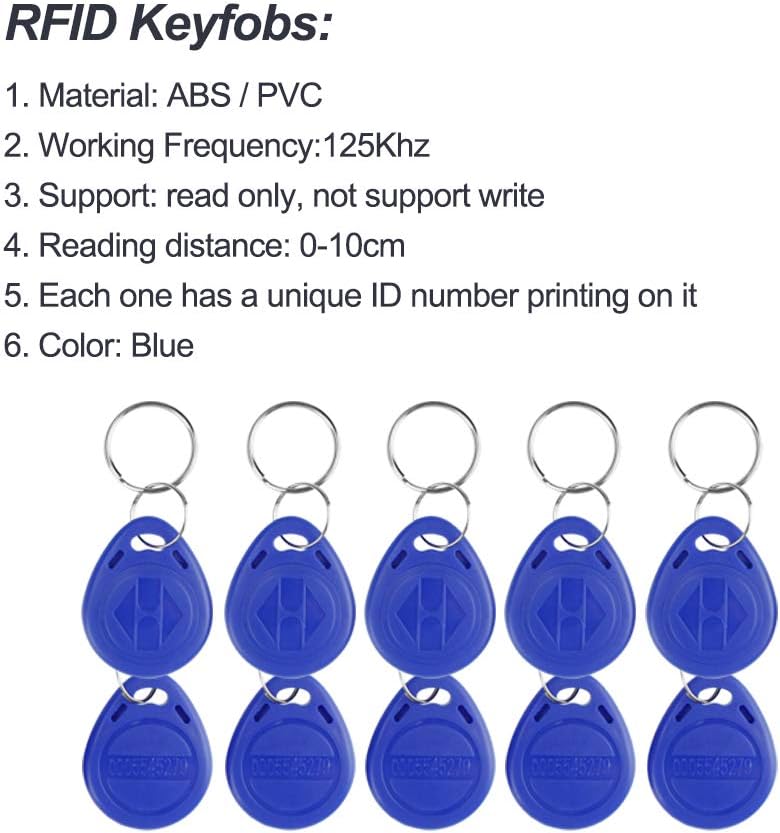
A set of blue RFID keyfobs is shown, accompanied by a list of their specifications: Material (ABS/PVC), Working Frequency (125KHz), Support (read only), Reading distance (0-10cm), Unique ID number, and Color (Blue).
- Material: ABS / PVC
- Working Frequency: 125KHz
- Support: Read only (not writable)
- Reading Distance: 0-10cm
- Unique ID: Each keyfob has a unique ID number printed on it.
- Color: Blue
7. Maintenance
- Cleaning: Wipe the keypad surface with a soft, damp cloth. Avoid abrasive cleaners or solvents.
- Inspection: Periodically check wiring connections for any signs of wear or damage.
- Software Updates: Ensure your Tuya Smart app and device firmware are up to date for optimal performance and security.
- Environmental Protection: While IP68 rated, avoid prolonged exposure to extreme weather conditions or direct high-pressure water jets.
8. Troubleshooting
- Keypad Unresponsive:
Check power supply connections. Ensure the keypad is receiving adequate power (12 Volts). If the backlight is off, it may indicate a power issue.
- RFID Card Not Working:
Ensure the RFID card is correctly registered in the system. Verify it is a 125 kHz card. Present the card firmly and close to the reader area.
- Password Not Accepted:
Double-check the entered password for accuracy. Ensure the '#' key is pressed after the password. Verify the user's password has not expired or been deactivated.
- Door Not Unlocking:
Check the connection to the electric lock. Ensure the lock mechanism is not jammed. Verify the unlock duration setting in the system.
- Tuya App Connection Issues:
Ensure your smartphone has a stable internet connection. Verify the access control device is connected to your Wi-Fi network. Restart the app and the device if necessary.
- Backlight Not Working:
Check power supply. If the keypad functions otherwise, check for backlight settings in the programming menu or Tuya app.
If you encounter persistent issues, please refer to the support section or contact customer service.
9. Warranty and Support
- Quality Guarantee: This product comes with a 2-Year Quality Guarantee.
- Return Policy: Enjoy a 30-Day Free Return Policy.
- Customer Service: 7/24 Customer Service is available to assist you.
- After-Sale Support: For any after-sale inquiries, please contact Service@acyitoo.com.

This image summarizes the customer support and warranty information, including 24/7 customer service, a 30-day free return policy, a 2-year quality guarantee, and contact details for after-sale support.