
X88 X96Q-16G
X96Q Android TV Box
User Manual
Brand: X88 | Model: X96Q-16G
1. Introduction
Welcome to the user manual for your new X96Q Android TV Box. This guide provides detailed instructions to help you set up, operate, maintain, and troubleshoot your device, ensuring you get the most out of its advanced features. The X96Q Android TV Box is designed to enhance your home entertainment experience with its powerful performance and versatile connectivity.
Key Features:
- Latest Android 10.0 & Powerful CPU: Equipped with Android 10.0 OS and Allwinner H313 64-bit Quad-Core ARM Cortex-A53 CPU for faster processing and smoother operation.
- WIFI & Dual ANTENNA: Features stable and fast 2.4GHZ WiFi and 10/100M Ethernet LAN, with internal and external antennas for optimal signal reception.
- 2GB RAM + 16GB ROM: Upgraded high-speed flash memory to prevent crashes and support pre-installed apps like YouTube, Facebook, and Chrome. Expandable storage via Extra Hard Drive or TF Card.
- Support 3D 4K H.265 & USB2.0: Decodes and plays popular audio/video formats, delivering true-to-life 4K@60fps HD video and 3D content. High-speed USB 2.0 for fast data transfer.
- Enhances Privacy Function: Android 10 prioritizes user privacy, offering more control over app permissions.
2. Package Contents
Please verify that all items listed below are included in your package:
- X96Q Android TV Box Device
- Remote Control (Batteries not included)
- Power Supply Adapter
- HD Data Cable (HDMI Cable)
- User Manual

Figure 2.1: Contents of the X96Q Android TV Box package.
Unboxing Video
Video 2.2: An unboxing video demonstrating the contents of the X96Q Android TV Box package and initial handling of the device.
3. Product Overview
The X96Q Android TV Box features a compact and sleek design, integrating all necessary ports for a comprehensive media experience. Understanding the layout of the device's interfaces is crucial for proper setup and usage.

Figure 3.1: Detailed view of the X96Q Android TV Box interfaces.
Interface Descriptions:
- DC: Power line interface for connecting the power adapter.
- ETHERNET: Network cable interface for wired internet connection.
- HDMI: HDMI cable interface for connecting to your TV or display.
- AV: Plug in the AV cable and connect to older TVs.
- IR: IR cable interface for external IR receiver.
- USB: Two USB interfaces for connecting external devices like USB drives or keyboards.
- CARD: Card slot for expanding storage with a TF card.
4. Setup Guide
Follow these simple steps to get your X96Q Android TV Box up and running:
- Connect to TV: Connect the HD Data Cable (HDMI cable) from the HDMI port on the TV Box to an available HDMI input on your television.
- Connect Power: Plug the power adapter into the DC port on the TV Box, then plug the adapter into a wall outlet.
- Connect to Internet: For wired connection, plug an Ethernet cable into the ETHERNET port. For wireless connection, ensure your Wi-Fi network is available and you have the password ready.
- Power On: Turn on your TV and select the correct HDMI input source. The TV Box should automatically power on and display the boot screen.
- Initial Setup: Follow the on-screen prompts to complete the initial setup, including language selection, network configuration, and Google account login.

Figure 4.1: Visual guide for quick setup of the TV Box.
5. Operating Instructions
Once set up, your X96Q Android TV Box offers a wide range of entertainment options. Use the provided remote control to navigate the interface.
Navigation and Apps
The home screen provides access to pre-installed applications like YouTube, Facebook, and Chrome. You can download more apps from the Google Play Store. Use the directional buttons on the remote to move between icons and the OK button to select.
Video and Audio Playback
The X96Q supports 4K@60fps video playback and H.265 decoding, providing a high-quality viewing experience. It also supports 3D content for immersive entertainment.

Figure 5.1: HDR to SDR optimization for enhanced video quality.

Figure 5.2: Demonstration of 3D noise reduction for clearer images.

Figure 5.3: Debounce feature for stable and smooth viewing.

Figure 5.4: The TV Box supports 3D content for an immersive experience.
Wireless Connectivity
The device supports 2.4GHz Wi-Fi for stable wireless internet access. You can also cast content from your mobile devices to the TV using DLNA, Miracast, or Airplay.

Figure 5.5: 2.4GHz Wi-Fi support for reliable wireless connection.
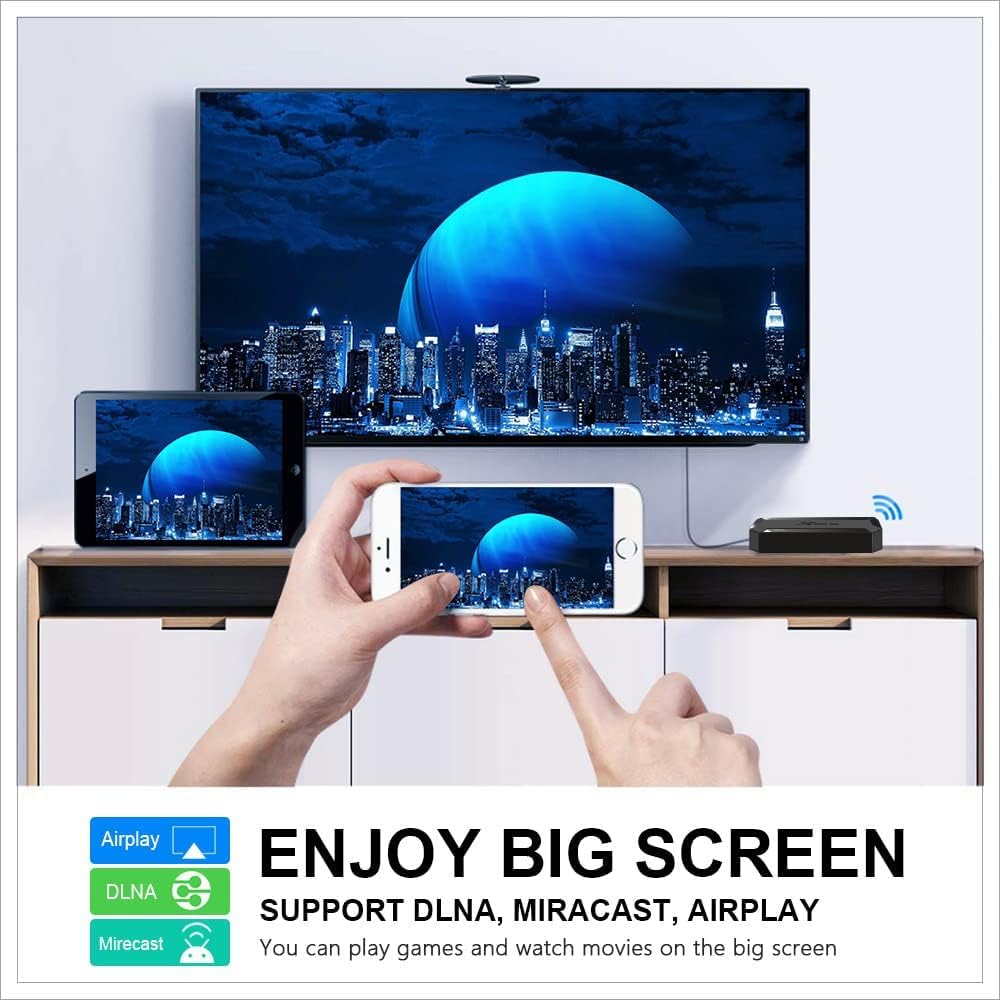
Figure 5.6: Enjoy content on a big screen with DLNA, Miracast, and Airplay support.
Android 10 Interface
Experience the latest Android 10.0 operating system, optimized for smart TV boxes, offering improved performance and privacy features.

Figure 5.7: The X96Q runs on Android 10.
Product Overview Video
Video 5.8: A video showcasing the features and capabilities of the X96Q Android TV Box.
6. Maintenance
Proper maintenance ensures the longevity and optimal performance of your X96Q Android TV Box.
- Cleaning: Use a soft, dry cloth to clean the device. Avoid liquid cleaners or abrasive materials.
- Ventilation: Ensure the device is placed in a well-ventilated area to prevent overheating. Do not block the ventilation holes.
- Software Updates: Periodically check for system updates in the device settings to ensure you have the latest features and security patches.
- Storage Management: Regularly clear cache and unnecessary files to free up storage space and maintain smooth operation.
- Power Off Properly: Always power off the device correctly through the system menu before unplugging it.
7. Troubleshooting
If you encounter issues with your X96Q Android TV Box, refer to the common problems and solutions below:
| Problem | Possible Cause | Solution |
|---|---|---|
| No Power | Power adapter not connected or faulty. | Check power connections. Ensure the power adapter is securely plugged into the device and a working power outlet. |
| No Signal on TV | Incorrect HDMI input selected or faulty HDMI cable. | Verify your TV is set to the correct HDMI input. Try a different HDMI port or cable. |
| Wi-Fi Connection Issues | Incorrect Wi-Fi password, weak signal, or router issues. | Double-check the Wi-Fi password. Move the device closer to the router. Restart your router and the TV Box. |
| Apps Crashing/Freezing | Insufficient memory, outdated app, or system bug. | Close background apps. Clear app cache. Update the app or the system firmware. Restart the device. |
| Remote Control Not Working | Low battery or IR sensor blocked. | Replace batteries in the remote. Ensure no obstructions between the remote and the TV Box's IR sensor. |
8. Specifications
Detailed technical specifications for the X96Q Android TV Box:
| Feature | Specification |
|---|---|
| Brand Name | X88 |
| Item Weight | 10.6 ounces |
| Product Dimensions | 3.54 x 3.54 x 0.79 inches |
| Country of Origin | China |
| Item Model Number | X96Q-16G |
| Color Name | Black |
| Special Features | Miracast |
| Connectivity Technology | Wi-Fi, USB, Ethernet, HDMI |
| Connector Type | Micro USB |
| Resolution | 4K |
| Supported Internet Services | Play Store, YouTube, Browser etc |
| Controller Type | Remote Control |
| Form Factor | TV Box |
9. Warranty Information
This X96Q Android TV Box comes with a standard manufacturer's warranty. Please refer to the warranty card included in your package for specific terms, conditions, and duration. Keep your purchase receipt as proof of purchase for any warranty claims.
10. Customer Support
For further assistance, technical support, or inquiries not covered in this manual, please contact our customer support team. Refer to the contact information provided on the product packaging or our official website.
We are committed to providing you with the best possible experience with your X96Q Android TV Box.
Related documentsX96Q-16G


Ask a question about this manual
Ask about setup, troubleshooting, compatibility, parts, safety, or missing instructions. Manuals+ will review the question and use this page’s manual context to help answer it.