
TECURS B0C5QJ6F34
TECURS Wireless Gaming Keyboard
User Manual
Product Overview
The TECURS Wireless Gaming Keyboard is designed for an optimal typing and gaming experience. It features advanced 2.4 GHz wireless technology for stable and fast data transmission, ensuring no delays or drops within a 33-foot range. The keyboard utilizes silent membrane technology, providing a responsive typing experience with minimal noise, ideal for quiet environments. Its full-size, ergonomic design includes an inclination angle for comfortable typing during extended use. Dedicated multimedia keys offer convenient control over media functions, and the monochromatic backlight with adjustable brightness enhances visibility in various lighting conditions. This keyboard is widely compatible with Windows XP, Windows 8, and Windows 10 operating systems, making it suitable for desktops, laptops, and other devices.

Image: The TECURS Wireless Gaming Keyboard, showcasing its full-size layout with vibrant, multi-color backlighting. A compact USB receiver is visible to the right of the keyboard, indicating its wireless connectivity.
Setup and Installation
Setting up your TECURS Wireless Gaming Keyboard is a straightforward process, designed for quick plug-and-play functionality.
- Unpack the Keyboard: Carefully remove the keyboard and the USB receiver from its packaging.
- Locate the USB Receiver: The compact USB receiver is typically stored in a compartment on the keyboard or included separately in the box.
- Connect the Receiver: Insert the USB receiver into an available USB port on your computer (desktop or laptop).
- Power On the Keyboard: Ensure the keyboard is charged or has sufficient battery. There might be a power switch on the keyboard; turn it to the 'ON' position if present.
- Automatic Connection: The keyboard should automatically connect to your computer within a few seconds. No additional drivers are typically required for basic functionality.
- Initial Charge: For optimal performance, it is recommended to fully charge the keyboard before its first use. Use the provided USB charging cable to connect the keyboard to a USB power source.
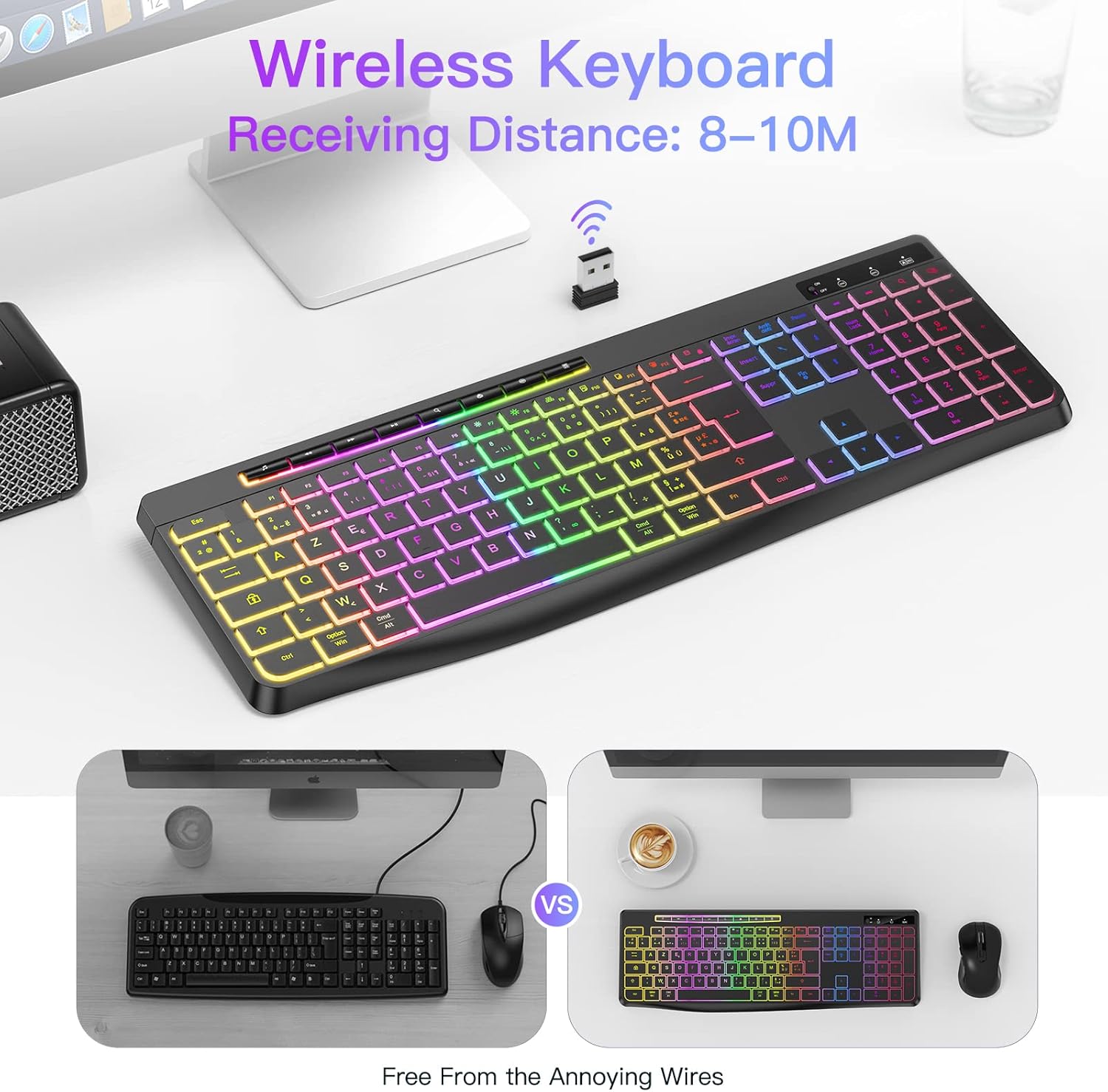
Image: The TECURS Wireless Keyboard positioned on a desk, with its USB receiver prominently displayed. An icon above the receiver indicates a wireless signal, illustrating the 8-10 meter receiving distance.
Operating Instructions
Basic Usage
Once connected, the keyboard functions like a standard full-size keyboard. Its silent membrane keys provide a comfortable and quiet typing experience, suitable for various environments.

Image: A person's hands are shown typing on the TECURS keyboard, which features colorful backlighting. The image emphasizes the low noise operation, with a muted speaker icon, suggesting its suitability for quiet environments like a bedroom where a child is sleeping in the background.
Multimedia Keys
The keyboard includes dedicated multimedia keys for quick access to media controls. These keys are typically located along the top row (F-keys) and can be activated directly or by pressing the Fn key in combination with the respective F-key.
- Volume Control: Adjust volume up, down, or mute.
- Media Playback: Play/pause, stop, previous track, next track.
- Other Functions: Access calculator, web browser, email, etc. (refer to keyboard legends for specific functions).

Image: A detailed view of the keyboard highlighting its dimensions (437mm length, 149mm width, 20mm thickness) and key features. Insets show compatibility with Mac/Windows, the row of individual multimedia buttons, and the adjustable stand at the back of the keyboard.
Backlight Control
The keyboard features a monochromatic backlight with adjustable brightness. This allows you to customize the illumination to suit your environment and preference.
- Toggle Backlight: Use the dedicated backlight key (often indicated by a light bulb icon or combined with Fn + Scroll Lock or similar) to turn the backlight on/off.
- Adjust Brightness: Use the brightness control keys (often Fn + Page Up / Page Down or similar) to increase or decrease the backlight intensity.
Note: The backlight may automatically turn off after a period of inactivity to conserve battery. Press any key to reactivate it.

Image: A split image demonstrating the keyboard's backlight feature. The left side shows the keyboard with the backlight off, indicating a "Backlight 15 Days" battery life. The right side shows the keyboard with the backlight on, indicating "Light on 10 Hours" battery life, with a 1000mAh battery icon at the top.
Maintenance and Care
Proper maintenance ensures the longevity and optimal performance of your TECURS Wireless Gaming Keyboard.
- Cleaning:
- Disconnect the keyboard from your computer before cleaning.
- Use a soft, lint-free cloth slightly dampened with water or a mild cleaning solution to wipe the surface.
- Avoid harsh chemicals, abrasive cleaners, or excessive moisture.
- Use compressed air to remove dust and debris from between the keys.
- Battery Care:
- The keyboard uses a rechargeable Lithium-ion battery.
- Avoid fully discharging the battery frequently to prolong its lifespan.
- Charge the keyboard using the provided USB cable and a standard USB power source.
- If storing the keyboard for an extended period, charge it to about 50% and store in a cool, dry place.
- Storage: Store the keyboard in a clean, dry environment away from extreme temperatures and direct sunlight.
Troubleshooting
If you encounter issues with your TECURS Wireless Gaming Keyboard, refer to the following common troubleshooting steps:
| Problem | Possible Solution |
|---|---|
| Keyboard not responding / No connection. |
|
| Backlight not working or dim. |
|
| Keys are sticky or unresponsive. |
|
Product Specifications
| Feature | Detail |
|---|---|
| Brand | TECURS |
| Model Number | B0C5QJ6F34 |
| Color | Black |
| Connectivity Technology | 2.4 GHz Wireless (USB Receiver) |
| Operating System Compatibility | Windows XP, Windows 8, Windows 10 |
| Compatible Devices | Gaming Console, Laptop, PC |
| Keyboard Description | Membrane |
| Special Features | Multimedia Shortcuts, Backlit |
| Number of Keys | 104 |
| Backlight Color Management | Single Color (Monochromatic) |
| Battery Type | Lithium-ion (Rechargeable) |
| Key Life | 50,000,000 clicks |
Warranty and Support
For warranty information, technical support, or any inquiries regarding your TECURS Wireless Gaming Keyboard, please contact TECURS customer service directly. Details can typically be found on the product packaging, the official TECURS website, or through the retailer where the product was purchased.
The manufacturer, TECURS, is committed to providing quality products and support to its customers.
Related documentsB0C5QJ6F34


Ask a question about this manual
Ask about setup, troubleshooting, compatibility, parts, safety, or missing instructions. Manuals+ will review the question and use this page’s manual context to help answer it.