
Sealy SL-HW-SN-110-BK
Sealy SL-HW-SN-110-BK Bluetooth Sleep Mask User Manual
Model: SL-HW-SN-110-BK
1. Introduction
Thank you for choosing the Sealy SL-HW-SN-110-BK Bluetooth Sleep Mask. This device combines the comfort of a memory foam sleep mask with integrated Bluetooth headphones, offering a serene environment for rest. It features 20 built-in soothing sounds and allows streaming audio from your Bluetooth-enabled devices. Please read this manual thoroughly before use to ensure proper operation and maintenance.
2. Safety Information
- Do not expose the device to extreme temperatures, moisture, or direct sunlight.
- Keep away from children.
- Do not attempt to disassemble or repair the device yourself. This will void the warranty.
- Use only the provided charging cable or a certified equivalent.
- Avoid using the sleep mask in situations where hearing ambient sounds is critical for safety (e.g., driving, operating machinery).
- If you experience any discomfort or irritation, discontinue use.
3. Package Contents
Please check that all items are present in your package:
- Sealy SL-HW-SN-110-BK Bluetooth Sleep Mask
- USB Charging Cable
- Travel Pouch
- User Manual (this document)

Image: Product packaging illustrating the sleep mask and its key features.
4. Product Features
- Integrated Bluetooth Headphones: Seamlessly connect to your smartphone or other Bluetooth-enabled devices for audio streaming.
- 20 Built-in Soothing Sounds: Choose from a variety of pre-loaded sounds designed to aid relaxation and sleep.
- Memory Foam Comfort: Crafted with soft memory foam for a comfortable and light-blocking fit.
- Adjustable Timer Settings: Set the mask to automatically turn off after 30, 60, or 90 minutes.
- Rechargeable Battery: Enjoy wireless use with a convenient rechargeable power source.
- Hands-Free Calling: Built-in microphone allows for answering calls while connected via Bluetooth.
5. Setup
5.1 Charging the Sleep Mask
- Locate the charging port on the control panel of the sleep mask.
- Connect the small end of the USB charging cable to the mask's charging port.
- Connect the larger end of the USB charging cable to a USB power adapter (not included) or a computer's USB port.
- The LED indicator light on the control panel will illuminate during charging. It will change color or turn off once fully charged.
- A full charge typically takes approximately 2-3 hours.
5.2 Powering On/Off
- To Power On: Press and hold the ON/OFF button (usually the center button) for approximately 3 seconds until you hear an audible prompt or see the LED indicator light flash.
- To Power Off: Press and hold the ON/OFF button for approximately 3 seconds until you hear an audible prompt or the LED indicator light turns off.
5.3 Bluetooth Pairing
To connect your sleep mask to a Bluetooth-enabled device (e.g., smartphone, tablet):
- Ensure the sleep mask is fully charged and powered off.
- Place the sleep mask and your Bluetooth device within 1 meter (3 feet) of each other.
- Press and hold the ON/OFF button for approximately 5-7 seconds. The LED indicator light will flash rapidly, indicating it is in pairing mode.
- On your Bluetooth device, go to the Bluetooth settings and ensure Bluetooth is enabled.
- Search for available devices. You should see "Sealy Sleep Mask" or a similar name appear in the list.
- Select "Sealy Sleep Mask" to connect. Once paired, the LED indicator light will flash slowly or turn solid, and you may hear a confirmation tone.
- If pairing fails, power off the mask, disable and re-enable Bluetooth on your device, and repeat the steps.
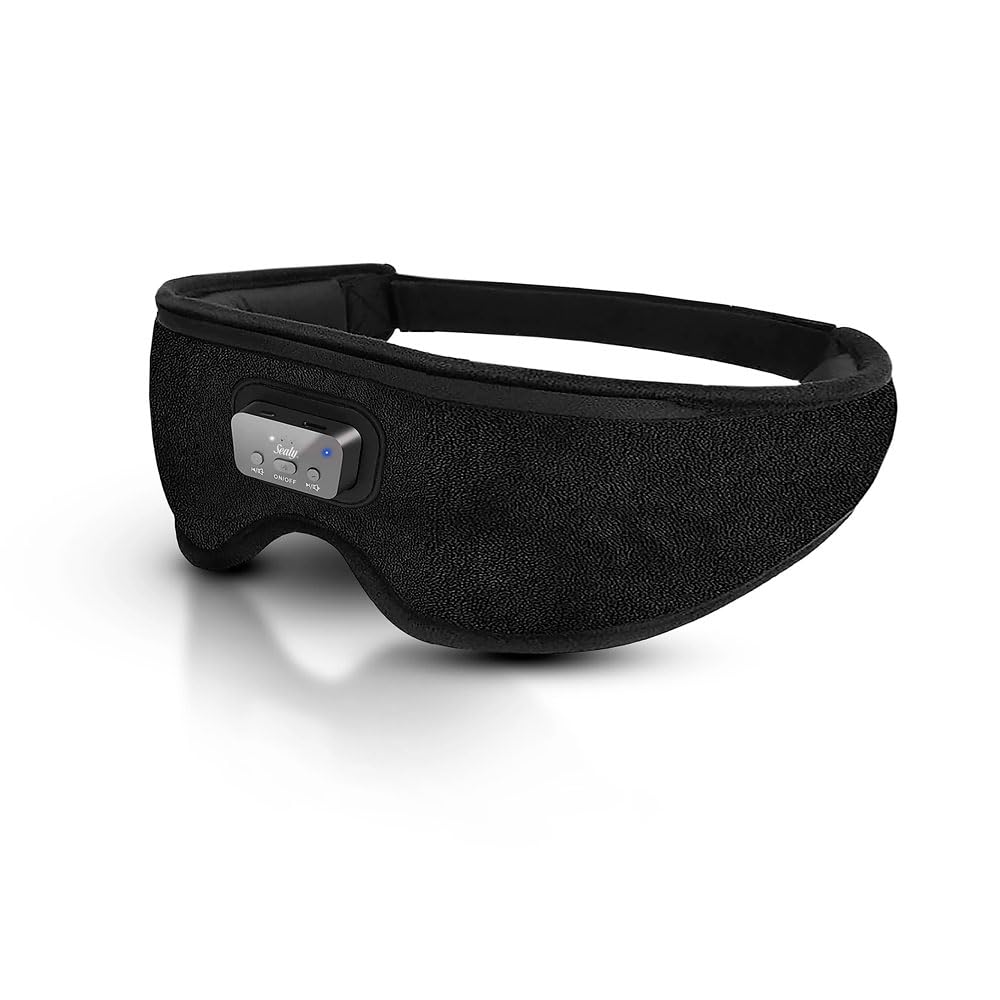
Image: Close-up of the Sealy Bluetooth Sleep Mask showing the integrated control panel.
6. Operating Instructions
6.1 Control Panel Overview
The control panel on the front of the sleep mask features several buttons:
- MODE Button: Switches between built-in sounds and Bluetooth audio mode.
- ON/OFF Button (Center): Powers the device on/off, plays/pauses audio, answers/ends calls.
- Volume Up / Next Track Button: Increases volume (short press) or skips to the next track/sound (long press).
- Volume Down / Previous Track Button: Decreases volume (short press) or goes to the previous track/sound (long press).
- MIC Icon: Indicates the location of the built-in microphone for calls.
6.2 Playing Built-in Soothing Sounds
- Ensure the mask is powered on.
- Press the MODE button until you hear an indication that you are in built-in sound mode.
- Use the Volume Up / Next Track and Volume Down / Previous Track buttons (long press) to cycle through the 20 available sounds.
- Press the ON/OFF button to play or pause the current sound.
6.3 Playing Bluetooth Audio
- Ensure the mask is powered on and successfully paired with your Bluetooth device (refer to Section 5.3).
- Press the MODE button until you hear an indication that you are in Bluetooth audio mode.
- Start playing audio from your connected device (e.g., music, podcast, audiobook).
- Use the ON/OFF button to play or pause the audio.
- Use the Volume Up / Next Track and Volume Down / Previous Track buttons to control playback.
6.4 Adjusting Volume
While audio is playing (either built-in sounds or Bluetooth audio):
- Increase Volume: Short press the Volume Up / Next Track button.
- Decrease Volume: Short press the Volume Down / Previous Track button.
6.5 Using the Sleep Timer
The sleep mask features 3 timer settings: 30, 60, and 90 minutes. The timer function is typically activated by a specific button press, often a long press on the MODE button or a dedicated timer button if present.
- While audio is playing, long press the MODE button (or refer to specific product instructions if a dedicated timer button exists).
- Each long press should cycle through the timer options (30 min, 60 min, 90 min, Timer Off). An audible prompt will confirm the selected timer duration.
- The mask will automatically power off after the selected time has elapsed.
6.6 Answering/Ending Calls
When connected to a smartphone via Bluetooth:
- To Answer a Call: Short press the ON/OFF button when an incoming call rings.
- To End a Call: Short press the ON/OFF button during a call.
- To Reject a Call: Long press the ON/OFF button when an incoming call rings.
7. Maintenance
7.1 Cleaning the Sleep Mask
To maintain hygiene and prolong the life of your sleep mask:
- Ensure the mask is powered off and disconnected from any charging source.
- The electronic components (speakers, control panel) are not waterproof. Do not submerge the mask in water.
- Gently wipe the fabric exterior with a slightly damp cloth and mild soap. Avoid getting moisture into the control panel or speaker areas.
- Allow the mask to air dry completely before use or storage.
- Do not use harsh chemicals, abrasive cleaners, or machine wash the mask.
7.2 Storage
- Store the sleep mask in a cool, dry place, away from direct sunlight and extreme temperatures.
- Use the provided travel pouch to protect the mask when not in use or during travel.
8. Troubleshooting
| Problem | Possible Cause | Solution |
|---|---|---|
| Device will not power on. | Low battery. | Charge the sleep mask fully (refer to Section 5.1). |
| Cannot pair with Bluetooth device. | Mask not in pairing mode; Bluetooth off on device; device too far; interference. |
|
| No sound or low volume. | Volume too low; mask not connected; wrong mode selected. |
|
| Audio cuts out or is distorted. | Distance from device; interference; low battery. |
|
9. Specifications
| Model Number: | SL-HW-SN-110-BK |
| Brand: | Sealy |
| Material: | Memory Foam |
| Connectivity: | Bluetooth |
| Built-in Sounds: | 20 |
| Timer Settings: | 30, 60, 90 minutes |
| Power Source: | Rechargeable Battery |
| Age Range: | Adult |
10. Warranty and Support
Sealy products are manufactured to high-quality standards. This product comes with a limited warranty against defects in materials and workmanship. For specific warranty details, please refer to the warranty card included with your purchase or visit the official Sealy website.
If you encounter any issues or have questions regarding your Sealy SL-HW-SN-110-BK Bluetooth Sleep Mask, please contact Sealy customer support through their official channels. Contact information can typically be found on the product packaging or the brand's website.
Ask a question about this manual
Ask about setup, troubleshooting, compatibility, parts, safety, or missing instructions. Manuals+ will review the question and use this page’s manual context to help answer it.